GSP119

Overview
The Speech-to-Text API enables easy integration of Google speech recognition technologies into developer applications. The Speech-to-Text API allows you to send audio and receive a text transcription from the service.
What you'll learn
In this lab, you learn how to:
- Create an API key.
- Create a Speech-to-Text API request.
- Call the Speech-to-Text API.
Setup and requirements
Before you click the Start Lab button
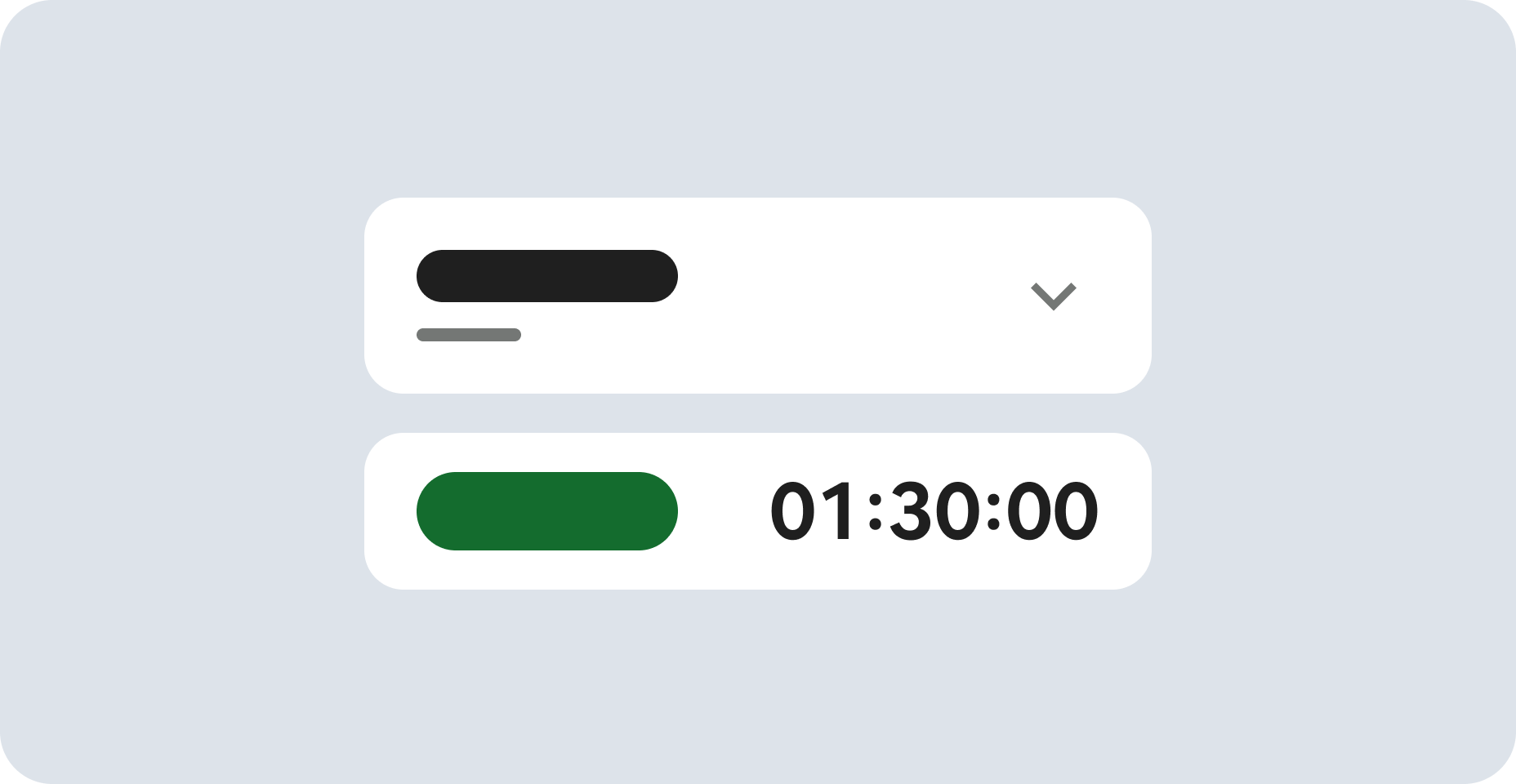
Read these instructions. Labs are timed and you cannot pause them. The timer, which starts when you click Start Lab, shows how long Google Cloud resources are made available to you.
This hands-on lab lets you do the lab activities in a real cloud environment, not in a simulation or demo environment. It does so by giving you new, temporary credentials you use to sign in and access Google Cloud for the duration of the lab.
To complete this lab, you need:
- Access to a standard internet browser (Chrome browser recommended).
Note: Use an Incognito (recommended) or private browser window to run this lab. This prevents conflicts between your personal account and the student account, which may cause extra charges incurred to your personal account.
- Time to complete the lab—remember, once you start, you cannot pause a lab.
Note: Use only the student account for this lab. If you use a different Google Cloud account, you may incur charges to that account.
How to start your lab and sign in to the Google Cloud console
-
Click the Start Lab button. If you need to pay for the lab, a dialog opens for you to select your payment method.
On the right is the Lab setup and access panel with the following:
- The Open Google Cloud console button
- The temporary credentials (username and password) that you must use for this lab
- Other information, if needed, to step through this lab
Note that the lab timer is located near the top of the page, showing the remaining time.
-
Click Open Google Cloud console (or right-click and select Open Link in Incognito Window if you are running the Chrome browser).
The lab spins up resources, and then opens another tab that shows the Sign in page.
Tip: Arrange the tabs in separate windows, side-by-side.
Note: If you see the Choose an account dialog, click Use Another Account.
-
If necessary, copy the Username below and paste it into the Sign in dialog.
{{{user_0.username | "Username"}}}
You can also find the Username in the Lab setup and access panel.
-
Click Next.
-
Copy the Password below and paste it into the Welcome dialog.
{{{user_0.password | "Password"}}}
You can also find the Password in the Lab setup and access panel.
-
Click Next.
Important: You must use the credentials the lab provides you. Do not use your Google Cloud account credentials.
Note: Using your own Google Cloud account for this lab may incur extra charges.
-
Click through the subsequent pages:
- Accept the terms and conditions.
- Do not add recovery options or two-factor authentication (because this is a temporary account).
- Do not sign up for free trials.
After a few moments, the Google Cloud console opens in this tab.
Note: To access Google Cloud products and services, click the Navigation menu or type the service or product name in the Search field.

Activate Cloud Shell
Cloud Shell is a virtual machine that is loaded with development tools. It offers a persistent 5GB home directory and runs on the Google Cloud. Cloud Shell provides command-line access to your Google Cloud resources.
-
Click Activate Cloud Shell  at the top of the Google Cloud console.
-
Click through the following windows:
- Continue through the Cloud Shell information window.
- Authorize Cloud Shell to use your credentials to make Google Cloud API calls.
When you are connected, you are already authenticated, and the project is set to your Project_ID, . The output contains a line that declares the Project_ID for this session:
Your Cloud Platform project in this session is set to {{{project_0.project_id | "PROJECT_ID"}}}
gcloud is the command-line tool for Google Cloud. It comes pre-installed on Cloud Shell and supports tab-completion.
- (Optional) You can list the active account name with this command:
gcloud auth list
- Click Authorize.
Output:
ACTIVE: *
ACCOUNT: {{{user_0.username | "ACCOUNT"}}}
To set the active account, run:
$ gcloud config set account `ACCOUNT`
- (Optional) You can list the project ID with this command:
gcloud config list project
Output:
[core]
project = {{{project_0.project_id | "PROJECT_ID"}}}
Note: For full documentation of gcloud, in Google Cloud, refer to the gcloud CLI overview guide.
Task 1. Create an API key
Since you'll be using curl to send a request to the Speech-to-Text API, you need to generate an API key to pass in our request URL.
-
To create an API key, click Navigation menu > APIs & services > Credentials.
-
Click + Create credentials.
-
In the drop down menu, select API key.
-
In the Create API key side panel, under APIs that can be accessed using this key, click the dropdown menu (Select API restrictions).
-
For Cloud Speech-to-Text API, check the box, and then click OK.
-
Click Create.
-
Copy the key you just generated, and then click Close.
-
In Cloud Shell, save the API key to an environment variable by entering the following, replacing <YOUR_API_KEY> with the key you just copied:
export API_KEY=<YOUR_API_KEY>
Click Check my progress to verify the objective.
Create an API Key
Task 2. Create your Speech-to-Text API request
Note: You will use a pre-recorded file that's available on Cloud Storage: gs://cloud-samples-tests/speech/brooklyn.flac.
Listen to the audio file before sending it to the Speech-to-Text API.
- Create
request.json in Cloud Shell. You'll use this to build your request to the Speech-to-Text API:
touch request.json
- Open the
request.json:
nano request.json
Note:
You can use your preferred command line editor (nano, vim, emacs) or gcloud. This lab will provide instructions for nano.
- Add the following to your
request.json file, using the uri value of the sample raw audio file:
{
"config": {
"encoding":"FLAC",
"languageCode": "en-US"
},
"audio": {
"uri":"gs://cloud-samples-tests/speech/brooklyn.flac"
}
}
- Press CTRL+X, Y, ENTER to close the request.json file.
The request body has a config and audio object.
In config, you tell the Speech-to-Text API how to process the request. The encoding parameter tells the API which type of audio encoding you're using while the file is being sent to the API. FLAC is the encoding type for .raw files. Learn more about encoding types in the RecognitionConfig Guide.
There are other parameters you can add to your config object, but encoding is the only required one.
In the audio object, you pass the API the uri of the audio file in Cloud Storage.
Now you're ready to call the Speech-to-Text API!
Task 3. Call the Speech-to-Text API
- Pass your request body, along with the API key environment variable, to the Speech-to-Text API with the following
curl command (all in one single command line):
curl -s -X POST -H "Content-Type: application/json" --data-binary @request.json \
"https://speech.googleapis.com/v1/speech:recognize?key=${API_KEY}"
Your response should look something like this:
{
"results": [
{
"alternatives": [
{
"transcript": "how old is the Brooklyn Bridge",
"confidence": 0.9311077
}
],
"resultEndTime": "1.770s",
"languageCode": "en-us"
}
],
"totalBilledTime": "2s",
"requestId": "1573191382345569448"
}
The transcript value will return the Speech-to-Text API's text transcription of your audio file, and the confidence value indicates how sure the API is that it has accurately transcribed your audio.
You'll notice that you called the syncrecognize method in the request above. The Speech-to-Text API supports both synchronous and asynchronous speech to text transcription. In this example you sent it a complete audio file, but you can also use the syncrecognize method to perform streaming speech to text transcription while the user is still speaking.
You created a Speech-to-Text API request then called the Speech-to-Text API.
- Run the following command to save the response in a
result.json file:
curl -s -X POST -H "Content-Type: application/json" --data-binary @request.json \
"https://speech.googleapis.com/v1/speech:recognize?key=${API_KEY}" > result.json
- Upload the
result.json file to your Cloud Storage bucket:
gcloud storage cp result.json gs://{{{project_0.project_id | PROJECT_ID}}}-speech/
Click Check my progress to verify the objective.
Call the Speech-to-Text API and save the result
Congratulations!
You used the Speech-to-Text API to retrieve a transcript of an input audio file.
Next steps / Learn more
This lab is also part of a series of labs called Qwik Starts. These labs are designed to give you a little taste of the many features available with Google Cloud. Search for "Qwik Starts" in the lab catalog to find the next lab you'd like to take!
Google Cloud training and certification
...helps you make the most of Google Cloud technologies. Our classes include technical skills and best practices to help you get up to speed quickly and continue your learning journey. We offer fundamental to advanced level training, with on-demand, live, and virtual options to suit your busy schedule. Certifications help you validate and prove your skill and expertise in Google Cloud technologies.
Manual Last Updated October 01, 2026
Lab Last Tested October 01, 2026
Copyright 2026 Google LLC. All rights reserved. Google and the Google logo are trademarks of Google LLC. All other company and product names may be trademarks of the respective companies with which they are associated.