GSP097

Overview
Natural language is the language that humans use to communicate with each other. Natural language processing (NLP) is a field of computer science that is concerned with the interaction between computers and human language. NLP research has the goal of enabling computers to understand and process human language in a way that is similar to humans.
The Cloud Natural Language API is a cloud-based service that provides natural language processing capabilities. It can be used to analyze text, identify entities, extract information, and answer questions.
Cloud Natural Language API features
Entity Recognition: Identify entities in text, such as people, places, and things.
Sentiment Analysis: Analyze the sentiment of text, such as whether it is positive, negative, or neutral.
Information Extraction: Extract information from text, such as dates, times, and price.
Question Answering: Answer questions about text.
Integrated REST API: Access via REST API. Text can be uploaded in the request or integrated with Cloud Storage.
What you'll learn
In this lab, you learn how to perform the following tasks:
- Create an API key.
- Use the Cloud Natural Language API to extract "entities" (e.g., people, places, and events) from a snippet of text.
Setup and requirements
Before you click the Start Lab button
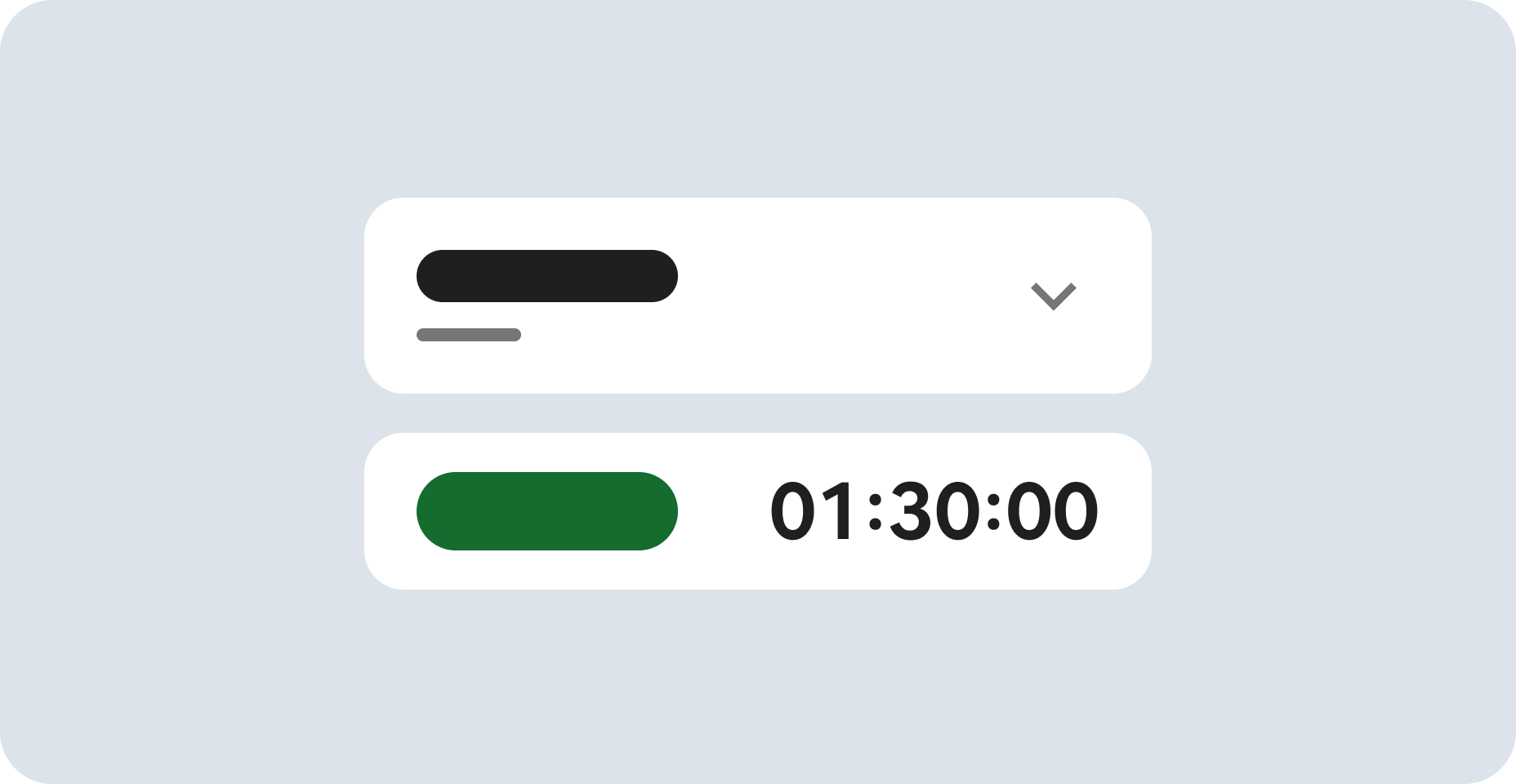
Read these instructions. Labs are timed and you cannot pause them. The timer, which starts when you click Start Lab, shows how long Google Cloud resources are made available to you.
This hands-on lab lets you do the lab activities in a real cloud environment, not in a simulation or demo environment. It does so by giving you new, temporary credentials you use to sign in and access Google Cloud for the duration of the lab.
To complete this lab, you need:
- Access to a standard internet browser (Chrome browser recommended).
Note: Use an Incognito (recommended) or private browser window to run this lab. This prevents conflicts between your personal account and the student account, which may cause extra charges incurred to your personal account.
- Time to complete the lab—remember, once you start, you cannot pause a lab.
Note: Use only the student account for this lab. If you use a different Google Cloud account, you may incur charges to that account.
How to start your lab and sign in to the Google Cloud console
-
Click the Start Lab button. If you need to pay for the lab, a dialog opens for you to select your payment method.
On the right is the Lab setup and access panel with the following:
- The Open Google Cloud console button
- The temporary credentials (username and password) that you must use for this lab
- Other information, if needed, to step through this lab
Note that the lab timer is located near the top of the page, showing the remaining time.
-
Click Open Google Cloud console (or right-click and select Open Link in Incognito Window if you are running the Chrome browser).
The lab spins up resources, and then opens another tab that shows the Sign in page.
Tip: Arrange the tabs in separate windows, side-by-side.
Note: If you see the Choose an account dialog, click Use Another Account.
-
If necessary, copy the Username below and paste it into the Sign in dialog.
{{{user_0.username | "Username"}}}
You can also find the Username in the Lab setup and access panel.
-
Click Next.
-
Copy the Password below and paste it into the Welcome dialog.
{{{user_0.password | "Password"}}}
You can also find the Password in the Lab setup and access panel.
-
Click Next.
Important: You must use the credentials the lab provides you. Do not use your Google Cloud account credentials.
Note: Using your own Google Cloud account for this lab may incur extra charges.
-
Click through the subsequent pages:
- Accept the terms and conditions.
- Do not add recovery options or two-factor authentication (because this is a temporary account).
- Do not sign up for free trials.
After a few moments, the Google Cloud console opens in this tab.
Note: To access Google Cloud products and services, click the Navigation menu or type the service or product name in the Search field.

Activate Cloud Shell
Cloud Shell is a virtual machine that is loaded with development tools. It offers a persistent 5GB home directory and runs on the Google Cloud. Cloud Shell provides command-line access to your Google Cloud resources.
-
Click Activate Cloud Shell  at the top of the Google Cloud console.
-
Click through the following windows:
- Continue through the Cloud Shell information window.
- Authorize Cloud Shell to use your credentials to make Google Cloud API calls.
When you are connected, you are already authenticated, and the project is set to your Project_ID, . The output contains a line that declares the Project_ID for this session:
Your Cloud Platform project in this session is set to {{{project_0.project_id | "PROJECT_ID"}}}
gcloud is the command-line tool for Google Cloud. It comes pre-installed on Cloud Shell and supports tab-completion.
- (Optional) You can list the active account name with this command:
gcloud auth list
- Click Authorize.
Output:
ACTIVE: *
ACCOUNT: {{{user_0.username | "ACCOUNT"}}}
To set the active account, run:
$ gcloud config set account `ACCOUNT`
- (Optional) You can list the project ID with this command:
gcloud config list project
Output:
[core]
project = {{{project_0.project_id | "PROJECT_ID"}}}
Note: For full documentation of gcloud, in Google Cloud, refer to the gcloud CLI overview guide.
Task 1. Create an API key
- First, set an environment variable with your
PROJECT_ID which you will use throughout this lab:
export GOOGLE_CLOUD_PROJECT=$(gcloud config get-value core/project)
- Next, verify the service account that has been created for you to access the Natural Language API:
gcloud iam service-accounts list --filter="email:my-natlang-sa@"
- Then, create credentials to log in as your new service account. Create these credentials and save them as a JSON file
~/key.json by using the following command:
gcloud iam service-accounts keys create ~/key.json \
--iam-account my-natlang-sa@${GOOGLE_CLOUD_PROJECT}.iam.gserviceaccount.com
- Finally, set the
GOOGLE_APPLICATION_CREDENTIALS environment variable to the full path of the credentials JSON file you created:
export GOOGLE_APPLICATION_CREDENTIALS="$HOME/key.json"
Click Check my progress to verify the objective.
Create an API Key
Task 2. Make an entity analysis request
Now you'll try out the Natural Language API's entity analysis with the following sentence:
Michelangelo Caravaggio, Italian painter, is known for 'The Calling of Saint Matthew'
- In Cloud Shell, run the following
gcloud command:
gcloud ml language analyze-entities --content="Michelangelo Caravaggio, Italian painter, is known for 'The Calling of Saint Matthew'." > result.json
- Run the following command to preview the output of the
result.json file:
cat result.json
You should see a response similar to the following in the result.json file:
{
"entities": [
{
"name": "Michelangelo Caravaggio",
"type": "PERSON",
"metadata": {
"wikipedia_url": "http://en.wikipedia.org/wiki/Caravaggio",
"mid": "/m/020bg"
},
"salience": 0.83047235,
"mentions": [
{
"text": {
"content": "Michelangelo Caravaggio",
"beginOffset": 0
},
"type": "PROPER"
},
{
"text": {
"content": "painter",
"beginOffset": 33
},
"type": "COMMON"
}
]
},
{
"name": "Italian",
"type": "LOCATION",
"metadata": {
"mid": "/m/03rjj",
"wikipedia_url": "http://en.wikipedia.org/wiki/Italy"
},
"salience": 0.13870546,
"mentions": [
{
"text": {
"content": "Italian",
"beginOffset": 25
},
"type": "PROPER"
}
]
},
{
"name": "The Calling of Saint Matthew",
"type": "EVENT",
"metadata": {
"mid": "/m/085_p7",
"wikipedia_url": "http://en.wikipedia.org/wiki/The_Calling_of_St_Matthew_(Caravaggio)"
},
"salience": 0.030822212,
"mentions": [
{
"text": {
"content": "The Calling of Saint Matthew",
"beginOffset": 69
},
"type": "PROPER"
}
]
}
],
"language": "en"
}
- Upload the
result.json file to your Cloud Storage bucket:
gcloud storage cp result.json gs://{{{project_0.project_id | PROJECT_ID}}}-nlp/
Click Check my progress to verify the objective.
Make an Entity Analysis Request
Read through your results. For each "entity" in the response, you'll see:
- The entity
name and type, a person, location, event, etc.
-
metadata, an associated Wikipedia URL if there is one.
-
salience, and the indices of where this entity appeared in the text. Salience is a number in the [0,1] range that refers to the centrality of the entity to the text as a whole.
-
mentions, which is the same entity mentioned in different ways.
You've sent your first request to the Cloud Natural Language API.
Congratulations!
You extracted entities from a snippet of text using the Cloud Natural Language API.
Next steps / Learn more
This lab is part of a series of labs called Qwik Starts. These labs are designed to give you a little taste of the many features available with Google Cloud. Search for "Qwik Starts" in the Google Skills catalog to find the next lab you'd like to take!
Google Cloud training and certification
...helps you make the most of Google Cloud technologies. Our classes include technical skills and best practices to help you get up to speed quickly and continue your learning journey. We offer fundamental to advanced level training, with on-demand, live, and virtual options to suit your busy schedule. Certifications help you validate and prove your skill and expertise in Google Cloud technologies.
Manual Last Updated November 6, 2026
Lab Last Tested November 6, 2026
Copyright 2026 Google LLC. All rights reserved. Google and the Google logo are trademarks of Google LLC. All other company and product names may be trademarks of the respective companies with which they are associated.