Vertex AI is now Gemini Enterprise Agent Platform! We are currently updating our content to reflect this change. Please bear with us if you encounter naming inconsistencies during this transition.
Wykorzystuj swoje umiejętności w konsoli Google Cloud
Ten moduł może zawierać narzędzia AI, które ułatwią Ci naukę.
Overview
In this lab, you build a Contextual Bandits agent in order to recommend another movie to watch (based on the Movielens dataset) to a user. For this, you first learn how to instantiate a Vertex AI Workbench notebook instance and eventually how to load data to Tensorflow (TF) and build an agent using the TF Agents library.
Learning objectives
Install and import required libraries.
Initialize and configure the MovieLens Environment.
Initialize the Agent.
Define and link the evaluation metrics.
Initialize and configure the Replay Buffer.
Set up and train the model.
Observe the results of trained model and Vertex AI Tensorboard evaluation.
Setup
For each lab, you get a new Google Cloud project and set of resources for a fixed time at no cost.
Sign in to Google Skills using an incognito window.
Note the lab's access time (for example, 1:15:00), and make sure you can finish within that time.
There is no pause feature. You can restart if needed, but you have to start at the beginning.
When ready, click Start lab.
Note your lab credentials (Username and Password). You will use them to sign in to the Google Cloud Console.
Click Open Google Console.
Click Use another account and copy/paste credentials for this lab into the prompts.
If you use other credentials, you'll receive errors or incur charges.
Accept the terms and skip the recovery resource page.
Task 1. Set up your environment
Enable the Recommended APIs
In the Google Cloud Console, on the Navigation menu, click Vertex AI.
Click Enable All Recommended APIs.
Note: At times, navigating to the Vertex AI > Dashboard may redirect you to the Vertex AI Studio Overview page instead. In such cases, please accept the terms by clicking Agree and continue on the pop-up. After that, click the Enable APIs button in the console to proceed with enabling the necessary APIs.
Task 2. Launch a Vertex AI Workbench instance
In the Google Cloud console, from the Navigation menu (), select Vertex AI > Dashboard.
Click Enable All Recommended APIs.
In the Navigation menu, click Workbench.
At the top of the Workbench page, ensure you are in the Instances view.
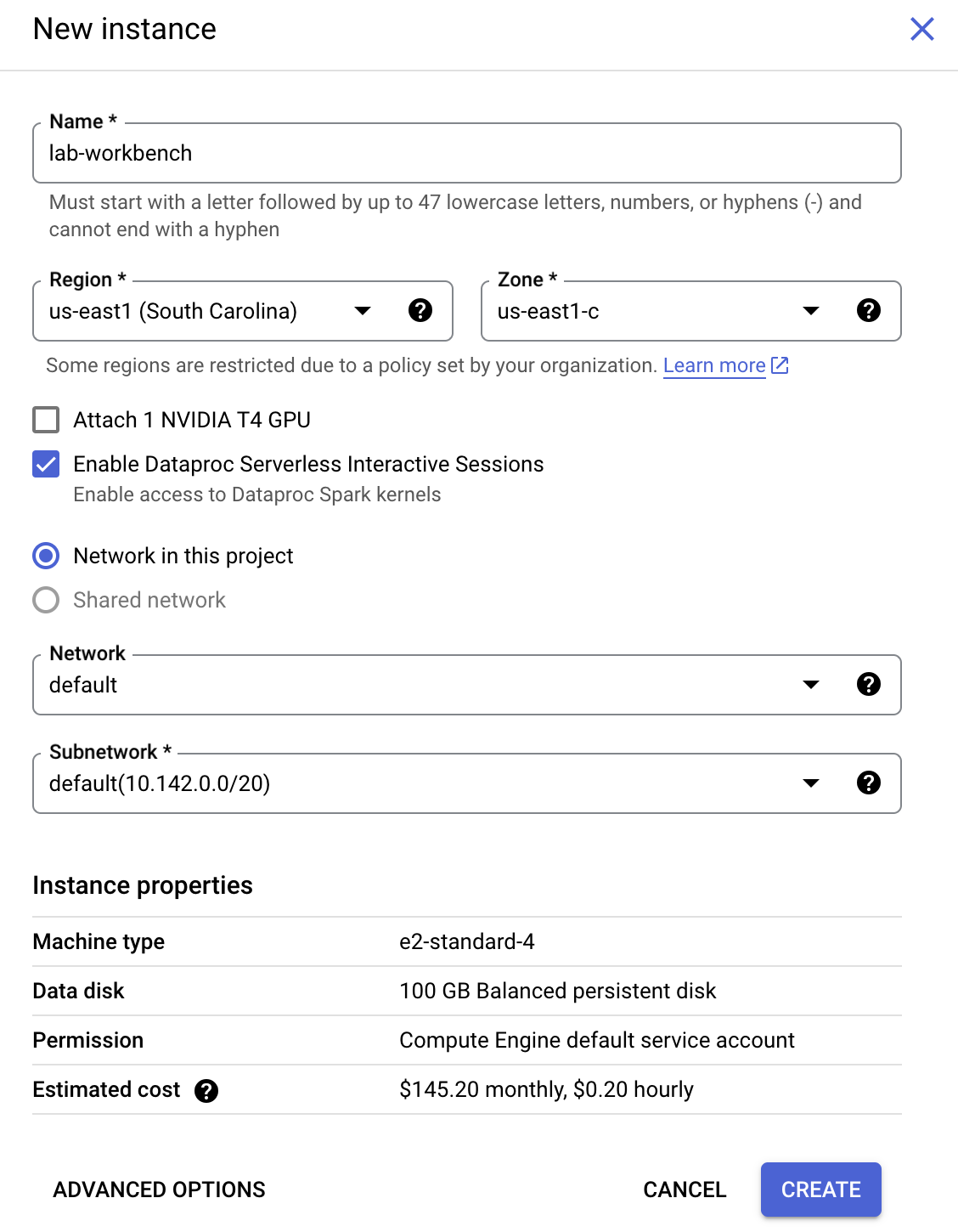
Click Create New.
Configure the Instance:
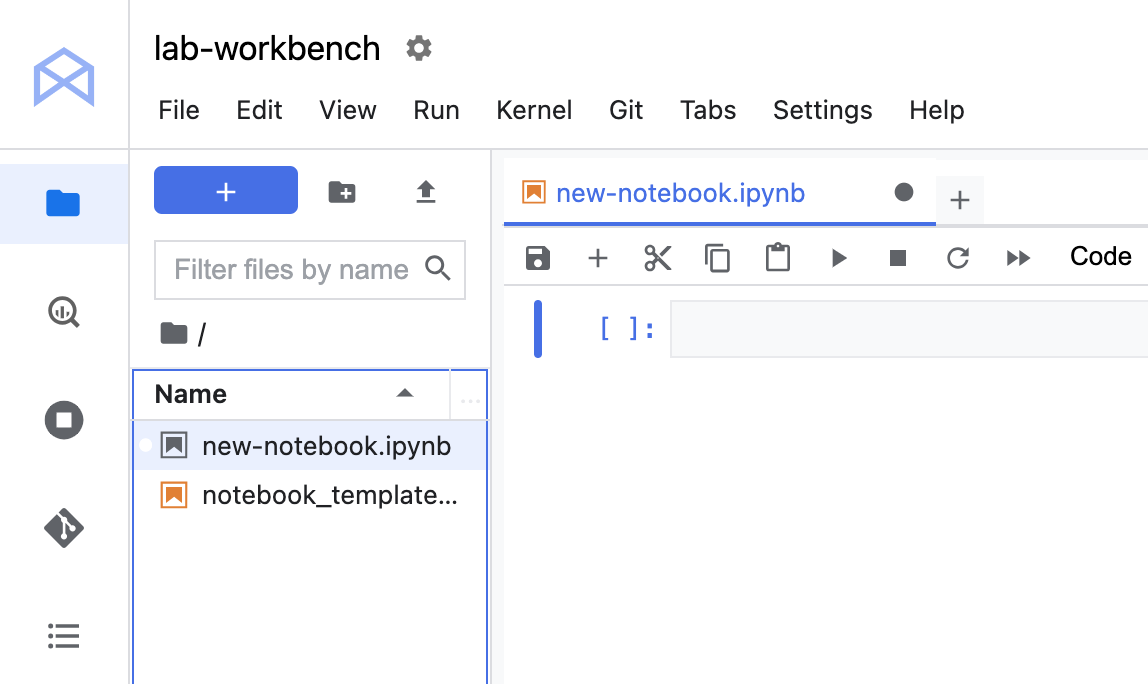
Name: lab-workbench
Region: Set the region to
Zone: Set the zone to
Advanced Options (Optional): If needed, click "Advanced Options" for further customization (e.g., machine type, disk size).
Click Create.
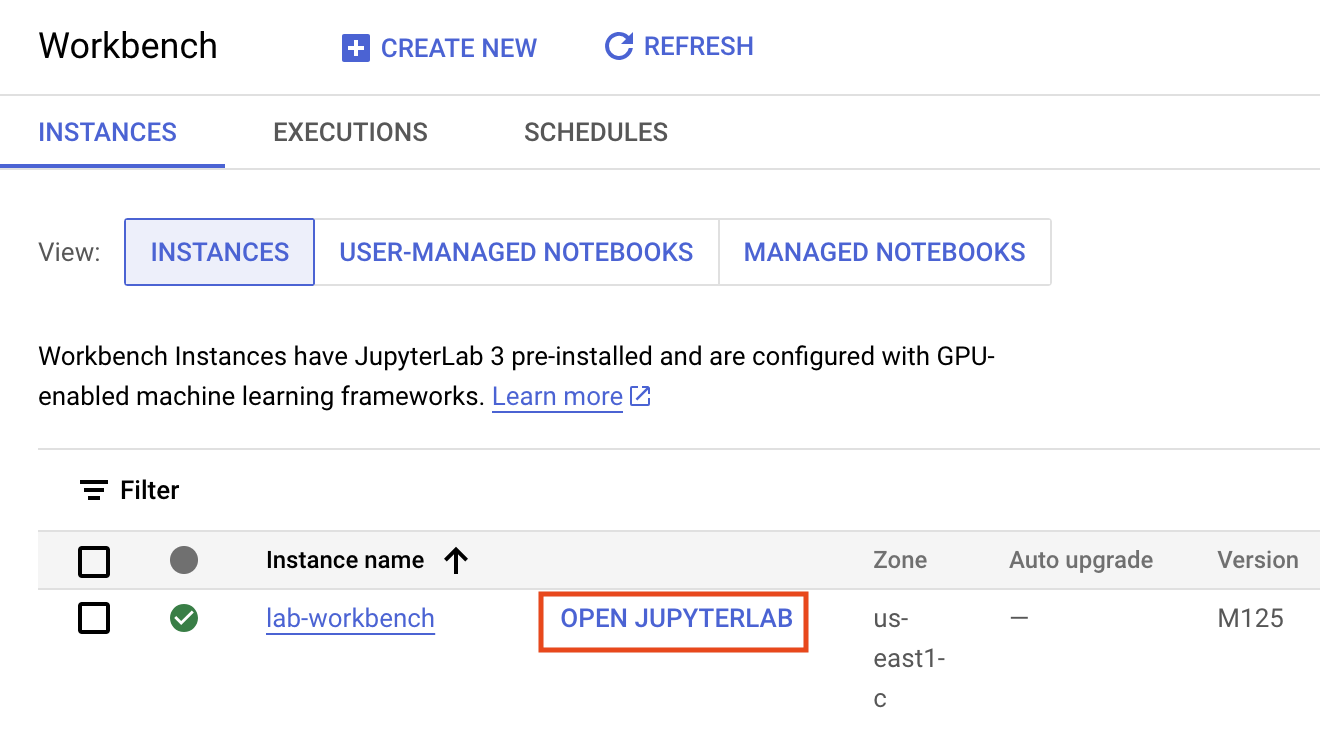
This will take a few minutes to create the instance. A green checkmark will appear next to its name when it's ready.
Click Open Jupyterlab next to the instance name to launch the JupyterLab interface. This will open a new tab in your browser.
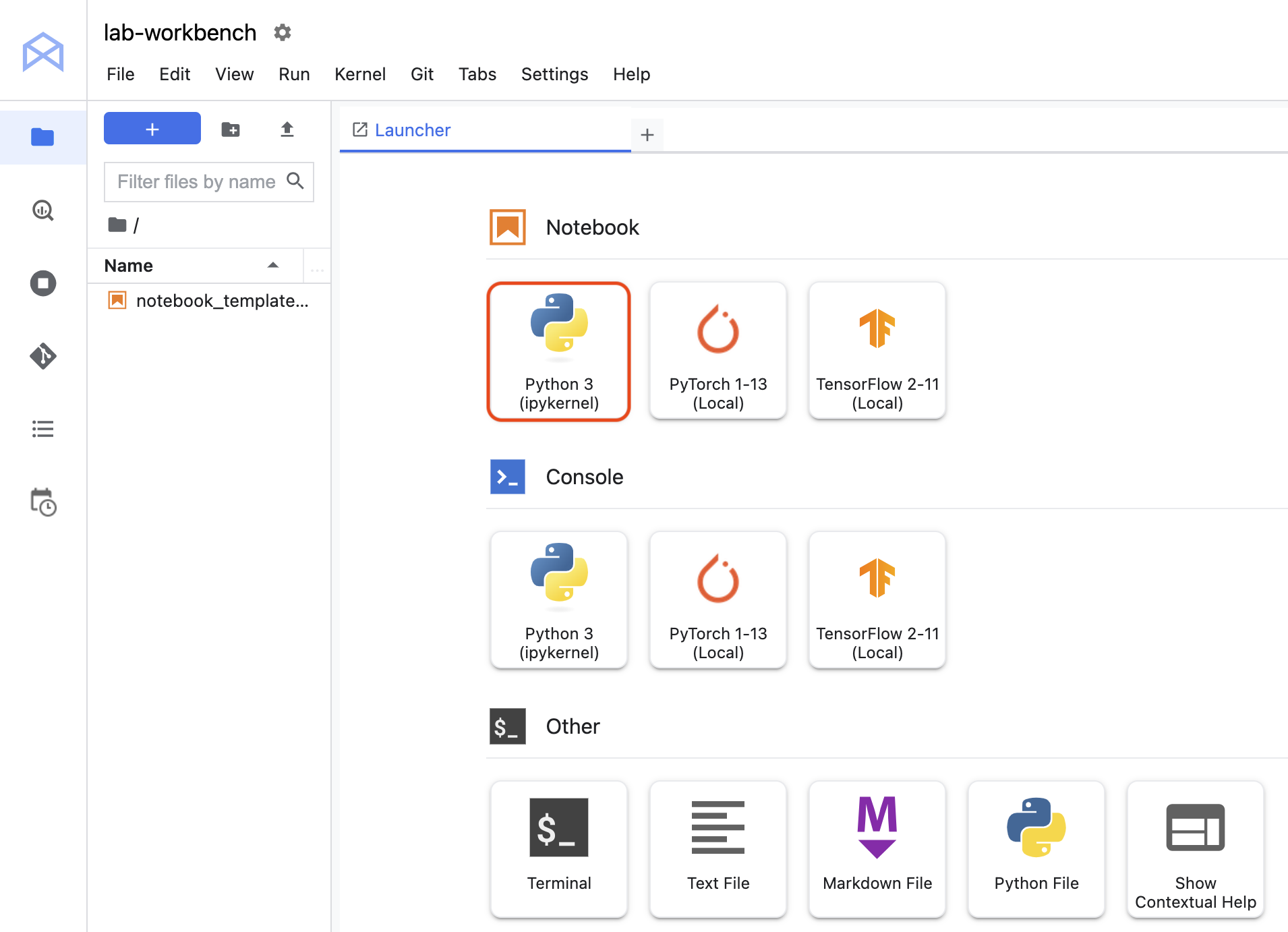
Click the Python 3 icon to launch a new Python notebook.
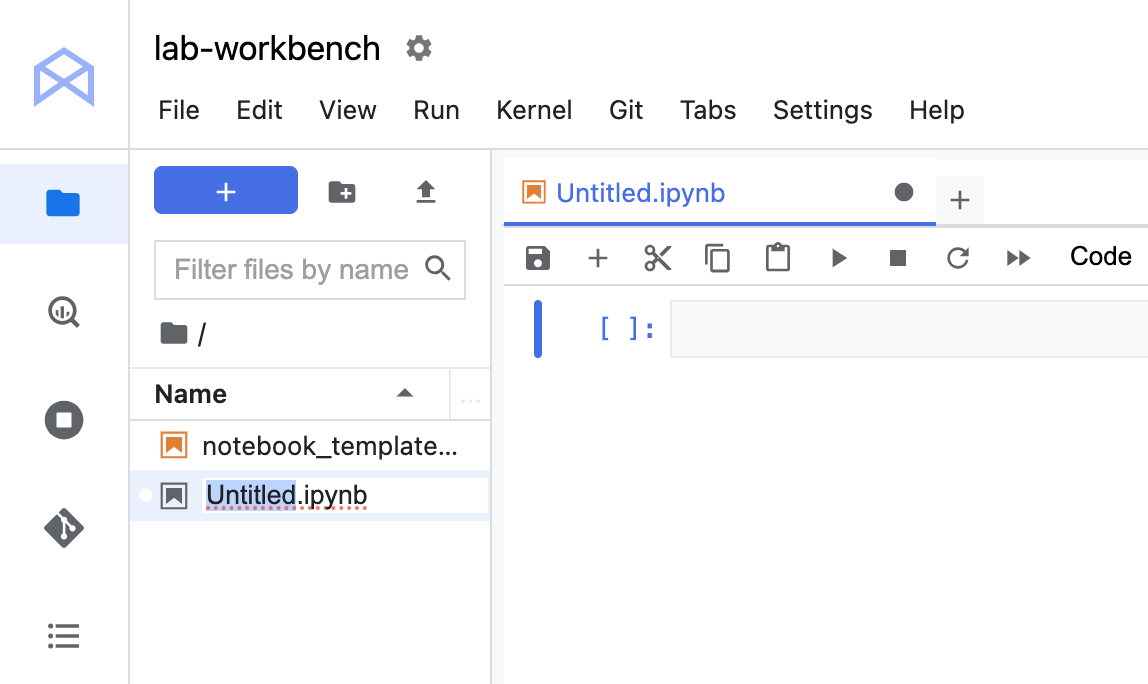
Right-click on the Untitled.ipynb file in the menu bar and select Rename Notebook to give it a meaningful name.
Your environment is set up. You are now ready to start working with your Vertex AI Workbench notebook.
Task 3. Clone a course repo within your Vertex AI Workbench instance
The GitHub repo contains both the lab file and solutions files for the course.
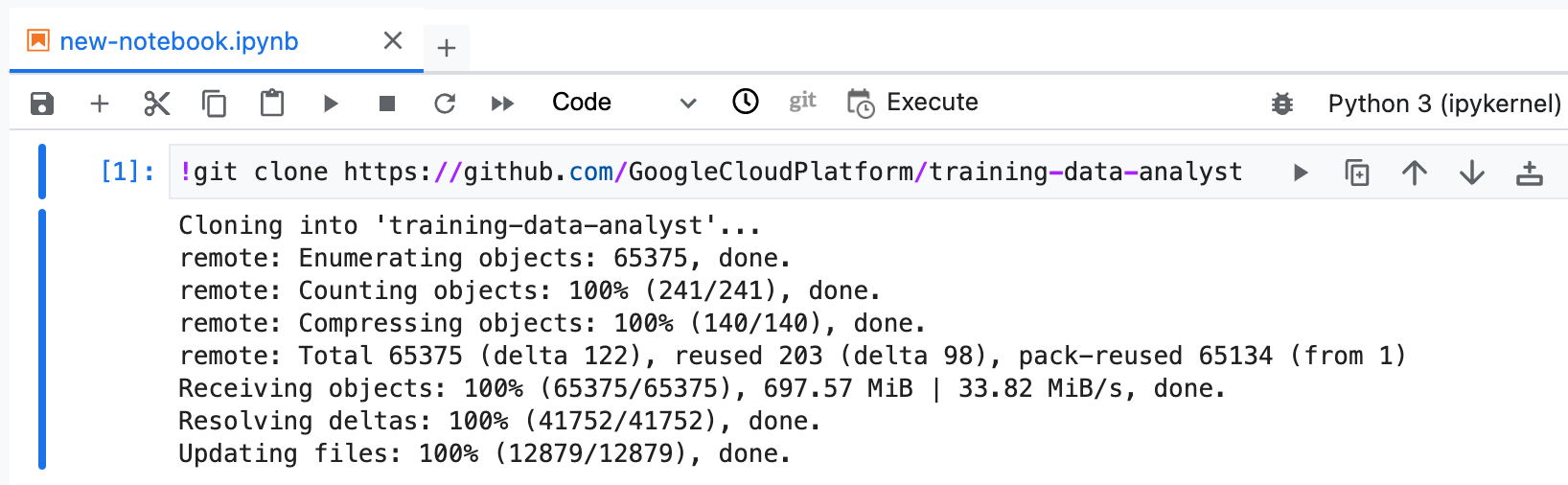
Copy and run the following code in the first cell of your notebook to clone the training-data-analyst repository.
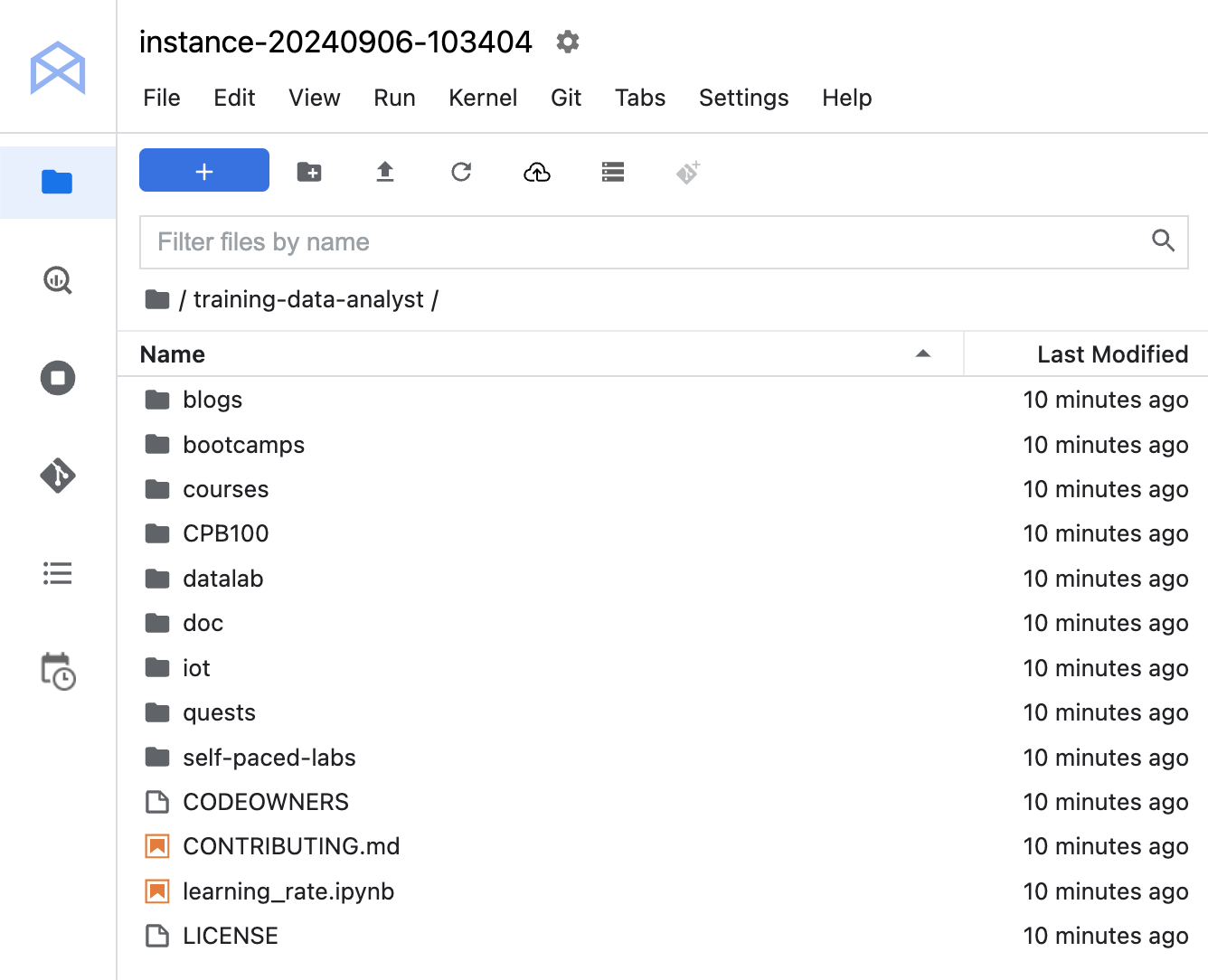
Confirm that you have cloned the repository. Double-click on the training-data-analyst directory and ensure that you can see its contents.
Task 4. Build a RL model in your Vertex AI Workbench instance
In the notebook interface, navigate to training-data-analyst > courses > machine_learning > deepdive2 > recommendation_systems > labs, and open exercise_movielens_notebook.ipynb.
In the Select Kernel dialog, choose TensorFlow 2-11 (Local) from the list of available kernels.
In the notebook interface, click Edit > Clear All Outputs.
Carefully read through the notebook instructions and fill in lines marked with #TODO where you need to complete the code.
Tip: To run the current cell, click the cell and press SHIFT+ENTER. Other cell commands are listed in the notebook UI under Run.
Hints may also be provided for the tasks to guide you along. Highlight the text to read the hints, which are in white text.
If you need more help, look at the complete solution at training-data-analyst > courses > machine_learning > deepdive2 > recommendation_systems > solutions, and open exercise_movielens_notebook.ipynb.
End your lab
When you have completed your lab, click End Lab. Google Skills removes the resources you’ve used and cleans the account for you.
You will be given an opportunity to rate the lab experience. Select the applicable number of stars, type a comment, and then click Submit.
The number of stars indicates the following:
1 star = Very dissatisfied
2 stars = Dissatisfied
3 stars = Neutral
4 stars = Satisfied
5 stars = Very satisfied
You can close the dialog box if you don't want to provide feedback.
For feedback, suggestions, or corrections, please use the Support tab.
Copyright 2026 Google LLC All rights reserved. Google and the Google logo are trademarks of Google LLC. All other company and product names may be trademarks of the respective companies with which they are associated.
Zanim zaczniesz
Moduły tworzą projekt Google Cloud i zasoby na określony czas.
Moduły mają ograniczenie czasowe i nie mają funkcji wstrzymywania. Jeśli zakończysz moduł, musisz go zacząć od początku.
Aby rozpocząć, w lewym górnym rogu ekranu kliknij Rozpocznij moduł.
Użyj przeglądania prywatnego
Skopiuj podaną nazwę użytkownika i hasło do modułu.
Kliknij Otwórz konsolę w trybie prywatnym.
Zaloguj się w konsoli
Zaloguj się z użyciem danych logowania do modułu. Użycie innych danych logowania może spowodować błędy lub naliczanie opłat.
Zaakceptuj warunki i pomiń stronę zasobów przywracania.
Nie klikaj Zakończ moduł, chyba że właśnie został przez Ciebie zakończony lub chcesz go uruchomić ponownie, ponieważ spowoduje to usunięcie wyników i projektu.
Ta treść jest obecnie niedostępna
Kiedy dostępność się zmieni, wyślemy Ci e-maila z powiadomieniem
Świetnie
Kiedy dostępność się zmieni, skontaktujemy się z Tobą e-mailem
Jeden moduł, a potem drugi
Potwierdź, aby zakończyć wszystkie istniejące moduły i rozpocząć ten
Aby uruchomić moduł, użyj przeglądania prywatnego
Najlepszym sposobem na uruchomienie tego laboratorium jest użycie okna incognito lub przeglądania prywatnego. Dzięki temu unikniesz konfliktu między swoim kontem osobistym a kontem do nauki, co mogłoby spowodować naliczanie dodatkowych opłat na koncie osobistym.
In this lab, you will build a Contextual Bandits agent in order to recommend to a user another movie to watch.
Czas trwania:
Konfiguracja: 0 min
·
Dostęp na 120 min
·
Ukończono w 120 min

 ), select Vertex AI > Dashboard.
 Create New.