Instructions et exigences de configuration de l'atelier
Protégez votre compte et votre progression. Utilisez toujours une fenêtre de navigation privée et les identifiants de l'atelier pour exécuter cet atelier.
Ce contenu n'est pas encore optimisé pour les appareils mobiles.
Pour une expérience optimale, veuillez accéder à notre site sur un ordinateur de bureau en utilisant un lien envoyé par e-mail.
Overview
In this lab, you use the penguin table to create a model that predicts the weight of a penguin based on the penguin's species, island of residence, culmen length and depth, flipper length, and sex.
This lab introduces data analysts to BigQuery ML. BigQuery ML enables users to create and execute machine learning models in BigQuery using SQL queries. The goal is to democratize machine learning by enabling SQL practitioners to build models using their existing tools and to increase development speed by eliminating the need for data movement.
Learning objectives
Create a linear regression model using the CREATE MODEL statement with BigQuery ML.
Evaluate the ML model with the ML.EVALUATE function.
Make predictions using the ML model with the ML.PREDICT function.
Setup
For each lab, you get a new Google Cloud project and set of resources for a fixed time at no cost.
Sign in to Google Skills using an incognito window.
Note the lab's access time (for example, 1:15:00), and make sure you can finish within that time.
There is no pause feature. You can restart if needed, but you have to start at the beginning.
When ready, click Start lab.
Note your lab credentials (Username and Password). You will use them to sign in to the Google Cloud Console.
Click Open Google Console.
Click Use another account and copy/paste credentials for this lab into the prompts.
If you use other credentials, you'll receive errors or incur charges.
Accept the terms and skip the recovery resource page.
Enable the BigQuery API
In the Cloud Console, on the Navigation menu (), click APIs & services > Library.
Search for BigQuery API, and then click Enable if it isn't already enabled.
Task 1. Create your dataset
The first step is to create a BigQuery dataset to store your ML model. To create your dataset:
In the Cloud Console, on the Navigation menu, click BigQuery.
In the Classic Explorer panel, click the View actions icon (three vertical dots) next to your project ID, and then click Create dataset.
On the Create dataset page:
For Dataset ID, type bqml_tutorial
(Optional) For Data location, select us (multiple regions in United States).
Currently, the public datasets are stored in the US multi-region location. For simplicity, you should place your dataset in the same location.
Leave the remaining settings as their defaults, and click Create dataset.
Task 2. Create your model
Next, you create a linear regression model using the penguins table for BigQuery.
The following standard SQL query is used to create the model you use to predict the weight of a penguin:
#standardSQL
CREATE OR REPLACE MODEL `bqml_tutorial.penguins_model`
OPTIONS
(model_type='linear_reg',
input_label_cols=['body_mass_g']) AS
SELECT
*
FROM
`bigquery-public-data.ml_datasets.penguins`
WHERE
body_mass_g IS NOT NULL
In addition to creating the model, running the CREATE MODEL command trains the model you create.
Query details
The CREATE MODEL clause is used to create and train the model named bqml_tutorial.penguins_model.
The OPTIONS(model_type='linear_reg', input_label_cols=['body_mass_g']) clause indicates that you are creating a linear regression model. A linear regression is a type of regression model that generates a continuous value from a linear combination of input features. The body_mass_g column is the input label column. For linear regression models, the label column must be real-valued (the column values must be real numbers).
This query's SELECT statement uses all the columns in the bigquery-public-data.ml_datasets.penguins table. This table contains the following columns that will all be used to predict a penguin's weight:
species: Species of penguin (STRING)
island: Island that the penguin lives on (STRING)
culmen_length_mm: Length of culmen in millimeters (FLOAT64)
culmen_depth_mm: Depth of culmen in millimeters (FLOAT64)
flipper_length_mm: Length of the flipper in millimeters (FLOAT64)
sex: The sex of the penguin (STRING)
The FROM clause — bigquery-public-data.ml_datasets.penguins — indicates that you are querying the penguins table in the ml_datasets dataset. This dataset is in the bigquery-public-data project.
The WHERE clause — WHERE body_mass_g IS NOT NULL — excludes rows where body_mass_g is NULL.
Run the CREATE MODEL query
To run the CREATE MODEL query to create and train your model:
In the Cloud Console, click (+) SQL query.
In the Query editor text area, enter the following standard SQL query:
#standardSQL
CREATE OR REPLACE MODEL `bqml_tutorial.penguins_model`
OPTIONS
(model_type='linear_reg',
input_label_cols=['body_mass_g']) AS
SELECT
*
FROM
`bigquery-public-data.ml_datasets.penguins`
WHERE
body_mass_g IS NOT NULL
Click Run.
The query takes about 30 seconds to complete, after which your model (penguins_model) appears in the navigation panel. Because the query uses a CREATE MODEL statement to create a table, you do not see query results.
Note: You can ignore the warning about NULL values for input data.
Task 3. Get training statistics (Optional)
To see the results of the model training, you can use the ML.TRAINING_INFO function, or you can view the statistics in the Cloud Console. In this tutorial, you use the Cloud Console.
A machine learning algorithm builds a model by examining many examples and attempting to find a model that minimizes loss. This process is called empirical risk minimization.
Loss is the penalty for a bad prediction: a number indicating how bad the model's prediction was on a single example. If the model's prediction is perfect, the loss is zero; otherwise, the loss is greater. The goal of training a model is to find a set of weights and biases that have low loss, on average, across all examples.
To see the model training statistics that were generated when you ran the CREATE MODEL query:
In the Cloud Console navigation panel, in the Classic Explorer section, expand [PROJECT_ID] > bqml_tutorial > Models (1), and then click penguins_model.
Click the Training metrics tab, and then click Table. The results should look like the following:
The Training Data Loss column represents the loss metric calculated after the model is trained on the training dataset. Because you performed a linear regression, this column is the mean squared error.
For more details on the ML.TRAINING_INFO function and "optimize_strategy" training option, see the BigQuery ML syntax reference.
Task 4. Evaluate your model
After creating your model, you evaluate the performance of the model using the ML.EVALUATE function. The ML.EVALUATE function evaluates the predicted values against the actual data.
The following query is used to evaluate the model:
#standardSQL
SELECT
*
FROM
ML.EVALUATE(MODEL `bqml_tutorial.penguins_model`,
(
SELECT
*
FROM
`bigquery-public-data.ml_datasets.penguins`
WHERE
body_mass_g IS NOT NULL))
Query details
The first SELECT statement retrieves the columns from your model.
The FROM clause uses the ML.EVALUATE function against your model: bqml_tutorial.penguins_model.
This query's nested SELECT statement and FROM clause are the same as those in the CREATE MODEL query.
The WHERE clause — WHERE body_mass_g IS NOT NULL — excludes rows where body_mass_g is NULL.
A proper evaluation would be on a subset of the penguins table that is separate from the data used to train the model. You can also call ML.EVALUATE without providing the input data. ML.EVALUATE will retrieve the evaluation metrics calculated during training, which uses the automatically reserved evaluation dataset:
#standardSQL
SELECT
*
FROM
ML.EVALUATE(MODEL `bqml_tutorial.penguins_model`)
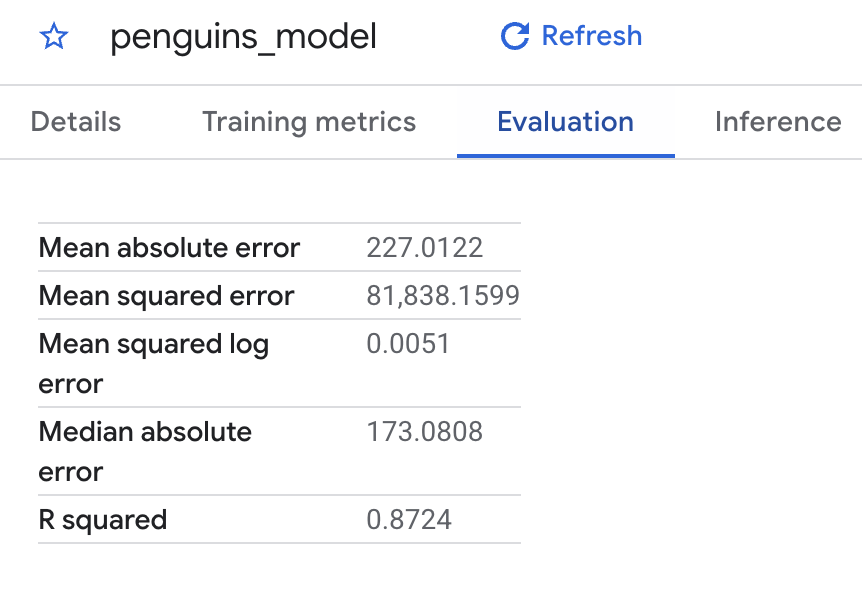
You can also use the Cloud Console to view the evaluation metrics calculated during the training. The results should look like the following:
Run the ML.EVALUATE query
To run the ML.EVALUATE query that evaluates the model:
In the Cloud Console, click (+) SQL query.
In the Query editor text area, enter the following standard SQL query:
#standardSQL
SELECT
*
FROM
ML.EVALUATE(MODEL `bqml_tutorial.penguins_model`,
(
SELECT
*
FROM
`bigquery-public-data.ml_datasets.penguins`
WHERE
body_mass_g IS NOT NULL))
Click Run.
When the query is complete, click the Results tab below the query text area. The results should look like the following:
Because you performed a linear regression, the results include the following columns:
mean_absolute_error
mean_squared_error
mean_squared_log_error
median_absolute_error
r2_score
explained_variance
An important metric in the evaluation results is the R2 score. The R2 score is a statistical measure that determines whether the linear regression predictions approximate the actual data. 0 indicates that the model explains none of the variability of the response data around the mean. 1 indicates that the model explains all the variability of the response data around the mean.
Task 5. Use your model to predict outcomes
Now that you have evaluated your model, the next step is to use it to predict an outcome. You use your model to predict the body mass in grams of all penguins that reside in Biscoe.
The following query is used to predict the outcome:
#standardSQL
SELECT
*
FROM
ML.PREDICT(MODEL `bqml_tutorial.penguins_model`,
(
SELECT
*
FROM
`bigquery-public-data.ml_datasets.penguins`
WHERE
body_mass_g IS NOT NULL
AND island = "Biscoe"))
Query details
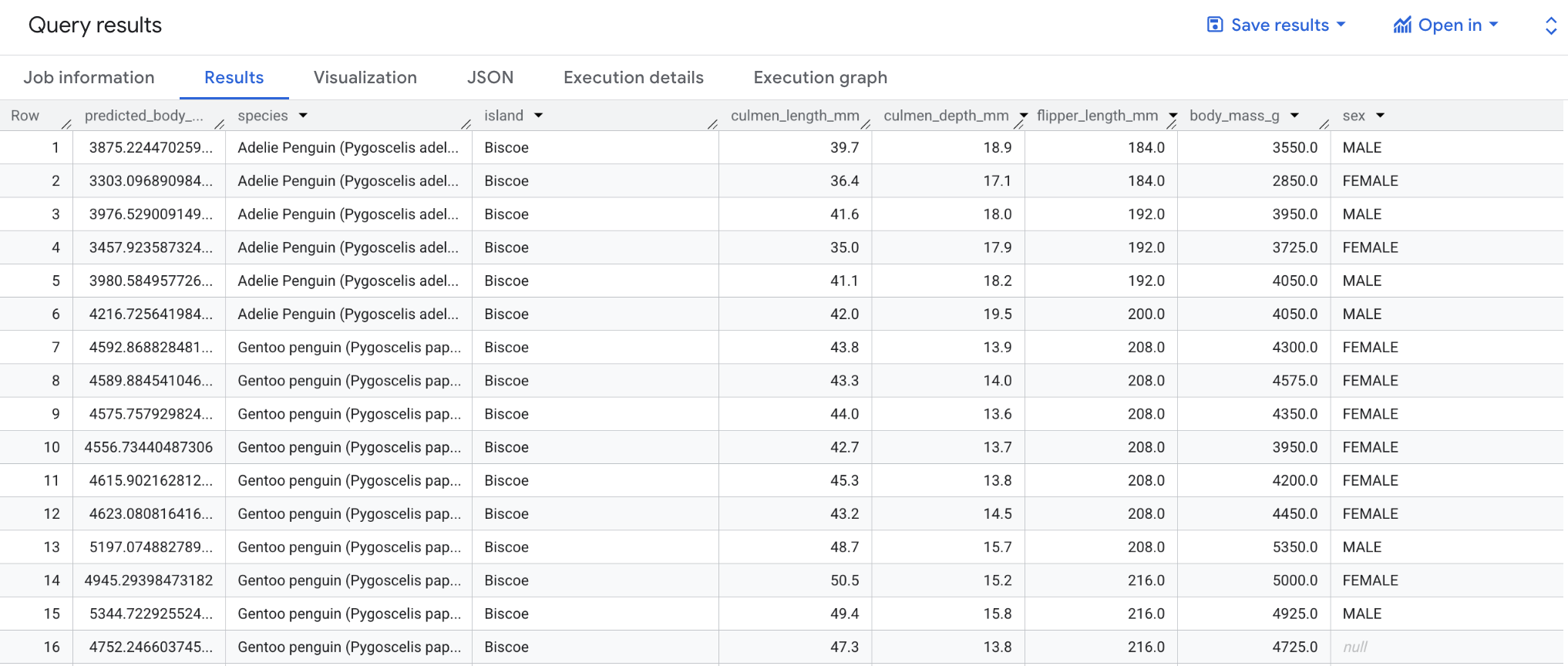
The first SELECT statement retrieves the predicted_body_mass_g column along with the columns in bigquery-public-data.ml_datasets.penguins. This column is generated by the ML.PREDICT function. When you use the ML.PREDICT function, the output column name for the model is predicted_<label_column_name>. For linear regression models, predicted_label is the estimated value of label. For logistic regression models, predicted_label is one of the two input labels depending on which label has the higher predicted probability.
The ML.PREDICT function is used to predict results using your model: bqml_tutorial.penguins_model.
This query's nested SELECT statement and FROM clause are the same as those in the CREATE MODEL query.
The WHERE clause — WHERE island = "Biscoe" — indicates that you are limiting the prediction to the island of Biscoe.
Run the ML.PREDICT query
To run the query that uses the model to predict an outcome:
In the Cloud Console, click (+) SQL query.
In the Query editor text area, enter the following standard SQL query:
#standardSQL
SELECT
*
FROM
ML.PREDICT(MODEL `bqml_tutorial.penguins_model`,
(
SELECT
*
FROM
`bigquery-public-data.ml_datasets.penguins`
WHERE
body_mass_g IS NOT NULL
AND island = "Biscoe"))
Click Run.
When the query is complete, click the Results tab below the query text area. The results should look like the following:
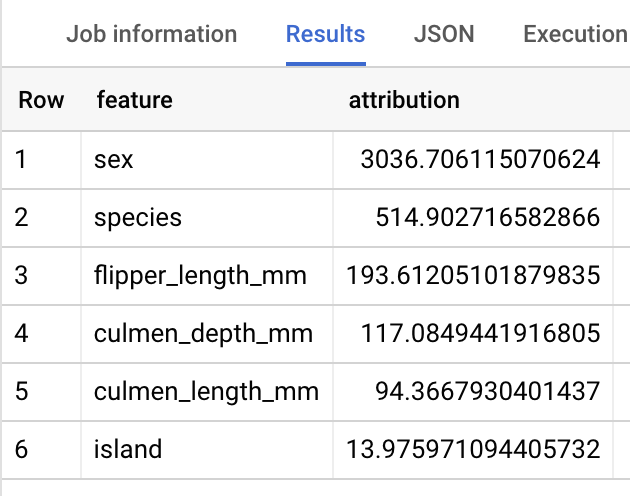
Task 6. Explain prediction results with explainable AI methods
To understand why your model is generating these prediction results, you can use the ML.EXPLAIN_PREDICT function.
ML.EXPLAIN_PREDICT is an extended version of ML.PREDICT. ML.EXPLAIN_PREDICT returns prediction results with additional columns that explain those results.
You can run ML.EXPLAIN_PREDICT without ML.PREDICT. For an in-depth explanation of Shapley values and explainable AI in BigQuery ML, see BigQuery ML explainable AI overview.
The following query is used to generate explanations:
#standardSQL
SELECT
*
FROM
ML.EXPLAIN_PREDICT(MODEL `bqml_tutorial.penguins_model`,
(
SELECT
*
FROM
`bigquery-public-data.ml_datasets.penguins`
WHERE
body_mass_g IS NOT NULL
AND island = "Biscoe"),
STRUCT(3 as top_k_features))
Query details
Run the ML.EXPLAIN_PREDICT query
To run the ML.EXPLAIN_PREDICT query that explains the model:
In the Cloud Console, click (+) SQL query.
In the Query editor text area, enter the following standard SQL query:
#standardSQL
SELECT
*
FROM
ML.EXPLAIN_PREDICT(MODEL `bqml_tutorial.penguins_model`,
(
SELECT
*
FROM
`bigquery-public-data.ml_datasets.penguins`
WHERE
body_mass_g IS NOT NULL
AND island = "Biscoe"),
STRUCT(3 as top_k_features))
Click Run.
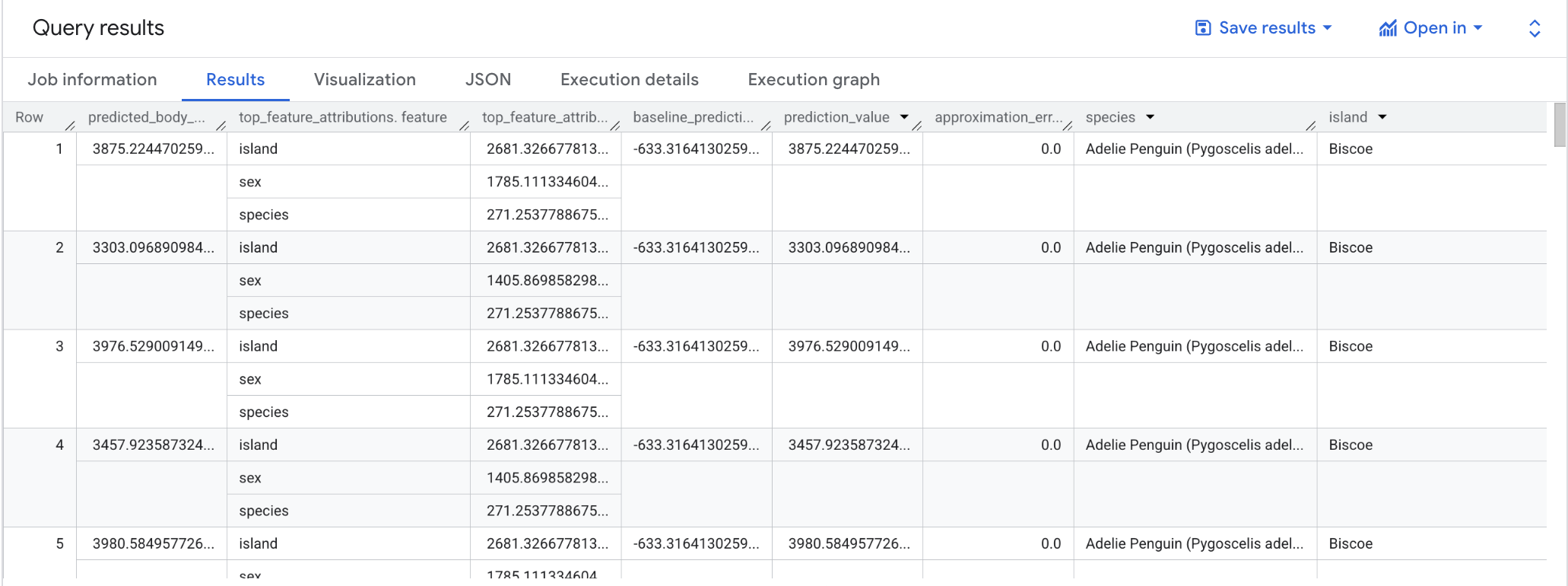
When the query is complete, click the Results tab below the query text area. The results should look like the following:
Note: The ML.EXPLAIN_PREDICT query outputs all the input feature columns, similar to what ML.PREDICT does. Only one feature column, "species", is shown in the figure above for readability purposes.
For linear regression models, Shapley values are used to generate feature attribution values per feature in the model. ML.EXPLAIN_PREDICT outputs the top 3 feature attributions per row of the table provided because top_k_features was set to 3 in the query.
These attributions are sorted by the absolute value of the attribution in descending order. In all examples, the feature sex contributed the most to the overall prediction. For detailed explanations of the output columns of the ML.EXPLAIN_PREDICT query, see ML.EXPLAIN_PREDICT syntax documentation
Task 7. Globally explain your model (Optional)
To know which features are the most important to determine the weights of the penguins in general, you can use the ML.GLOBAL_EXPLAIN function. In order to use ML.GLOBAL_EXPLAIN, the model must be retrained with the option ENABLE_GLOBAL_EXPLAIN=TRUE.
Rerun the training query with this option using the following query:
#standardSQL
CREATE OR REPLACE MODEL bqml_tutorial.penguins_model
OPTIONS
(model_type='linear_reg',
input_label_cols=['body_mass_g'],
enable_global_explain=TRUE) AS
SELECT
*
FROM
`bigquery-public-data.ml_datasets.penguins`
WHERE
body_mass_g IS NOT NULL
Note: You can ignore the warning about NULL values for input data.
Access global explanations through ML.GLOBAL_EXPLAIN
The following query is used to generate global explanations:
#standardSQL
SELECT
*
FROM
ML.GLOBAL_EXPLAIN(MODEL `bqml_tutorial.penguins_model`)
Query details
Run the ML.GLOBAL_EXPLAIN query
To run the ML.GLOBAL_EXPLAIN query:
In the Cloud Console, click (+) SQL query.
In the Query editor text area, enter the following standard SQL query:
#standardSQL
SELECT
*
FROM
ML.GLOBAL_EXPLAIN(MODEL `bqml_tutorial.penguins_model`)
Click Run.
When the query is complete, click the Results tab below the query text area. The results should look like the following:
Task 8. Clean up
To avoid incurring charges to your Google Cloud account for the resources used in this tutorial, either delete the project that contains the resources, or keep the project and delete the individual resources.
Deleting your dataset
Deleting your project removes all datasets and all tables in the project. If you prefer to reuse the project, you can delete the dataset you created in this tutorial:
If necessary, open the BigQuery page in the Cloud Console.
In the Classic Explorer panel, click View actions () next to your dataset.
Click Delete.
In the Delete dataset dialog box, to confirm the delete command, type delete and then click Delete.
Deleting your project
To delete the project:
In the Cloud Console, on the Navigation menu, click IAM & Admin > Manage Resources.
Note: If prompted, Click LEAVE for unsaved work.
In the project list, select the project that you want to delete, and then click Delete.
In the dialog, type the project ID, and then click Shut down to delete the project.
Congratulations!
You've learned how to:
Create a linear regression model using the CREATE MODEL statement with BigQuery ML.
Evaluate the ML model with the ML.EVALUATE function.
Make predictions using the ML model with the ML.PREDICT function.
When you have completed your lab, click End Lab. Google Skills removes the resources you’ve used and cleans the account for you.
You will be given an opportunity to rate the lab experience. Select the applicable number of stars, type a comment, and then click Submit.
The number of stars indicates the following:
1 star = Very dissatisfied
2 stars = Dissatisfied
3 stars = Neutral
4 stars = Satisfied
5 stars = Very satisfied
You can close the dialog box if you don't want to provide feedback.
For feedback, suggestions, or corrections, please use the Support tab.
Copyright 2026 Google LLC All rights reserved. Google and the Google logo are trademarks of Google LLC. All other company and product names may be trademarks of the respective companies with which they are associated.
Les ateliers créent un projet Google Cloud et des ressources pour une durée déterminée.
Les ateliers doivent être effectués dans le délai imparti et ne peuvent pas être mis en pause. Si vous quittez l'atelier, vous devrez le recommencer depuis le début.
En haut à gauche de l'écran, cliquez sur Démarrer l'atelier pour commencer.
Utilisez la navigation privée
Copiez le nom d'utilisateur et le mot de passe fournis pour l'atelier
Cliquez sur Ouvrir la console en navigation privée
Connectez-vous à la console
Connectez-vous à l'aide des identifiants qui vous ont été attribués pour l'atelier. L'utilisation d'autres identifiants peut entraîner des erreurs ou des frais.
Acceptez les conditions d'utilisation et ignorez la page concernant les ressources de récupération des données.
Ne cliquez pas sur Terminer l'atelier, à moins que vous n'ayez terminé l'atelier ou que vous ne vouliez le recommencer, car cela effacera votre travail et supprimera le projet.
Ce contenu n'est pas disponible pour le moment
Nous vous préviendrons par e-mail lorsqu'il sera disponible
Parfait !
Nous vous contacterons par e-mail s'il devient disponible
Un atelier à la fois
Confirmez pour mettre fin à tous les ateliers existants et démarrer celui-ci
Utilisez la navigation privée pour effectuer l'atelier
Le meilleur moyen d'exécuter cet atelier consiste à utiliser une fenêtre de navigation privée. Vous éviterez ainsi les conflits entre votre compte personnel et le compte temporaire de participant, qui pourraient entraîner des frais supplémentaires facturés sur votre compte personnel.
In this lab, you will learn to create and execute machine learning models in BigQuery using SQL queries.
Durée :
0 min de configuration
·
Accessible pendant 120 min
·
Terminé après 120 min


 ), click APIs & services > Library.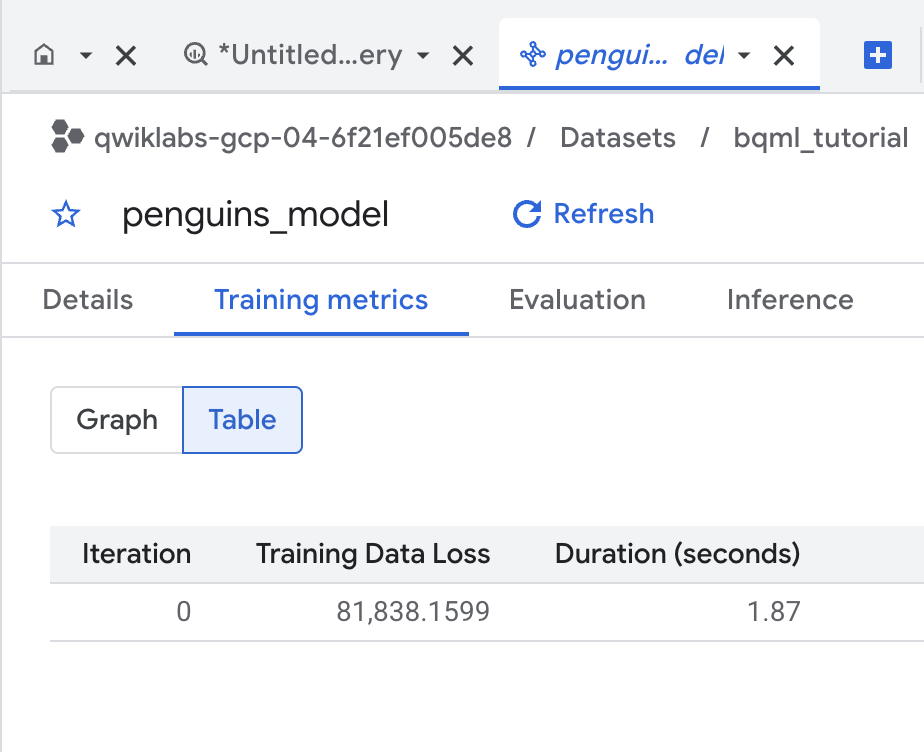

 ) next to your dataset.





