Overview
Pub/Sub enables applications to take advantage of efficient message queues.
The service is compatible with a range of Google Cloud services, and in this lab, you learn how to integrate it with Cloud Run.
This lab is based on resolving a customer use case by using serverless infrastructure. The lab features three high level sections that resolve a technical problem:
- Situational Overview
- Requirements Gathering
- Developing a minimal viable product
Objectives
In this lab, you learn to:
- Enable the Cloud Run API.
- Deploy microservices to Cloud Run.
- Create a Pub/Sub topic.
- Invoke a Cloud Run service from a Pub/Sub subscription.
Prerequisites
These labs are based on intermediate knowledge of Google Cloud. While the steps required are covered in the content, it would be helpful to have familiarity with any of the following products:
Setup and requirements
Before you click the Start Lab button
Note: Read these instructions.
Labs are timed and you cannot pause them. The timer, which starts when you click Start Lab, shows how long Google Cloud resources will be made available to you.
This Google Skills hands-on lab lets you do the lab activities yourself in a real cloud environment, not in a simulation or demo environment. It does so by giving you new, temporary credentials that you use to sign in and access Google Cloud for the duration of the lab.
What you need
To complete this lab, you need:
- Access to a standard internet browser (Chrome browser recommended).
- Time to complete the lab.
Note: If you already have your own personal Google Cloud account or project, do not use it for this lab.
Note: If you are using a Pixelbook, open an Incognito window to run this lab.
How to start your lab and sign in to the Console
-
Click the Start Lab button. If you need to pay for the lab, a pop-up opens for you to select your payment method.
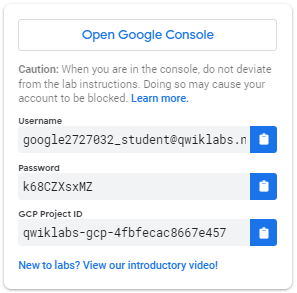
On the left is a panel populated with the temporary credentials that you must use for this lab.
-
Copy the username, and then click Open Google Console.
The lab spins up resources, and then opens another tab that shows the Choose an account page.
Note: Open the tabs in separate windows, side-by-side.
-
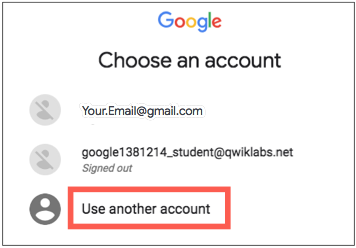
On the Choose an account page, click Use Another Account. The Sign in page opens.
-
Paste the username that you copied from the Connection Details panel. Then copy and paste the password.
Note: You must use the credentials from the Connection Details panel. Do not use your Google Skills credentials. If you have your own Google Cloud account, do not use it for this lab (avoids incurring charges).
- Click through the subsequent pages:
- Accept the terms and conditions.
- Do not add recovery options or two-factor authentication (because this is a temporary account).
- Do not sign up for free trials.
After a few moments, the Cloud console opens in this tab.
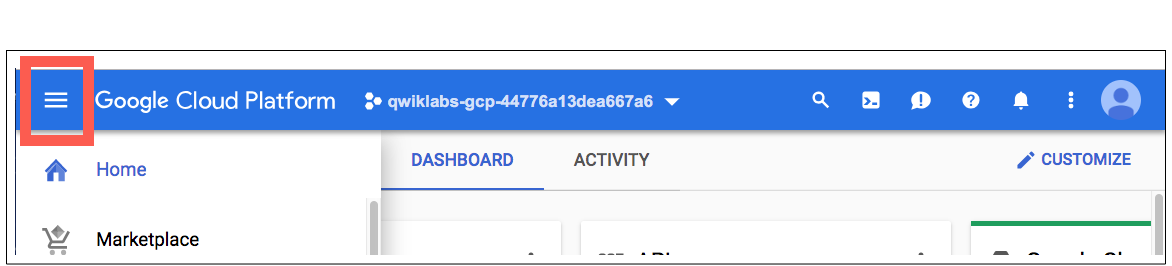
Note: You can view the menu with a list of Google Cloud Products and Services by clicking the Navigation menu at the top-left.
Activate Google Cloud Shell
Google Cloud Shell is a virtual machine that is loaded with development tools. It offers a persistent 5GB home directory and runs on the Google Cloud.
Google Cloud Shell provides command-line access to your Google Cloud resources.
-
In Cloud console, on the top right toolbar, click the Open Cloud Shell button.

-
Click Continue.
It takes a few moments to provision and connect to the environment. When you are connected, you are already authenticated, and the project is set to your PROJECT_ID. For example:

gcloud is the command-line tool for Google Cloud. It comes pre-installed on Cloud Shell and supports tab-completion.
- You can list the active account name with this command:
gcloud auth list
Output:
Credentialed accounts:
- @.com (active)
Example output:
Credentialed accounts:
- google1623327_student@qwiklabs.net
- You can list the project ID with this command:
gcloud config list project
Output:
[core]
project =
Example output:
[core]
project = qwiklabs-gcp-44776a13dea667a6
Note:
Full documentation of gcloud is available in the
gcloud CLI overview guide
.
Situational overview

In this lab, you will help the development team at Critter Junction investigate the use of Pub/Sub for their requirements.
The team would like to explore how to perform efficient queue processing within their applications.
Requirements gathering
The team at Critter Junction has a public web application and several microservices built on Google Cloud.
Communication between the microservices is critical and needs a resilient form of messaging to be established between each application component.
The development team's previous attempts were unsuccessful due to the microservices needing to know a lot about each other ( High Coupling). In addition, if a service was temporarily unavailable, messages would be lost.
The team needs a solution that includes a level of resilience without introducing additional service dependencies (Low Coupling) into their systems. Now that you know a bit more about Critter Junction and the issues they face, try to prioritize the key criteria for a solution.
Defining Critter Junction priorities
To ascertain the key use cases and priorities, initial discussions are held with the Critter Junction stakeholders.
The results of the discussions are shown below:
|
Ref
|
User Story
|
|
1
|
As a lead developer, I want to ensure that messaging is resilient, so service operations will be restored without needing manual intervention.
|
|
2
|
As a program manager, I want services to be capable of scaling seamlessly so additional transactional load does not lead to system instability.
|
|
3
|
As an operations lead, I want services to be managed so staff does not need to be reassigned from important maintenance work.
|
From a discussion with the team leads, the following high level tasks are defined:
|
Ref
|
Definition of Done
|
|
1
|
Establish an asynchronous component for inter-service communication.
|
|
2
|
Implement the proven scalability of the solution.
|
|
3
|
Services must run unsupervised.
|
The team at Critter Junction is keen to define a solution that can be implemented quickly. In consideration of the requirements, the development team narrows their options down to:
See Pub/Sub versus Cloud Tasks to learn more.
|
Product
|
Use case
|
Choice
|
|
Pub/Sub
|
"Optimal for more general event data ingestion and distribution patterns where some degree of control over execution can be sacrificed."
|

|
|
Cloud Tasks
|
"Appropriate for use cases where a task producer needs to defer or control the execution timing of a specific webhook or remote procedure call."
|
|
After considering the requirements, the development team chooses Pub/Sub because they only require a push based distribution pattern. The following high level architecture diagram summarizes the minimal viable product (MVP) that they need to investigate.
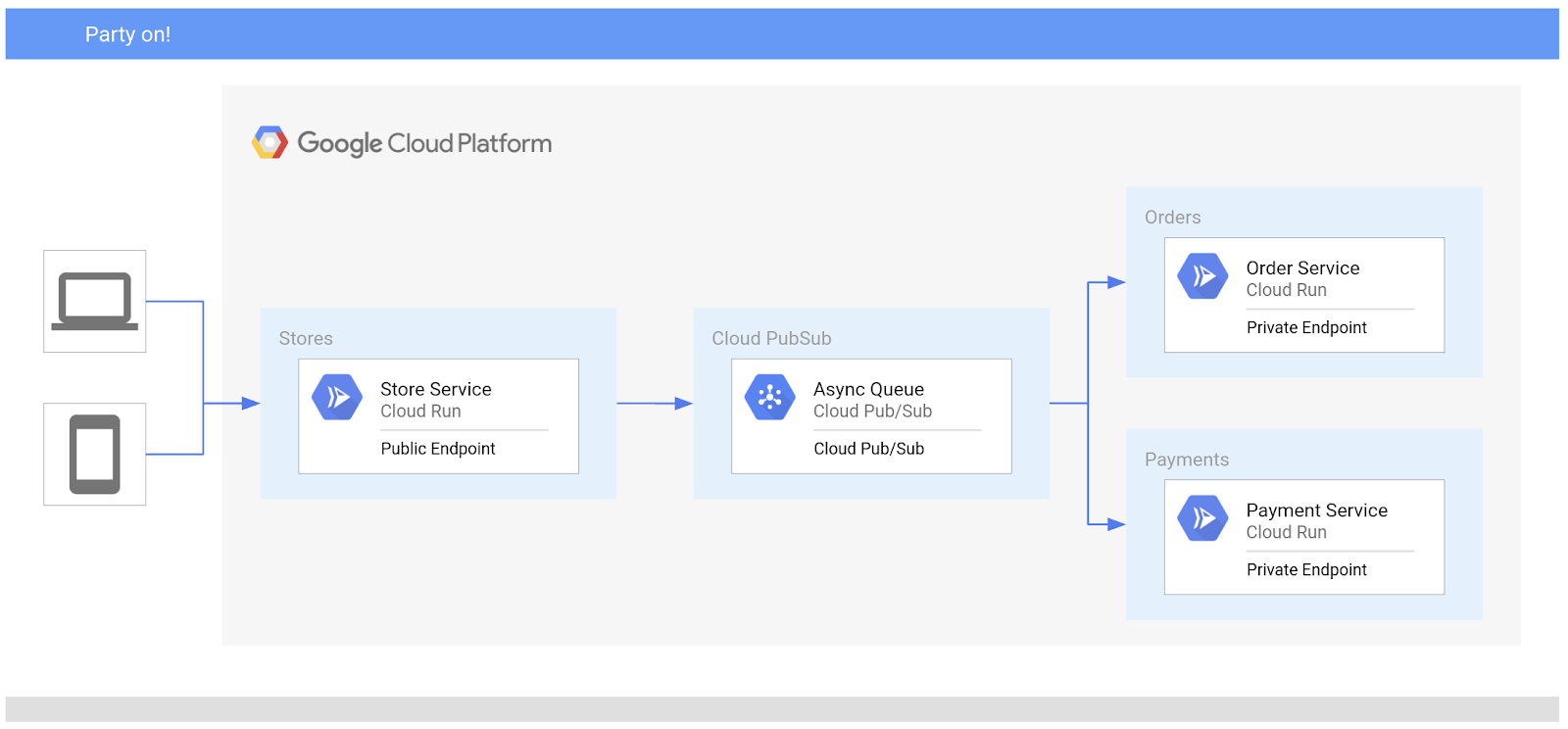
In the proposed solution, Pub/Sub will be used to handle asynchronous messages between services.
Task 1. Ensure that the Pub/Sub API is successfully enabled
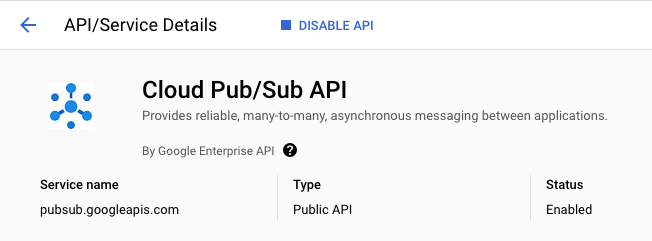
To ensure access to the necessary API, re-enable the Pub/Sub API.
-
In the Google Cloud console Navigation menu ( ), under APIs & Services, click Library.
-
In the Search box, type Pub/Sub
-
Click the result for Cloud Pub/Sub API.
-
Click Manage.
-
Click Disable API. If asked to confirm, click Disable.
-
Again, when prompted Do you want to disable Cloud Pub/Sub API and its dependent APIs?, Click Confirm.
-
To re-enable the API, click Enable.
When the API has been re-enabled, the page displays information about the API.
Task 2. Developing a minimal viable product (MVP)
Critter Junction has multiple Cloud Run services that they would like integrated with Pub/Sub.
To build an MVP, the following tasks are required:
- Deploy a producer service
- Deploy a consumer service
- Create a service account
- Create a Pub/Sub topic
Deploy a producer service
Critter Junction specifies that the externally facing store service should be configured as a public endpoint, indicating these requirements:
|
Type
|
Permission
|
Description
|
|
URL Access
|
--allow-unauthenticated
|
Make the service PUBLIC (Unauthenticated users can see it).
|
|
Invoke Permission
|
allUsers
|
Allow the service be invoked/triggered by anyone.
|
The producer store service accepts public internet based connections for purchase orders.
To do this, the service must not require authentication and must be able to be triggered by anyone.
Information collected by this service will be passed to the backend consumer services.
Configure and deploy the store service on Cloud Run. Execute the following commands in Cloud Shell.
-
Enable the Cloud Run API and configure your Shell environment:
gcloud services enable run.googleapis.com
-
Create a LOCATION environment variable:
LOCATION={{{project_0.default_region|REGION}}}
-
Set the compute region:
gcloud config set compute/region $LOCATION
-
Deploy the store service:
gcloud run deploy store-service \
--image gcr.io/qwiklabs-resources/gsp724-store-service \
--region $LOCATION \
--allow-unauthenticated
Click Check my progress to verify the objective.
Deploy the Cloud Run store service
Once the store service is deployed, the store service is publicly accessible over the internet.
Deploy a consumer service
The development team also needs to configure the order service that can be accessed at a private endpoint.
Unlike the store service, the order service is not meant to be publicly accessible over the internet, and should only be invoked by an account with the appropriate permissions.
For Cloud Run based services, this can be achieved by using the following settings:
|
Type
|
Permission
|
Description
|
|
URL Access
|
--no-allow-unauthenticated
|
Make the service PRIVATE (Only authenticated users can see it).
|
|
Invoke Role/Permission
|
Cloud Run Invoker
|
Only allow the service to be invoked by an account with the Cloud Run Invoker role.
|
Configure and deploy the order service:
gcloud run deploy order-service \
--image gcr.io/qwiklabs-resources/gsp724-order-service \
--region $LOCATION \
--no-allow-unauthenticated
Click Check my progress to verify the objective.
Deploy the Cloud Run order service
Now only authenticated accounts can access and invoke the service.
Pub/Sub overview
Pub/Sub is an asynchronous messaging service that decouples services that produce events from services that consume and process events.
Pub/Sub core concepts:
- Topic
- Subscription
- Message
- Message attribute
Pub/Sub requires a couple of options to be completed prior to successful deployment.
In the Google Cloud console, Pub/Sub can be accessed under the Big Data menu option.
|
Field
|
Description
|
|
Topic
|
A named resource to which messages are sent by publishers.
|
|
Subscription
|
A named resource representing the stream of messages from a single, specific topic, to be delivered to the subscribing application. For more details about subscriptions and message delivery semantics, see the Subscriber Guide.
|
|
Message
|
The combination of data and (optional) attributes that a publisher sends to a topic and is eventually delivered to subscribers.
|
|
Message attribute
|
A key-value pair that a publisher can define for a message. For example, key iana.org/language_tag and value en could be added to messages to mark them as readable by an English-speaking subscriber.
|
Pub/Sub can be used in a wide variety of use cases, the most common of which are listed below:
|
Use Case
|
Example
|
|
Balancing workloads in network clusters
|
For example, a large queue of tasks can be efficiently distributed among multiple workers, such as Compute Engine instances.
|
|
Implementing asynchronous workflows
|
For example, an order processing application can place an order on a topic, from which it can be processed by one or more workers.
|
|
Distributing event notifications
|
For example, a service that accepts user signups can send notifications whenever a new user registers, and downstream services can subscribe to receive notifications of the event.
|
|
Refreshing distributed caches
|
For example, an application can publish invalidation events to update the IDs of objects that have changed.
|
|
Logging to multiple systems
|
For example, a Google Compute Engine instance can write logs to the monitoring system, to a database for later querying, and so on.
|
|
Data streaming from various processes or devices
|
For example, a residential sensor can stream data to backend servers hosted in the cloud.
|
|
Reliability improvement
|
For example, a single-zone Compute Engine service can operate in additional zones by subscribing to a common topic, to recover from failures in a zone or region.
|
Task 3. Deploying Pub/Sub
Now that the producer (store service) and consumer (order service) services have been successfully deployed, you can focus on the main features of Pub/Sub. Using Pub/Sub requires two activities:
- Create a Topic
- Create a Subscription
Create a Topic
When an asynchronous (push) event is created on a topic, applications that subscribe to the topic will be able to process the associated messages.
Push event processing with Pub/Sub provides a scalable way to handle messaging on Google Cloud.
The new Pub/Sub Topic will have following values.
|
Field
|
Value
|
|
Name
|
ORDER_PLACED
|
|
Encryption
|
Google-managed key
|
- Create a Topic in Pub/Sub:
gcloud pubsub topics create ORDER_PLACED
Note: Messages that are sent using Pub/Sub are encoded as base64 on transmission, and need to be decoded on receipt.
Click Check my progress to verify the objective.
Create a Pub/Sub Topic
By creating the Pub/Sub Topic, messages can now be independently stored and delivered in a resilient manner.
You'll create a subscription in a subsequent task.
Task 4. Creating a service account
To deliver a Pub/Sub message to a Cloud Run service, you need a Pub/Sub subscription. The subscription must be able to invoke the service using a service account with the appropriate permissions. In this lab, the consumer order service will be invoked by a subscription using the service account.
To achieve this functionality, the following activities are required:
- Create a Service Account
- Bind the Invoker Role permissions to the service account
Service account creation
Create a new service account that will provide authenticated access.
-
Create a new service account called Order Initiator:
gcloud iam service-accounts create pubsub-cloud-run-invoker \
--display-name "Order Initiator"
-
Confirm that the service account has been created:
gcloud iam service-accounts list --filter="Order Initiator"
Click Check my progress to verify the objective.
Create a Service Account
At this point, the Order Initiator service account is available. However, it does not have a role or permissions assigned.
To assign it IAM permissions, you need to apply or bind role permissions to the service account.
Bind role permissions
To bind permissions to an account that is used to invoke a service on Cloud Run, you need the following information:
|
Category
|
Description
|
|
Service Name
|
The name of the deployed service to be invoked.
|
|
Member
|
The account to bestow the role permissions.
|
|
Region
|
The region in which the service is deployed.
|
|
Platform
|
The platform type (Cloud Run Managed, Cloud Run for Anthos, or Cloud Run for VMWare)
|
-
Bind the service account with the role Cloud Run Invoker on the order service:
gcloud run services add-iam-policy-binding order-service --region $LOCATION \
--member=serviceAccount:pubsub-cloud-run-invoker@$GOOGLE_CLOUD_PROJECT.iam.gserviceaccount.com \
--role=roles/run.invoker --platform managed
The new service account has now been given permissions to invoke a Cloud Run service.
-
Create an environment variable to store the project number:
PROJECT_NUMBER=$(gcloud projects list \
--filter="qwiklabs-gcp" \
--format='value(PROJECT_NUMBER)')
-
Enable the project service account to create tokens:
gcloud projects add-iam-policy-binding $GOOGLE_CLOUD_PROJECT \
--member=serviceAccount:service-$PROJECT_NUMBER@gcp-sa-pubsub.iam.gserviceaccount.com \
--role=roles/iam.serviceAccountTokenCreator
Task 5. Create a Pub/Sub subscription
In this task, you create the Pub/Sub subscription and configure it to use the new service account.
-
Create an environment variable to store the endpoint of the order service:
ORDER_SERVICE_URL=$(gcloud run services describe order-service \
--region $LOCATION \
--format="value(status.address.url)")
-
Create a subscription and bind it to the order service:
gcloud pubsub subscriptions create order-service-sub \
--topic ORDER_PLACED \
--push-endpoint=$ORDER_SERVICE_URL \
--push-auth-service-account=pubsub-cloud-run-invoker@$GOOGLE_CLOUD_PROJECT.iam.gserviceaccount.com
Click Check my progress to verify the objective.
Create a subscription
Task 6. Testing the application
To test the application, send a sample JSON payload to the store service.
-
Create a file called test.json with the following content. You can use your choice of editor such as nano, vi, or the Cloud Shell editor.
{
"billing_address": {
"name": "Kylie Scull",
"address": "6471 Front Street",
"city": "Mountain View",
"state_province": "CA",
"postal_code": "94043",
"country": "US"
},
"shipping_address": {
"name": "Kylie Scull",
"address": "9902 Cambridge Grove",
"city": "Martinville",
"state_province": "BC",
"postal_code": "V1A",
"country": "Canada"
},
"items": [
{
"id": "RW134",
"quantity": 1,
"sub-total": 12.95
},
{
"id": "IB541",
"quantity": 2,
"sub-total": 24.5
}
]
}
-
Create an environment variable to store the endpoint of the store service:
STORE_SERVICE_URL=$(gcloud run services describe store-service \
--region $LOCATION \
--format="value(status.address.url)")
-
To test communication between the microservices and generate an order ID, post a message to the store service:
curl -X POST -H "Content-Type: application/json" -d @test.json $STORE_SERVICE_URL
The output of the command indicates that an order had been successfully created, and should be similar to:
{"status":"success","order_id":"6pa5mmh"}
Store service
The store service (public endpoint) uses Pub/Sub to transmit information to the order service (private endpoint).
-
In the Google Cloud console Navigation menu (), click Cloud Run.
-
Click the link to the store-service.
-
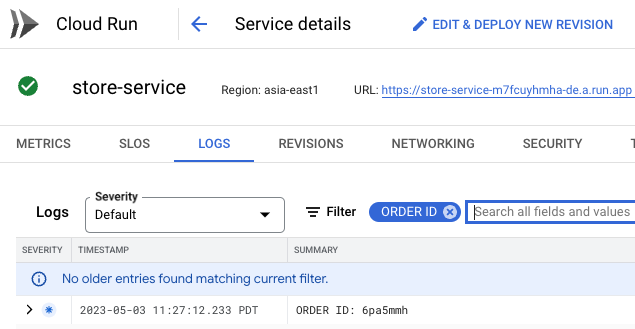
To view the service logs, click Logs. Check the store service logs to view the order ID that was generated.
-
Add the log filter ORDER ID to see the ID generated by the store service.
Order service
The order service receives a message from the store service passed with Pub/Sub.
-
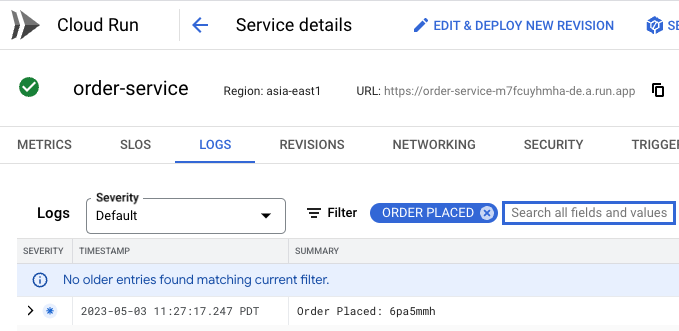
Check the order service logs to confirm that the JSON data was successfully transferred.
-
Add the log filter Order Placed to see the generated order ID that was passed to the order service.
Critter Junction have now updated their solution to take advantage of Pub/Sub.
The following high level architecture diagram summaries the solution deployed.
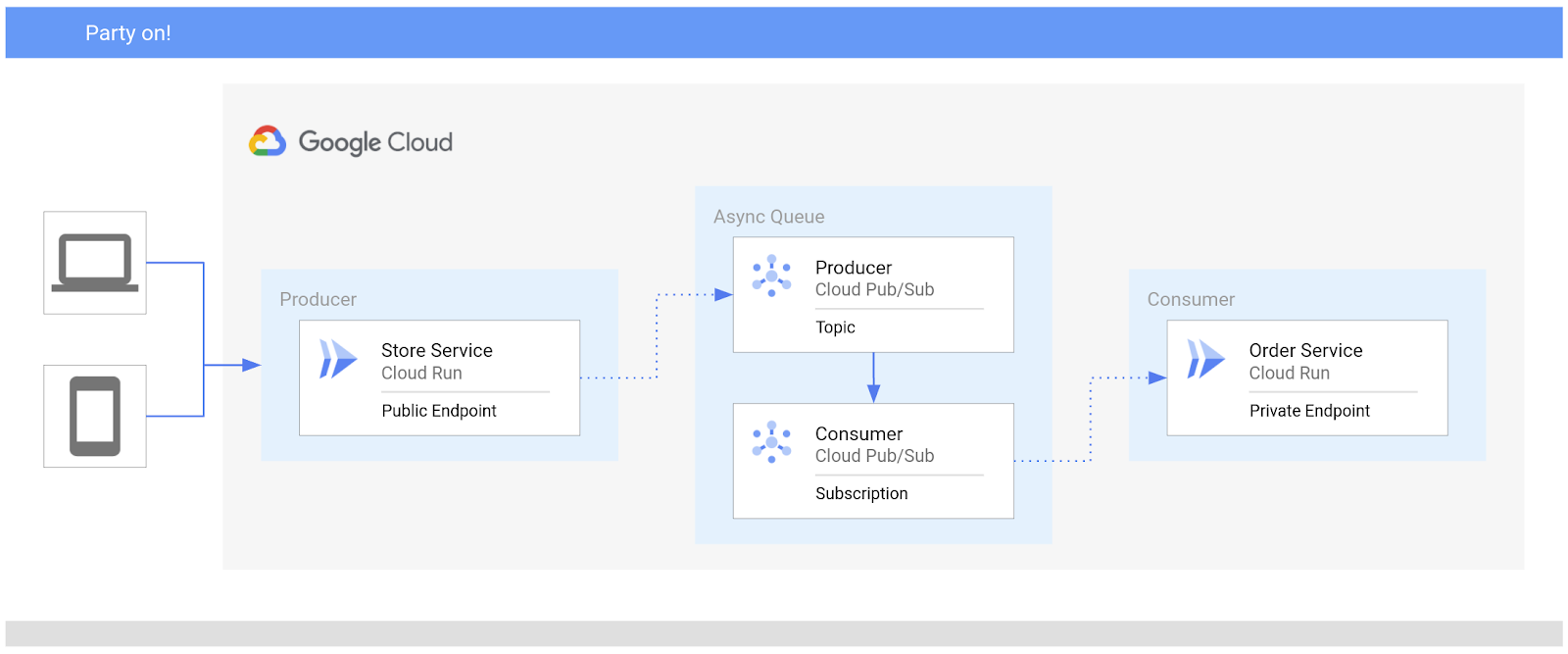
You have successfully deployed Pub/Sub on Google Cloud to asynchronously communicate between Cloud Run services.
Congratulations!
In this lab, you learned how to integrate Cloud Run services with Pub/Sub in your Google Cloud infrastructure.
You learned how to:
- Deploy services to Cloud Run
- Create a Service Account with the appropriate role and permissions
- Define a Pub/Sub Topic
- Bind a Pub/Sub Subscription to a Service Account
Next steps / Learn more
Follow the Serverless Expeditions video series to learn more about how to use these products within your project.
Manual Last Updated Feb 20, 2024
Lab Last Tested Feb 20, 2024
Copyright 2026 Google LLC All rights reserved. Google and the Google logo are trademarks of Google LLC. All other company and product names may be trademarks of the respective companies with which they are associated.







