CBL417

Overview
Cloud SQL automatically ensures your databases are reliable, secure, and scalable so that your business continues to run without disruption.
Cloud SQL automates all your backups, replication, encryption patches, and capacity increases—while ensuring greater than 99.95% availability, anywhere in the world.
Lab content is based on resolving a customer use case through the use of serverless infrastructure.
The lab features three high level sections that resolve a technical problem:
- Situational Overview
- Requirements Gathering
- Developing a minimal viable product
Prerequisites
These labs are based on intermediate knowledge of Google Cloud.
While the steps required are covered in the content, it would be helpful to have familiarity with any of the following products:
- Cloud Build
- Cloud Tasks
- Cloud Run
- Cloud SQL
Objectives
In this lab, you learn to:
- Configure the environment and enable the Cloud Run API.
- Create a Cloud SQL instance.
- Populate a Cloud SQL instance.
- Use environment variables for the Cloud Run service.
- Deploy a public Cloud Run service.
Setup and requirements
Before you click the Start Lab button
Note: Read these instructions.
Labs are timed and you cannot pause them. The timer, which starts when you click Start Lab, shows how long Google Cloud resources will be made available to you.
This Google Skills hands-on lab lets you do the lab activities yourself in a real cloud environment, not in a simulation or demo environment. It does so by giving you new, temporary credentials that you use to sign in and access Google Cloud for the duration of the lab.
What you need
To complete this lab, you need:
- Access to a standard internet browser (Chrome browser recommended).
- Time to complete the lab.
Note: If you already have your own personal Google Cloud account or project, do not use it for this lab.
Note: If you are using a Pixelbook, open an Incognito window to run this lab.
Situational overview
Scenario: In this lab, you will help the development team at Critter Junction investigate Cloud SQL. The company runs its infrastructure on Google Cloud and is very interested in experimenting with serverless.
The dev team would like to explore how to use Cloud SQL and Cloud Run.
Requirements gathering
The team at Critter Junction have a web application that requires a data store.
Cloud SQL appears to be a good solution, but the team does not have any experience with this product.
The team would also like a solution that does not introduce any additional complexity to their systems.
Historically they have used PostgreSQL so would like to use that if it's an option.
Now you know a bit more about Critter Junction and the issues they face, try and prioritize the key criteria for a solution.
Defining Critter Junction priorities
The team at Critter Junction are keen to define a solution that can be implemented quickly.
They explain their current event processing as represented by the diagram illustrated below:
A series of meetings with stakeholders are held to ascertain the key priorities.
The results of which are shown below:
|
Ref
|
User Story
|
|
1
|
As a development lead, I want to focus on frontend development, so my team can maintain velocity.
|
|
2
|
As a data lead, I want to focus on existing skill sets, so that developers minimize learning new products.
|
|
3
|
As an ops lead, I want to ensure service accounts are used, so product authentication is handled internally.
|
From a discussion with the team leads, the following high level tasks are defined:
|
Ref
|
Definition of Done
|
|
1
|
Deploy the website using Cloud Run
|
|
2
|
Use Cloud SQL with Postgres
|
|
3
|
Use a Service Account with Cloud SQL with minimize IAM permissions
|
The following high level architecture diagram summaries the minimal viable product they wish to investigate.
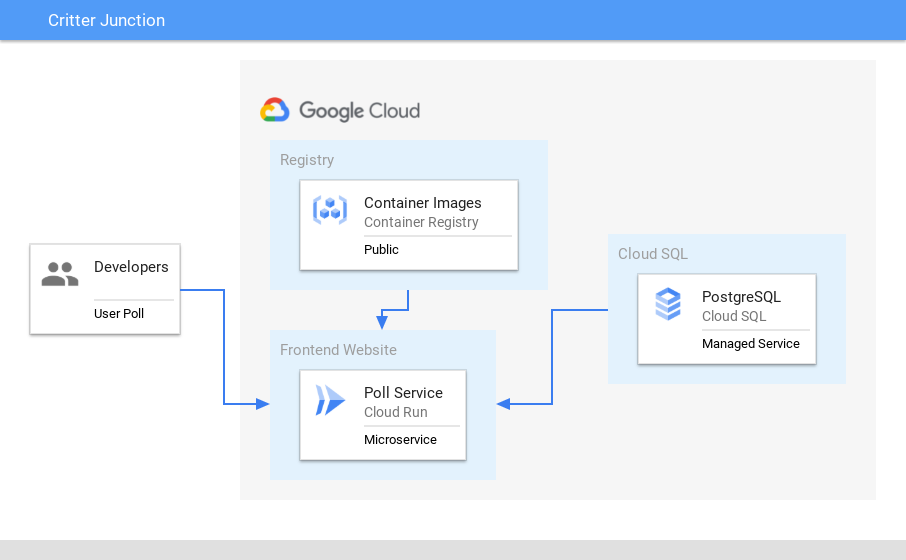
In the proposed solution, Cloud SQL will be used to handle the data tier.
Developing a minimal viable product (MVP)
Critter Junction has a website that they would like to integrate with Cloud SQL.
To build an MVP the following activities are required:
- Configure the environment
- Create a Cloud SQL instance
- Use environment variables for the Cloud Run service
- Deploy a public Cloud Run service
Task 1. Configure the environment
Set up some environment variables to make the provisioning process more flexible
- Enable Cloud Run API:
gcloud services enable run.googleapis.com
- Set the compute region:
gcloud config set compute/region {{{project_0.default_region|set at lab start}}}
- Create a LOCATION environment variable:
LOCATION="{{{project_0.default_region|set at lab start}}}"
Click Check my progress below to check your lab progress.
Enable the Cloud Run API.
Cloud SQL overview
Google Cloud SQL is a fully managed relational database service for MySQL, PostgreSQL, and SQL Server.
Cloud SQL key features:
|
Feature
|
Description
|
|
Fully Managed
|
Cloud SQL automatically ensures your databases are reliable, secure, and scalable so that your business continues to run without disruption. Cloud SQL automates all your backups, replication, encryption patches, and capacity increases—while ensuring greater than 99.95% availability, anywhere in the world.
|
|
Integrated
|
Access Cloud SQL instances from just about any application. Easily connect from App Engine, Compute Engine, Google Kubernetes Engine, and your workstation. Open up analytics possibilities by using BigQuery to directly query your Cloud SQL databases.
|
|
Reliable
|
Easily configure replication and backups to protect your data. Go further by enabling automatic failover to make your database highly available. Your data is automatically encrypted, and Cloud SQL is SSAE 16, ISO 27001, and PCI DSS compliant and supports HIPAA compliance.
|
|
Easy Migration to Cloud SQL
|
Database Migration Service (DMS) makes it easy to migrate your production databases to Cloud SQL with minimal downtime. This serverless offering eliminates the manual hassle of provisioning, managing, and monitoring migration-specific resources. DMS leverages the native replication capabilities of MySQL and PostgreSQL to maximize the fidelity and reliability of your migration. And it's available at no additional charge for native like-to-like migrations to Cloud SQL.
|
Now you understand what Cloud SQL provides, it is time to configure our project to use it.
Task 2. Create a Cloud SQL instance
As you now know Cloud SQL requires a number of configuration options.
Learn how to configure a PostgreSQL database in the following section.
Create a new Cloud SQL instance and add the following values.
-
In the Google Cloud Console, on the Navigation menu ( ), click Cloud SQL.
-
Click Create instance at the bottom of the console.
-
For Choose your database engine, click Choose PostgreSQL.
-
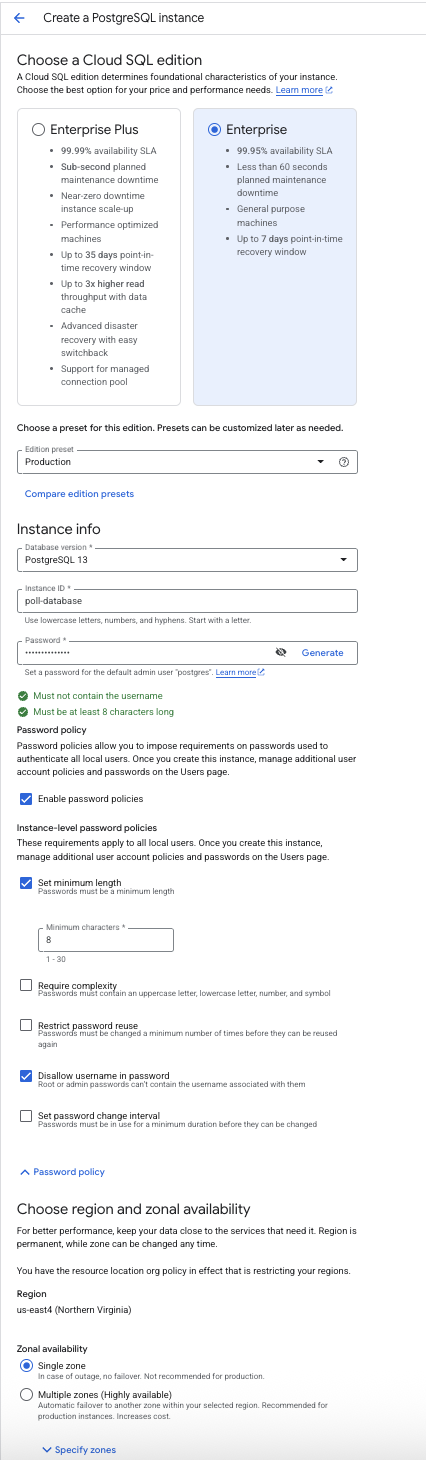
Create a PostgreSQL instance with the following values:
|
Field
|
Value
|
|
Choose a Cloud SQL edition
|
Enterprise
|
|
Database version
|
PostgreSQL 13
|
|
Instance ID
|
poll-database
|
|
Password
|
secretpassword
|
-
Expand Password policy dropdown and deselect Require complexity.
-
Verify that the Region is set to and for Zonal availability select Single zone.
- Click Create Instance.
Note: Wait for the instance to finish deploying. It will take a few minutes.
Note:
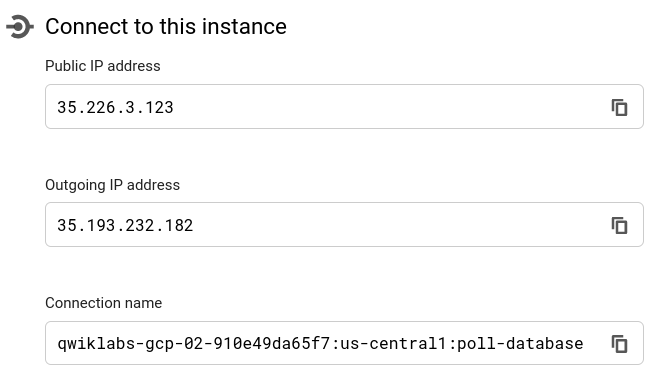
Cloud SQL uses a connection name which is composed of the project ID + region + database name.
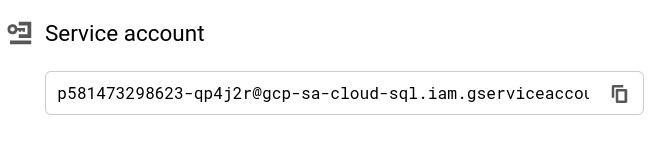
A service account is also created to be used to access the database created.
- Instance connection settings:
- Public IP address: 35.226.3.123
- Outgoing IP address: 35.193.232.182
- Connection name: ::poll-database
Note:
Public IP address and Outgoing IP address may be different for your lab environment
- Service Account setting:
Great work!
The Cloud SQL database has been created successfully.
In the next section populate the database with the required table and data.
Click Check my progress below to check your lab progress.
Create a PostgreSQL instance.
Task 3. Populate the Cloud SQL instance
- Connect to the Cloud SQL instance (Allowlist will be created for Cloud Shell IP):
gcloud sql connect poll-database --user=postgres
-
Enter the Cloud SQL password when requested (i.e. "secretpassword").
-
Connect to the database:
\connect postgres;
- Create the
votes table:
CREATE TABLE IF NOT EXISTS votes
( vote_id SERIAL NOT NULL, time_cast timestamp NOT NULL,
candidate VARCHAR(6) NOT NULL, PRIMARY KEY (vote_id) );
- Create the
totals table:
CREATE TABLE IF NOT EXISTS totals
( total_id SERIAL NOT NULL, candidate VARCHAR(6) NOT NULL,
num_votes INT DEFAULT 0, PRIMARY KEY (total_id) );
- Initialize the data for Tabs:
INSERT INTO totals (candidate, num_votes) VALUES ('TABS', 0);
- Initialize the data for Spaces:
INSERT INTO totals (candidate, num_votes) VALUES ('SPACES', 0);
The Cloud SQL database has been successfully populated with the data required for the application.
In the next section deploy a Cloud Run service to connect to the database.
- To exit from the Cloud SQL Instance type \q.
Task 4. Deploy a public service
To provision the tabspaces service the application expects some environment variables to be set.
|
Environment Value
|
Description
|
|
DB_USER
|
Name of the database user
|
|
DB_PASS
|
Password for the database user
|
|
DB_NAME
|
Name of the database
|
|
CLOUD_SQL_CONNECTION_NAME
|
The name given to the Cloud SQL instance
|
The environment values will be passed to the application and used by the deployed application.
Deploy the Poll service on Cloud Run.
- Set the environment variables for the Cloud SQL connection:
CLOUD_SQL_CONNECTION_NAME=$(gcloud sql instances describe poll-database --format='value(connectionName)')
- Deploy poll Cloud RUN service:
gcloud beta run deploy poll-service \
--image gcr.io/qwiklabs-resources/gsp737-tabspaces \
--region $LOCATION \
--allow-unauthenticated \
--add-cloudsql-instances=$CLOUD_SQL_CONNECTION_NAME \
--set-env-vars "DB_USER=postgres" \
--set-env-vars "DB_PASS=secretpassword" \
--set-env-vars "DB_NAME=postgres" \
--set-env-vars "CLOUD_SQL_CONNECTION_NAME=$CLOUD_SQL_CONNECTION_NAME"
- Copy the Service URL and paste it in a new tab. This will open the Poll service application.
Note:
Cloud Run uses key value pairs to define environment variables.
Find out more by reading the Cloud Run documentation using Environment Variables.
- The Cloud Run service endpoint can be accessed as per below:
POLL_APP_URL=$(gcloud run services describe poll-service --platform managed --region $LOCATION --format="value(status.address.url)")
Click Check my progress below to check your lab progress.
Deploy a public service.
Task 5. Test the application
- To test the application browse to the Cloud Run endpoint and enter some data.
The Poll service should look similar to below:
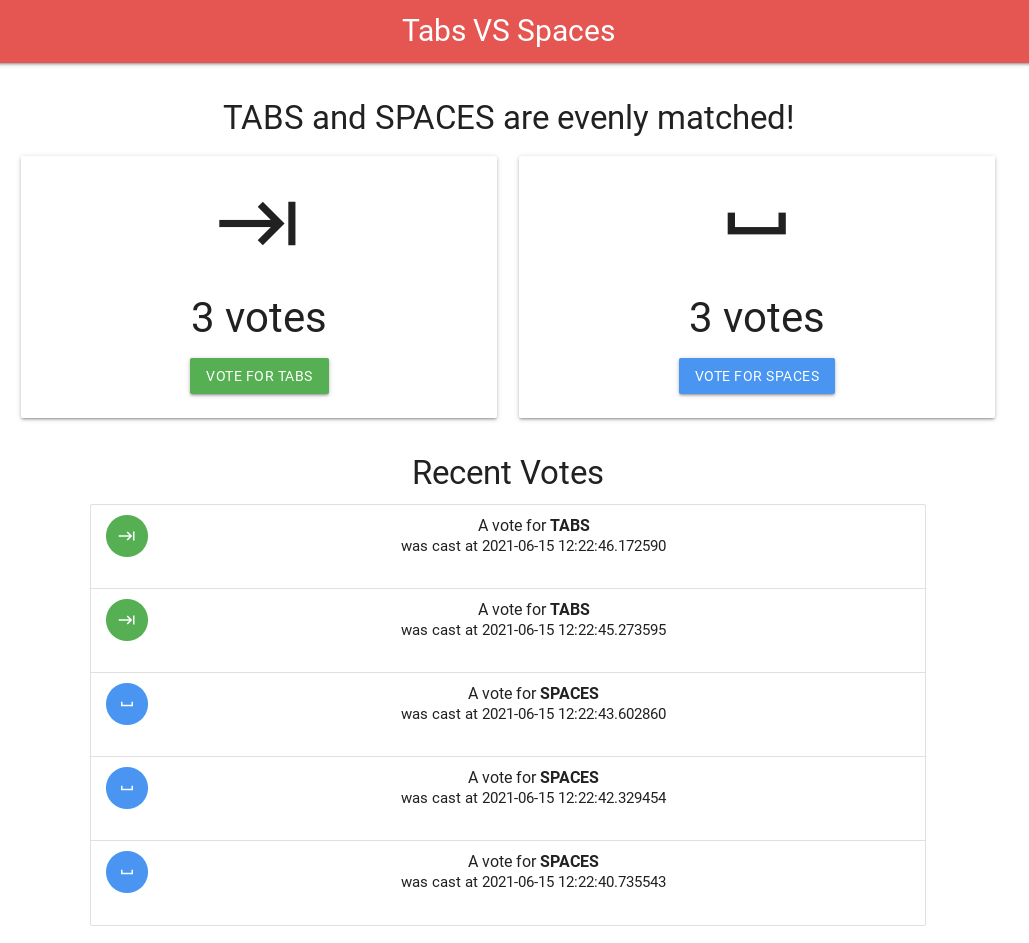
Click Check my progress below to check your lab progress.
Test the application.
Congratulations!
Over this course of this lab, you have seen how to incorporate Cloud SQL within your Google Cloud infrastructure.
- Provision a Cloud SQL instance
- Deployed Cloud Run
- Used environment variables to config a Serverless resource
- Connected Cloud Run to Cloud SQL
Follow the Serverless Expeditions video series to learn more about how to utilize these products within your project.
- Cloud Run
- Cloud Tasks
- Cloud Run functions
Manual Last Updated November 18, 2025
Lab Last Tested November 18, 2025
Copyright 2026 Google LLC All rights reserved. Google and the Google logo are trademarks of Google LLC. All other company and product names may be trademarks of the respective companies with which they are associated.








