Vertex AI is now Gemini Enterprise Agent Platform! We are currently updating our content to reflect this change. Please bear with us if you encounter naming inconsistencies during this transition.
Apply your skills in Google Cloud console
Points de contrôle
Create a new dataset and load JSON data into the table
Vérifier ma progression
/ 20
Creating arrays with ARRAY_AGG()
Vérifier ma progression
/ 20
Querying datasets that already have ARRAYs
Vérifier ma progression
/ 20
Explore a dataset with STRUCTs
Vérifier ma progression
/ 20
Practice with STRUCTs and ARRAYs
Vérifier ma progression
/ 20
Create a new dataset and load JSON data into the table
Vérifier ma progression
/ 20
Creating arrays with ARRAY_AGG()
Vérifier ma progression
/ 20
Querying datasets that already have ARRAYs
Vérifier ma progression
/ 20
Explore a dataset with STRUCTs
Vérifier ma progression
/ 20
Practice with STRUCTs and ARRAYs
Vérifier ma progression
/ 20
Cet atelier peut intégrer des outils d'IA pour vous accompagner dans votre apprentissage.
Overview
BigQuery is Google's fully managed, NoOps, low cost analytics database. With BigQuery you can query terabytes and terabytes of data without having any infrastructure to manage or needing a database administrator. BigQuery uses SQL and can take advantage of the pay-as-you-go model. BigQuery allows you to focus on analyzing data to find meaningful insights.
This lab is an in-depth walkthrough of working with semi-structured data (ingesting JSON, Array data types) inside of BigQuery. Denormalizing your schema into a single table with nested and repeated fields can yield performance improvements, but the SQL syntax for working with array data can be tricky. You will practice loading, querying, troubleshooting, and unnesting various semi-structured datasets.
Objectives
In this lab, you learn about the following:
Loading semi-structured JSON into BigQuery
Creating and querying arrays
Creating and querying structs
Querying nested and repeated fields
Set up and requirements
For each lab, you get a new Google Cloud project and set of resources for a fixed time at no cost.
Sign in to Google Skills using an incognito window.
Note the lab's access time (for example, 1:15:00), and make sure you can finish within that time.
There is no pause feature. You can restart if needed, but you have to start at the beginning.
When ready, click Start lab.
Note your lab credentials (Username and Password). You will use them to sign in to the Google Cloud Console.
Click Open Google Console.
Click Use another account and copy/paste credentials for this lab into the prompts.
If you use other credentials, you'll receive errors or incur charges.
Accept the terms and skip the recovery resource page.
Open BigQuery Console
In the Google Cloud Console, select Navigation menu > BigQuery.
The Welcome to BigQuery in the Cloud Console message box opens. This message box provides a link to the quickstart guide and lists UI updates.
Click Done.
Task 1. Create a new dataset to store our tables
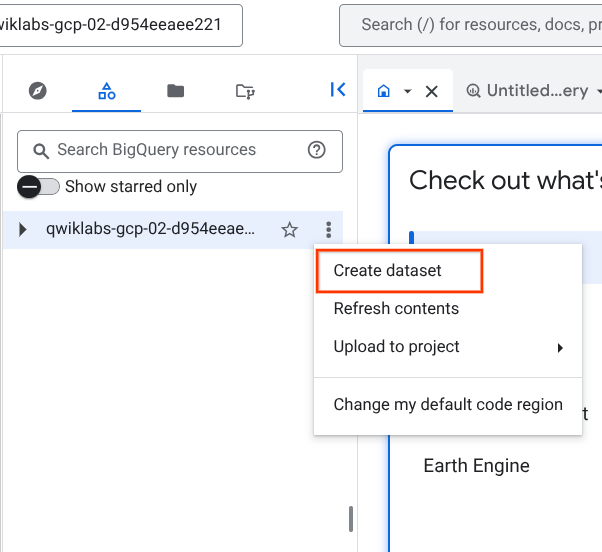
To create a dataset, click on the View actions icon next to your Project ID and then select Create dataset.
Name the new dataset fruit_store. Leave the other options at their default values (Data Location, Default Table Expiration).
Click Create dataset.
Task 2. Practice working with Arrays in SQL
Normally in SQL you will have a single value for each row like this list of fruits below:
Row
Fruit
1
raspberry
2
blackberry
3
strawberry
4
cherry
What if you wanted a list of fruit items for each person at the store? It could look something like this:
Row
Fruit
Person
1
raspberry
sally
2
blackberry
sally
3
strawberry
sally
4
cherry
sally
5
orange
frederick
6
apple
frederick
In traditional relational database SQL, you would look at the repetition of names and immediately think to split the above table into two separate tables: Fruit Items and People. That process is called normalization (going from one table to many). This is a common approach for transactional databases like mySQL.
For data warehousing, data analysts often go the reverse direction (denormalization) and bring many separate tables into one large reporting table.
Now, you're going to learn a different approach that stores data at different levels of granularity all in one table using repeated fields:
Row
Fruit (array)
Person
1
raspberry
sally
blackberry
strawberry
cherry
2
orange
frederick
apple
What looks strange about the previous table?
It's only two rows.
There are multiple field values for Fruit in a single row.
The people are associated with all of the field values.
What's the key insight? The array data type!
An easier way to interpret the Fruit array:
Row
Fruit (array)
Person
1
[raspberry, blackberry, strawberry, cherry]
sally
2
[orange, apple]
frederick
Both of these tables are exactly the same. There are two key learnings here:
An array is simply a list of items in brackets [ ]
BigQuery visually displays arrays as flattened. It simply lists the value in the array vertically (note that all of those values still belong to a single row)
Try it yourself.
Enter the following in the BigQuery Query Editor:
#standardSQL
SELECT
['raspberry', 'blackberry', 'strawberry', 'cherry'] AS fruit_array
Click Run.
Now try executing this one:
#standardSQL
SELECT
['raspberry', 'blackberry', 'strawberry', 'cherry', 1234567] AS fruit_array
You should get an error that looks like the following:
Error: Array elements of types {INT64, STRING} do not have a common supertype at [3:1]
Arrays can only share one data type (all strings, all numbers).
Here's the final table to query against:
#standardSQL
SELECT person, fruit_array, total_cost FROM `data-to-insights.advanced.fruit_store`;
Click Run.
After viewing the results, click the JSON tab to view the nested structure of the results.
Loading semi-structured JSON into BigQuery
What if you had a JSON file that you needed to ingest into BigQuery?
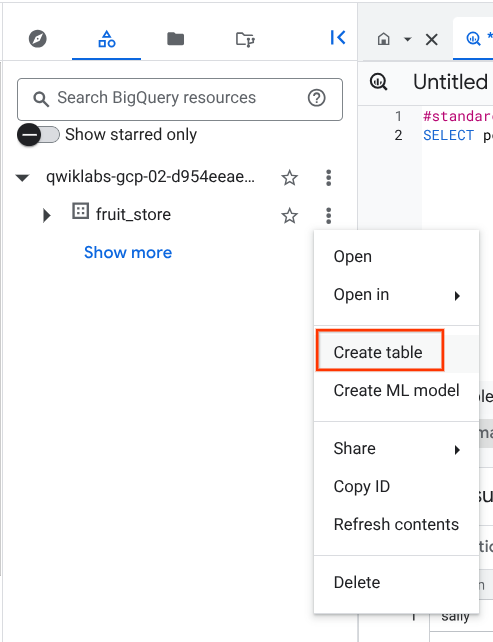
Create a new table in the fruit_store dataset.
To create a table, click on the View actions icon next to the fruit_store dataset and select Create Table.
Add the following details for the table:
Source: Choose Google Cloud Storage in the Create table from dropdown.
Select file from GCS bucket (type or paste the following): cloud-training/data-insights-course/labs/optimizing-for-performance/shopping_cart.json
File format: JSONL (Newline delimited JSON) {This will be auto-populated}
Schema: Check Auto detect (Schema and input parameters).
Call the new table fruit_details.
Click Create table.
In the schema, note that fruit_array is marked as REPEATED which means it's an array.
Recap
BigQuery natively supports arrays
Array values must share a data type
Arrays are called REPEATED fields in BigQuery
Click Check my progress to verify the objective.
Create a new dataset and load JSON data into the table
Task 3. Creating your own arrays with ARRAY_AGG()
Don't have arrays in your tables already? You can create them!
Copy and Paste the below query to explore this public dataset:
SELECT
fullVisitorId,
date,
v2ProductName,
pageTitle
FROM `data-to-insights.ecommerce.all_sessions`
WHERE visitId = 1501570398
ORDER BY date
Click Run and view the results.
Now, we will use the ARRAY_AGG() function to aggregate our string values into an array. Copy and paste the below query to explore this public dataset:
SELECT
fullVisitorId,
date,
ARRAY_AGG(v2ProductName) AS products_viewed,
ARRAY_AGG(pageTitle) AS pages_viewed
FROM `data-to-insights.ecommerce.all_sessions`
WHERE visitId = 1501570398
GROUP BY fullVisitorId, date
ORDER BY date
Click Run and view the results.
Next, we will use the ARRAY_LENGTH() function to count the number of pages and products that were viewed:
SELECT
fullVisitorId,
date,
ARRAY_AGG(v2ProductName) AS products_viewed,
ARRAY_LENGTH(ARRAY_AGG(v2ProductName)) AS num_products_viewed,
ARRAY_AGG(pageTitle) AS pages_viewed,
ARRAY_LENGTH(ARRAY_AGG(pageTitle)) AS num_pages_viewed
FROM `data-to-insights.ecommerce.all_sessions`
WHERE visitId = 1501570398
GROUP BY fullVisitorId, date
ORDER BY date
Next, let's deduplicate the pages and products so we can see how many unique products were viewed. We'll simply add DISTINCT to our ARRAY_AGG():
SELECT
fullVisitorId,
date,
ARRAY_AGG(DISTINCT v2ProductName) AS products_viewed,
ARRAY_LENGTH(ARRAY_AGG(DISTINCT v2ProductName)) AS distinct_products_viewed,
ARRAY_AGG(DISTINCT pageTitle) AS pages_viewed,
ARRAY_LENGTH(ARRAY_AGG(DISTINCT pageTitle)) AS distinct_pages_viewed
FROM `data-to-insights.ecommerce.all_sessions`
WHERE visitId = 1501570398
GROUP BY fullVisitorId, date
ORDER BY date
Recap
You can do some pretty useful things with arrays like:
Finding the number of elements with ARRAY_LENGTH(<array>)
Deduplicating elements with ARRAY_AGG(DISTINCT <field>)
Ordering elements with ARRAY_AGG(<field> ORDER BY <field>)
Limiting ARRAY_AGG(<field> LIMIT 5)
Click Check my progress to verify the objective.
Creating arrays with ARRAY_AGG()
Task 4. Querying datasets that already have ARRAYs
The BigQuery Public Dataset for Google Analytics bigquery-public-data.google_analytics_sample has many more fields and rows than our course dataset data-to-insights.ecommerce.all_sessions. More importantly, it already stores field values like products, pages, and transactions natively as ARRAYs.
Copy and Paste the below query to explore the available data and see if you can find fields with repeated values (arrays):
SELECT
*
FROM `bigquery-public-data.google_analytics_sample.ga_sessions_20170801`
WHERE visitId = 1501570398
Run the query.
Scroll right in the results until you see the hits.product.v2ProductName field (we will discuss the multiple field aliases shortly).
The amount of fields available in the Google Analytics schema can be overwhelming for our analysis. Let's try to query just the visit and page name fields like we did before:
SELECT
visitId,
hits.page.pageTitle
FROM `bigquery-public-data.google_analytics_sample.ga_sessions_20170801`
WHERE visitId = 1501570398
You will get an error:
Cannot access field page on a value with type ARRAY<STRUCT<hitNumber INT64, time INT64, hour INT64, ...>> at [3:8]
Before we can query REPEATED fields (arrays) normally, you must first break the arrays back into rows.
For example, the array for hits.page.pageTitle is stored currently as a single row like:
['homepage','product page','checkout']
and we need it to be:
['homepage',
'product page',
'checkout']
How do we do that with SQL?
Answer: Use the UNNEST() function on your array field:
SELECT DISTINCT
visitId,
h.page.pageTitle
FROM `bigquery-public-data.google_analytics_sample.ga_sessions_20170801`,
UNNEST(hits) AS h
WHERE visitId = 1501570398
LIMIT 10
We'll cover UNNEST() more in detail later but for now just know that:
You need to UNNEST() arrays to bring the array elements back into rows
UNNEST() always follows the table name in your FROM clause (think of it conceptually like a pre-joined table)
Click Check my progress to verify the objective.
Querying datasets that already have ARRAYs
Task 5. Introduction to STRUCTs
You may have wondered why the field alias hit.page.pageTitle looks like three fields in one separated by periods. Just as ARRAY values give you the flexibility to go deep into the granularity of your fields, another data type allows you to go wide in your schema by grouping related fields together. That SQL data type is the STRUCT data type.
The easiest way to think about a STRUCT is to consider it conceptually like a separate table that is already pre-joined into your main table.
A STRUCT can have:
One or many fields in it
The same or different data types for each field
Its own alias
Sounds just like a table right?
Let's explore a dataset with STRUCTs
Switch to Explorer pane, click + Add data > Star a project by name..
Enter bigquery-public-data and click Star.
Click bigquery-public-data in the pinned project list to expand it.
Click on Datasets, find and open google_analytics_sample.
Click the ga_sessions table.
Note: Select any ga_sessions table from the list.
Start scrolling through the schema and answer the following question by using the find feature of your browser (i.e. CTRL + F). Tip: Expand all columns before you begin counting.
As you can imagine, there is an incredible amount of website session data stored for a modern ecommerce website. The main advantage of having 32 STRUCTs in a single table is it allows you to run queries like this one without having to do any JOINs:
SELECT
visitId,
totals.*,
device.*
FROM `bigquery-public-data.google_analytics_sample.ga_sessions_20170801`
WHERE visitId = 1501570398
LIMIT 10
Note: The `.*` syntax tells BigQuery to return all fields for that STRUCT (much like it would if totals.* was a separate table we joined against).
Storing your large reporting tables as STRUCTs (pre-joined "tables") and ARRAYs (deep granularity) allows you to:
Gain significant performance advantages by avoiding 32 table JOINs
Get granular data from ARRAYs when you need it but not be punished if you don't (BigQuery stores each column individually on disk)
Have all the business context in one table as opposed to worrying about JOIN keys and which tables have the data you need
Click Check my progress to verify the objective.
Explore a dataset with STRUCTs
Task 6. Practice with STRUCTs and ARRAYs
The next dataset will be lap times of runners around the track. Each lap will be called a "split".
With this query, try out the STRUCT syntax and note the different field types within the struct container:
#standardSQL
SELECT STRUCT("Rudisha" as name, 23.4 as split) as runner
Row
runner.name
runner.split
1
Rudisha
23.4
What do you notice about the field aliases? Since there are fields nested within the struct (name and split are a subset of runner) you end up with a dot notation.
What if the runner has multiple split times for a single race (like time per lap)?
With an array of course! Run the below query to confirm:
#standardSQL
SELECT STRUCT("Rudisha" as name, [23.4, 26.3, 26.4, 26.1] as splits) AS runner
Row
runner.name
runner.splits
1
Rudisha
23.4
26.3
26.4
26.1
To recap:
Structs are containers that can have multiple field names and data types nested inside.
Arrays can be one of the field types inside of a Struct (as shown above with the splits field).
Practice ingesting JSON data
Switch to Classic Explorer pane and create a new dataset titled racing.
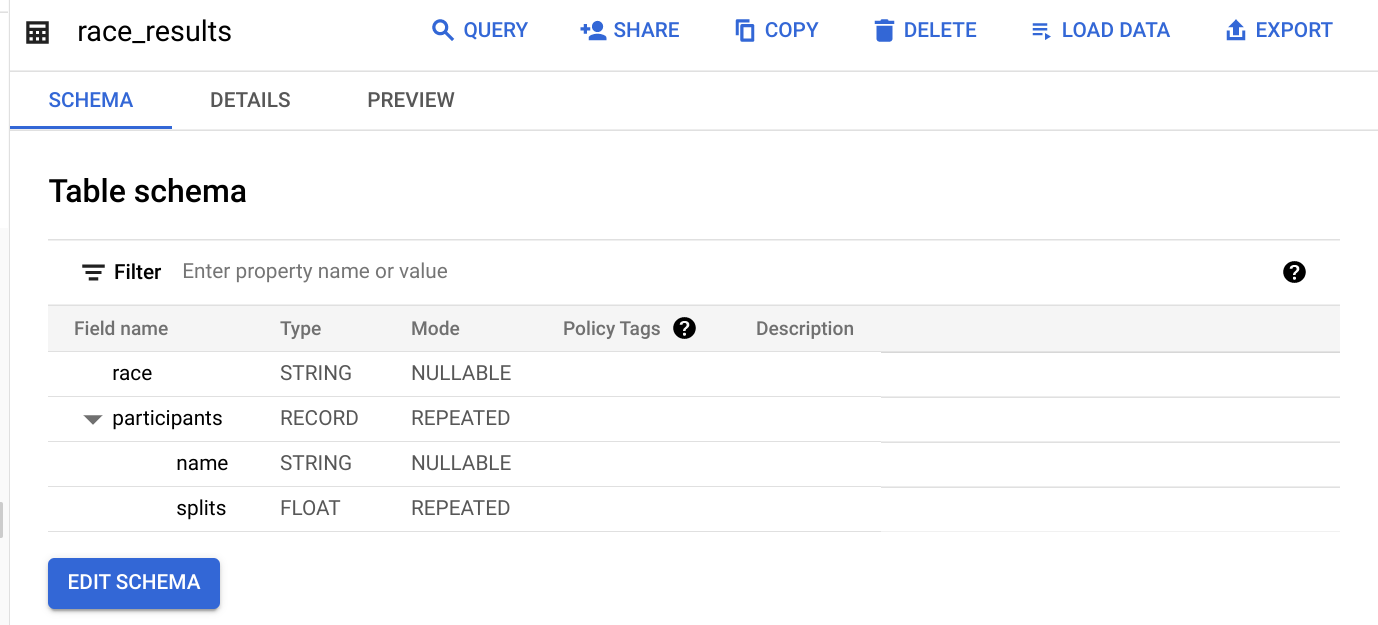
After the load job is successful, preview the schema for the newly created table:
Which field is the STRUCT? How do you know?
The participants field is the STRUCT because it is of type RECORD.
Which field is the ARRAY?
The participants.splits field is an array of floats inside of the parent participants struct. It has a REPEATED Mode which indicates an array. Values of that array are called nested values since they are multiple values inside of a single field.
Practice querying nested and repeated fields
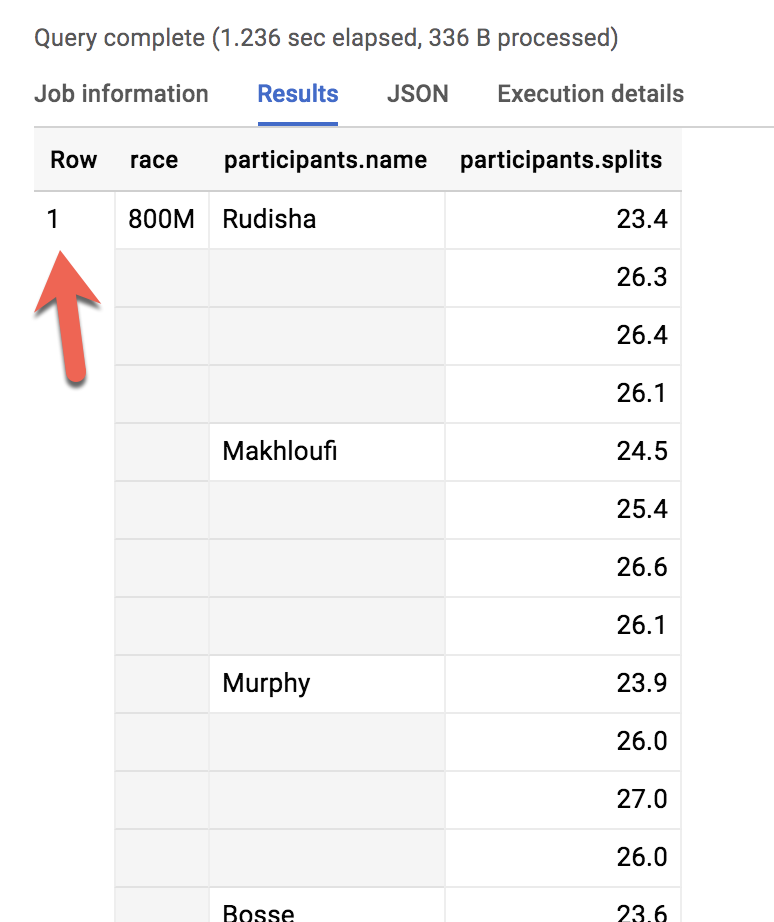
Let's see all of our racers for the 800 Meter race:
#standardSQL
SELECT * FROM racing.race_results
How many rows were returned?
Answer: 1
What if you wanted to list the name of each runner and the type of race?
Run the below schema and see what happens:
#standardSQL
SELECT race, participants.name
FROM racing.race_results
Error: Cannot access field name on a value with type ARRAY<STRUCT<name STRING, splits ARRAY<FLOAT64>>> at [2:27]
Much like forgetting to GROUP BY when you use aggregation functions, here there are two different levels of granularity. One row for the race and three rows for the participants names. So how do you change this:
Row
race
participants.name
1
800M
Rudisha
2
???
Makhloufi
3
???
Murphy
...to this:
Row
race
participants.name
1
800M
Rudisha
2
800M
Makhloufi
3
800M
Murphy
In traditional relational SQL, if you had a races table and a participants table what would you do to get information from both tables? You would JOIN them together. Here the participant STRUCT (which is conceptually very similar to a table) is already part of your races table but is not yet correlated correctly with your non-STRUCT field "race".
Can you think of what two word SQL command you would use to correlate the 800M race with each of the racers in the first table?
Answer: CROSS JOIN
Great!
Now try running this:
#standardSQL
SELECT race, participants.name
FROM racing.race_results
CROSS JOIN
participants # this is the STRUCT (it's like a table within a table)
Error: Table "participants" must be qualified with a dataset (e.g. dataset.table).
Even though the participants STRUCT is like a table, it is still technically a field in the racing.race_results table.
Add the dataset name to the query:
#standardSQL
SELECT race, participants.name
FROM racing.race_results
CROSS JOIN
race_results.participants # full STRUCT name
Click Run.
Wow! You've successfully listed all of the racers for each race!
Row
race
name
1
800M
Rudisha
2
800M
Makhloufi
3
800M
Murphy
4
800M
Bosse
5
800M
Rotich
6
800M
Lewandowski
7
800M
Kipketer
8
800M
Berian
You can simplify the last query by:
Adding an alias for the original table
Replacing the words "CROSS JOIN" with a comma (a comma implicitly cross joins)
This will give you the same query result:
#standardSQL
SELECT race, participants.name
FROM racing.race_results AS r, r.participants
If you have more than one race type (800M, 100M, 200M), wouldn't a CROSS JOIN just associate every racer name with every possible race like a cartesian product?
Answer: No. This is a correlated cross join which only unpacks the elements associated with a single row. For a greater discussion, see working with ARRAYs and STRUCTs.
Click Check my progress to verify the objective.
Practice with STRUCTs and ARRAYs
Recap of STRUCTs:
A SQL STRUCT is simply a container of other data fields which can be of different data types. The word struct means data structure. Recall the example from earlier:
STRUCT("Rudisha" as name, [23.4, 26.3, 26.4, 26.1] as splits) AS runner
STRUCTs are given an alias (like runner above) and can conceptually be thought of as a table inside of your main table.
STRUCTs (and ARRAYs) must be unpacked before you can operate over their elements. Wrap an UNNEST() around the name of the struct itself or the struct field that is an array in order to unpack and flatten it.
Task 7. Lab question: STRUCT()
Answer the below questions using the racing.race_results table you created previously.
Task: Write a query to COUNT how many racers were there in total.
To start, use the below partially written query:
#standardSQL
SELECT COUNT(participants.name) AS racer_count
FROM racing.race_results
Note: Remember you will need to cross join in your struct name as an additional data source after the FROM.
Possible solution:
#standardSQL
SELECT COUNT(p.name) AS racer_count
FROM racing.race_results AS r, UNNEST(r.participants) AS p
Row
racer_count
1
8
Answer: There were 8 racers who ran the race.
Task 8. Lab question: Unpacking ARRAYs with UNNEST( )
Write a query that will list the total race time for racers whose names begin with R. Order the results with the fastest total time first. Use the UNNEST() operator and start with the partially written query below.
Complete the query:
#standardSQL
SELECT
p.name,
SUM(split_times) as total_race_time
FROM racing.race_results AS r
, r.participants AS p
, p.splits AS split_times
WHERE
GROUP BY
ORDER BY
;
Note:
You will need to unpack both the struct and the array within the struct as data sources after your FROM clause.
Be sure to use aliases where appropriate.
Possible solution:
#standardSQL
SELECT
p.name,
SUM(split_times) as total_race_time
FROM racing.race_results AS r
, UNNEST(r.participants) AS p
, UNNEST(p.splits) AS split_times
WHERE p.name LIKE 'R%'
GROUP BY p.name
ORDER BY total_race_time ASC;
Row
name
total_race_time
1
Rudisha
102.19999999999999
2
Rotich
103.6
Task 9. Lab question: Filtering within ARRAY values
You happened to see that the fastest lap time recorded for the 800 M race was 23.2 seconds, but you did not see which runner ran that particular lap. Create a query that returns that result.
Task: Complete the partially written query:
#standardSQL
SELECT
p.name,
split_time
FROM racing.race_results AS r
, r.participants AS p
, p.splits AS split_time
WHERE split_time = ;
Possible solution:
#standardSQL
SELECT
p.name,
split_time
FROM racing.race_results AS r
, UNNEST(r.participants) AS p
, UNNEST(p.splits) AS split_time
WHERE split_time = 23.2;
Row
name
split_time
1
Kipketer
23.2
Congratulations!
You've successfully ingested JSON datasets, created ARRAYs and STRUCTs, and unnested semi-structured data for insights.
Copyright 2026 Google LLC All rights reserved. Google and the Google logo are trademarks of Google LLC. All other company and product names may be trademarks of the respective companies with which they are associated.
Avant de commencer
Les ateliers créent un projet Google Cloud et des ressources pour une durée déterminée.
Les ateliers doivent être effectués dans le délai imparti et ne peuvent pas être mis en pause. Si vous quittez l'atelier, vous devrez le recommencer depuis le début.
En haut à gauche de l'écran, cliquez sur Démarrer l'atelier pour commencer.
Utilisez la navigation privée
Copiez le nom d'utilisateur et le mot de passe fournis pour l'atelier
Cliquez sur Ouvrir la console en navigation privée
Connectez-vous à la console
Connectez-vous à l'aide des identifiants qui vous ont été attribués pour l'atelier. L'utilisation d'autres identifiants peut entraîner des erreurs ou des frais.
Acceptez les conditions d'utilisation et ignorez la page concernant les ressources de récupération des données.
Ne cliquez pas sur Terminer l'atelier, à moins que vous n'ayez terminé l'atelier ou que vous ne vouliez le recommencer, car cela effacera votre travail et supprimera le projet.
Ce contenu n'est pas disponible pour le moment
Nous vous préviendrons par e-mail lorsqu'il sera disponible
Parfait !
Nous vous contacterons par e-mail s'il devient disponible
Un atelier à la fois
Confirmez pour mettre fin à tous les ateliers existants et démarrer celui-ci
Utilisez la navigation privée pour effectuer l'atelier
Le meilleur moyen d'exécuter cet atelier consiste à utiliser une fenêtre de navigation privée. Vous éviterez ainsi les conflits entre votre compte personnel et le compte temporaire de participant, qui pourraient entraîner des frais supplémentaires facturés sur votre compte personnel.
In this lab you will work with semi-structured data (ingesting JSON, Array data types) inside of BigQuery. You will practice loading, querying, troubleshooting, and unnesting various semi-structured datasets.
Durée :
0 min de configuration
·
Accessible pendant 60 min
·
Terminé après 60 min