
准备工作
- 实验会创建一个 Google Cloud 项目和一些资源,供您使用限定的一段时间
- 实验有时间限制,并且没有暂停功能。如果您中途结束实验,则必须重新开始。
- 在屏幕左上角,点击开始实验即可开始

Peer two networks
/ 50
Deploy a VM with no external IP
/ 50

In this lab, you peer two networks. This allows communication between machines in those networks using internal IP addresses. This means that databases can be deployed on a private network without external IP addresses, and those databases will only be reachable from the peered network.
In this lab, you learn how to perform the following tasks:
In this task, you perform initialization steps for your lab.
For each lab, you get a new Google Cloud project and set of resources for a fixed time at no cost.
Sign in to Google Skills using an incognito window.
Note the lab's access time (for example, 1:15:00), and make sure you can finish within that time.
There is no pause feature. You can restart if needed, but you have to start at the beginning.
When ready, click Start lab.
Note your lab credentials (Username and Password). You will use them to sign in to the Google Cloud Console.
Click Open Google Console.
Click Use another account and copy/paste credentials for this lab into the prompts. If you use other credentials, you'll receive errors or incur charges.
Accept the terms and skip the recovery resource page.
Open a new web browser window and navigate to the Google Cloud Console (console.cloud.google.com). Use the project selector to choose the first project with a leading name of 'qwiklabs-gcp.'
On the Navigation menu (
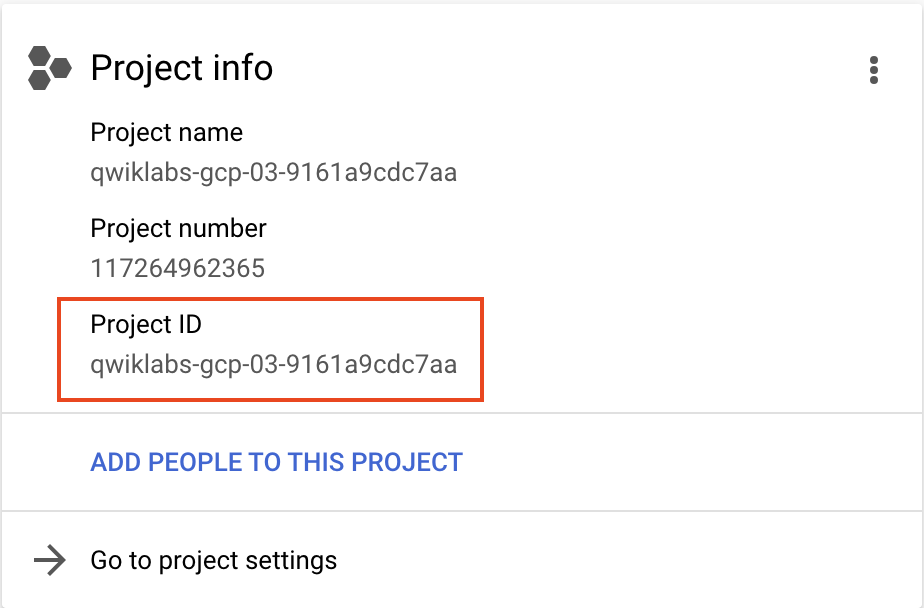
In the Project info section, find your Project ID and copy and paste it into a text file. You will need it later.
Click Activate Cloud Shell (
To clone a GitHub repository that includes a completed version of the previous lab, enter the following command:
Type ls, and you see that this folder has the Terraform files to create two networks and a couple of test servers.
Click Open Editor, and then click Open in a new window.
Navigate to training-data-analyst/courses/db-migration/terraform-create-peering/ folder, and then open the terraform.tfvars file.
Change the values in the terraform.tfvars file as noted below.
| Item | Value |
|---|---|
| project_id | |
| gcp_region_1 | |
| gcp_zone_1 |
In the Cloud Console, initialize Terraform and create the resources, by entering the following commands:
If you see the Authorize Cloud Shell dialog box, click Authorize.
When the Terraform process completes, on the Navigation menu (
You now have two machines: one in the public network and one in the private network.
Copy the internal IP address of the private machine to the clipboard (it should be 10.2.2.2), and then SSH into the one with the name that begins with public-test-server-.
Ping the private machine (at this point it shouldn't work):
On the Navigation menu (
Notice that there are no peered networks at this point. You could set up the peering here in the Console, but using Terraform is more automated and reproducible.
Back in Cloud Shell, make sure you are in the ~/training-data-analyst/courses/db-migration/terraform-create-peering/ folder, and create a file called vpc-peering.tf:
After the command completes, return to the Console. Navigate away from the VPC network peering page and then back to it, to refresh the view. The peering is created and active.
Switch back to the SSH window of the public test server, and your ping command has started working. Press CTRL+C to stop the command, and then type exit to close the SSH session.
Click Check my progress to verify the objective.
Once the networks are peered, machines in the private network do not need a public IP address.
In Cloud Shell, switch to the Code Editor, and then open the file private-test-server-linux.tf.
In the network_interface section, comment out the line that reads access_config { } (line 19).
Because there is no longer going to be an external IP address, you can't output its value.
Click Check my progress to verify the objective.
When the Terraform command completes, in the Console, go to the Compute Engine service. The private VM now has no external IP address. SSH into the public VM and make sure you can still ping the private server via its internal IP address.
Return to the the Cloud Shell terminal and delete everything:
Congratulations! You have peered two networks. This allows communication between machines in those networks using internal IP addresses. This means that databases can be deployed on a private network without external IP addresses, and those databases will only be reachable from the peered network.
When you have completed your lab, click End Lab. Google Skills removes the resources you’ve used and cleans the account for you.
You will be given an opportunity to rate the lab experience. Select the applicable number of stars, type a comment, and then click Submit.
The number of stars indicates the following:
You can close the dialog box if you don't want to provide feedback.
For feedback, suggestions, or corrections, please use the Support tab.
Copyright 2026 Google LLC All rights reserved. Google and the Google logo are trademarks of Google LLC. All other company and product names may be trademarks of the respective companies with which they are associated.



此内容目前不可用
一旦可用,我们会通过电子邮件告知您

太好了!
一旦可用,我们会通过电子邮件告知您


一次一个实验
确认结束所有现有实验并开始此实验