


准备工作
- 实验会创建一个 Google Cloud 项目和一些资源,供您使用限定的一段时间
- 实验有时间限制,并且没有暂停功能。如果您中途结束实验,则必须重新开始。
- 在屏幕左上角,点击开始实验即可开始


Credentials are often necessary when an API proxy communicates with backend or third-party services, and credentials should always be protected when stored in Apigee. Security breaches can occur when internal users get unauthorized access to sensitive data.
In this lab, you use a key value map (KVM) to store backend credentials. Values stored in a KVM are encrypted. You will then use the KeyValueMapOperations policy to retrieve the credentials into private variables and use them to build a Basic Authentication header.
In this lab, you learn how to perform the following tasks:
For each lab, you get a new Google Cloud project and set of resources for a fixed time at no cost.
Sign in to Google Skills using an incognito window.
Note the lab's access time (for example, 1:15:00), and make sure you can finish within that time.
There is no pause feature. You can restart if needed, but you have to start at the beginning.
When ready, click Start lab.
Note your lab credentials (Username and Password). You will use them to sign in to the Google Cloud Console.
Click Open Google Console.
Click Use another account and copy/paste credentials for this lab into the prompts. If you use other credentials, you'll receive errors or incur charges.
Accept the terms and skip the recovery resource page.
Google Cloud Shell is a virtual machine that is loaded with development tools. It offers a persistent 5GB home directory and runs on the Google Cloud.
Google Cloud Shell provides command-line access to your Google Cloud resources.
In Cloud console, on the top right toolbar, click the Open Cloud Shell button.
Click Continue.
It takes a few moments to provision and connect to the environment. When you are connected, you are already authenticated, and the project is set to your PROJECT_ID. For example:
gcloud is the command-line tool for Google Cloud. It comes pre-installed on Cloud Shell and supports tab-completion.
Output:
Example output:
Output:
Example output:
These assets have already been added to the Apigee organization:
These assets will be added to the Apigee organization as soon as the runtime is available:
The highlighted items are used during this lab.
In this task, you will use the KeyValueMapOperations policy to extract credentials from the key value map.
The PATCH /products/{id} call to the backend requires that a Basic Authentication header containing the backend credentials be added to the request. We will store these credentials in the KVM.
In the Google Cloud console, on the Navigation menu (
The Apigee console page will open.
If Apigee is not listed, search for Apigee in the top search bar and navigate to the Apigee service.
To pin Apigee in the console, click the favorite icon (
The Apigee console page will now be listed as a favorite product in the Navigation menu.
On the left navigation menu, select Proxy development > API proxies.
Select the retail-v1 proxy.
Click the Develop tab.
You are modifying the version of the retail-v1 proxy that was created during Labs 1 through 5.
Select Proxy endpoints > default > updateProductById.
On the Request updateProductById flow, click Add Policy Step (+).
In the Add policy step pane, select Create new policy, and then select Mediation > Key Value Map Operations.
Specify the following values:
| Property | Value |
|---|---|
| Name | KVM-GetCredentials |
| Display name | KVM-GetCredentials |
Click Add.
Click on Policies > KVM-GetCredentials.
Set the policy configuration to:
This policy will extract the backendId and backendSecret values from the ProductsKVM into private variables.
The backend ID and secret are loaded into variables with a "private." prefix. These variables will be masked in the debug tool. You must use private variables when retrieving data from a KVM.
In this task, you use the BasicAuthentication policy to add a Basic Auth header, using the private variables from the KeyValueMapOperations policy.
Select Proxy endpoints > default > updateProductById.
On the Request updateProductById flow, click Add Policy Step (+).
In the Add policy step pane, select Create new policy, and then select Security > Basic Authentication.
Specify the following values:
| Property | Value |
|---|---|
| Name | BA-AddAuthHeader |
| Display name | BA-AddAuthHeader |
Click Add.
Click on Policies > BA-AddAuthHeader.
Set the policy configuration to:
This policy will use the backend ID and secret to build a Basic Authentication header for the call to the backend service.
Select Proxy endpoints > default > updateProductById.
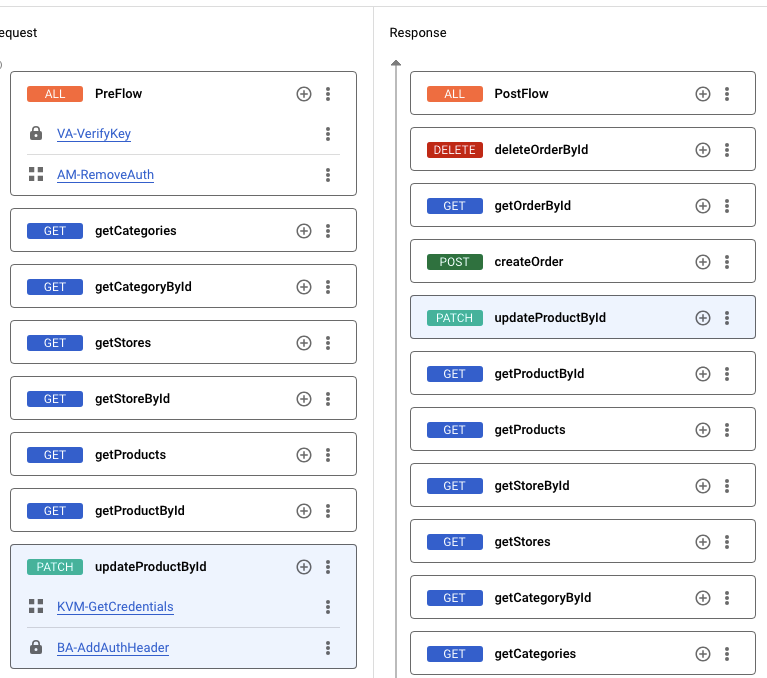
Your updateProductById flow should look like this:
Click Save, and then click Save as New Revision.
Click Deploy.
To specify that you want the new revision deployed to the eval environment, select eval as the Environment, then click Deploy, and then click Confirm.
Certain assets, including API products, developers, developer apps, and KVMs, cannot be saved until the runtime is available.
For example, when navigating to the API products page, you might see an error message that reads "Products were not loaded successfully."
This is an error you should see when you are waiting for the runtime instance to be available. Once the runtime is available, refreshing the page will remove the error.
If you get this type of error, you can check the status of provisioning.
In Cloud Shell, to confirm that the runtime instance has been installed and the eval environment has been attached, run the following commands:
When the script returns ORG IS READY TO USE, you can proceed to the next steps.
While you wait for the new revision to deploy, review the following information:
In this task, you create a key value map (KVM).
On the left navigation menu, select Management > Environments.
Click eval, and then click the Key Value Maps tab.
Click +Create Key Value Map:
For Key value map name, specify ProductsKVM, and then click Create.
To learn more about Apigee key value maps, you can use Gemini Cloud Assist in the Google Cloud console.
Open Gemini Cloud Assist
To open Gemini Cloud Assist, in the Google Cloud console, click Open or close Gemini Cloud Assist chat (
If prompted in the Cloud Assist panel, click Get Gemini Cloud Assist.
Optionally view the APIs that are required and recommended to be enabled.
Click Enable Gemini Cloud Assist at no cost.
Click Start chatting.
Prompt Gemini
For the prompt, type:
Click Send (
Read the response generated by Gemini Cloud Assist.
Optionally, click Show related content to browse the related documentation.
In this task, you use the Apigee API to populate your KVM.
KVM data is stored in the runtime database, and it can be populated by using the KeyValueMapOperations policy or using the Apigee API. For this lab, you will use the Apigee API.
The keys and values you will load are:
| Key | Value |
|---|---|
| backendId | svcacct |
| backendSecret | UNdrDxeQ82 |
The eval environment in the Apigee organization can be called using the hostname eval.example.com. The DNS entry for this hostname has been created within your project, and it resolves to the IP address of the Apigee runtime instance. This DNS entry has been created in a private zone, which means it is only visible on the internal network.
Cloud Shell does not reside on the internal network, so Cloud Shell commands cannot resolve this DNS entry. A virtual machine (VM) within your project can access the private zone DNS. A virtual machine named apigeex-test-vm was automatically created for this purpose. You can make API proxy calls from this machine.
The curl command will be used to send API requests to an API proxy. The -k option for curl tells it to skip verification of the TLS certificate. For this lab, the Apigee runtime uses a self-signed certificate. For a production environment, you should use certificates that have been created by a trusted certificate authority (CA).
In Cloud Shell, open a new tab, and then open an SSH connection to your test VM:
The first gcloud command retrieves the zone of the test VM, and the second opens the SSH connection to the VM.
If prompted, type Y to continue.
For each question asked in the Cloud Shell, click Enter or Return to specify the default input.
Your logged in identity is the owner of the project, so SSH to this machine is allowed.
Your Cloud Shell session is now running inside the VM.
In the Cloud Shell SSH session, to load the backendId, run these commands:
This command returns the key and value when they are created successfully.
Use this curl command to load the backendSecret with an incorrect secret:
In the next task you will see that this incorrect secret causes your backend request to fail.
In this task, you validate that the retail API presents the credentials to the backend service and the product overall rating is updated.
The only field in the product that you can update is the overall_rating. It must be updated to another decimal number.
The API key may be retrieved directly from the app accessible on the Publish > Apps page. It can also be retrieved via Apigee API call.
In the Cloud Shell SSH session, run the following command:
This command retrieves a Google Cloud access token for the logged-in user, sending it as a Bearer token to the Apigee API call. It retrieves the retail-app app details as a JSON response, which is parsed by jq to retrieve the app's key. That key is then put into the API_KEY environment variable, and the export command is concatenated onto the .bashrc file which runs automatically when starting a the SSH session.
In the Cloud Shell SSH session, use this curl command to get a list of products:
The response should be a JSON list of products that resembles this:
The top-level keys are the IDs (18841, 31001, and 62003 are shown here). Choose any one of the IDs in the entire list.
Create an environment variable with the ID you have chosen, and replace "REPLACE" with the ID you have chosen:
Replace "REPLACE" with the ID you have chosen.
Look at the current overall_rating for the product, and choose a different positive decimal number. For example, 2.1 is the overall_rating for product 31001 shown above. You might choose to change the rating to 4.5. Create an environment variable with the new rating you have chosen:
Again, be sure to replace "REPLACE" with the new rating you have chosen.
Try to make the request using the incorrect backendSecret we loaded earlier by using this curl command:
You should get an error that looks like this:
Use these curl commands to delete the backendSecret and then add it with the correct value:
Use this command to update the overall_rating and then retrieve the product to make sure that the overall_rating has changed.
The incorrect backendSecret may still be in the cache from the previous request. The KeyValueMapOperations policy specified an expiry time of 60 seconds. If you get an invalid credentials error for the first call, try your requests again until the request succeeds.
If successful, the first curl command will return the same overall_rating that you used to update it. The second curl command will return the entire product, including the updated overall_rating.
If the response was not successful, read the code and debug the request to determine the issue. Here are some common issues:
The KeyValueMapOperations or BasicAuthentication policy is in the wrong flow. The debug tool would show the policies not being called for the PATCH request.
Your key value map was not successfully created or did not have the name ProductsKVM.
The keys or values in the key value map were not set correctly. There could be leading or trailing spaces.
The keys were not specified correctly in the KeyValueMapOperations policy. The private variables wouldn't be populated.
If you get a 401 Unauthorized error that looks like this, your Basic Auth header is probably incorrect:
To debug an issue with the backendId or backendSecret, you need to assign the values to another variable to be able to see the values. You can create an ExtractVariables policy that follows the BasicAuthentication policy, and set its name to EV-DebugBasicAuth.
Replace the configuration with the following:
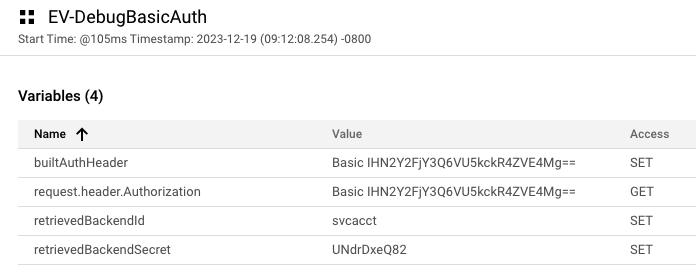
Save the proxy and deploy the updated revision. When you debug the proxy, you can see the values that would otherwise be masked:
In the picture above, the backend ID and secret look correct. However, if you decode the Base64 value in the Authorization header, you'll see that there is a leading space in the backendId.
Command:
The output has a leading space:
In this lab, you created a KVM and stored credentials in it. You retrieved the credentials from your retail-v1 proxy, and built a Basic Auth header that gave you access to the backend updateProductById resource.
When you have completed your lab, click End Lab. Google Skills removes the resources you’ve used and cleans the account for you.
You will be given an opportunity to rate the lab experience. Select the applicable number of stars, type a comment, and then click Submit.
The number of stars indicates the following:
You can close the dialog box if you don't want to provide feedback.
For feedback, suggestions, or corrections, please use the Support tab.
Copyright 2026 Google LLC All rights reserved. Google and the Google logo are trademarks of Google LLC. All other company and product names may be trademarks of the respective companies with which they are associated.



此内容目前不可用
一旦可用,我们会通过电子邮件告知您

太好了!
一旦可用,我们会通过电子邮件告知您


一次一个实验
确认结束所有现有实验并开始此实验