Konten ini belum dioptimalkan untuk perangkat seluler.
Untuk pengalaman terbaik, kunjungi kami dengan komputer desktop menggunakan link yang dikirim melalui email.
Overview
Credentials are often necessary when an API proxy communicates with backend or third-party services, and credentials should always be protected when stored in Apigee. Security breaches can occur when internal users get unauthorized access to sensitive data.
In this lab, you use a key value map (KVM) to store backend credentials. Values stored in a KVM are encrypted. You will then use the KeyValueMapOperations policy to retrieve the credentials into private variables and use them to build a Basic Authentication header.
Objectives
In this lab, you learn how to perform the following tasks:
Create and populate a key value map (KVM).
Use data from a KVM in your proxy.
Build a Basic Authentication header.
Setup
For each lab, you get a new Google Cloud project and set of resources for a fixed time at no cost.
Sign in to Google Skills using an incognito window.
Note the lab's access time (for example, 1:15:00), and make sure you can finish within that time.
There is no pause feature. You can restart if needed, but you have to start at the beginning.
When ready, click Start lab.
Note your lab credentials (Username and Password). You will use them to sign in to the Google Cloud Console.
Click Open Google Console.
Click Use another account and copy/paste credentials for this lab into the prompts.
If you use other credentials, you'll receive errors or incur charges.
Accept the terms and skip the recovery resource page.
Activate Google Cloud Shell
Google Cloud Shell is a virtual machine that is loaded with development tools. It offers a persistent 5GB home directory and runs on the Google Cloud.
Google Cloud Shell provides command-line access to your Google Cloud resources.
In Cloud console, on the top right toolbar, click the Open Cloud Shell button.
Click Continue.
It takes a few moments to provision and connect to the environment. When you are connected, you are already authenticated, and the project is set to your PROJECT_ID. For example:
gcloud is the command-line tool for Google Cloud. It comes pre-installed on Cloud Shell and supports tab-completion.
You can list the active account name with this command:
[core]
project = qwiklabs-gcp-44776a13dea667a6
Note:
Full documentation of gcloud is available in the
gcloud CLI overview guide
.
Preloaded assets
These assets have already been added to the Apigee organization:
The retail-v1 API proxy
The oauth-v1 API proxy (for generating OAuth tokens)
The TS-Retail target server in the eval environment (used by retail-v1)
These assets will be added to the Apigee organization as soon as the runtime is available:
The API products, developer, and developer app (used by retail-v1)
The highlighted items are used during this lab.
Note:
Revision 1 of the retail-v1 proxy is marked as deployed, and is immutable. If you ever make a mistake in your proxy code that you can't recover from, you can select revision 1 and restart editing from there.
Task 1. Modify the retail proxy to use the KVM credentials
The PATCH /products/{id} call to the backend requires that a Basic Authentication header containing the backend credentials be added to the request. We will store these credentials in the KVM.
Note: A KVM cannot be created until the runtime is available. The Apigee organization you use for this lab takes a while to start up, and the runtime is not yet available when you start the lab. In a real-world scenario, you would typically create the KVM before you used it in a proxy.
Pin the Apigee console page
In the Google Cloud console, on the Navigation menu (), look for Apigee in the Favorite Products section.
The Apigee console page will open.
If Apigee is not listed, search for Apigee in the top search bar and navigate to the Apigee service.
To pin Apigee in the console, click the favorite icon ().
The Apigee console page will now be listed as a favorite product in the Navigation menu.
Modify the proxy
On the left navigation menu, select Proxy development > API proxies.
Select the retail-v1 proxy.
Click the Develop tab.
You are modifying the version of the retail-v1 proxy that was created during Labs 1 through 5.
This policy will extract the backendId and backendSecret values from the ProductsKVM into private variables.
Note: The ExpiryTimeInSecs element is set to 60, causing the policy to automatically cache the values of the KVM for 60 seconds. This helps with proxy performance. If you modify an entry, you'll have to wait 60 seconds for cached values to expire before the change to the KVM entry will be detected.
The backend ID and secret are loaded into variables with a "private." prefix. These variables will be masked in the debug tool. You must use private variables when retrieving data from a KVM.
Task 2. Add the Basic Authentication header
In this task, you use the BasicAuthentication policy to add a Basic Auth header, using the private variables from the KeyValueMapOperations policy.
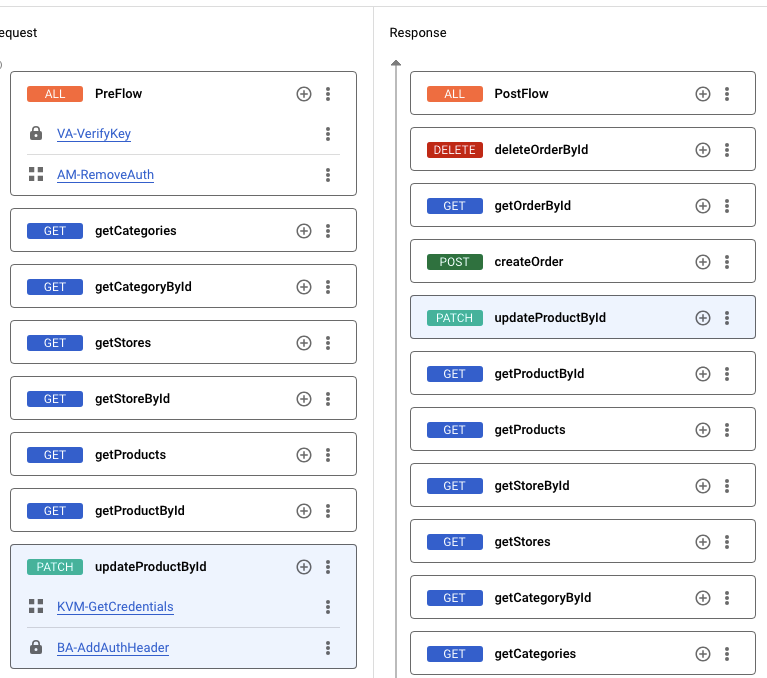
Your updateProductById flow should look like this:
Click Save, and then click Save as New Revision.
Click Deploy.
To specify that you want the new revision deployed to the eval environment, select eval as the Environment, then click Deploy, and then click Confirm.
Check runtime status
Certain assets, including API products, developers, developer apps, and KVMs, cannot be saved until the runtime is available.
For example, when navigating to the API products page, you might see an error message that reads "Products were not loaded successfully."
This is an error you should see when you are waiting for the runtime instance to be available. Once the runtime is available, refreshing the page will remove the error.
If you get this type of error, you can check the status of provisioning.
Check provisioning status
In Cloud Shell, to confirm that the runtime instance has been installed and the eval environment has been attached, run the following commands:
export INSTANCE_NAME=eval-instance; export ENV_NAME=eval; export PREV_INSTANCE_STATE=; echo "waiting for runtime instance ${INSTANCE_NAME} to be active"; while : ; do export INSTANCE_STATE=$(curl -s -H "Authorization: Bearer $(gcloud auth print-access-token)" -X GET "https://apigee.googleapis.com/v1/organizations/${GOOGLE_CLOUD_PROJECT}/instances/${INSTANCE_NAME}" | jq "select(.state != null) | .state" --raw-output); [[ "${INSTANCE_STATE}" == "${PREV_INSTANCE_STATE}" ]] || (echo; echo "INSTANCE_STATE=${INSTANCE_STATE}"); export PREV_INSTANCE_STATE=${INSTANCE_STATE}; [[ "${INSTANCE_STATE}" != "ACTIVE" ]] || break; echo -n "."; sleep 5; done; echo; echo "instance created, waiting for environment ${ENV_NAME} to be attached to instance"; while : ; do export ATTACHMENT_DONE=$(curl -s -H "Authorization: Bearer $(gcloud auth print-access-token)" -X GET "https://apigee.googleapis.com/v1/organizations/${GOOGLE_CLOUD_PROJECT}/instances/${INSTANCE_NAME}/attachments" | jq "select(.attachments != null) | .attachments[] | select(.environment == \"${ENV_NAME}\") | .environment" --join-output); [[ "${ATTACHMENT_DONE}" != "${ENV_NAME}" ]] || break; echo -n "."; sleep 5; done; echo "***ORG IS READY TO USE***";
When the script returns ORG IS READY TO USE, you can proceed to the next steps.
While you are waiting
While you wait for the new revision to deploy, review the following information:
On the left navigation menu, select Management > Environments.
Click eval, and then click the Key Value Maps tab.
Note: If you see an error on the page, the runtime instance may not yet be available.
Click +Create Key Value Map:
For Key value map name, specify ProductsKVM, and then click Create.
Learn about key value maps
To learn more about Apigee key value maps, you can use Gemini Cloud Assist in the Google Cloud console.
Open Gemini Cloud Assist
To open Gemini Cloud Assist, in the Google Cloud console, click Open or close Gemini Cloud Assist chat ().
If prompted in the Cloud Assist panel, click Get Gemini Cloud Assist.
Optionally view the APIs that are required and recommended to be enabled.
Click Enable Gemini Cloud Assist at no cost.
Click Start chatting.
Prompt Gemini
For the prompt, type:
In Apigee X, what is a key value map and when should one be used?
Click Send ().
Read the response generated by Gemini Cloud Assist.
Optionally, click Show related content to browse the related documentation.
Task 4. Populate the KVM
In this task, you use the Apigee API to populate your KVM.
KVM data is stored in the runtime database, and it can be populated by using the KeyValueMapOperations policy or using the Apigee API. For this lab, you will use the Apigee API.
The keys and values you will load are:
Key
Value
backendId
svcacct
backendSecret
UNdrDxeQ82
Test the API proxy using private DNS
The eval environment in the Apigee organization can be called using the hostname eval.example.com. The DNS entry for this hostname has been created within your project, and it resolves to the IP address of the Apigee runtime instance. This DNS entry has been created in a private zone, which means it is only visible on the internal network.
Cloud Shell does not reside on the internal network, so Cloud Shell commands cannot resolve this DNS entry. A virtual machine (VM) within your project can access the private zone DNS. A virtual machine named apigeex-test-vm was automatically created for this purpose. You can make API proxy calls from this machine.
The curl command will be used to send API requests to an API proxy. The -k option for curl tells it to skip verification of the TLS certificate. For this lab, the Apigee runtime uses a self-signed certificate. For a production environment, you should use certificates that have been created by a trusted certificate authority (CA).
In Cloud Shell, open a new tab, and then open an SSH connection to your test VM:
This command retrieves a Google Cloud access token for the logged-in user, sending it as a Bearer token to the Apigee API call. It retrieves the retail-app app details as a JSON response, which is parsed by jq to retrieve the app's key. That key is then put into the API_KEY environment variable, and the export command is concatenated onto the .bashrc file which runs automatically when starting a the SSH session.
Note:
If you run the command and it shows API_KEY=null, the runtime instance is probably not yet available.
Get the list of products
In the Cloud Shell SSH session, use this curl command to get a list of products:
curl -k -H "apikey: ${API_KEY}" -X GET "https://eval.example.com/retail/v1/products" | jq
The response should be a JSON list of products that resembles this:
{
"18841": {
"category": "Clothing",
"image": "https://cdn.pixabay.com/photo/2016/03/20/13/48/zip-1268656_1280.jpg",
"name": "18841",
"overall_rating": 0,
"product_name": "Roll-Up Denim Bermuda Shorts (Wise) (Regular & Petite)",
"short_description": "An essential for kicked-back days, Bermuda-length denim shorts with rolled hems are detailed with whiskering for a comfy worn-in look.\\n15 1/2\" regular inseam (size 8); 13\" petite inseam (size 8P).\\nZip fly with button closure.\\nDark dye may transfer to lighter materials.\\n99% cotton, 1% spandex.\\nMachine wash cold, tumble dry low or lay flat to dry.\\nBy KUT from The Kloth; imported.\\nPoint of View."
},
"31001": {
"category": "Baby",
"image": "https://cdn.pixabay.com/photo/2017/09/11/16/11/ducks-2739503__480.jpg",
"name": "31001",
"overall_rating": 2.1,
"product_name": "Munchkin 'White Hot' Duck Bath Toy",
"short_description": "Test the waters with America's #1 Safety Duck. No need to worry that your baby's bath water is too hot to handle. This adorable rubber ducky has our White Hot safety disc at the bottom that tells you when the water is too hot, then lets you know that it's safe to put your baby in."
},
"62003": {
The top-level keys are the IDs (18841, 31001, and 62003 are shown here). Choose any one of the IDs in the entire list.
Create an environment variable with the ID you have chosen, and replace "REPLACE" with the ID you have chosen:
export PRODUCT_ID=REPLACE
Replace "REPLACE" with the ID you have chosen.
Look at the current overall_rating for the product, and choose a different positive decimal number. For example, 2.1 is the overall_rating for product 31001 shown above. You might choose to change the rating to 4.5. Create an environment variable with the new rating you have chosen:
export NEW_RATING=REPLACE
Again, be sure to replace "REPLACE" with the new rating you have chosen.
Try to make the request using the incorrect backendSecret we loaded earlier by using this curl command:
The incorrect backendSecret may still be in the cache from the previous request. The KeyValueMapOperations policy specified an expiry time of 60 seconds. If you get an invalid credentials error for the first call, try your requests again until the request succeeds.
If successful, the first curl command will return the same overall_rating that you used to update it. The second curl command will return the entire product, including the updated overall_rating.
Task 6. Troubleshooting tips
If the response was not successful, read the code and debug the request to determine the issue. Here are some common issues:
The KeyValueMapOperations or BasicAuthentication policy is in the wrong flow. The debug tool would show the policies not being called for the PATCH request.
Your key value map was not successfully created or did not have the name ProductsKVM.
The keys or values in the key value map were not set correctly. There could be leading or trailing spaces.
The keys were not specified correctly in the KeyValueMapOperations policy. The private variables wouldn't be populated.
If you get a 401 Unauthorized error that looks like this, your Basic Auth header is probably incorrect:
{
"error": "invalid_credentials",
"error_description": "Credentials missing or incorrect."
}
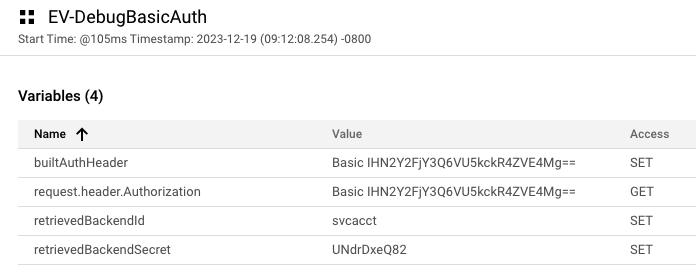
To debug an issue with the backendId or backendSecret, you need to assign the values to another variable to be able to see the values. You can create an ExtractVariables policy that follows the BasicAuthentication policy, and set its name to EV-DebugBasicAuth.
Save the proxy and deploy the updated revision. When you debug the proxy, you can see the values that would otherwise be masked:
In the picture above, the backend ID and secret look correct. However, if you decode the Base64 value in the Authorization header, you'll see that there is a leading space in the backendId.
In this lab, you created a KVM and stored credentials in it. You retrieved the credentials from your retail-v1 proxy, and built a Basic Auth header that gave you access to the backend updateProductById resource.
End your lab
When you have completed your lab, click End Lab. Google Skills removes the resources you’ve used and cleans the account for you.
You will be given an opportunity to rate the lab experience. Select the applicable number of stars, type a comment, and then click Submit.
The number of stars indicates the following:
1 star = Very dissatisfied
2 stars = Dissatisfied
3 stars = Neutral
4 stars = Satisfied
5 stars = Very satisfied
You can close the dialog box if you don't want to provide feedback.
For feedback, suggestions, or corrections, please use the Support tab.
Copyright 2026 Google LLC All rights reserved. Google and the Google logo are trademarks of Google LLC. All other company and product names may be trademarks of the respective companies with which they are associated.
Lab membuat project dan resource Google Cloud untuk jangka waktu tertentu
Lab memiliki batas waktu dan tidak memiliki fitur jeda. Jika lab diakhiri, Anda harus memulainya lagi dari awal.
Di kiri atas layar, klik Start lab untuk memulai
Gunakan penjelajahan rahasia
Salin Nama Pengguna dan Sandi yang diberikan untuk lab tersebut
Klik Open console dalam mode pribadi
Login ke Konsol
Login menggunakan kredensial lab Anda. Menggunakan kredensial lain mungkin menyebabkan error atau dikenai biaya.
Setujui persyaratan, dan lewati halaman resource pemulihan
Jangan klik End lab kecuali jika Anda sudah menyelesaikan lab atau ingin mengulanginya, karena tindakan ini akan menghapus pekerjaan Anda dan menghapus project
Konten ini tidak tersedia untuk saat ini
Kami akan memberi tahu Anda melalui email saat konten tersedia
Bagus!
Kami akan menghubungi Anda melalui email saat konten tersedia
Satu lab dalam satu waktu
Konfirmasi untuk mengakhiri semua lab yang ada dan memulai lab ini
Gunakan penjelajahan rahasia untuk menjalankan lab
Menggunakan jendela Samaran atau browser pribadi adalah cara terbaik untuk menjalankan lab ini. Langkah ini akan mencegah konflik antara akun pribadi Anda dan akun Siswa, yang dapat menyebabkan tagihan ekstra pada akun pribadi Anda.
In this lab, you'll protect backend credentials by using a key value map to store them.




 ), look for Apigee in the Favorite Products section.
 ).
).
 ).
). ).
).