


准备工作
- 实验会创建一个 Google Cloud 项目和一些资源,供您使用限定的一段时间
- 实验有时间限制,并且没有暂停功能。如果您中途结束实验,则必须重新开始。
- 在屏幕左上角,点击开始实验即可开始


Google Kubernetes Engine provides a managed environment for deploying, managing, and scaling your containerized applications using Google infrastructure. The environment Kubernetes Engine provides consists of multiple machines (specifically, Google Compute Engine instances) grouped together to form a cluster.
Kubernetes provides the mechanisms through which you interact with your cluster. You use Kubernetes commands and resources to deploy and manage your applications, perform administration tasks and set policies, and monitor the health of your deployed workloads.
In this lab, you deploy the Quiz application into Kubernetes Engine, leveraging Google Cloud Platform resources, including Cloud Build and Artifact Registry, and Kubernetes resources, such as Deployments, Pods, and Services.
In this lab, you learn how to perform the following tasks:
For each lab, you get a new Google Cloud project and set of resources for a fixed time at no cost.
Sign in to Google Skills using an incognito window.
Note the lab's access time (for example, 1:15:00), and make sure you can finish within that time.
There is no pause feature. You can restart if needed, but you have to start at the beginning.
When ready, click Start lab.
Note your lab credentials (Username and Password). You will use them to sign in to the Google Cloud Console.
Click Open Google Console.
Click Use another account and copy/paste credentials for this lab into the prompts. If you use other credentials, you'll receive errors or incur charges.
Accept the terms and skip the recovery resource page.
Google Cloud Shell is a virtual machine that is loaded with development tools. It offers a persistent 5GB home directory and runs on the Google Cloud.
Google Cloud Shell provides command-line access to your Google Cloud resources.
In Cloud console, on the top right toolbar, click the Open Cloud Shell button.
Click Continue.
It takes a few moments to provision and connect to the environment. When you are connected, you are already authenticated, and the project is set to your PROJECT_ID. For example:
gcloud is the command-line tool for Google Cloud. It comes pre-installed on Cloud Shell and supports tab-completion.
Output:
Example output:
Output:
Example output:
In this section, you access Cloud Shell, clone the git repository containing the Quiz application, configure environment variables, and run the application.
sed command.This script file:
GCLOUD_PROJECT and GCLOUD_BUCKET.virtualenv isolated Python environment for Python 3 and activates it.pip install -r requirements.txt.The Quiz application is configured when you see the following message:
Example output message:
In this section you examine the application files.
To view and edit files, you can use the shell editors that are installed in Cloud Shell, such as nano or vim or the Cloud Shell code editor. This lab uses the Cloud Shell code editor.
/kubernetesengine/start.The folder structure for the Quiz application reflects how it will be deployed in Kubernetes Engine.
The web application is in a folder called frontend.
The worker application code that subscribes to Cloud Pub/Sub and processes messages is in a folder called backend.
There are configuration files for Docker (a Dockerfile in the frontend and backend folder) and backend-deployment and frontend-deployment Kubernetes Engine .yaml files.
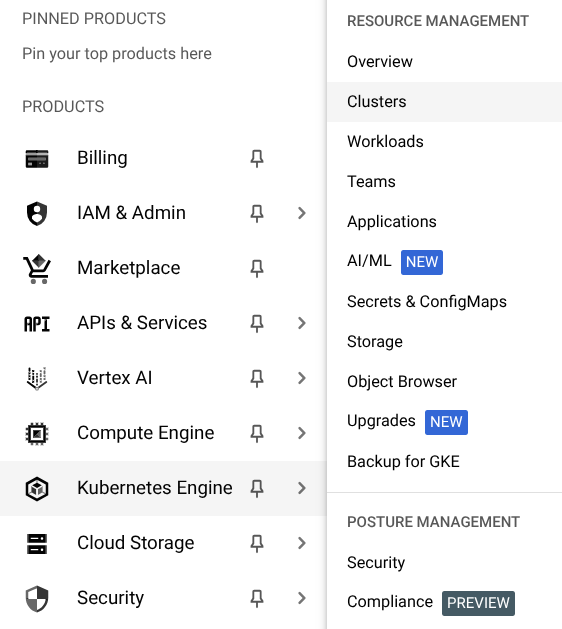
In the Cloud Platform Console, click Navigation menu > Kubernetes Engine > Clusters.
Click Create and then click Switch to standard cluster, click again to confirm.
Configure the cluster. Set the following fields to the provided values, leave all others at the default value:
|
Property |
Value |
|
Name |
|
|
Location type > Zonal |
|
|
default-pool > Security > Access scopes |
Select Allow full access to all Cloud APIs |
In this section you connect the Quiz application to the kubernetes cluster.
When the cluster is ready, click Action button (three vertical dots) and then click Connect.
In Connect to the cluster, click Run in Cloud Shell.
Hit enter in Cloud Shell to run the pre-populated command, which resembles gcloud container clusters get-credentials quiz-cluster --zone
Run the following command to list the pods in the cluster:
The response should be No resources found because there are no pods in the cluster. It confirms that you have configured security to allow the kubectl command-line tool to perform operations against the cluster.
In this section, you create a Dockerfile for the application frontend and backend, and then employ Cloud Build to build images and store them in the Artifact Registry.
frontend/Dockerfile. You will now add a block of code that does the following:pip install as part of the build process./app path in the container.Dockerfile by entering the statement, gunicorn ..., that executes when the container runs. Gunicorn (Green Unicorn) is an HTTP server that supports the Python Web Server Gateway Interface (WSGI) specification.Dockerfile:backend/Dockerfile file and copy and paste the following code:start folder:The files are staged into Cloud Storage, and a Docker image is built and stored in the Artifact Registry. It takes a few minutes.
When the backend Docker image is ready you see these last messages:
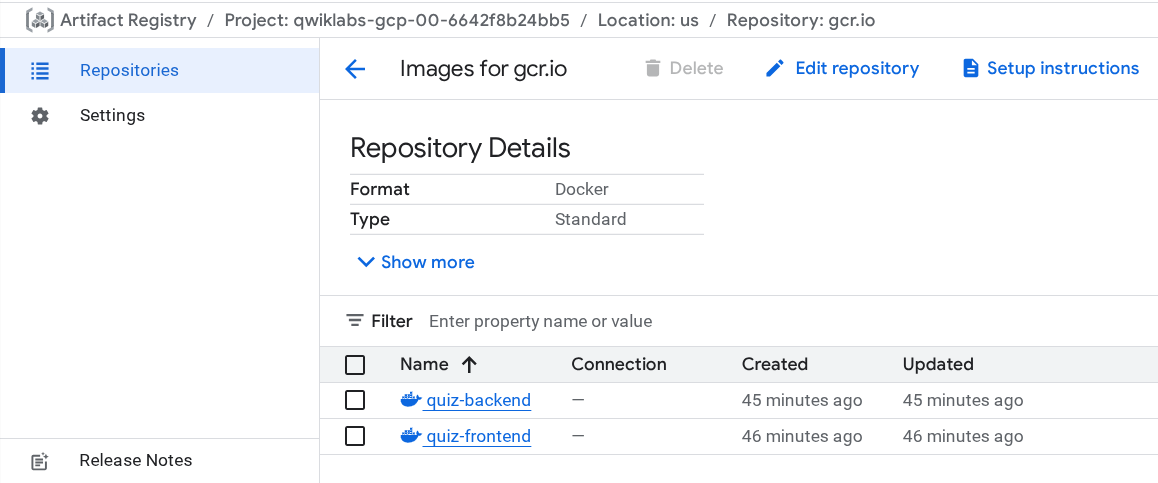
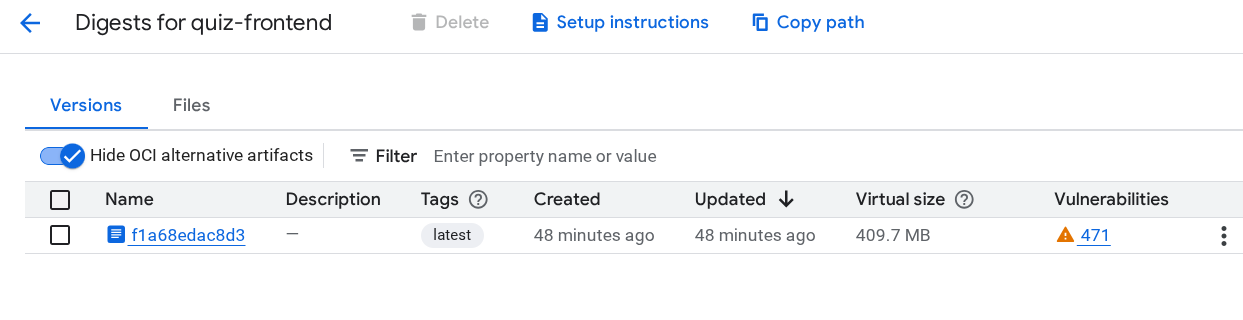
quiz-frontend and quiz-backend.In this section, you will modify the template yaml files that contain the specification for Kubernetes Deployment and Service resources, and then create the resources in the Kubernetes Engine cluster.
frontend-deployment.yaml file.frontend-deployment.yaml file using the following values:|
Placeholder Name |
Value |
|
|
GCP Project ID, found in the left panel of the lab. |
|
|
Cloud Storage bucket name for the media bucket in your project, which is [GCLOUD_PROJECT]-media. You can also display the bucket name by entering the command |
|
|
The frontend image identified in the form |
backend-deployment.yaml file using the following values:|
Placeholder Name |
Value |
|
|
GCP Project ID |
|
|
Cloud Storage bucket ID for the media bucket in your project, which is |
|
|
The backend image identified in the form |
frontend-service.yaml file.In this section you review the deployed Pods and Service and navigate to the Quiz application.
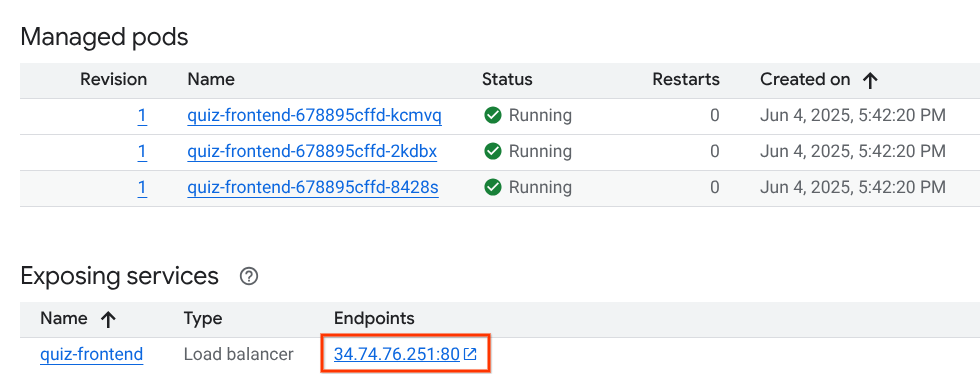
Click quiz-frontend. In the Managed pods section there are three quiz-frontend pods.
In the Exposing services section near the bottom, find the Endpoints section, copy the the IP address, and then paste it into the URL field of a new browser tab or window.
When you have completed your lab, click End Lab. Google Skills removes the resources you’ve used and cleans the account for you.
You will be given an opportunity to rate the lab experience. Select the applicable number of stars, type a comment, and then click Submit.
The number of stars indicates the following:
You can close the dialog box if you don't want to provide feedback.
For feedback, suggestions, or corrections, please use the Support tab.
Copyright 2026 Google LLC All rights reserved. Google and the Google logo are trademarks of Google LLC. All other company and product names may be trademarks of the respective companies with which they are associated.



此内容目前不可用
一旦可用,我们会通过电子邮件告知您

太好了!
一旦可用,我们会通过电子邮件告知您


一次一个实验
确认结束所有现有实验并开始此实验