Konten ini belum dioptimalkan untuk perangkat seluler.
Untuk pengalaman terbaik, kunjungi kami dengan komputer desktop menggunakan link yang dikirim melalui email.
Overview
Google Kubernetes Engine provides a managed environment for deploying, managing, and scaling your containerized applications using Google infrastructure. The environment Kubernetes Engine provides consists of multiple machines (specifically, Google Compute Engine instances) grouped together to form a cluster.
Kubernetes provides the mechanisms through which you interact with your cluster. You use Kubernetes commands and resources to deploy and manage your applications, perform administration tasks and set policies, and monitor the health of your deployed workloads.
In this lab, you deploy the Quiz application into Kubernetes Engine, leveraging Google Cloud Platform resources, including Cloud Build and Artifact Registry, and Kubernetes resources, such as Deployments, Pods, and Services.
Objectives
In this lab, you learn how to perform the following tasks:
Create Dockerfiles to package up the Quiz application frontend and backend code for deployment.
Harness Cloud Build to produce Docker images.
Provision a Kubernetes Engine cluster to host the Quiz application.
Employ Kubernetes deployments to provision replicated Pods into Kubernetes Engine.
Leverage a Kubernetes service to provision a load balancer for the quiz frontend.
Setup and requirements
For each lab, you get a new Google Cloud project and set of resources for a fixed time at no cost.
Sign in to Google Skills using an incognito window.
Note the lab's access time (for example, 1:15:00), and make sure you can finish within that time.
There is no pause feature. You can restart if needed, but you have to start at the beginning.
When ready, click Start lab.
Note your lab credentials (Username and Password). You will use them to sign in to the Google Cloud Console.
Click Open Google Console.
Click Use another account and copy/paste credentials for this lab into the prompts.
If you use other credentials, you'll receive errors or incur charges.
Accept the terms and skip the recovery resource page.
Activate Google Cloud Shell
Google Cloud Shell is a virtual machine that is loaded with development tools. It offers a persistent 5GB home directory and runs on the Google Cloud.
Google Cloud Shell provides command-line access to your Google Cloud resources.
In Cloud console, on the top right toolbar, click the Open Cloud Shell button.
Click Continue.
It takes a few moments to provision and connect to the environment. When you are connected, you are already authenticated, and the project is set to your PROJECT_ID. For example:
gcloud is the command-line tool for Google Cloud. It comes pre-installed on Cloud Shell and supports tab-completion.
You can list the active account name with this command:
[core]
project = qwiklabs-gcp-44776a13dea667a6
Note:
Full documentation of gcloud is available in the
gcloud CLI overview guide
.
Task 1. Prepare the Quiz application
In this section, you access Cloud Shell, clone the git repository containing the Quiz application, configure environment variables, and run the application.
Change to the directory that contains the sample files for this lab:
cd ~/kubernetesengine/start
Update the App Engine region using the sed command.
export REGION={{{project_0.startup_script.app_region|REGION}}}
sed -i "s/us-central1/$REGION/g" prepare_environment.sh
export APP_REGION={{{project_0.startup_script.app_region | APP_REGION}}}
sed -i 's/us-central/'"$APP_REGION"'/g' prepare_environment.sh
Configure the Quiz application:
. prepare_environment.sh
This script file:
Creates a Google App Engine application.
Exports environment variables GCLOUD_PROJECT and GCLOUD_BUCKET.
Creates a virtualenv isolated Python environment for Python 3 and activates it.
Updates pip and runs pip install -r requirements.txt.
Creates entities in Google Cloud Datastore.
Creates a Google Cloud Pub/Sub topic.
Creates a Cloud Spanner Instance, Database, and Table.
Prints out the Google Cloud Platform Project ID.
The Quiz application is configured when you see the following message:
Example output message:
Creating Cloud Pub/Sub topic
Created topic [projects/qwiklabs-gcp-92b7e5716e0cbf7e/topics/feedback].
Created subscription [projects/qwiklabs-gcp-92b7e5716e0cbf7e/subscriptions/worker-subscription].
Creating Cloud Spanner Instance, Database, and Table
Creating instance...done.
Creating database...done.
Project ID: qwiklabs-gcp-92b7e5716e0cbf7e
Task 2. Review the code
In this section you examine the application files.
To view and edit files, you can use the shell editors that are installed in Cloud Shell, such as nano or vim or the Cloud Shell code editor. This lab uses the Cloud Shell code editor.
Launch the Cloud Shell code editor
From Cloud Shell, click Open Editor to launch the code editor.
Examine the code
Navigate to /kubernetesengine/start.
The folder structure for the Quiz application reflects how it will be deployed in Kubernetes Engine.
The web application is in a folder called frontend.
The worker application code that subscribes to Cloud Pub/Sub and processes messages is in a folder called backend.
There are configuration files for Docker (a Dockerfile in the frontend and backend folder) and backend-deployment and frontend-deployment Kubernetes Engine .yaml files.
Task 3. Create and connect to a Kubernetes Engine Cluster
Create a Kubernetes Engine Cluster
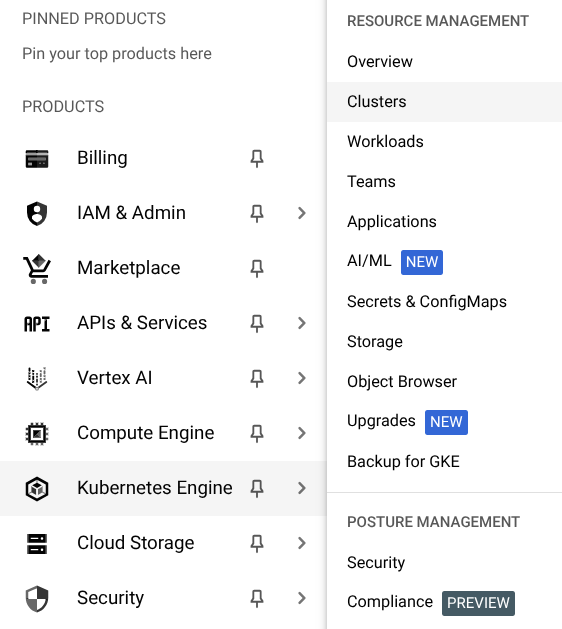
In the Cloud Platform Console, click Navigation menu > Kubernetes Engine > Clusters.
Click Create and then click Switch to standard cluster, click again to confirm.
Configure the cluster. Set the following fields to the provided values, leave all others at the default value:
Property
Value
Name
quiz-cluster
Location type > Zonal
default-pool > Security > Access scopes
Select Allow full access to all Cloud APIs
Click Create.
The cluster takes a few minutes to provision.
Connect to the cluster
In this section you connect the Quiz application to the kubernetes cluster.
When the cluster is ready, click Action button (three vertical dots) and then click Connect.
In Connect to the cluster, click Run in Cloud Shell.
Hit enter in Cloud Shell to run the pre-populated command, which resembles gcloud container clusters get-credentials quiz-cluster --zone --project [Project-ID]
Run the following command to list the pods in the cluster:
kubectl get pods
The response should be No resources found because there are no pods in the cluster. It confirms that you have configured security to allow the kubectl command-line tool to perform operations against the cluster.
Task 4. Build Docker Images using Cloud Build
In this section, you create a Dockerfile for the application frontend and backend, and then employ Cloud Build to build images and store them in the Artifact Registry.
Create the Dockerfile for the frontend and backend
In the Cloud Shell code editor, open frontend/Dockerfile. You will now add a block of code that does the following:
Enters the Dockerfile command to initialize the creation of a custom Docker image using Google's Python App Engine image as the starting point.
Writes the Dockerfile commands to activate a virtual environment.
Writes the Dockerfile command to execute pip install as part of the build process.
Writes the Dockerfile command to add the contents of the current folder to the /app path in the container.
Completes the Dockerfile by entering the statement, gunicorn ..., that executes when the container runs. Gunicorn (Green Unicorn) is an HTTP server that supports the Python Web Server Gateway Interface (WSGI) specification.
Copy and paste the following to Dockerfile:
FROM gcr.io/google_appengine/python
RUN virtualenv -p python3.7 /env
ENV VIRTUAL_ENV /env
ENV PATH /env/bin:$PATH
ADD requirements.txt /app/requirements.txt
RUN pip install -r /app/requirements.txt
ADD . /app
CMD gunicorn -b 0.0.0.0:$PORT quiz:app
Open the backend/Dockerfile file and copy and paste the following code:
FROM gcr.io/google_appengine/python
RUN virtualenv -p python3.7 /env
ENV VIRTUAL_ENV /env
ENV PATH /env/bin:$PATH
ADD requirements.txt /app/requirements.txt
RUN pip install -r /app/requirements.txt
ADD . /app
CMD python -m quiz.console.worker
Build Docker images with Cloud Build
In Cloud Shell, make sure you are in the start folder:
cd ~/kubernetesengine/start
Run the following command to build the frontend Docker image:
When the backend Docker image is ready you see these last messages:
DONE
-----------------------------------------------------------------------------------------------------------------------
ID CREATE_TIME DURATION SOURCE
IMAGES
STATUS
be0326f4-3f6f-42d6-850f-547e260dd4d7 2018-06-13T22:20:16+00:00 50S gs://qwiklabs-gcp-3f89d0745056ee31_cloudbuil
d/source/1528928414.79-4914d2a972f74e188f40ced135662b7d.tgz gcr.io/qwiklabs-gcp-3f89d0745056ee31/quiz-backend (+1 more
) SUCCESS
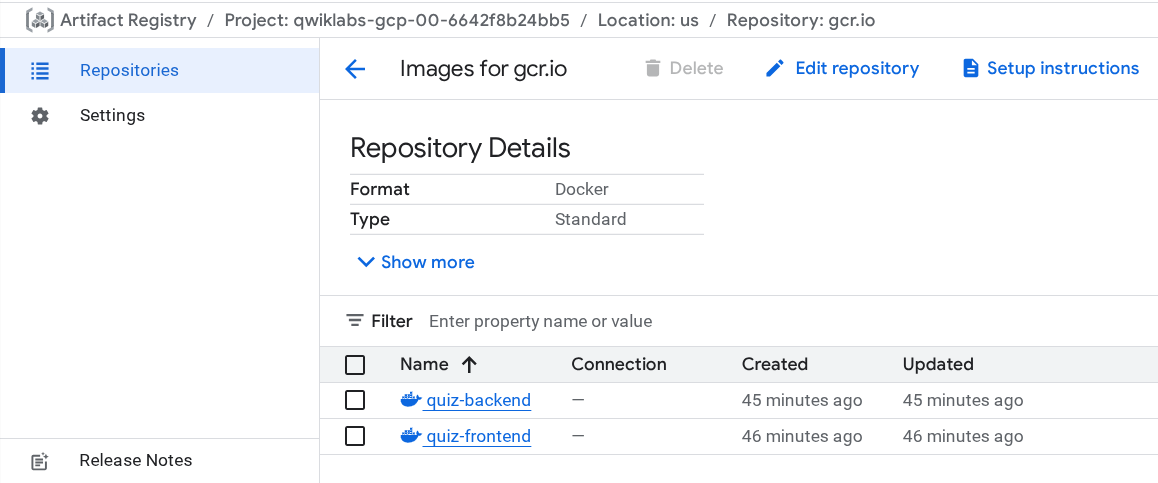
In the Cloud Console, in the Navigation menu, click View all products, then navigate to Artifact Registry, and then click gcr.io repository.
You should see two pods: quiz-frontend and quiz-backend.
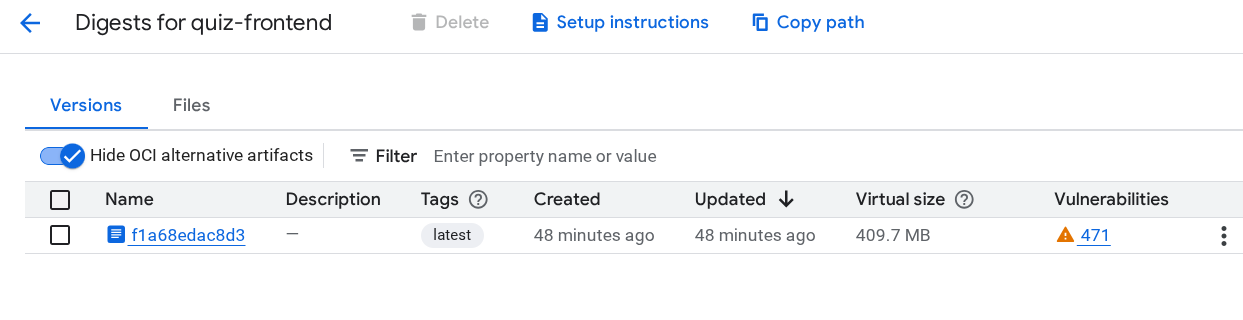
Click quiz-frontend.
Note: You should see the image name (a hash) and tags (latest).
Task 5. Create Kubernetes Deployment and Service Resources
In this section, you will modify the template yaml files that contain the specification for Kubernetes Deployment and Service resources, and then create the resources in the Kubernetes Engine cluster.
Create a Kubernetes Deployment file
In the Cloud Shell code editor, open the frontend-deployment.yaml file.
Note: The file skeleton has been created for you. Your job is to replace placeholders with values specific to your project.
Replace the placeholders in the frontend-deployment.yaml file using the following values:
Placeholder Name
Value
[GCLOUD_PROJECT]
GCP Project ID, found in the left panel of the lab. You can also display the Project ID by entering the command echo $GCLOUD_PROJECT in Cloud Shell
[GCLOUD_BUCKET]
Cloud Storage bucket name for the media bucket in your project, which is [GCLOUD_PROJECT]-media. You can also display the bucket name by entering the command echo $GCLOUD_BUCKET in Cloud Shell
[FRONTEND_IMAGE_IDENTIFIER]
The frontend image identified in the form gcr.io/[GCLOUD_PROJECT]/quiz-frontend
Note: The quiz-frontend deployment provisions three replicas of the frontend Docker image in Kubernetes pods, distributed across the three nodes of the Kubernetes Engine cluster.
Save the file.
Replace the placeholders in the backend-deployment.yaml file using the following values:
Placeholder Name
Value
[GCLOUD_PROJECT]
GCP Project ID
[GCLOUD_BUCKET]
Cloud Storage bucket ID for the media bucket in your project, which is [GCLOUD_PROJECT]-media
[BACKEND_IMAGE_IDENTIFIER]
The backend image identified in the form gcr.io/[GCLOUD_PROJECT]/quiz-backend
Note: The quiz-backend deployment provisions two replicas of the backend Docker image in Kubernetes pods, distributed across two of the three nodes of the Kubernetes Engine cluster.
Save the file.
Review the contents of the frontend-service.yaml file.
Note:
The service exposes the frontend deployment using a load balancer. The load balancer sends requests from clients to all three replicas of the frontend pod.
Execute the Deployment and Service files
In Cloud Shell, provision the quiz frontend Deployment:
kubectl create -f ./frontend-deployment.yaml
Provision the quiz backend Deployment:
kubectl create -f ./backend-deployment.yaml
Provision the quiz frontend Service:
kubectl create -f ./frontend-service.yaml
Note:
Each command provisions resources in Kubernetes Engine. It takes a few minutes to complete the process.
Task 6. Test the Quiz application
In this section you review the deployed Pods and Service and navigate to the Quiz application.
Review the deployed resources
In the Google Cloud Console, from the Navigation menu, click Kubernetes Engine.
Click Workloads.
Note:
You should see two containers: quiz-frontend and quiz-backend.
You may see that the status is OK or in the process of being created.
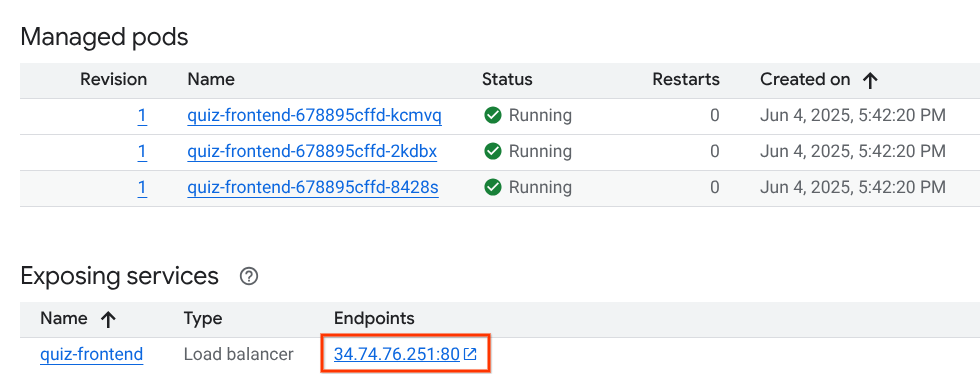
Click quiz-frontend. In the Managed pods section there are three quiz-frontend pods.
In the Exposing services section near the bottom, find the Endpoints section, copy the the IP address, and then paste it into the URL field of a new browser tab or window.
This opens the Quiz application, which means you successfully deployed the application! You can end your lab here or use the remainder of the time to build some quizzes.
End your lab
When you have completed your lab, click End Lab. Google Skills removes the resources you’ve used and cleans the account for you.
You will be given an opportunity to rate the lab experience. Select the applicable number of stars, type a comment, and then click Submit.
The number of stars indicates the following:
1 star = Very dissatisfied
2 stars = Dissatisfied
3 stars = Neutral
4 stars = Satisfied
5 stars = Very satisfied
You can close the dialog box if you don't want to provide feedback.
For feedback, suggestions, or corrections, please use the Support tab.
Copyright 2026 Google LLC All rights reserved. Google and the Google logo are trademarks of Google LLC. All other company and product names may be trademarks of the respective companies with which they are associated.
Lab membuat project dan resource Google Cloud untuk jangka waktu tertentu
Lab memiliki batas waktu dan tidak memiliki fitur jeda. Jika lab diakhiri, Anda harus memulainya lagi dari awal.
Di kiri atas layar, klik Start lab untuk memulai
Gunakan penjelajahan rahasia
Salin Nama Pengguna dan Sandi yang diberikan untuk lab tersebut
Klik Open console dalam mode pribadi
Login ke Konsol
Login menggunakan kredensial lab Anda. Menggunakan kredensial lain mungkin menyebabkan error atau dikenai biaya.
Setujui persyaratan, dan lewati halaman resource pemulihan
Jangan klik End lab kecuali jika Anda sudah menyelesaikan lab atau ingin mengulanginya, karena tindakan ini akan menghapus pekerjaan Anda dan menghapus project
Konten ini tidak tersedia untuk saat ini
Kami akan memberi tahu Anda melalui email saat konten tersedia
Bagus!
Kami akan menghubungi Anda melalui email saat konten tersedia
Satu lab dalam satu waktu
Konfirmasi untuk mengakhiri semua lab yang ada dan memulai lab ini
Gunakan penjelajahan rahasia untuk menjalankan lab
Menggunakan jendela Samaran atau browser pribadi adalah cara terbaik untuk menjalankan lab ini. Langkah ini akan mencegah konflik antara akun pribadi Anda dan akun Siswa, yang dapat menyebabkan tagihan ekstra pada akun pribadi Anda.
In this lab, you deploy the quiz application into Kubernetes Engine, leveraging Google Cloud Platform resources including Container Builder, Container Registry, and Kubernetes resources including Deployments, Pods, and Services.