Te treści nie są jeszcze zoptymalizowane pod kątem urządzeń mobilnych.
Dla maksymalnej wygody odwiedź nas na komputerze, korzystając z linku przesłanego e-mailem.
Overview
Google Cloud Datastore is a NoSQL document database built for automatic scaling, high performance, and ease of application development. In this lab, you use Datastore to store application data for an online Quiz application. You also configure the application to retrieve from Datastore and display the data in the quiz.
The Quiz application skeleton has already been written. You clone the repository that contains the skeleton using Google Cloud Shell, review the code using the Cloud Shell editor, and view it using the Cloud Shell web preview feature. You then modify the code that stores data to use Cloud Datastore.
Objectives
In this lab, you perform the following tasks:
Harness Cloud Shell as your development environment
Preview the application
Update the application code to integrate Cloud Datastore
Setup and requirements
Lab setup
For each lab, you get a new Google Cloud project and set of resources for a fixed time at no cost.
Sign in to Google Skills using an incognito window.
Note the lab's access time (for example, 1:15:00), and make sure you can finish within that time.
There is no pause feature. You can restart if needed, but you have to start at the beginning.
When ready, click Start lab.
Note your lab credentials (Username and Password). You will use them to sign in to the Google Cloud Console.
Click Open Google Console.
Click Use another account and copy/paste credentials for this lab into the prompts.
If you use other credentials, you'll receive errors or incur charges.
Accept the terms and skip the recovery resource page.
Activate Google Cloud Shell
Google Cloud Shell is a virtual machine that is loaded with development tools. It offers a persistent 5GB home directory and runs on the Google Cloud.
Google Cloud Shell provides command-line access to your Google Cloud resources.
In Cloud console, on the top right toolbar, click the Open Cloud Shell button.
Click Continue.
It takes a few moments to provision and connect to the environment. When you are connected, you are already authenticated, and the project is set to your PROJECT_ID. For example:
gcloud is the command-line tool for Google Cloud. It comes pre-installed on Cloud Shell and supports tab-completion.
You can list the active account name with this command:
Navigate to the directory that contains the sample files for this lab:
cd ~/datastore/start
Create the environment variable GCLOUD_PROJECT that references the GCP Project ID:
export GCLOUD_PROJECT=$DEVSHELL_PROJECT_ID
Install the application dependencies:
mvn clean install
The installation may take a couple of minutes. It's complete when you see output similar to the following:
[INFO] ------------------------------------------------------------------------
[INFO] BUILD SUCCESS
[INFO] ------------------------------------------------------------------------
[INFO] Total time: 03:16 min
[INFO] Finished at: 2021-12-06T11:43:13Z
[INFO] ------------------------------------------------------------------------
Run the application:
mvn spring-boot:run
The application is running when the last line output is similar to the following:
11:48:08.939 [restartedMain] INFO c.g.training.appdev.QuizApplication - Started QuizApplication in 7.468 seconds (JVM running for 9.786)
Review the Quiz application
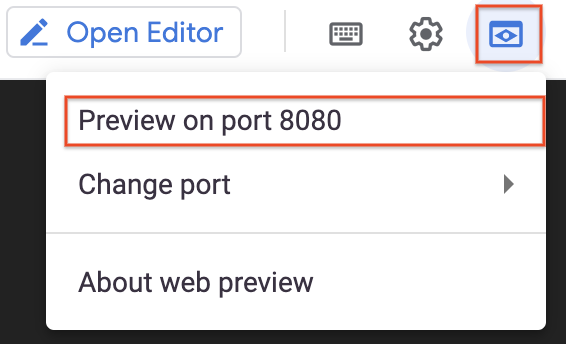
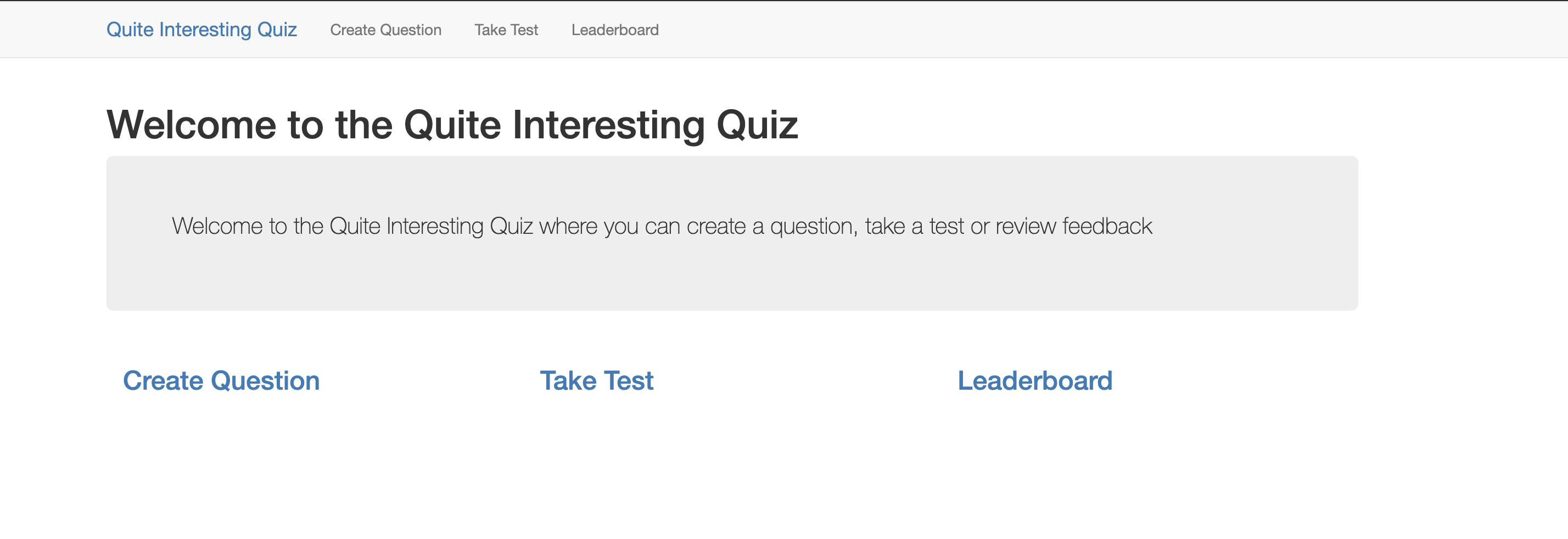
In Cloud Shell, click Web preview > Preview on port 8080 to preview the quiz application.
Note: The user interface for the web application opens. The three main parts are Create Question, Take Test, and Leaderboard. Links to each are shown in the top navigation bar and on the page.
Click Create Question.
You should see a simple form that contains textboxes for the question and answers with radio buttons to select the correct answer.
Quiz authors can add questions in this part of the application.
Note: This part of the application is written as a server-side web application using the popular Java web application framework Spring Boot.
Click Take Test.
You are taken to a client application. Since you haven't made any questions, the Quite Interesting Quiz is blank.
In the top navigation bar, click GCP.
You should see a Dummy Title and Dummy Answers. The Dummy Title represents a sample question.
Quiz takers will answer questions in this part of the application.
Note: This part of the application is written as a client-side web application using the popular JavaScript framework AngularJS. It receives JSON data from the server and uses JavaScript in the browser to display questions and collect answers.
To return to the server-side application, click on Quite Interesting Quiz in the navigation bar.
Task 2. Examine the Quiz application code
In this section and throughout the lab you'll review the Quiz application code in a code editor. You can use the shell editors that are installed on Cloud Shell, such as nano or vim, or use the Cloud Shell code editor. This lab uses the Cloud Shell code editor.
Launch the Cloud Shell text editor
From Cloud Shell, click on the Open Editor icon.
Review the code
Note: The application is a standard Java application written using the popular Spring Boot application framework.
Navigate to the /training-data-analyst/courses/developingapps/v1.3/java/datastore/start folder using the file browser panel on the left side of the editor.
This is the root folder for the application.
Note: In the datastore folder, notice the end folder. The end folder contains the same files as the start folder, but each file in the end folder contains the complete code required to perform this lab.
From the start folder, navigate to the src/main/java/com/google/training/appdev folder using the file browser panel on the left side of the editor.
The paths for Java source code files are relative to the appdev folder.
Review the Spring Boot web application
Select the .../QuizApplication.java file.
In this file, the class contains the entrypoint for the Spring Boot application.
Select the .../services/gcp/domain/Question.java file.
In this file, the domain class represents question data submitted in the question form and questions displayed when taking a quiz.
Select the .../web/QuestionsController.java file.
This file contains the handlers that display the form and collect form data posted by quiz authors in the web application.
In the QuestionsController.java file, find the handler that responds to HTTP POST requests for the /questions/add route.
Note: Notice that the controller delegates the implementation of the handler to a service, questionService.
Navigate to the /training-data-analyst/courses/developingapps/v1.3/java/datastore/start/src/main/resources folder using the file browser panel on the left side of the editor.
Note: This folder contains templates for the web application user interface and static content displayed in the client-side web application.
Select the templates folder.
This folder contains the template for the web application user interface using the Thyme templating engine.
Select the .../templates/new_question.html file.
This file contains the template for the Create Question form.
Notice how there is a select list to pick a quiz, textboxes where an author can enter the question and answers, and radio buttons to select the correct answer.
Return to the folder containing Java source code using the file browser panel on the left side of the editor. (Do you remember? It's start/src/main/java/com/google/training/appdev.)
Select the .../api/QuizEndpoint.java file.
This file contains the handler that sends JSON data to students taking a test.
Notice that the handlers also make use of the questionService object.
Select the .../services/gcp/datastore/QuestionService.java file.
This is the file where you write Datastore code to save and load quiz questions to and from Cloud Datastore.
The web application and API use this class.
Task 3. Add entities to Cloud Datastore
In this section, you write code to save form data in Cloud Datastore.
Note: Update code within the // TODO and // END TODO comment lines. To maximize your learning, review the code, inline comments, and related API documentation.
Note: For more information view the Firestore in Datastore mode documentation.
Create an App Engine application to provision Cloud Datastore
From Cloud Shell, click on the Open Terminal icon and stop the application by pressing Ctrl+C.
To create an App Engine application in your project, execute the following command in Cloud Shell:
gcloud app create --region "us-central"
Note: Although You aren't yet using App Engine for your web application, Cloud Datastore requires you to create an App Engine application in your project.
Import and use the Java Datastore package
Open the .../services/gcp/datastore/QuestionService.java file in the Cloud Shell editor.
Write a star import for the com.google.cloud.datastore.* package:
// TODO: Import the com.google.cloud.datastore.* package
import com.google.cloud.datastore.*;
// END TODO
Declare a Datastore client object named datastore and initialize it:
// TODO: Create a Datastore client object, datastore
// The DatastoreOptions class has a getDefaultInstance()
// static method.
// Use the getService() method of the DatastoreOptions
// object to get the Datastore client
private Datastore datastore =
DatastoreOptions.getDefaultInstance().getService();
// END TODO
After the updates, the first part of QuestionService.java is as follows:
package com.google.training.appdev.services.gcp.datastore;
// TODO: Import the com.google.cloud.datastore.* package
import com.google.cloud.datastore.*;
// END TODO
import com.google.training.appdev.services.gcp.domain.Question;
import java.util.ArrayList;
import java.util.Iterator;
import java.util.List;
import org.springframework.stereotype.Service;
@Service
public class QuestionService {
// TODO: Create a Datastore client object, datastore
// The DatastoreOptions class has a getDefaultInstance()
// static method.
// Use the getService() method of the DatastoreOptions
// object to get the Datastore client
private Datastore datastore =
DatastoreOptions.getDefaultInstance().getService();
// END TODO
Write code to create a Cloud Datastore entity
Declare a static final string named ENTITY_KIND, initialized with the value "Question":
// TODO: Declare a static final String named kind
//The Datastore key is the equivalent of a primary key in a // relational database.
// There are two main ways of writing a key:
// 1. Specify the kind, and let Datastore generate a unique // numeric id
// 2. Specify the kind and a unique string id
private static final String ENTITY_KIND = "Question";
// END TODO
Create a KeyFactory for Question entities:
// TODO: Create a KeyFactory for Question entities
private final KeyFactory keyFactory =
datastore.newKeyFactory().setKind(ENTITY_KIND);
// END TODO
Declare an entity named questionEntity, and initialize it using an entity builder:
// TODO: Declare the entity object, with the key and data
// The entity's members are set using the Entity.Builder.
// This has a set method for property names and values
// Values are retrieved from the Domain object
Entity questionEntity = Entity.newBuilder(key)
.set(Question.QUIZ, question.getQuiz())
.set(Question.AUTHOR, question.getAuthor())
.set(Question.TITLE, question.getTitle())
.set(Question.ANSWER_ONE,question.getAnswerOne())
.set(Question.ANSWER_TWO, question.getAnswerTwo())
.set(Question.ANSWER_THREE,question.getAnswerThree())
.set(Question.ANSWER_FOUR, question.getAnswerFour())
.set(Question.CORRECT_ANSWER,
question.getCorrectAnswer())
.build();
// END TODO
Use the Datastore client object (datastore) to save the entity by calling its put(questionEntity) method:
// TODO: Save the entity
datastore.put(questionEntity);
// END TODO
Modify the return statement to return the key for the entity:
// TODO: Return the key
return key;
// END TODO
Save the file.
The following is the QuestionService.java content with all updates to this point:
// The createQuestion(Question question) method
// is passed a Question object using data from the form
// Extract the form data and add it to Datastore
// TODO: Modify return type to Key
public Key createQuestion(Question question) {
// END TODO
// TODO: Declare the entity key,
// with a Datastore allocated id
Key key = datastore.allocateId(keyFactory.newKey());
// END TODO
// TODO: Declare the entity object, with the key and data
// The entity's members are set using the Entity.Builder.
// This has a set method for property names and values
// Values are retrieved from the Domain object
Entity questionEntity = Entity.newBuilder(key)
.set(Question.QUIZ, question.getQuiz())
.set(Question.AUTHOR, question.getAuthor())
.set(Question.TITLE, question.getTitle())
.set(Question.ANSWER_ONE,question.getAnswerOne())
.set(Question.ANSWER_TWO, question.getAnswerTwo())
.set(Question.ANSWER_THREE,question.getAnswerThree())
.set(Question.ANSWER_FOUR, question.getAnswerFour())
.set(Question.CORRECT_ANSWER,
question.getCorrectAnswer())
.build();
// END TODO
// TODO: Save the entity
datastore.put(questionEntity);
// END TODO
// TODO: Return the key
return key;
// END TODO
Run the application and create a Cloud Datastore entity
From Cloud Shell, click on the Open Terminal icon and run the application:
mvn spring-boot:run
The application is running when you see the last line output similar to the following:
11:50:12.862 [restartedMain] INFO c.g.training.appdev.QuizApplication - Started QuizApplication in 6.048 seconds (JVM running for 7.66)
In Cloud Shell, click Web preview > Preview on port 8080 to preview the quiz application.
Click Create Question, complete the form with the following values, and then click Save.
Form Field
Value
Author
Your Name
Quiz
Google Cloud Platform
Title
Which company owns GCP?
Answer 1
Amazon
Answer 2
Google (select the Answer 2 radio button!)
Answer 3
IBM
Answer 4
Microsoft
You are returned to the application home page.
The question you just made is now in DataReturn. In the Console, click Navigation menu > Datastore > default > Datastore Studio > Under Query results to see your new question in entities!
Task 4. Query Cloud Datastore
In this section, you write code to retrieve entity data from Cloud Datastore.
Write code to retrieve Cloud Datastore entities
From Cloud Shell, click on the Open Editor icon. Move to the getAllQuestions(String quiz) method in the .../services/gcp/datastore/QuestionService.java file, and remove the code for the existing Dummy questions:
// TODO: Remove this code
List<Question> questions = new ArrayList<>();
Question dummy = new Question.Builder()
.withQuiz("gcp")
.withAuthor("Dummy Author")
.withTitle("Dummy Title")
.withAnswerOne("Dummy Answer One")
.withAnswerTwo("Dummy Answer Two")
.withAnswerThree("Dummy Answer Three")
.withAnswerFour("Dummy Answer Four")
.withCorrectAnswer(1)
.withId(-1)
.build();
questions.add(dummy);
return questions;
// END TODO
Still in the getAllQuestions(String quiz)method, create a query object and initialize it with a query that retrieves Question entities for a specific quiz from Cloud Datastore:
// TODO: Create the query
// The Query class has a static newEntityQueryBuilder()
// method that allows you to specify the kind(s) of
// entities to be retrieved.
// The query can be customized to filter the Question
// entities for one quiz.
Query<Entity> query = Query.newEntityQueryBuilder()
.setKind(ENTITY_KIND)
.setFilter(StructuredQuery.PropertyFilter.eq(
Question.QUIZ, quiz))
.build();
// END TODO
Call the Datastore client object's datastore.run(query) method, and assign the result to entity iterator named entities:
// TODO: Execute the query
// The datastore.run(query) method returns an iterator
// for entities
Iterator<Entity> entities = datastore.run(query);
// END TODO
Return the transformed results, using buildQuestions(entities) method to convert Datastore entities to domain objects:
// TODO: Return the transformed results
// Use the buildQuestions(entities) method to convert
// from Datastore entities to domain objects
return buildQuestions(entities);
// END TODO
Uncomment the buildQuestions(...) and entityToQuestion(...) helper methods provided in the QuestionService class and use them to map the iterator to a list of question domain objects.
The following is the updated QuestionService.java:
public List getAllQuestions(String quiz){
// TODO: Create the query
// The Query class has a static newEntityQueryBuilder()
// method that allows you to specify the kind(s) of
// entities to be retrieved.
// The query can be customized to filter the Question
// entities for one quiz.
Query query = Query.newEntityQueryBuilder()
.setKind(ENTITY_KIND)
.setFilter(StructuredQuery.PropertyFilter.eq(
Question.QUIZ, quiz))
.build();
// END TODO
// TODO: Execute the query
// The datastore.run(query) method returns an iterator
// for entities
Iterator entities = datastore.run(query);
// END TODO
// TODO: Return the transformed results
// Use the buildQuestions(entities) method to convert
// from Datastore entities to domain objects
return buildQuestions(entities);
// END TODO
}
private List buildQuestions(Iterator entities){
List questions = new ArrayList<>();
entities.forEachRemaining(entity-> questions.add(entityToQuestion(entity)));
return questions;
}
private Question entityToQuestion(Entity entity){
return new Question.Builder()
.withQuiz(entity.getString(Question.QUIZ))
.withAuthor(entity.getString(Question.AUTHOR))
.withTitle(entity.getString(Question.TITLE))
.withAnswerOne(entity.getString(Question.ANSWER_ONE))
.withAnswerTwo(entity.getString(Question.ANSWER_TWO))
.withAnswerThree(entity.getString(Question.ANSWER_THREE))
.withAnswerFour(entity.getString(Question.ANSWER_FOUR))
.withCorrectAnswer(entity.getLong(Question.CORRECT_ANSWER))
.withId(entity.getKey().getId())
.build();
}
}
Run the application and test the Cloud Datastore query
Save the .../services/gcp/datastore/QuestionService.java file, and then return to the Cloud Shell command.
From Cloud Shell, click on the Open Terminal Stop the application by pressing Ctrl+C.
Start the application.
In Cloud Shell, click Web preview > Preview on port 8080 to preview the quiz application.
Replace the query string at the end of the application's URL with /api/quizzes/gcp.
Note: The URL is in the form:
https://8080-####-####.cloudshell.dev/api/quizzes/gcp
You should see that JSON data has been returned to the client corresponding to the question you added in the web application!
Return to the application home page, and click Take Test and then click GCP.
Note:
You should see that the quiz question has been formatted inside the client-side web application!
Can you answer correctly?
End your lab
When you have completed your lab, click End Lab. Google Skills removes the resources you’ve used and cleans the account for you.
You will be given an opportunity to rate the lab experience. Select the applicable number of stars, type a comment, and then click Submit.
The number of stars indicates the following:
1 star = Very dissatisfied
2 stars = Dissatisfied
3 stars = Neutral
4 stars = Satisfied
5 stars = Very satisfied
You can close the dialog box if you don't want to provide feedback.
For feedback, suggestions, or corrections, please use the Support tab.
Copyright 2026 Google LLC All rights reserved. Google and the Google logo are trademarks of Google LLC. All other company and product names may be trademarks of the respective companies with which they are associated.
Moduły tworzą projekt Google Cloud i zasoby na określony czas.
Moduły mają ograniczenie czasowe i nie mają funkcji wstrzymywania. Jeśli zakończysz moduł, musisz go zacząć od początku.
Aby rozpocząć, w lewym górnym rogu ekranu kliknij Rozpocznij moduł.
Użyj przeglądania prywatnego
Skopiuj podaną nazwę użytkownika i hasło do modułu.
Kliknij Otwórz konsolę w trybie prywatnym.
Zaloguj się w konsoli
Zaloguj się z użyciem danych logowania do modułu. Użycie innych danych logowania może spowodować błędy lub naliczanie opłat.
Zaakceptuj warunki i pomiń stronę zasobów przywracania.
Nie klikaj Zakończ moduł, chyba że właśnie został przez Ciebie zakończony lub chcesz go uruchomić ponownie, ponieważ spowoduje to usunięcie wyników i projektu.
Ta treść jest obecnie niedostępna
Kiedy dostępność się zmieni, wyślemy Ci e-maila z powiadomieniem
Świetnie
Kiedy dostępność się zmieni, skontaktujemy się z Tobą e-mailem
Jeden moduł, a potem drugi
Potwierdź, aby zakończyć wszystkie istniejące moduły i rozpocząć ten
Aby uruchomić moduł, użyj przeglądania prywatnego
Najlepszym sposobem na uruchomienie tego laboratorium jest użycie okna incognito lub przeglądania prywatnego. Dzięki temu unikniesz konfliktu między swoim kontem osobistym a kontem do nauki, co mogłoby spowodować naliczanie dodatkowych opłat na koncie osobistym.
In this lab, you will review the case study application, an online Quiz. You will store application data for the Quiz application in Cloud Datastore.
Czas trwania:
Konfiguracja: 0 min
·
Dostęp na 120 min
·
Ukończono w 120 min