Te treści nie są jeszcze zoptymalizowane pod kątem urządzeń mobilnych.
Dla maksymalnej wygody odwiedź nas na komputerze, korzystając z linku przesłanego e-mailem.
Overview
This lab is similar to a Challenge Lab in the "Challenge: GCP Architecture" Quest.
For this Challenge Lab, you must complete a series of tasks within a limited time period. Instead of following step-by-step instructions, you'll be given a scenario and task - you figure out how to complete it on your own! An automated scoring system (shown on this page) will provide feedback on whether you have completed your tasks correctly.
To score 100% you must complete all tasks within the time period!
When you take a Challenge Lab, you will not be taught GCP concepts. You'll need to use your advanced Google Compute Engine (GCE) skills to assess how to build the solution to the challenge presented. This lab is only recommended for students who have GCE skills. Are you up for the challenge?
Topics tested
Update a docker application and push a new version to a container repository.
Deploy the updated application version to a Kubernetes cluster.
Scale out the application so that it is running 2 replicas.
Setup and requirements
For each lab, you get a new Google Cloud project and set of resources for a fixed time at no cost.
Sign in to Google Skills using an incognito window.
Note the lab's access time (for example, 1:15:00), and make sure you can finish within that time.
There is no pause feature. You can restart if needed, but you have to start at the beginning.
When ready, click Start lab.
Note your lab credentials (Username and Password). You will use them to sign in to the Google Cloud Console.
Click Open Google Console.
Click Use another account and copy/paste credentials for this lab into the prompts.
If you use other credentials, you'll receive errors or incur charges.
Accept the terms and skip the recovery resource page.
Activate Google Cloud Shell
Google Cloud Shell is a virtual machine that is loaded with development tools. It offers a persistent 5GB home directory and runs on the Google Cloud.
Google Cloud Shell provides command-line access to your Google Cloud resources.
In Cloud console, on the top right toolbar, click the Open Cloud Shell button.
Click Continue.
It takes a few moments to provision and connect to the environment. When you are connected, you are already authenticated, and the project is set to your PROJECT_ID. For example:
gcloud is the command-line tool for Google Cloud. It comes pre-installed on Cloud Shell and supports tab-completion.
You can list the active account name with this command:
[core]
project = qwiklabs-gcp-44776a13dea667a6
Note:
Full documentation of gcloud is available in the
gcloud CLI overview guide
.
Challenge scenario
You are taking over ownership of a test environment and have been given an updated version of a containerized test application to deploy. Your systems' architecture team has started adopting a containerized micro-service architecture. You are responsible for managing the containerized test web applications. You will first deploy the initial version of a test application, called echo-app to a Kubernetes cluster called echo-cluster in a deployment called echo-web.
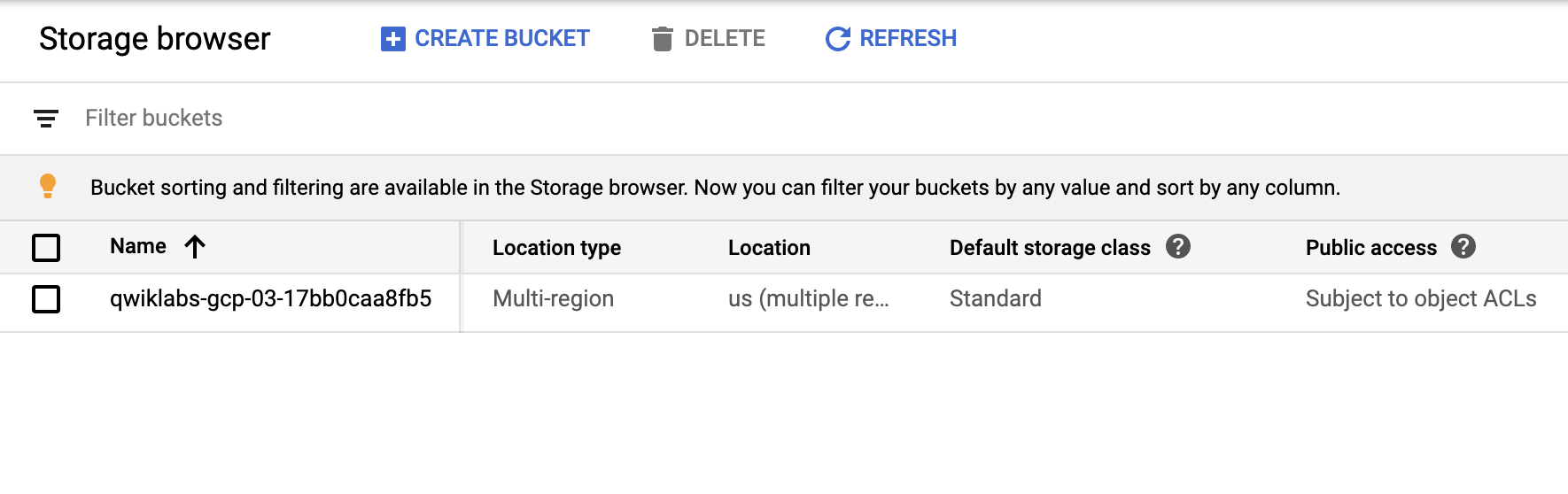
Before you get started, open the Navigation menu and select Cloud Storage. The last steps in the Deployment Manager Script are used to set up your environment and create a bucket.
Refresh the Storage Browser until you see your bucket. You can move on once your Console resembles the following:
Check to make sure your GKE cluster has been created before continuing. Open the navigation menu and select Kuberntes Engine > Clusters.
Continue when you see a green checkmark next to echo-cluster.
To deploy your first version of the application, run the following commands in Cloud Shell to get up and running:
You need to update the running echo-app application in the echo-web deployment from the v1 to the v2 code you have been provided with. You must also scale out the application to 2 instances and confirm that they are all running.
Build and deploy the updated application with a new tag
The updated sample application, including the Dockerfile and the application context files, are contained in an archive called echo-web-v2.tar.gz. The archive has been copied to a Google Cloud storage bucket in your lab project called gs://[PROJECT_ID]. V2 of the application adds a version number to the output of the application.
Push the image to the Google Container Registry
Your organization uses the Google Container Registry to host Docker images for deployments, and uses the gcr.io Google Container Registry hostname for all projects. You must push the updated image to the Google Container Registry before deploying it.
Click Check my progress to verify the objective.
Check that there is a tagged image in gcr.io for echo-app:v2.
Deploy the updated application to the Kubernetes cluster
In this task, you will deploy the updated application to the Kubernetes cluster. The deployment should be named echo-web and the application should be exposed on port 80. The application should be accessible from outside the cluster.
Click Check my progress to verify the objective.
Deploy the updated application version (v2) to a Kubernetes cluster.
Scale out the application
In this task, you will need to scale out the application to 2 replicas.
Click Check my progress to verify the objective.
Scale out the kubernetes application so that it is running 2 replicas.
Confirm the application is running
In this task, you will need to confirm that the application is running and responding correctly. You can use the external IP address of the application to test it.
Click Check my progress to verify the objective.
Verify the application responds to web requests with V2.0.0.
Task 2. Troubleshooting
Receiving a 504, Gateway timeout error: This might just indicate that the application hasn't quite initialized yet, but it could also be caused by a mismatch between the default port that is set in the Dockerfile (TCP port 8000) and:
The choice of application port you configured when deploying the application image, or
When you configured external access.
End your lab
When you have completed your lab, click End Lab. Google Skills removes the resources you’ve used and cleans the account for you.
You will be given an opportunity to rate the lab experience. Select the applicable number of stars, type a comment, and then click Submit.
The number of stars indicates the following:
1 star = Very dissatisfied
2 stars = Dissatisfied
3 stars = Neutral
4 stars = Satisfied
5 stars = Very satisfied
You can close the dialog box if you don't want to provide feedback.
For feedback, suggestions, or corrections, please use the Support tab.
Copyright 2026 Google LLC All rights reserved. Google and the Google logo are trademarks of Google LLC. All other company and product names may be trademarks of the respective companies with which they are associated.
Moduły tworzą projekt Google Cloud i zasoby na określony czas.
Moduły mają ograniczenie czasowe i nie mają funkcji wstrzymywania. Jeśli zakończysz moduł, musisz go zacząć od początku.
Aby rozpocząć, w lewym górnym rogu ekranu kliknij Rozpocznij moduł.
Użyj przeglądania prywatnego
Skopiuj podaną nazwę użytkownika i hasło do modułu.
Kliknij Otwórz konsolę w trybie prywatnym.
Zaloguj się w konsoli
Zaloguj się z użyciem danych logowania do modułu. Użycie innych danych logowania może spowodować błędy lub naliczanie opłat.
Zaakceptuj warunki i pomiń stronę zasobów przywracania.
Nie klikaj Zakończ moduł, chyba że właśnie został przez Ciebie zakończony lub chcesz go uruchomić ponownie, ponieważ spowoduje to usunięcie wyników i projektu.
Ta treść jest obecnie niedostępna
Kiedy dostępność się zmieni, wyślemy Ci e-maila z powiadomieniem
Świetnie
Kiedy dostępność się zmieni, skontaktujemy się z Tobą e-mailem
Jeden moduł, a potem drugi
Potwierdź, aby zakończyć wszystkie istniejące moduły i rozpocząć ten
Aby uruchomić moduł, użyj przeglądania prywatnego
Najlepszym sposobem na uruchomienie tego laboratorium jest użycie okna incognito lub przeglądania prywatnego. Dzięki temu unikniesz konfliktu między swoim kontem osobistym a kontem do nauki, co mogłoby spowodować naliczanie dodatkowych opłat na koncie osobistym.
This is a Challenge Lab where you must complete a series of tasks within a limited time period. Instead of following step-by-step instructions, you will be presented with a general objective, and will be scored automatically based on your activity.
Czas trwania:
Konfiguracja: 0 min
·
Dostęp na 70 min
·
Ukończono w 60 min