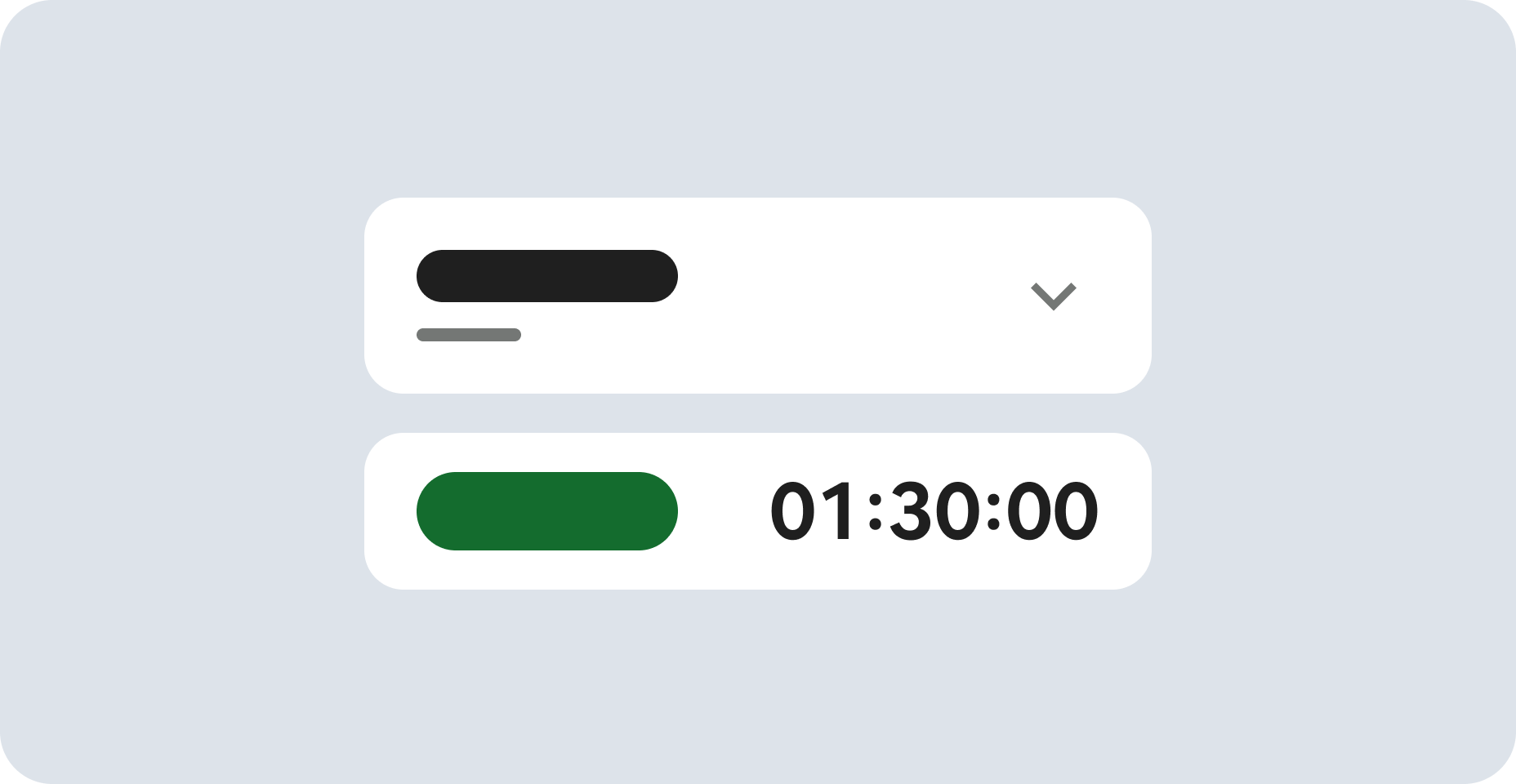
准备工作
- 实验会创建一个 Google Cloud 项目和一些资源,供您使用限定的一段时间
- 实验有时间限制,并且没有暂停功能。如果您中途结束实验,则必须重新开始。
- 在屏幕左上角,点击开始实验即可开始

Create a Kubernetes cluster (zone: us-east1-d)
/ 50
Configure and Install Jenkins
/ 50
Create a Kubernetes cluster (zone: us-east1-d)
/ 50
Configure and Install Jenkins
/ 50


In this hands-on lab, you'll learn how to set up Jenkins on Google Kubernetes Engine to help orchestrate your software delivery pipeline.
Read these instructions. Labs are timed and you cannot pause them. The timer, which starts when you click Start Lab, shows how long Google Cloud resources are made available to you.
This hands-on lab lets you do the lab activities in a real cloud environment, not in a simulation or demo environment. It does so by giving you new, temporary credentials you use to sign in and access Google Cloud for the duration of the lab.
To complete this lab, you need:
Click the Start Lab button. If you need to pay for the lab, a dialog opens for you to select your payment method. On the right is the Lab setup and access panel with the following:
Note that the lab timer is located near the top of the page, showing the remaining time.
Click Open Google Cloud console (or right-click and select Open Link in Incognito Window if you are running the Chrome browser).
The lab spins up resources, and then opens another tab that shows the Sign in page.
Tip: Arrange the tabs in separate windows, side-by-side.
If necessary, copy the Username below and paste it into the Sign in dialog.
You can also find the Username in the Lab setup and access panel.
Click Next.
Copy the Password below and paste it into the Welcome dialog.
You can also find the Password in the Lab setup and access panel.
Click Next.
Click through the subsequent pages:
After a few moments, the Google Cloud console opens in this tab.

Cloud Shell is a virtual machine that is loaded with development tools. It offers a persistent 5GB home directory and runs on the Google Cloud. Cloud Shell provides command-line access to your Google Cloud resources.
Click Activate Cloud Shell 
Click through the following windows:
When you are connected, you are already authenticated, and the project is set to your Project_ID,
gcloud is the command-line tool for Google Cloud. It comes pre-installed on Cloud Shell and supports tab-completion.
Output:
Output:
gcloud, in Google Cloud, refer to the gcloud CLI overview guide.
First, you'll prepare your deployment environment and download a sample application.
Now you'll use the Kubernetes Engine to create and manage your Kubernetes cluster.
The extra scopes enable Jenkins to access Artifact Registry.
Click Check my progress to verify your performed task. If you have completed the task successfully you will granted with an assessment score.
Example Output:
Look for RUNNING in the STATUS column:
Example output: If the cluster is running, the URLs of where your Kubernetes components are accessible display:
In this lab, you will use Helm to install Jenkins from the Charts repository. Helm is a package manager that makes it easy to configure and deploy Kubernetes applications. Your Cloud Shell will already have a recent, stable version of Helm pre-installed.
If curious, you can run helm version in Cloud Shell to check which version you are using and also ensure that Helm is installed.
jenkins chart repository:You will use a custom values file to add the Google Cloud specific plugin necessary to use service account credentials to reach Source Repository.
Click Check my progress to verify your performed task. If you have completed the task successfully you will granted with an assessment score.
Example output:
Example output:
We are using the Kubernetes Plugin so that our builder nodes will be automatically launched as necessary when the Jenkins master requests them. Upon completion of their work, they will automatically be turned down and their resources added back to the clusters resource pool.
Notice that this service exposes ports 8080 and 50000 for any pods that match the selector. This will expose the Jenkins web UI and builder/agent registration ports within the Kubernetes cluster.
Additionally, the jenkins-ui service is exposed using a ClusterIP so that it is not accessible from outside the cluster.
admin and your auto-generated password.You now have Jenkins set up in your Kubernetes cluster!
Below are multiple-choice questions to reinforce your understanding of this lab's concepts. Answer them to the best of your abilities.
Here are some follow-up steps :
...helps you make the most of Google Cloud technologies. Our classes include technical skills and best practices to help you get up to speed quickly and continue your learning journey. We offer fundamental to advanced level training, with on-demand, live, and virtual options to suit your busy schedule. Certifications help you validate and prove your skill and expertise in Google Cloud technologies.
Manual Last Updated November 05, 2024
Lab Last Tested November 05, 2024
Copyright 2026 Google LLC. All rights reserved. Google and the Google logo are trademarks of Google LLC. All other company and product names may be trademarks of the respective companies with which they are associated.


此内容目前不可用
一旦可用,我们会通过邮件告知您
太好了!
一旦可用,我们会通过邮件联系您
一次一个实验
确认结束所有现有实验并开始此实验