
Before you begin
- Labs create a Google Cloud project and resources for a fixed time
- Labs have a time limit and no pause feature. If you end the lab, you'll have to restart from the beginning.
- On the top left of your screen, click Start lab to begin

Modify an ADK Agent to use MCP
/ 100
Modify an ADK Agent to use MCP
/ 100

Large language models (LLMs) are powerful, but they have two major limitations: their knowledge is frozen at the time of their training, and they can't interact with the outside world to access real-time data or perform actions like booking a meeting or updating a customer record.
This is where the Model Context Protocol (MCP) comes to the rescue! MCP is an open standard designed to solve the limitations of LLMs.
MCP provides a secure and standardized "language" for LLMs to communicate with external data, applications, and services. It acts as a bridge, allowing AI Agents to move beyond static knowledge and become dynamic—with MCP they can retrieve current information and take action, making them more accurate, useful, and automated.
This lab provides step-by-step instructions for installing the Agent Development Kit (ADK), modifying an existing ADK agent to use MCP, and deploying the updated Agent to initialize an interactive session via the command-line interface.
Explore other content in the Gemini Enterprise Agent Ready (GEAR) program.
In this lab, you learn how to perform the following tasks:
Run the following command in the terminal to copy code files from a Cloud Storage bucket for this lab:
Set up the environment and create the .env file in the currency-agent directory using the following commands:
In a new terminal (select Terminal > New Terminal in the menu bar), start the MCP Server using the following commands:
In a new terminal (select Terminal > New Terminal in the menu bar), start the A2A Server (it starts on port 10000) using the following commands:
In your initial terminal instance, launch the existing Currency Agent using the following commands:
asyncio.exceptions.CancelledError) when starting the agent, verify that both the MCP Server (Task 1, step 1) and A2A Server (Task 1, step 2) are running without errors in their respective terminal tabs.Wait for the [user]: prompt to appear in the terminal, then interact with the agent by entering the following:
The agent should give you the real time exchange rate between the US Dollar and Euro.
Try another prompt:
The agent should give you the real time exchange rate between the US Dollar and Chinese Yuan.
Interact with the agent by prompting it as follows:
From the response, you should be able to tell that the Agent only knows about flat currencies (i.e. it can't give you any current data about crypto).
In this task, you modify your Currency Agent to be able to use the Model Context Protocol (MCP) server. Think of it as a way to call a separate "Currency Server" (via the publicly available Coinbase API) to get rates that the Agent doesn't otherwise have access to.
currency-agent/mcp-server project folder.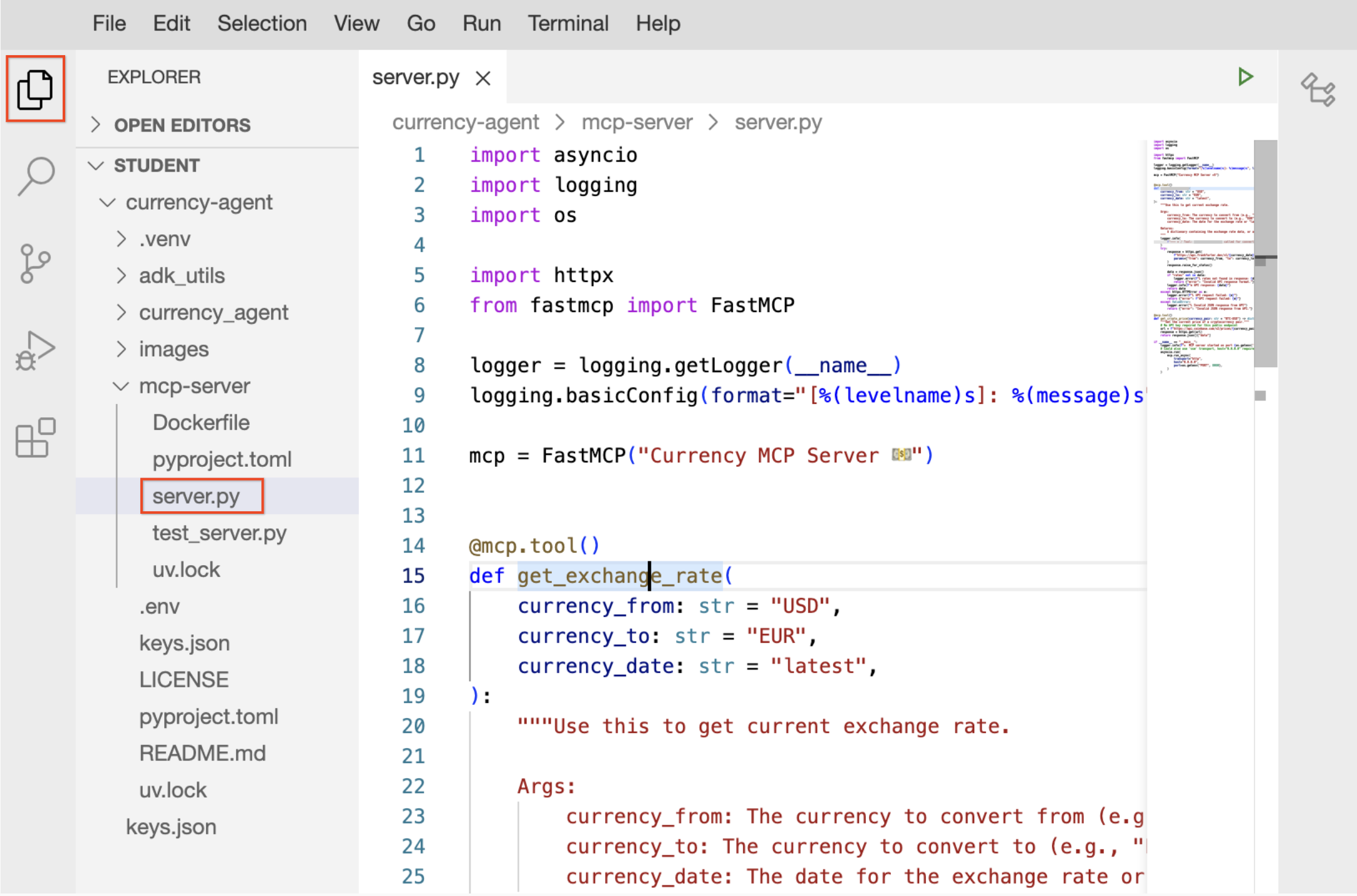
In the File Explorer, within the mcp-server directory, open the server.py file, insert the following code at line 53, and save your changes:
Switch to the terminal instance where the MCP server is still running.
Press CTRL+C to stop the server.
Still in the same terminal, run the following command to restart the MCP Server:
Switch to the terminal instance where the A2A server is still running.
Press CTRL+C to stop the server.
Still in this terminal, run the following command to restart the Agent:
Switch to the terminal instance where the currency_agent had previously been running.
Enter exit to end the original session.
Execute the following command to re-run and test your Agent:
Try issuing the following prompt to interact with the Agent:
The Agent now has access to the get_crypto_price tool (via MCP), which enables it to answer questions about more than just flat currencies!
429 quota error, please wait one minute and try the request again.Click Check my progress to verify the objective.
You've successfully deploying an ADK agent and modified it to use the Model Context Protocol (MCP) server.
Manual Last Updated May 22, 2026
Lab Last Tested May 22, 2026
Copyright 2026 Google LLC. All rights reserved. Google and the Google logo are trademarks of Google LLC. All other company and product names may be trademarks of the respective companies with which they are associated.



This content is not currently available
We will notify you via email when it becomes available

Great!
We will contact you via email if it becomes available


One lab at a time
Confirm to end all existing labs and start this one