GSP1333

Overview
Want to protect your sensitive data in BigQuery by restricting query access? With data clean rooms, you can now do that in an easily implemented and managed way! A data clean room is an environment to share sensitive data where raw access can be prevented and query restrictions can be enforced. Only users or groups that are added as subscribers to a data clean room can subscribe to the shared data. Data clean rooms provide a security-enhanced environment in which multiple parties can share, join, and analyze their data assets without moving or revealing the underlying data.
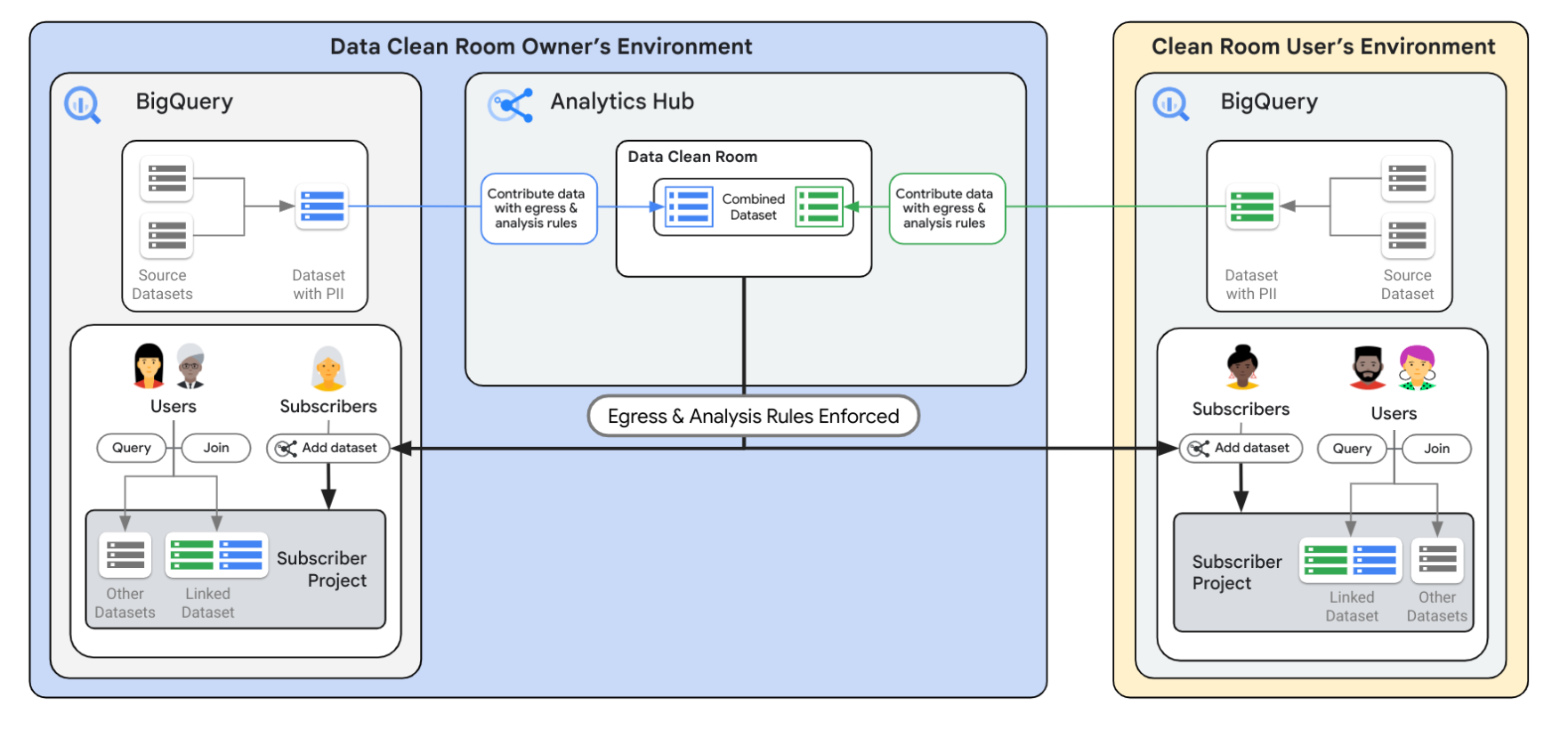
BigQuery data clean rooms are built on the BigQuery sharing (formerly Analytics Hub) platform. While the standard BigQuery sharing data exchanges provide a way to share data across organizational boundaries at scale, data clean rooms help you address sensitive and protected data-sharing use cases. Specifically, data clean rooms provide additional security controls to help protect the underlying data and enforce analysis rules that the data owner defines.
The following diagram provides an overview of the BigQuery sharing data exchange architecture. First, the data clean room is created and managed by an owner through the BigQuery sharing platform to add data that can be shared and to grant data access to specific users. Then, users who have been granted access can query data in the clean room from their own projects. Any specific access rules implemented by the data clean room owner are enforced by the BigQuery sharing platform, including differential privacy and privacy budgets.
What is differential privacy?
Differential privacy is an anonymization technique that limits the personal information that is revealed in a query output. Differential privacy is considered to be one of the strongest privacy protections. To learn more, refer to the What is differential privacy? documentation.
Privacy budget
The privacy budget is like a limit on how much noise you can add. Every time you perform a calculation or analysis on the data, you use up some of your privacy budget. Once the budget is spent, you can't add any more noise, and further analysis might risk revealing private information.
The privacy budget is controlled by an epsilon (ε) value established by the data clean room publisher.
-
Higher epsilon values mean less noise is added, resulting in more accurate results but weaker privacy protection.
-
Lower epsilon values mean more noise is added, resulting in less accurate results but stronger privacy protection.
Use cases
-
Campaign planning and audience insights: Let two parties (such as sellers and buyers) mix first-party data and improve data enrichment in a privacy-centric way.
-
Activation: Combine customer data with data from other parties to enrich customer understanding, enabling improved segmentation capabilities and more effective media activation.
-
Financial services: Improve fraud detection by combining sensitive data from other financial and government agencies. Build credit risk scoring by aggregating customer data across multiple banks.
-
Healthcare: Share data between doctors and pharmaceutical researchers to learn how patients are reacting to treatments.
Supply chain, logistics, and transportation. Combine data from suppliers and marketers to get a complete picture of how products perform throughout their lifecycle.
-
Supply chain, logistics, and transportation: Combine data from suppliers and marketers to get a complete picture of how products perform throughout their lifecycle.
What you'll learn
In this lab, you learn how to perform the following tasks:
- Create a data clean room and add data to it as a publisher.
- Enable secure data sharing for a publisher's table that contains sensitive information.
- Apply a differential privacy analysis rule to the table to protect individual privacy.
- Subscribe to a data clean room as a subscriber.
- Query the data as the subscriber and publisher to test that secure data sharing is working as intended.
Prerequisites
To complete this lab, you should be familiar with BigQuery.
Setup and requirements
Note: To begin this lab, follow the instructions below to log into the Publisher project:
as the Publisher username: .
Before you click the Start Lab button
Read these instructions. Labs are timed and you cannot pause them. The timer, which starts when you click Start Lab, shows how long Google Cloud resources are made available to you.
This hands-on lab lets you do the lab activities in a real cloud environment, not in a simulation or demo environment. It does so by giving you new, temporary credentials you use to sign in and access Google Cloud for the duration of the lab.
To complete this lab, you need:
- Access to a standard internet browser (Chrome browser recommended).
Note: Use an Incognito (recommended) or private browser window to run this lab. This prevents conflicts between your personal account and the student account, which may cause extra charges incurred to your personal account.
- Time to complete the lab—remember, once you start, you cannot pause a lab.
Note: Use only the student account for this lab. If you use a different Google Cloud account, you may incur charges to that account.
How to start your lab and sign in to the Google Cloud console
-
Click the Start Lab button. If you need to pay for the lab, a dialog opens for you to select your payment method.
On the left is the Lab Details pane with the following:
- The Open Google Cloud console button
- Time remaining
- The temporary credentials that you must use for this lab
- Other information, if needed, to step through this lab
-
Click Open Google Cloud console (or right-click and select Open Link in Incognito Window if you are running the Chrome browser).
The lab spins up resources, and then opens another tab that shows the Sign in page.
Tip: Arrange the tabs in separate windows, side-by-side.
Note: If you see the Choose an account dialog, click Use Another Account.
-
If necessary, copy the Username below and paste it into the Sign in dialog.
{{{user_0.username | "Username"}}}
You can also find the Username in the Lab Details pane.
-
Click Next.
-
Copy the Password below and paste it into the Welcome dialog.
{{{user_0.password | "Password"}}}
You can also find the Password in the Lab Details pane.
-
Click Next.
Important: You must use the credentials the lab provides you. Do not use your Google Cloud account credentials.
Note: Using your own Google Cloud account for this lab may incur extra charges.
-
Click through the subsequent pages:
- Accept the terms and conditions.
- Do not add recovery options or two-factor authentication (because this is a temporary account).
- Do not sign up for free trials.
After a few moments, the Google Cloud console opens in this tab.
Note: To access Google Cloud products and services, click the Navigation menu or type the service or product name in the Search field.

Task 1. Create a data clean room (publisher)
For this task, be sure that you have logged into the Publisher project () as the Publisher username ().
In this task, you act as the publisher () to create a data clean room () and assign the required permissions.
-
On the Navigation menu ( ), click BigQuery > Sharing (Analytics Hub).
-
Click Create clean room.
-
Create a secure environment for privacy-preserving analysis while restricting access to the underlying data with the following details:
| Parameter |
Configuration |
| Project |
|
| Location type |
Multi-region |
| Multi-region |
US (multiple regions in the United States) |
| Clean room name |
|
| Primary contact |
|
| Description |
Patient Data Analysis |
-
Click Create clean room and leave the remaining settings as their defaults.
-
Use the following details in the Clean Room Permissions (optional) section to add the Publisher username as the clean room owner and the Subscriber username as data contributor and subscriber to the clean room.
| Parameter |
Configuration |
| Clean room owners |
|
| Data contributors |
,
|
| Subscribers |
|
-
Click Set permissions.
-
Locate the row for the clean room name named (). Under Actions, click the More actions icon ( ), and select Set permissions.
-
Click Add principal.
-
In the Add principals section, enter the subscriber username for the principal:
-
For Select a role, search for Analytics Hub Subscription Owner, and then select Analytics Hub Subscription Owner from the search results.
-
Click Save.
Click Check my progress to verify the objective.
Create a data clean room (publisher)
Task 2. Add data to the data clean room (publisher)
For this task, be sure that you remain logged into the Publisher project () as the Publisher username ().
In this task, you act as the publisher and data clean room owner () to create a new listing in the data clean room () for a new view named covid_data with analysis rules implemented.
-
Click on the data clean room named .
-
Click Add data.
While selecting data to create a view, you can choose all the columns from the source data or select specific columns to include in the new view. For this data, you choose all the source columns as part of the new view in next steps.
-
In Source data, for Dataset, enter: .gcc_bq_dataset
-
In Source data, for Table / view name, select county_14d.
-
Enable the option for Use all columns.
-
In Store new view, enter the view name: covid_data
-
In Metadata, enter the value for Primary contact:
-
Click Next.
-
In the Analysis rules section, use the following details to define analysis rules for the shared table named county_14d, and leave the remaining settings as their defaults:
| Parameter |
Configuration |
| Rule type |
Differential privacy |
| Filter |
Enable Allow join on columns named county_fips_code and state_name; Enable Privacy unit column on column named new_deaths
|
| Total epsilon |
1000 |
| Maximum epsilon per query |
15 |
| Total delta |
0.5 |
| Delta per query |
0.1 |
| Join condition |
Join not required |
Note: To add state_name as a join column and set new_deaths as a Privacy unit column, you need to expand the rows per page displayed or use that arrows at the bottom right of the table to see more column names.
-
Click Next, and then review the configurations.
-
Click Add data.
Note: A view covid_data is created for your data and is added as a listing to the data clean room named . The source table or view itself isn't added.
Leave the browser tab for the Publisher project open, as you proceed to the next task.
Click Check my progress to verify the objective.
Add data to the data clean room (publisher)
Task 3. Subscribe to the data clean room (subscriber)
For this task, be sure that you have logged into the Subscriber project () as the Subscriber username ().
Subscribers of a data clean room incur compute charges when querying shared data that is protected with a differential privacy analysis rule. In this task, you explore how shared data is accessible in the Subscriber project. As the Subscriber user (), you subscribe to the data clean room (), which creates a linked dataset for all listings in the data clean room.
-
In a new Incognito or private browser window, sign into the Subscriber Project () as the secondary user ().
-
On the Navigation menu (), click BigQuery > Sharing (Analytics Hub).
-
Click Search listings.
-
In the Filters pane, under Listings, apply the filter for Clean rooms.
-
In the Results, click on the data clean room named .
-
Click Subscribe.
-
For Project, enter the Subscriber Project ID:
-
Click Subscribe.
-
On the Navigation menu (), click BigQuery > Studio.
-
Expand the arrow next to the Subscriber Project ID () to expand the list of items.
-
Click on the subscribed clean room table named , and then click the Details tab to see that it has a Differential privacy policy.
Note: If you do not see the subscribed clean room table, wait a few minutes for the subscription operations of the data clean room () to complete. Then, refresh the BigQuery page.
Click Check my progress to verify the objective.
Subscribe to the data clean room (subscriber)
Task 4. Query the data to test secure data sharing implementation (subscriber and publisher)
For this task, be sure that you query the data in BigQuery as the specified user (subscriber or publisher) in the specified project (subscriber or publisher) for each query, so that you can fully test that secure data sharing is working as intended.
Test 1 - Query data with and without differential privacy as the subscriber
When a differential privacy rule is applied to a shared table or view, users cannot directly query it using standard SQL. In this section, you act as the subscriber and use differential privacy to query the shared data instead of standard SQL.
For test 1, execute the following queries in the Subscriber project () as the Subscriber username ().
- On the BigQuery Studio page, click on the Untitled query tab, paste the following query, and click Run:
-- Subscriber project query
SELECT COUNT(*)
FROM
`{{{project_1.project_id|project_id}}}.{{{project_0.startup_script.clean_room_name | clean_room_name}}}.covid_data`;
Output returns a message that differential privacy is being enforced:
You must use SELECT WITH DIFFERENTIAL_PRIVACY or GROUP BY privacy unit column because a privacy policy has been set by a data owner.
- Replace the previous query with the following query, which uses
SELECT WITH DIFFERENTIAL_PRIVACY:
-- Subscriber project query
SELECT WITH DIFFERENTIAL_PRIVACY COUNT(*)
FROM
`{{{project_1.project_id|project_id}}}.{{{project_0.startup_script.clean_room_name | clean_room_name}}}.covid_data`;
Output returns the desired count:
44267
As you have observed, if a differential privacy rule is applied to a shared table or view, users cannot directly query it using standard SQL. They need to explicitly include the WITH DIFFERENTIAL PRIVACY clause in their queries. This ensures that all queries adhere to the defined privacy protections.
Test 2 - Query data to see the differences in data returned to the subscriber and publisher
Differential privacy adds slight noise to the values returned in query results, rather than showing the actual values. This noise helps to mask individual data points while preserving overall trends and insights. Users should be aware that the values they see are not the exact, raw values but instead are perturbed with some noise added for privacy.
For this first query below, execute it in Publisher project () as the Publisher username ().
- Execute the following query in BigQuery within the Publisher project to see the raw data that is returned to the publisher without the noise added:
-- Publisher project query
SELECT
county_name,
COUNT(new_deaths)
FROM `{{{project_0.project_id|project_id}}}.gcc_bq_dataset.county_14d`
GROUP BY county_name
ORDER BY county_name;
Output returns data with no noise:
| Row |
county_name |
count |
| 1 |
Abbeville |
14 |
| 2 |
Acadia |
14 |
| 3 |
Accomack |
14 |
| 4 |
Ada |
14 |
| 5 |
Adair |
56 |
| 6 |
Adams |
168 |
| 7 |
Addison |
14 |
For the second query below, execute it in the Subscriber project () as the Subscriber username ().
- Execute the following query to see the data that is returned to the subscriber with some minor noise added:
-- Subscriber project query
SELECT WITH DIFFERENTIAL_PRIVACY
county_name,
COUNT(new_deaths)
FROM `{{{project_1.project_id|project_id}}}.{{{project_0.startup_script.clean_room_name | clean_room_name}}}.covid_data`
GROUP BY county_name
ORDER BY county_name;
Output returns data with some minor noise:
| Row |
county_name |
count |
| 1 |
Abbeville |
14 |
| 2 |
Acadia |
14 |
| 3 |
Accomack |
14 |
| 4 |
Ada |
13 |
| 5 |
Adair |
55 |
| 6 |
Adams |
167 |
| 7 |
Addison |
15 |
The noise, or difference between the raw data and differentially private data, is due to the epsilon (ε) value established by the data clean room publisher. In this case, a higher epsilon value results in less noise, so the difference between the raw and subscribed data is minor, but a data clean room publisher can increase the epsilon value as desired for their use case.
Test 3 - Query the data to test granular control over data joins using a column that has not been restricted from joins
For test 3, execute the following query in the Subscriber project () as the Subscriber username ().
A significant advantage of using differential privacy in BigQuery sharing is the granular control it offers over data joins. Publishers can specify which columns are allowed to be used in join operations, preventing potentially sensitive combinations of data from being revealed. Previously, as the publisher, you only allowed state_name and country_fips_code columns for join. In tests 3 and 4, you query the data to test granular control over data joins.
- Execute a query that joins another table with the original shared table on the state_name column that has not been restricted from joins:
-- Subscriber project query
SELECT WITH DIFFERENTIAL_PRIVACY
a.county_name,b.state_name,count(a.new_deaths) new_deaths_count
FROM `{{{project_1.project_id|project_id}}}.{{{project_0.startup_script.clean_room_name | clean_room_name}}}.covid_data` a
JOIN `{{{project_1.project_id|project_id}}}.gcc_bq_dataset.county_14d` b on
a.state_name=b.state_name
GROUP BY 1,2;
In this case, you are able to perform a join and get the results using the state_name column.
| Row |
county_name |
state_name |
new_deaths_count |
| 1 |
Mcpherson |
Nebraska |
53428 |
| 2 |
Motley |
Texas |
140563 |
| 3 |
Jerauld |
South Dakota |
39619 |
| 4 |
Catron |
New Mexico |
19056 |
| 5 |
Smith |
Kansas |
60030 |
| 6 |
Adair |
Iowa |
62562 |
| 7 |
Jack |
Texas |
147420 |
| 8 |
Colfax |
Nebraska |
53792 |
| 9 |
Ballard |
Kentucky |
61495 |
| 10 |
Pecos |
Texas |
155751 |
Test 4 - Query the data to test granular control over data joins using a column that has been restricted from joins
For test 4, execute the query in the Subscriber project () as the Subscriber username ().
In this section, you attempt to execute a query with join conditions on a restricted column named forecast_date.
- Execute a query that joins another table with the original shared table on the forecast_date column that has been restricted from joins:
-- Subscriber project query
SELECT WITH DIFFERENTIAL_PRIVACY
a.county_name,b.state_name,count(a.new_deaths) new_deaths_count
FROM `{{{project_1.project_id|project_id}}}.{{{project_0.startup_script.clean_room_name | clean_room_name}}}.covid_data` a
JOIN `{{{project_1.project_id|project_id}}}.gcc_bq_dataset.county_14d` b on
a.forecast_date=b.forecast_date
GROUP BY 1,2;
Output returns a message that joins are not allowed on the restricted column:
Join occurring on a restricted column.
Publishers retain control over how shared data is used, even with differential privacy applied. They can restrict users' ability to copy or export the data, ensuring that the data remains within the secure environment of BigQuery sharing.
Test 5 - Query the data to test the privacy budget as the subscriber
For test 5, execute the query in the Subscriber project ( as the Subscriber username ().
Each differential privacy rule has a privacy budget that gets consumed with every query. Once this budget is exhausted, subscribers of the clean room cannot query your shared data. This mechanism prevents excessive information leakage and enforces privacy limits. In this section, you run additional queries to test the privacy budget.
- Execute the following query to test the privacy budget as the subscriber. You may need to run the query a few times to receive the message that the privacy budget has been reached.
-- Subscriber project query
SELECT WITH DIFFERENTIAL_PRIVACY
county_name,
COUNT(new_deaths)
FROM `{{{project_1.project_id|project_id}}}.{{{project_0.startup_script.clean_room_name | clean_room_name}}}.covid_data`
GROUP BY county_name
ORDER BY county_name;
Note: When you execute the command multiple times, you get an error regarding the privacy budget. This prevents excessive information leakage and enforces privacy limits.
Output indicates that the privacy budget has been reached:
Privacy budget is not sufficient for table '{{{project_1.project_id|project_id}}}.{{{project_0.startup_script.clean_room_name | clean_room_name}}}.covid_data' in this query.
Click Check my progress to verify the objective.
Query the data to test secure data sharing implementation (subscriber and publisher)
Congratulations!
You have successfully enabled secure data sharing while protecting individual privacy with differential privacy in data clean rooms.
Next steps / Learn more
Google Cloud training and certification
...helps you make the most of Google Cloud technologies. Our classes include technical skills and best practices to help you get up to speed quickly and continue your learning journey. We offer fundamental to advanced level training, with on-demand, live, and virtual options to suit your busy schedule. Certifications help you validate and prove your skill and expertise in Google Cloud technologies.
Manual Last Updated October 22, 2025
Lab Last Tested October 21, 2025
Copyright 2026 Google LLC. All rights reserved. Google and the Google logo are trademarks of Google LLC. All other company and product names may be trademarks of the respective companies with which they are associated.







