Introduction
In this lab, you'll learn how to Clean your data in Python. Data cleaning in Python refers to the process of preparing and pre-processing raw data to make it suitable for analysis or machine learning tasks. It involves identifying and handling issues such as missing values, outliers, duplicates, and formatting inconsistencies.
Disclaimer: For optimal performance and compatibility, it is recommended to use either Google Chrome or Mozilla Firefox browsers while accessing the labs.
Start your lab
You'll need to start the lab before you can access the materials. To do this, click the green “Start Lab” button at the top of the screen.

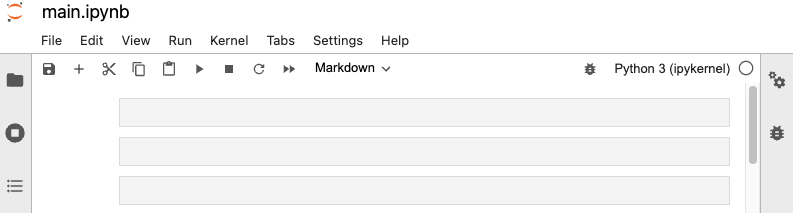
After you click the “Start Lab” button, you will see a Jupyter Notebook, where you will be performing further steps in the lab. You should have a jupyter notebook that looks like this:
What you'll do
You'll perform the following objectives in this lab:
- Annotated Jupyter guide mirroring module content with additional context and code explanations.
- You will explore common data science scenario i.e, missing data, you will practice finding missing values in your data, removing them or determining an alternative path.
Accessing the notebooks within the Jupyter Notebook
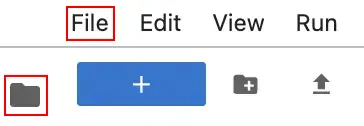
To complete this lab, you will open a Jupyter Notebook and follow instructions to enter code and written responses where prompted. The Jupyter notebook will autosave as you work, or you can manually save it by clicking the Save and Checkpoint button or by selecting Save and Checkpoint from the File menu.
Tips
As you complete the lab, note the following features:
-
Sections: Step-by-step instructions in each section lead you through the lab.
-
Code blocks: Code blocks allow you to practice key Python coding concepts. Add code where prompted and then click the Run button to execute your code and view any possible output.

-
Questions: Thought questions offer moments to pause and think about concepts and your output as you move through the lab.
-
Hints: Hidden hints provide suggestions you can use to complete your work.
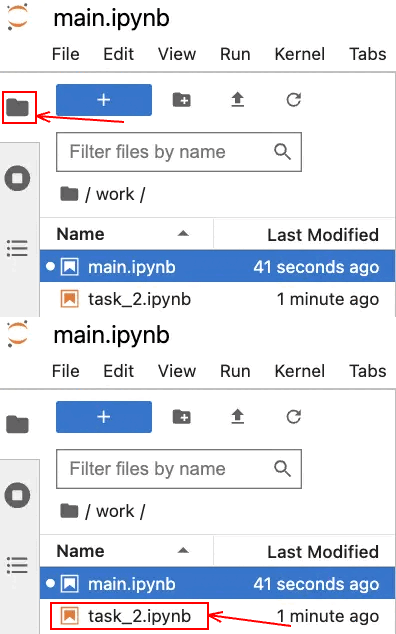
Note: The main.ipynb file will be provided at the beginning of the lab. Ensure that you use this file to complete first task. After completing the Task 1, navigate to the files icon and to choose the next task file, simply double-click on the notebook file as per mentioned tasks.
Steps to download and upload a CSV file:
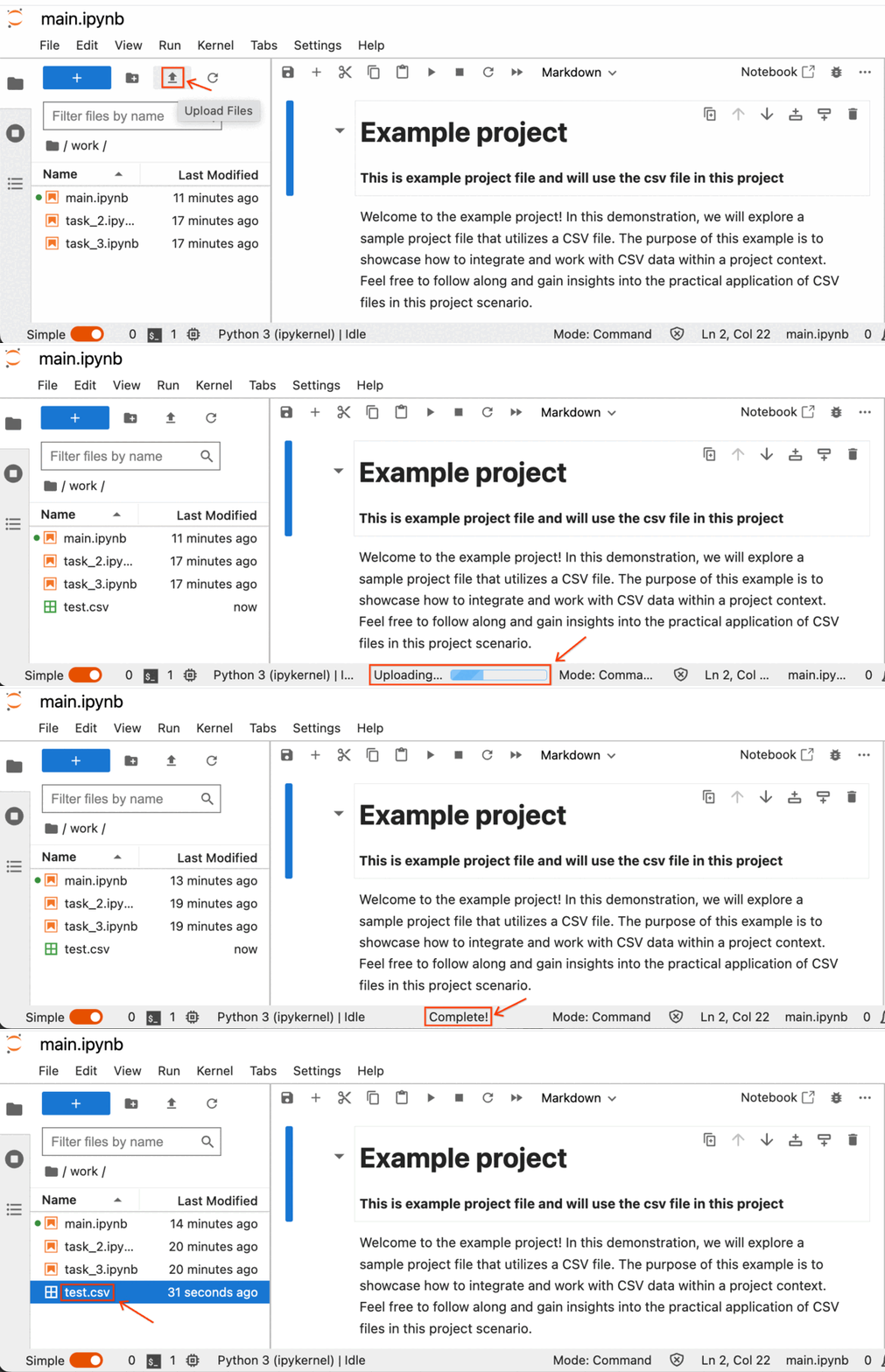
In this lab, you will perform operations on CSV data corresponding to the tasks outlined in the instructions. Retrieve the CSV file attached to the task instructions and proceed to upload it into the Jupyter Notebook using the following steps:
-
Click on the CSV file name specified in the task instructions, and the CSV file will be downloaded to your designated download directory.
-
Next, within your lab's Jupyter Notebook, simply select the Upload File button, choose the desired CSV files, and then click on Upload.
-
The process of uploading the CSV file has commenced, and you can locate the progress indicators at the bottom of the Jupyter Notebook.
Task 1: Annotated follow-along guide: Work with missing data in a Python notebook
The follow-along guide is an annotated Jupyter notebook organized to match the content from each module. It contains the same code shown in the videos for that module. In addition to content that is identical to what is covered in the videos, you’ll often find additional information throughout the guide to explain the purpose of each concept covered, why the code is written in a certain way, and tips for running the code.
Use the following CSV data for this task:
- Click the files icon to access Jupyter notebook file.
- Open the
main.ipynb file, by clicking on the file name.
Task 2: Address missing data
In this task, you will explore common data science scenario: missing data. You will be presented with a business scenario and a dataset that has missing values you need to remove in order to navigate the scenario. You will practice finding missing values in your data, removing them or determining an alternative path.
This task uses a dataset called Unicorn_Companies.csv. It represents a list of private companies with a value of over $1 billion as of March 2022. The data includes the name of the country where the company was founded, its current valuation, funding, industry, top investors, year it was founded, and the year it reached a $1 billion valuation.
Use the following CSV data for this task:
- Click the files icon to access Jupyter notebook file.
- Open the
task_2.ipynb file, by clicking on the file name.
-
### YOUR CODE HERE ### indicates where you should write code. Be sure to replace this with your own code before running the code cell.
End your lab
Before you end the lab, make sure you’re satisfied that you’ve completed all the tasks, and follow these steps:
- Click End Lab and then click Submit. Ending the lab will remove your access to the Jupyter Notebook. You won’t be able to access the work you've completed in it again.







