Activity overview
As a security analyst, you’ll often find that you need data from more than one table.
Previously, you learned that a relational database is a structured database containing tables that are related to each other.
SQL joins enable you to combine tables that contain a shared column. This is helpful when you need to connect information that appears in different tables.
In this lab activity, you’ll use SQL joins to connect separate tables and retrieve needed information.
Get ready to apply what you’ve learned and join some data!
Note: The terms row and record are used interchangeably.
Scenario
In this scenario, you’ll investigate a recent security incident that compromised some machines.
You are responsible for getting the required information from the database for the investigation.
Here’s how you’ll do this task: First, you’ll use an inner join to identify which employees are using which machines. Second, you’ll use left and right joins to find machines that do not belong to any specific user and users who do not have any specific machine assigned to them. Finally, you’ll use an inner join to list all login attempts made by all employees.
You’re ready to join tables in SQL!
Note: In this lab you’ll be working with the organization database and the tables it contains.
The lab starts with the organization database in the MariaDB shell that is already open. This means you can start with the tasks as soon as you click the Start Lab button.
If you unintentionally exit the organization database in the MariaDB shell, you can reconnect by running the sudo mysql organization command.
Disclaimer: For optimal performance and compatibility, it is recommended to use either Google Chrome or Mozilla Firefox browsers while accessing the labs.
Start the lab
You'll need to start the lab before you can access the materials. To do this, click the green “Start Lab” button at the top of the screen.

After you click the Start Lab button, you will see a shell, where you will be performing further steps in the lab. You should have a shell like this:
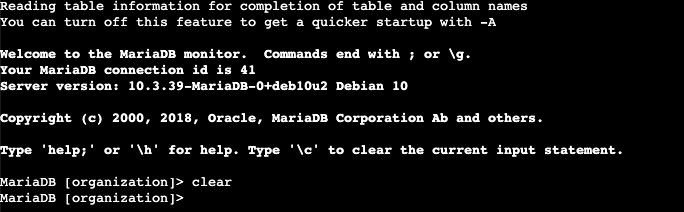
When you have completed all the tasks, refer to the End your Lab section that follows the tasks for information on how to end your lab.
Task 1. Match employees to their machines
First, you must identify which employees are using which machines. The data is located in the machines and employees tables.
You must use a SQL inner join to return the records you need based on a connecting column. In the scenario, both tables include the device_id column, which you’ll use to perform the join.
- Run the following query to retrieve all records from the
machines table:
SELECT *
FROM machines;
You’ll note that this query is not sufficient to perform the join and retrieve the information you need.
- Complete the query to perform an inner join between the
machines and employees tables on the device_id column. Replace X and Y with this column name:
SELECT *
FROM machines
INNER JOIN employees ON machines.X = employees.Y;
Note: Placing the employees table after INNER JOIN makes it the right table.
To complete a join you need to link the joined tables on a common column. In the case of the employees and machines tables, the device_id column is common.
The correct query to solve this step:
SELECT *
FROM machines
INNER JOIN employees ON machines.device_id = employees.device_id;
Note: If the output of the query is too wide for your shell, press the Open Linux Console button described in the Lab features section to open a full-screen view of the Bash shell, where you can re-enter the query.
Answer: The inner join query returned 185 rows.
Click Check my progress to verify that you have completed this task correctly.
Match employees to their machines
Task 2. Return more data
You now must return the information on all machines and the employees who have machines. Next, you must do the reverse and retrieve the information of all employees and any machines that are assigned to them.
To achieve this, you’ll complete a left join and a right join on the employees and machines tables. The results will include all records from one or the other table. You must link these tables using the common device_id column.
- Run the following SQL query to connect the
machines and employees tables through a left join. You must replace the keyword X in the query:
SELECT *
FROM machines
X JOIN employees ON machines.device_id = employees.device_id;
The correct query to solve this step:
SELECT *
FROM machines
LEFT JOIN employees ON machines.device_id = employees.device_id;
Note: In a left join, all records from the table referenced after FROM and before LEFT JOIN are included in the result. In this case, all records from the machines table are included, regardless of whether they are assigned to an employee or not.
Answer: The last username returned is NULL.
- Run the following SQL query to connect the
machines and employees tables through a right join. You must replace the keyword X in the query to solve the problem:
SELECT *
FROM machines
X JOIN employees ON machines.device_id = employees.device_id;
Note: In a right join, all records from the table referenced after RIGHT JOIN are included in the result. In this case, all records from the employees table are included, regardless of whether they have a machine or not.
The correct query to solve this step:
SELECT *
FROM machines
RIGHT JOIN employees ON machines.device_id = employees.device_id;
Answer: The value in the username column for the last record returned is areyes.
Click Check my progress to verify that you have completed this task correctly.
Return more data
Task 3. Retrieve login attempt data
To continue investigating the security incident, you must retrieve the information on all employees who have made login attempts. To achieve this, you’ll perform an inner join on the employees and log_in_attempts tables, linking them on the common username column.
- Run the following SQL query to perform an inner join on the
employees and log_in_attempts tables. Replace X with the name of the right table. Then replace Y and Z with the name of the column that connects the two tables:
SELECT *
FROM employees
INNER JOIN X ON Y = Z;
Note: You must specify the table name with the column name (table.column) when joining the tables.
The correct query to solve this step:
SELECT *
FROM employees
INNER JOIN log_in_attempts ON employees.username = log_in_attempts.username;
Answer: There are 200 records returned by the inner join.
Click Check my progress to verify that you have completed this task correctly.
Retrieve login attempt data
Conclusion
Great work!
You have completed this activity and should be able to use joins to combine data from multiple tables in a database.
You now have practical experience in using
-
INNER JOIN,
-
LEFT JOIN, and
-
RIGHT JOIN.
Great work using SQL joins to obtain the precise data you need.
End your lab
Before you end the lab, make sure you’re satisfied that you’ve completed all the tasks, and follow these steps:
- Click End Lab. A pop-up box will appear. Click Submit to confirm that you're done. Ending the lab will remove your access to the Bash shell. You won’t be able to access the work you've completed in it again.
- Another pop-up box will ask you to rate the lab and provide feedback comments. You can complete this if you choose to.
- Close the browser tab containing the lab to return to your course.
- Refresh the browser tab for the course to mark the lab as complete.







