Activity overview
As a security analyst, you’ll often need to query numbers and dates.
For example, you may need to filter patch dates to find machines that need an update. Or you might filter login attempts made during a certain period of time to investigate a security incident.
Common operators for working with numeric or date and time data will help you accurately filter data. These are some of the operators you'll use:
-
= (equal)
-
> (greater than)
-
< (less than)
-
<> (not equal to)
-
>= (greater than or equal to)
-
<= (less than or equal to)
In this lab activity, you’ll apply these operators to accurately filter for specific numbers and dates!
Note: The terms row and record are used interchangeably in this lab activity.
Scenario
In this scenario, you’re investigating a recent security incident.
You need to gather information about login attempts for certain dates and times. This will help in resolving a security incident.
Here’s how you’ll do this task: First, you’ll retrieve login events made after a certain date. Second, you’ll narrow the focus of the search to filter logins in a date range. Third, you’ll investigate logins that were made at certain times. Finally, you’ll filter login attempts based on their event IDs.
It's time to get started and use operators to filter data from a table!
Note: In this lab you’ll be working with the organization database and the tables it contains.
The lab starts with the organization database in the MariaDB shell that is already open. This means you can start with the tasks as soon as you click the Start Lab button.
If you unintentionally exit the organization database in the MariaDB shell, you can reconnect by running the sudo mysql organization command.
Disclaimer: For optimal performance and compatibility, it is recommended to use either Google Chrome or Mozilla Firefox browsers while accessing the labs.
Start the lab
You'll need to start the lab before you can access the materials. To do this, click the green “Start Lab” button at the top of the screen.
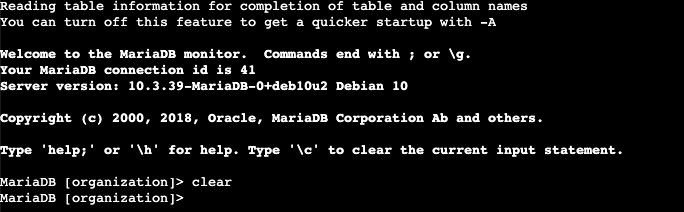
After you click the Start Lab button, you will see a shell, where you will be performing further steps in the lab. You should have a shell like this:
When you have completed all the tasks, refer to the End your Lab section that follows the tasks for information on how to end your lab.
Task 1. Retrieve login attempts after a certain date
In this task, you need to investigate a recent security incident. To do this, you need to gather information about login attempts made after a certain date.
- Complete the SQL query to retrieve data for login attempts made after
'2022-05-09'. Replace X with the correct operator:
SELECT *
FROM log_in_attempts
WHERE login_date X '2022-05-09';
The correct query to solve this step:
SELECT * FROM
log_in_attempts
WHERE login_date > '2022-05-09';
Answer: The number of login attempts made after the 2022-05-09 is 125.
Now, based on your first query, you find a need to expand the date range to include 2022-05-09 in your search.
- Complete the SQL query to retrieve data for login attempts that were made on or after
'2022-05-09'. Replace X with the correct operator:
SELECT *
FROM log_in_attempts
WHERE login_date X '2022-05-09';
The correct query to solve this step:
SELECT *
FROM log_in_attempts
WHERE login_date >= '2022-05-09';
Answer: The number of login attempts made from 2022-05-09 onward is 165.
Click Check my progress to verify that you have completed this task correctly.
Retrieve login attempts after a certain date
Task 2. Retrieve logins in a date range
In this task, you need to narrow the focus of the search. Login attempts made after 2022-05-11 shouldn't be included. Use the BETWEEN and AND operators to return results between '2022-05-09' and '2022-05-11'.
- Run the query to retrieve the required records. You must insert the required dates
X and Y:
SELECT *
FROM log_in_attempts
WHERE login_date BETWEEN 'X' AND 'Y';
The correct query to solve this step:
SELECT *
FROM log_in_attempts
WHERE login_date BETWEEN '2022-05-09' AND '2022-05-11';
Answer: 123 login attempts were made between 2022-05-09 and 2022-05-11.
Click Check my progress to verify that you have completed this task correctly.
Retrieve logins in a date range
Task 3. Investigate logins at certain times
In this task, you need to investigate logins that were made at certain times. To do this, filter the data in the log_in_attempts table by login time (login_time).
First, your organization's typical work hours begin at 07:00:00. Retrieve all login attempts made before 07:00:00 to learn more about the users who are logging in outside of typical hours.
- Write a SQL query to retrieve data for login attempts made before
'07:00:00'.
Note: Place time data in single quotation marks.
The correct query to solve this step:
SELECT *
FROM log_in_attempts
WHERE login_time < '07:00:00';
Answer: The username in the fifth record returned from this query is eraab.
The query in the previous step returned more results than required.
- Modify the query to return logins between
'06:00:00' and '07:00:00'.
The correct query to solve this step:
SELECT *
FROM log_in_attempts
WHERE login_time BETWEEN '06:00:00' AND '07:00:00';
Answer: The earliest login attempt was at 06:01:31.
Click Check my progress to verify that you have completed this task correctly.
Investigate logins at certain times
Task 4. Investigate logins by event ID
In this task, you need to investigate login attempts based on event ID numbers. With this query, you want to return only the event_id, username, and login_date fields from the log_in_attempts table.
Note: The event_id column contains numeric data; do not place numeric data in quotation marks.
- Write a query to return login attempts with
event_id greater than or equal to 100.
The correct query to solve this step:
SELECT event_id, username, login_date
FROM log_in_attempts
WHERE event_id >= 100;
Answer: The login date of the third result returned is 2022-05-09.
The query in the previous step returned more data than required.
- Modify the query to return only login attempts with
event_id between 100 and 150.
The correct query to solve this step:
SELECT event_id, username, login_date
FROM log_in_attempts
WHERE event_id BETWEEN 100 AND 150;
Answer: The username of the seventh result is tmitchel.
Click Check my progress to verify that you have completed this task correctly.
Investigate logins by event ID
Conclusion
Great work!
You have completed this activity and practiced applying
- the
WHERE keyword
- the
BETWEEN and AND operators, and
- operators for working with numeric or date and time data types (for example,
=, >, >=)
to filter data from a table.
You’re now ready to filter for numbers and dates to extract all sorts of useful data!
End your lab
Before you end the lab, make sure you’re satisfied that you’ve completed all the tasks, and follow these steps:
- Click End Lab. A pop-up box will appear. Click Submit to confirm that you're done. Ending the lab will remove your access to the Bash shell. You won’t be able to access the work you've completed in it again.
- Another pop-up box will ask you to rate the lab and provide feedback comments. You can complete this if you choose to.
- Close the browser tab containing the lab to return to your course.
- Refresh the browser tab for the course to mark the lab as complete.








