Overview
BigQuery federated queries In this lab, you will explore the power of federated queries to gain real-time insights by directly querying an operational database from within BigQuery. You will learn how to connect BigQuery to an AlloyDB for PostgreSQL database, enabling you to join historical analytical data with live transactional data without the need for complex and time-consuming ETL pipelines. This hands-on experience demonstrates a key capability of a modern data lakehouse: the ability to unify data across disparate systems for comprehensive analysis.
You will begin by configuring an external connection in BigQuery that securely links to a sample AlloyDB instance containing web log data. Next, you will grant the connection you just created permission to query AlloyDB. Finally, you will construct a SQL query using the EXTERNAL_QUERY function. This powerful function allows you to execute a query against the AlloyDB database and treat its results as a temporary table within your BigQuery environment.
The core task involves writing a single federated query that joins a customer dataset stored natively in BigQuery with live web log data in AlloyDB. By mastering this technique, you can unlock sophisticated, real-time use cases that combine deep historical context with immediate operational awareness. For example, Cymbal E-commerce could use this approach to answer the business question: "What have our historically highest-spending customers been viewing on our website?"
What you'll do
- Create a connection to AlloyDB in BigQuery
- Give the connection service account permission to AlloyDB through an IAM role
- Write a query with the
EXTERNAL_QUERY SQL function
- Run the query and examine the results
Setup and requirements
Before you click the Start Lab button
Read these instructions. Labs are timed and you cannot pause them. The timer, which starts when you click Start Lab, shows how long Google Cloud resources will be made available to you.
This hands-on lab lets you do the lab activities yourself in a real cloud environment, not in a simulation or demo environment. It does so by giving you new, temporary credentials that you use to sign in and access Google Cloud for the duration of the lab.
What you need
To complete this lab, you need:
- Access to a standard internet browser (Chrome browser recommended).
- Time to complete the lab.
Note: If you have a personal Google Cloud account or project, do not use it for this lab.
Note: If you are using a Pixelbook, open an Incognito window to run this lab.
Log in to Google Cloud Console
- Using the browser tab or window you are using for this lab session, copy the Username from the Connection Details panel and click the Open Google Console button.
Note: If you are asked to choose an account, click Use another account.
- Paste in the Username, and then the Password as prompted.
- Click Next.
- Accept the terms and conditions.
Since this is a temporary account, which will last only as long as this lab:
- Do not add recovery options
- Do not sign up for free trials
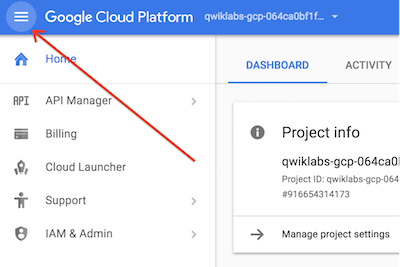
- Once the console opens, view the list of services by clicking the Navigation menu (
 ) at the top-left.
Verify or enable required APIs
-
In the Google Cloud Console, enter BigQuery Connection API in the top search bar.
-
Click on the result BigQuery Connection API.
-
If the API is not already enabled, click Enable to enable the API.
Task 1. Create a connection to AlloyDB
In this task, you create a new connection to AlloyDB for BigQuery to use.
Create the connection
-
In the Google Cloud Console, in the Navigation menu (), navigate to BigQuery > Studio.
-
Under Explorer, click + Add data.
-
In the fly out on the left under Data Source Type select Databases.
-
On the right of the fly out under Featured data sources click the card for Google Cloud AlloyDB.
-
In the resulting selection of cards click on BigQuery Federation.
-
In the Externa data source entry screen use the following values:
| Property |
Value |
| Connection type |
AlloyDB |
| Connection ID |
AlloyDB-weblog |
| Location type |
Region |
| Region |
{{{project_0.default_region | Region}}} |
| Friendly name |
leave blank |
| Description |
leave blank |
| Encryption |
Default |
| Username |
postgres |
| Password |
{{{user_0.password | Password}}} |
| Database |
postgres |
| AlloyDB Instance |
//alloydb.googleapis.com/projects/{{{project_0.project_id | Project ID}}}/locations/{{{project_0.default_region | Region}}}/clusters/cymbal-cluster/instances/cymbal-instance
|
- Click Create connection
Click Check my progress to verify the objective.
Create a connection to AlloyDB
Task 2. Set IAM permissions for the connection service account
To access data in AlloyDB the service account that was created automatically when you made the connection needs to be given permission to AlloyDB.
Set IAM permissions
-
In BigQuery Classic Explorer panel expand the entry that is the project id for the lab.
-
Now expand the entry Connections.
-
Click on the entry that you just created. The details for the connection will appear in the main panel on the right. Copy the entry listed for the Service account id. Here is an example of what it appears like: service-164632061610@gcp-sa-bigqueryconnection.iam.gserviceaccount.com
-
From the navigation menu select IAM & Admin and from the flyout submenu select IAM.
-
Click + Grant access.
-
For New principals paste in the connection service account id you copied in step 3.
-
Click the Select a role drop down. In the Filter area that appears enter AlloyDB. Scroll until you find AlloyDB Client and select it.
-
Click Add another role.
-
Click the new Select a role drop down. In the Filter area that appears enter BigQuery. Scroll until you find BigQuery Connection User and select it.
-
Click the Save box at the bottom of the screen.
Click Check my progress to verify the objective.
Set IAM permissions for the connection service account
Task 3. Running a federated query from BigQuery
In this task you will run a query combining Cymbal's customer information in BigQuery with their weblog information in AlloyDB.
-
In the Google Cloud Console Navigation menu (), navigate to BigQuery > Studio.
-
In BigQuery Classic Explorer panel expand the entry that is the project id for the lab.
-
Now expand the entry Connections.
-
Click the 3 vertical dots to the right of the connection you created. Select Query
-
Update the query by replacing the SELECT statement in the EXTERNAL_QUERY portion of the query with the following code. Don't replace the entire query, only the portion within the EXTERNAL_QUERY block between the " " marks:
SELECT customer_id, CAST(log_id AS VARCHAR(200)) AS log_id, timestamp, url FROM web_log LIMIT 100
-
Click Run. The returned data is from AlloyDB even through you are in BigQuery!
-
We will now extend the query to combine data in BigQuery native tables with the data in AlloyDB.
-
Replace the current query with the following code:
WITH log AS (
SELECT customer_id, log_id, timestamp, url FROM EXTERNAL_QUERY("{{{project_0.project_id | Project ID}}}.{{{project_0.default_region | Region}}}.AlloyDB-weblog", "SELECT customer_id, CAST(log_id AS VARCHAR(200)) AS log_id, timestamp, url FROM web_log LIMIT 100"))
SELECT log.customer_id
, log.timestamp
, log.url
, C.*
FROM customers.customer_details AS C
INNER JOIN log
ON C.id = log.customer_id
ORDER BY C.id
LIMIT 100;
-
Click Run. The returned data combines data in AlloyDB and data in BigQuery!
Click Check my progress to verify the objective.
Running a federated query from BigQuery
Congratulations!
You configured and used a BigQuery external connection to allow BigQuery to access and process data stored in AlloyDB.







