Vertex AI is now Gemini Enterprise Agent Platform! We are currently updating our content to reflect this change. Please bear with us if you encounter naming inconsistencies during this transition.
Wykorzystuj swoje umiejętności w konsoli Google Cloud
Punkty kontrolne
Mount the volume
Sprawdź postępy
/ 20
Grow the volume capacity
Sprawdź postępy
/ 40
Shrink the volume capacity
Sprawdź postępy
/ 40
Instrukcje i wymagania dotyczące konfiguracji modułu
Chroń swoje konto i postępy. Zawsze używaj okna przeglądania prywatnego i danych logowania do modułu, kiedy go uruchamiasz.
Resizing a Google Cloud NetApp Volumes volume
Laboratorium
40 godz.
universal_currency_alt
1 punkt
show_chart
Wprowadzające
info
Ten moduł może zawierać narzędzia AI, które ułatwią Ci naukę.
Te treści nie są jeszcze zoptymalizowane pod kątem urządzeń mobilnych.
Dla maksymalnej wygody odwiedź nas na komputerze, korzystając z linku przesłanego e-mailem.
This lab was developed with our partner, NetApp. Your personal information may be shared with NetApp, the lab sponsor, if you have opted-in to receive product updates, announcements, and offers in your Account Profile.
GSP1310
Overview
Google Cloud NetApp Volumes is a fully managed data storage service that lets you move file-based applications to Google Cloud. It has support for Network File System (NFSv3 and NFSv4.1) and Server Message Block (SMB) protocols built-in, so you don't need to re-architect your applications and can continue to get persistent storage for your applications.
In this lab you will learn how to resize the Google Cloud NetApp Volumes capacity.
Objectives
In this lab you will learn how to:
Grow the Google Cloud NetApp Volumes volume capacity.
Shrink the Google Cloud NetApp Volumes volume capacity.
Understand the performance impact of the volume resize.
Read these instructions. Labs are timed and you cannot pause them. The timer, which starts when you click Start Lab, shows how long Google Cloud resources will be made available to you.
This Qwiklabs hands-on lab lets you do the lab activities yourself in a real cloud environment, not in a simulation or demo environment. It does so by giving you new, temporary credentials that you use to sign in and access Google Cloud for the duration of the lab.
What you need
To complete this lab, you need:
Access to a standard internet browser (Chrome browser recommended).
Time to complete the lab.
Note: If you already have your own personal Google Cloud account or project, do not use it for this lab.
Note: If you are using a Pixelbook, open an Incognito window to run this lab.
How to start your lab and sign in to the Google Cloud Console
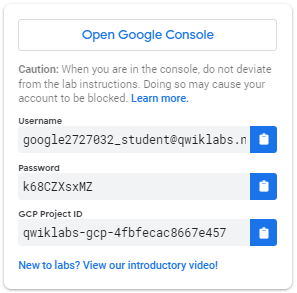
Click the Start Lab button. If you need to pay for the lab, a pop-up opens for you to select your payment method.
On the left is a panel populated with the temporary credentials that you must use for this lab.
Copy the username, and then click Open Google Console.
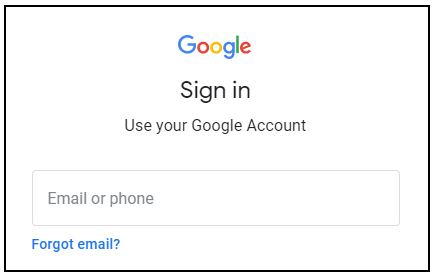
The lab spins up resources, and then opens another tab that shows the Sign in page.
Tip: Open the tabs in separate windows, side-by-side.
In the Sign in page, paste the username that you copied from the Connection Details panel. Then copy and paste the password.
Important: You must use the credentials from the Connection Details panel. Do not use your Qwiklabs credentials. If you have your own Google Cloud account, do not use it for this lab (avoids incurring charges).
Click through the subsequent pages:
Accept the terms and conditions.
Do not add recovery options or two-factor authentication (because this is a temporary account).
Do not sign up for free trials.
After a few moments, the Cloud Console opens in this tab.
Activate Cloud Shell
Cloud Shell is a virtual machine that is loaded with development tools. It offers a persistent 5GB home directory and runs on the Google Cloud. Cloud Shell provides command-line access to your Google Cloud resources.
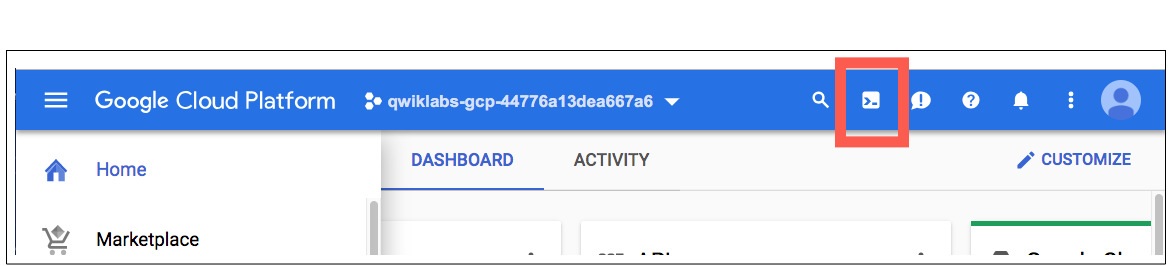
In the Cloud Console, in the top right toolbar, click the Activate Cloud Shell button.
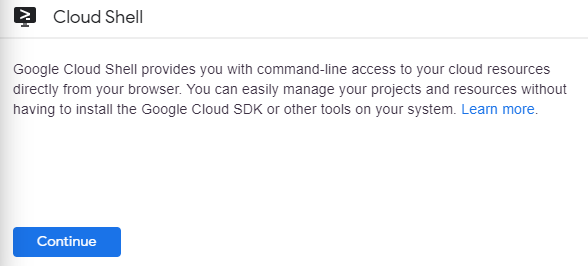
Click Continue.
It takes a few moments to provision and connect to the environment. When you are connected, you are already authenticated, and the project is set to your PROJECT_ID. For example:
gcloud is the command-line tool for Google Cloud. It comes pre-installed on Cloud Shell and supports tab-completion.
You can list the active account name with this command:
In the Google Cloud console search bar (), type NetApp Volumes and select the result to open the service.
In the navigation pane, click Volumes. A volume (volume1) has already been created for this lab.
Open Compute Engine → VM Instances in a new browser tab and click the SSH button for vm1.
Return to the NetApp Volumes page. In the row for the volume (volume1), click the overflow menu (), then select Mount Instructions.
Run the following commands from the Mount instructions into the SSH window in the following order:
Install the nfs utilities on the Linux VM:
sudo apt-get install nfs-common -y
Create a directory in the VM:
sudo mkdir /share1
Mount the volume by copying the sudo mount command from the Mount instructions and running it in the SSH terminal. The command includes the unique IP address of the volume. It will look like the command below:
sudo mount -t nfs -o rw,hard,rsize=65536,wsize=65536,vers=3,tcp <IP_ADDRESS>:/share1 /share1
Note: Please run the mount command exactly as it appears in your specific Mount instructions panel, as the IP address in this command is unique to your volume.
Verify that the volume has been mounted to your VM successfully:
df -h | grep share1
Click Check my progress to verify that you've performed the above task.
Mount the volume
Task 2. Test the performance
The NetApp Volumes Premium and Extreme service levels provide performance based on the provisioned volume capacity. The volume capacity defines the throughput limit, independent of the storage pool capacity.
Adding or removing volume capacity to or from an existing volume increases or decreases the maximum throughput limit of the volume.
To test the maximum performance of the existing 1 TiB Premium volume, run the following command in the SSH terminal:
The last line of the output shows that the maximum performance the volume can achieve is around 64 MiBps ([w=64.0MiB/s]). This is because the Premium service level provides up to 64 KiBps per GiB of provisioned volume capacity and the volume capacity is 1024 GiB.
The performance is calculated as follows:
Performance = Volume capacity x Service Level performance
Performance = 1024 GiB x 64 KiBps/GiB = 64 MiBps
To stop the performance test, press CTRL+C.
Task 3. Grow the Google Cloud NetApp Volumes capacity
Go to the NetApp Volumes page in the Google Cloud console.
In the navigation pane, click Volumes.
Click volume1, then click Edit.
Under Volume details, set the volume capacity to 2048, then click Save.
To verify that the virtual machine sees the new 2 TiB capacity without any modification or downtime, run the following command in the SSH terminal:
df -h | grep share1
To test the maximum performance of the current 2 TiB Premium volume, run the following command:
The last line of the output shows that the maximum performance the volume can achieve is around 128 MiBps ([w=128.0MiB/s]). This is because the Premium service level provides up to 64 KiBps per GiB of provisioned volume capacity and the volume capacity is 2048 GiB.
The performance is calculated as follows:
Performance = Volume capacity x Service Level performance
Performance = 2048 GiB x 64 KiBps/GiB = 128 MiBps
To stop the performance test, press CTRL+C.
Click Check my progress to verify that you've performed the above task.
Grow the volume capacity
Task 4. Shrink the Google Cloud NetApp Volumes capacity
Go to the NetApp Volumes page in the Google Cloud console.
In the navigation pane, click Volumes.
Click volume1, then click Edit.
Under Volume details, set the volume capacity to 512, then click Save.
To verify that the virtual machine sees the new 512 GiB capacity without any modification or downtime, run the following command in the SSH terminal:
df -h | grep share1
To test the maximum performance of the current 512 GiB Premium volume, run the following command:
The last line of the output shows that the maximum performance the volume can achieve is around 32 MiBps ([w=32.0MiB/s]). This is because the Premium service level provides up to 64 KiBps per GiB of provisioned volume capacity and the volume capacity is 512 GiB.
The performance is calculated as follows:
Performance = Volume capacity x Service Level performance
Performance = 512 GiB x 64 KiBps/GiB = 32 MiBps
To stop the performance test, press CTRL+C.
Click Check my progress to verify that you've performed the above task.
Shrink the volume capacity
Congratulations!
You have learned how to grow and shrink a volume without any modification or downtime, and the performance implication based in the volume capacity.
Next steps / Learn more
Be sure to check out the official NetApp Volumes documentation:
...helps you make the most of Google Cloud technologies. Our classes include technical skills and best practices to help you get up to speed quickly and continue your learning journey. We offer fundamental to advanced level training, with on-demand, live, and virtual options to suit your busy schedule. Certifications help you validate and prove your skill and expertise in Google Cloud technologies.
Manual last updated January 6, 2026
Manual Last tested January 6, 2026
Copyright 2024 Google LLC All rights reserved. Google and the Google logo are trademarks of Google LLC. All other company and product names may be trademarks of the respective companies with which they are associated.
Moduły tworzą projekt Google Cloud i zasoby na określony czas.
Moduły mają ograniczenie czasowe i nie mają funkcji wstrzymywania. Jeśli zakończysz moduł, musisz go zacząć od początku.
Aby rozpocząć, w lewym górnym rogu ekranu kliknij Rozpocznij moduł.
Użyj przeglądania prywatnego
Skopiuj podaną nazwę użytkownika i hasło do modułu.
Kliknij Otwórz konsolę w trybie prywatnym.
Zaloguj się w konsoli
Zaloguj się z użyciem danych logowania do modułu. Użycie innych danych logowania może spowodować błędy lub naliczanie opłat.
Zaakceptuj warunki i pomiń stronę zasobów przywracania.
Nie klikaj Zakończ moduł, chyba że właśnie został przez Ciebie zakończony lub chcesz go uruchomić ponownie, ponieważ spowoduje to usunięcie wyników i projektu.
Ta treść jest obecnie niedostępna
Kiedy dostępność się zmieni, wyślemy Ci e-maila z powiadomieniem
Świetnie
Kiedy dostępność się zmieni, skontaktujemy się z Tobą e-mailem
Jeden moduł, a potem drugi
Potwierdź, aby zakończyć wszystkie istniejące moduły i rozpocząć ten
Aby uruchomić moduł, użyj przeglądania prywatnego
Najlepszym sposobem na uruchomienie tego laboratorium jest użycie okna incognito lub przeglądania prywatnego. Dzięki temu unikniesz konfliktu między swoim kontem osobistym a kontem do nauki, co mogłoby spowodować naliczanie dodatkowych opłat na koncie osobistym.
Learn how to increase and decrease the Google Cloud NetApp Volumes volume capacity
Czas trwania:
Konfiguracja: 10 min
·
Dostęp na 40 min
·
Ukończono w 40 min




 ), type NetApp Volumes and select the result to open the service.
 ), then select Mount Instructions.





