Konten ini belum dioptimalkan untuk perangkat seluler.
Untuk pengalaman terbaik, kunjungi kami dengan komputer desktop menggunakan link yang dikirim melalui email.
This lab was developed with our partner, NetApp. Your personal information may be shared with NetApp, the lab sponsor, if you have opted-in to receive product updates, announcements, and offers in your Account Profile.
GSP1309
Overview
Netapp Trident enables consumption and management of storage resources across all popular NetApp storage platforms, including Google Cloud NetApp Volumes. Trident is a Container Storage Interface (CSI) compliant dynamic storage orchestrator that natively integrates with Kubernetes. Trident runs as a single Controller Pod plus a Node Pod on each worker node in the cluster.
In this lab you will learn how to create persistent volumes in Google Kubernetes Engine using Google Cloud NetApp Volumes.
Read these instructions. Labs are timed and you cannot pause them. The timer, which starts when you click Start Lab, shows how long Google Cloud resources will be made available to you.
This Qwiklabs hands-on lab lets you do the lab activities yourself in a real cloud environment, not in a simulation or demo environment. It does so by giving you new, temporary credentials that you use to sign in and access Google Cloud for the duration of the lab.
What you need
To complete this lab, you need:
Access to a standard internet browser (Chrome browser recommended).
Time to complete the lab.
Note: If you already have your own personal Google Cloud account or project, do not use it for this lab.
Note: If you are using a Pixelbook, open an Incognito window to run this lab.
How to start your lab and sign in to the Google Cloud Console
Click the Start Lab button. If you need to pay for the lab, a pop-up opens for you to select your payment method.
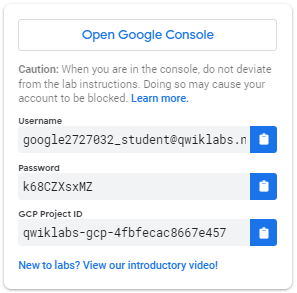
On the left is a panel populated with the temporary credentials that you must use for this lab.
Copy the username, and then click Open Google Console.
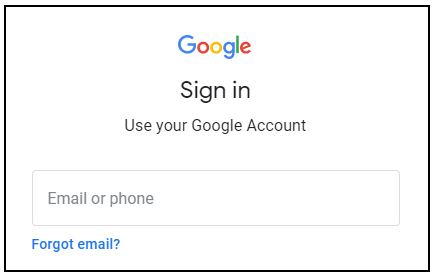
The lab spins up resources, and then opens another tab that shows the Sign in page.
Tip: Open the tabs in separate windows, side-by-side.
In the Sign in page, paste the username that you copied from the Connection Details panel. Then copy and paste the password.
Important: You must use the credentials from the Connection Details panel. Do not use your Qwiklabs credentials. If you have your own Google Cloud account, do not use it for this lab (avoids incurring charges).
Click through the subsequent pages:
Accept the terms and conditions.
Do not add recovery options or two-factor authentication (because this is a temporary account).
Do not sign up for free trials.
After a few moments, the Cloud Console opens in this tab.
Activate Cloud Shell
Cloud Shell is a virtual machine that is loaded with development tools. It offers a persistent 5GB home directory and runs on the Google Cloud. Cloud Shell provides command-line access to your Google Cloud resources.
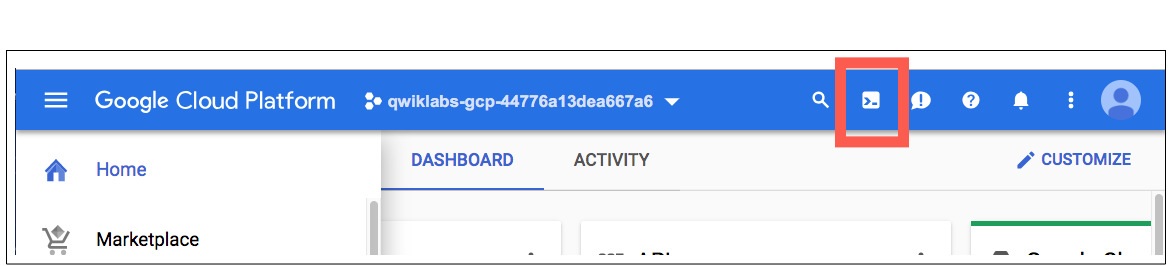
In the Cloud Console, in the top right toolbar, click the Activate Cloud Shell button.
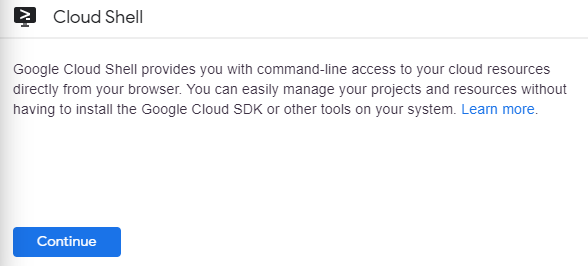
Click Continue.
It takes a few moments to provision and connect to the environment. When you are connected, you are already authenticated, and the project is set to your PROJECT_ID. For example:
gcloud is the command-line tool for Google Cloud. It comes pre-installed on Cloud Shell and supports tab-completion.
You can list the active account name with this command:
Verify that the operator is running in your cluster:
kubectl get pods -n trident
Wait until the operator pod status shows as Running, as shown in the example below:
NAME READY STATUS RESTARTS AGE
trident-operator-f495b989d-72sw7 1/1 Running 0 18s
Deploy the Trident orchestrator CR:
kubectl apply -f deploy/crds/tridentorchestrator_cr.yaml
Note: This resource deploys several pods. It includes a controller pod and a pod on each worker node.
Verify that the Trident controller pod is running:
kubectl get pods -n trident
Wait until the Trident controller pod status shows as Running, as shown in the example below:
NAME READY STATUS RESTARTS AGE
trident-controller-5b75bc54cd-k69xp 6/6 Running 0 26s
trident-node-linux-2wsn7 2/2 Running 0 25s
trident-node-linux-pjx4l 2/2 Running 0 25s
trident-node-linux-zvrf7 2/2 Running 0 25s
trident-operator-f495b989d-72sw7 1/1 Running 0 116s
Click Check my progress to verify that you've performed the above task.
Install Trident
Task 2. Configure the requirements
Create and configure a Google Cloud service account
Create the service account:
gcloud iam service-accounts create netapp-trident --description="Service account for NetApp Trident" --display-name="NetApp Trident"
Assign the netapp admin permissions to the service account:
Copy the following YAML content into the file. Replace the placeholder text with the private_key_id and private_key from your downloaded JSON file:
apiVersion: v1
kind: Secret
metadata:
name: gcnv-secret
type: Opaque
stringData:
private_key_id: "<-- Include here -->"
private_key: "<-- Include here -->"
Click Open Terminal () at the top right of the editor window to return to the Cloud Shell.
Create the Kubernetes secret:
kubectl create -f gcnv-secret.yaml -n trident
Verify the Kubernetes secret:
kubectl get secrets -n trident
Click Check my progress to verify that you've performed the above task.
Create a secret
Create a Kubernetes backend
A backend defines the relationship between Trident and a storage system. It tells Trident how to communicate with that storage system and how Trident should provision volumes from it.
Retrieve and copy the project number by running the following command:
gcloud projects describe --format='value(projectNumber)' $(gcloud config get-value project)
Note: Save this number, you will need it to configure the Kubernetes backend.
Create and open the gcnv-backend-zonal-flex.yaml file:
Copy the following YAML content into the file and replace the placeholders for projectNumber with your saved project number and client_id with the value from your JSON file:
Click Check my progress to verify that you've performed the above task.
Create a backend
Create a Kubernetes Storage Class
A Kuberetes StorageClass provides a way for administrators to describe the classes of storage they offer. Different classes might map to quality-of-service levels, or to backup policies, or to arbitrary policies determined by the cluster administrators.
In the Cloud Shell, create and open the gcnv-storageclass-zonal-flex.yaml file:
Click Check my progress to verify that you've performed the above task.
Create a storage class
Task 3. Create a Persistent Volume Claim
A Persistent Volume (PV) is a physical storage resource provisioned by the cluster administrator on a Kubernetes cluster.
The Persistent Volume Claim (PVC) is a request for access to the Persistent Volume on the cluster.
In the Google Cloud console, navigate to the NetApp Volumes → Storage pools page. A storage pool has already been created for this lab.
In the Cloud Shell, create and open the gcnv-pvc-zonal-flex.yaml file:
Back in the Cloud Shell, create the Kubernetes Persistent Volume Claim:
kubectl create -f gcnv-pvc-zonal-flex.yaml
Verify the Kubernetes Persistent Volume Claim:
kubectl get pvc
In the Google Cloud console, navigate to the NetApp Volumes → Volumes page and verify that a new volume (pvc-...) has been created.
Back in the Cloud Shell, verify the Kubernetes Persistent Volume:
kubectl get pv
Click Check my progress to verify that you've performed the above task.
Create a persistent volume claim
Congratulations!
You have learned how to create a Kuberentes persistent volume dynamically with Google Cloud NetApp Volumes from Google Kubernetes Engine using NetApp Trident.
Next steps / Learn more
Be sure to check out the official NetApp Volumes documentation:
...helps you make the most of Google Cloud technologies. Our classes include technical skills and best practices to help you get up to speed quickly and continue your learning journey. We offer fundamental to advanced level training, with on-demand, live, and virtual options to suit your busy schedule. Certifications help you validate and prove your skill and expertise in Google Cloud technologies.
Manual last updated January 14, 2026
Manual Last tested January 14, 2026
Copyright 2024 Google LLC All rights reserved. Google and the Google logo are trademarks of Google LLC. All other company and product names may be trademarks of the respective companies with which they are associated.
Lab membuat project dan resource Google Cloud untuk jangka waktu tertentu
Lab memiliki batas waktu dan tidak memiliki fitur jeda. Jika lab diakhiri, Anda harus memulainya lagi dari awal.
Di kiri atas layar, klik Start lab untuk memulai
Gunakan penjelajahan rahasia
Salin Nama Pengguna dan Sandi yang diberikan untuk lab tersebut
Klik Open console dalam mode pribadi
Login ke Konsol
Login menggunakan kredensial lab Anda. Menggunakan kredensial lain mungkin menyebabkan error atau dikenai biaya.
Setujui persyaratan, dan lewati halaman resource pemulihan
Jangan klik End lab kecuali jika Anda sudah menyelesaikan lab atau ingin mengulanginya, karena tindakan ini akan menghapus pekerjaan Anda dan menghapus project
Konten ini tidak tersedia untuk saat ini
Kami akan memberi tahu Anda melalui email saat konten tersedia
Bagus!
Kami akan menghubungi Anda melalui email saat konten tersedia
Satu lab dalam satu waktu
Konfirmasi untuk mengakhiri semua lab yang ada dan memulai lab ini
Gunakan penjelajahan rahasia untuk menjalankan lab
Menggunakan jendela Samaran atau browser pribadi adalah cara terbaik untuk menjalankan lab ini. Langkah ini akan mencegah konflik antara akun pribadi Anda dan akun Siswa, yang dapat menyebabkan tagihan ekstra pada akun pribadi Anda.
Learn how to create a Persistent Volume using Google Cloud NetApp Volumes in Google Kubernetes Engine




 ) and run the following command to connect to the cluster:





