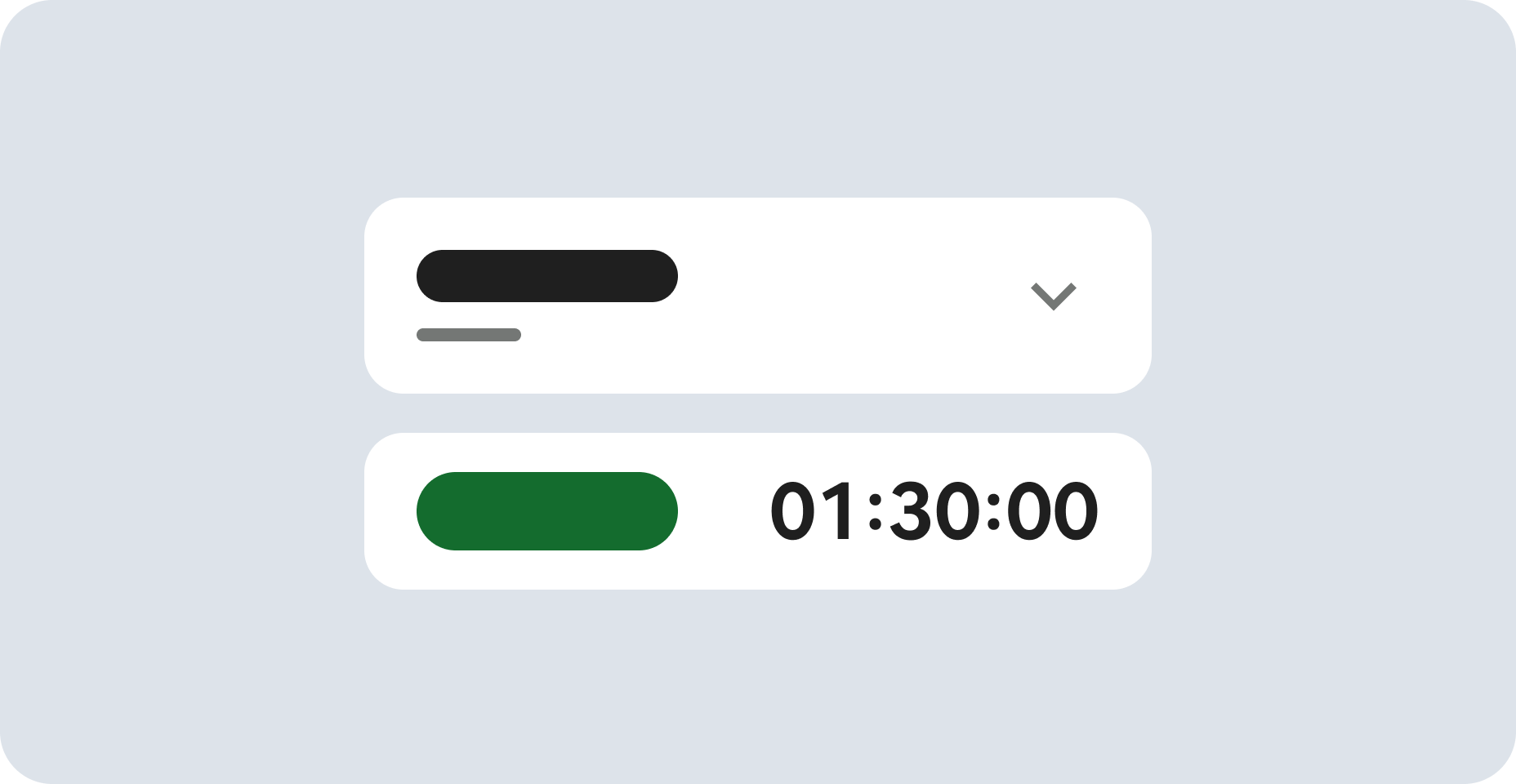
准备工作
- 实验会创建一个 Google Cloud 项目和一些资源,供您使用限定的一段时间
- 实验有时间限制,并且没有暂停功能。如果您中途结束实验,则必须重新开始。
- 在屏幕左上角,点击开始实验即可开始

Generate Text from Gemini API
/ 50
Multi-Turn Conversations
/ 50
Generate Text from Gemini API
/ 50
Multi-Turn Conversations
/ 50

Imagine you are a data engineer at Cymbal Shops. You want to explore how to use the Gemini API to build intelligent chatbots and data analysis tools. In this lab, you get started with the Gemini API by initializing the client and making your first API calls for text generation and chat.
The Gemini API empowers developers and creators across various fields by providing advanced natural language processing and code generation capabilities. It enables the creation of intelligent chatbots, automated content generation tools, insightful data analysis platforms, and personalized learning experiences. Its versatility stems from its ability to understand context, generate creative text, analyze complex data, and adapt to diverse applications.
The Gemini family offers various Gemini models optimized for different tasks. In this lab, you use the
Before starting this lab, you should be familiar with:
In this lab, you learn how to perform the following tasks:
Initialize the Gemini client and configure the project and model variables to start using the API.
__PROJECT_ID__ placeholder with your Project ID:__GEMINI_FLASH_LITE_MODEL_ID__ placeholder with the following model ID:Execute the cells in the Jupyter Notebook to interact with the Gemini API.
Click Check my progress to verify the objective.
Click Check my progress to verify the objective.
Congratulations! In this lab, you learned how to use the Gemini API and make basic API calls to interact with Gemini models.
Check out the following resources to learn more about Gen AI and the Gemini Enterprise Agent Platform:
...helps you make the most of Google Cloud technologies. Our classes include technical skills and best practices to help you get up to speed quickly and continue your learning journey. We offer fundamental to advanced level training, with on-demand, live, and virtual options to suit your busy schedule. Certifications help you validate and prove your skill and expertise in Google Cloud technologies.
Manual Last Updated July 27, 2026
Lab Last Tested July 27, 2026
Copyright 2026 Google LLC. All rights reserved. Google and the Google logo are trademarks of Google LLC. All other company and product names may be trademarks of the respective companies with which they are associated.


此内容目前不可用
一旦可用,我们会通过电子邮件告知您
太好了!
一旦可用,我们会通过电子邮件告知您
一次一个实验
确认结束所有现有实验并开始此实验