实验设置说明和要求
保护您的账号和进度。请务必在无痕浏览器窗口中,使用实验凭证运行此实验。

Enabling Sensitive Data Protection Discovery for BigQuery

实验 1 小时 30 分钟 universal_currency_alt 5 个点数 show_chart 中级
info 此实验可能会提供 AI 工具来支持您学习。
此内容尚未针对移动设备进行优化。
为获得最佳体验,请在桌面设备上访问通过电子邮件发送的链接。

GSP1282

Google Cloud self-paced labs logo

Overview

Sensitive Data Protection is a fully managed service designed to help you discover, classify, and protect sensitive information. Key options include Sensitive Data Discovery for continuously profiling your sensitive data, de-identification of sensitive data including redaction, and Cloud Data Loss Prevention (DLP) API to let you build in discovery, inspection, and de-identification into custom workloads and applications.

You can protect sensitive data in BigQuery by leveraging Sensitive Data Protection along with Identity and Access Management (IAM) in Google Cloud to automatically tag sensitive data during discovery scans and grant conditional access to BigQuery data for users in your organization.

In this lab, you begin by creating a discovery scan configuration for BigQuery in paused mode. Then, you create a tag to flag sensitive data in BigQuery and update the discovery scan configuration to use the created tag for automated scanning. Last, you use the created tag to grant conditional access to BigQuery data for additional users.

What you'll learn

In this lab, you learn how to:

  • Create a discovery scan configuration for BigQuery in paused mode.
  • Create tags and grant roles for automated tagging during discovery scan.
  • Update the paused discovery scan to use the created tags for automated tagging and start scan.
  • Grant conditional access to BigQuery data using tags.

Setup and requirements

Before you click the Start Lab button

Read these instructions. Labs are timed and you cannot pause them. The timer, which starts when you click Start Lab, shows how long Google Cloud resources are made available to you.

This hands-on lab lets you do the lab activities in a real cloud environment, not in a simulation or demo environment. It does so by giving you new, temporary credentials you use to sign in and access Google Cloud for the duration of the lab.

To complete this lab, you need:

  • Access to a standard internet browser (Chrome browser recommended).
Note: Use an Incognito (recommended) or private browser window to run this lab. This prevents conflicts between your personal account and the student account, which may cause extra charges incurred to your personal account.
  • Time to complete the lab—remember, once you start, you cannot pause a lab.
Note: Use only the student account for this lab. If you use a different Google Cloud account, you may incur charges to that account.

How to start your lab and sign in to the Google Cloud console

  1. Click the Start Lab button. If you need to pay for the lab, a dialog opens for you to select your payment method. On the left is the Lab Details pane with the following:

    • The Open Google Cloud console button
    • Time remaining
    • The temporary credentials that you must use for this lab
    • Other information, if needed, to step through this lab
  2. Click Open Google Cloud console (or right-click and select Open Link in Incognito Window if you are running the Chrome browser).

    The lab spins up resources, and then opens another tab that shows the Sign in page.

    Tip: Arrange the tabs in separate windows, side-by-side.

    Note: If you see the Choose an account dialog, click Use Another Account.
  3. If necessary, copy the Username below and paste it into the Sign in dialog.

    {{{user_0.username | "Username"}}}

    You can also find the Username in the Lab Details pane.

  4. Click Next.

  5. Copy the Password below and paste it into the Welcome dialog.

    {{{user_0.password | "Password"}}}

    You can also find the Password in the Lab Details pane.

  6. Click Next.

    Important: You must use the credentials the lab provides you. Do not use your Google Cloud account credentials. Note: Using your own Google Cloud account for this lab may incur extra charges.
  7. Click through the subsequent pages:

    • Accept the terms and conditions.
    • Do not add recovery options or two-factor authentication (because this is a temporary account).
    • Do not sign up for free trials.

After a few moments, the Google Cloud console opens in this tab.

Note: To access Google Cloud products and services, click the Navigation menu or type the service or product name in the Search field. Navigation menu icon and Search field

Task 1. Create a discovery scan configuration for BigQuery in paused mode

The discovery service within Sensitive Data Protection empowers you to identify where sensitive and high-risk data reside across your organization. When you create a discovery scan configuration, Sensitive Data Protection scans the resources you select for review and generates data profiles, which are a set of insights on the infoTypes (types of sensitive data) identified and metadata on data risk and sensitivity level.

In this task, you create a discovery scan to automatically profile data in BigQuery. As it can take some time for the full discovery results to be generated, you are provided with highlights and summaries of the key results in the last task of the lab.

  1. In the Google Cloud console, click on the Navigation menu (Navigation menu icon) > Security.

  2. Under Data Protection, click Sensitive Data Protection.

  3. Click the tab named Discovery.

  4. Under BigQuery, click Enable.

  5. For Select a discovery type, leave the option enabled for BigQuery, and click Continue.

  6. For Select scope, leave the option enabled for Scan selected project, and click Continue.

  7. For Managed schedules, leave the default, click Continue.

    In this lab, you are scheduling the discovery scan to run immediately after creation, but there are many options for scheduling scans to run on a periodic basis (such as daily or weekly) or after certain events (such as when an inspection template is updated.)

  8. For Select inspection template, leave the option enabled for Create new inspection template.

  9. Leave all other defaults, and click Continue.

    By default, the new inspection template includes all existing infoTypes.

    For Confidence threshold, the default for Minimum likelihood is Possible, which means that you get only the findings that are evaluated as Possible, Likely, and Very_Likely.

    In a later task, you modify this inspection template to explore other options for infoTypes and confidence threshold.

  10. For Add actions, enable Publish to Security Command Center.

  11. For Add actions, also enable Save data profile copies to BigQuery and provide the dataset and table (which have been pre-created in this lab) to save the results to BigQuery.

Property Value
Project ID
Dataset ID bq_discovery
Table ID data_profiles

Notice the message under the action for Tag resources about the service agent needing a specific role for automated tagging to occur.

In the next task, you create the tags and grant the necessary role to the service account for automated tagging during the discovery scan.

  1. Leave all other defaults, and click Continue.

  2. For Set location to store configuration, leave the option enabled for us (multiple regions in United States), and click Continue.

  3. Provide a display name for this config: BigQuery Discovery

  4. Enable Create scan in paused mode.

This creates the discovery scan configuration but does not start the scan yet, so that you can create the tags and grant the appropriate IAM role to the service agent ID for the discovery scan.

  1. Click Create, and then confirm the creation by clicking Create configuration.

Click Check my progress to verify the objective. Create a discovery scan configuration for BigQuery

Task 2. Create tags and grant role for automated tagging during discovery scan

Within IAM, you can create a sensitivity level tag that you can use to automatically tag resources during discovery scans and to grant or deny access to specific resources that are tagged with the sensitivity level tag.

In this task, you create a sensitivity level tag in IAM with four tag values that represent different levels of sensitivity: low, moderate, high, and unknown.

Create a sensitivity level tag in IAM

  1. In the Google Cloud console, click on the Navigation menu (Navigation menu icon) > IAM & Admin > Tags.

  2. Click + Create.

  3. For Tag key, type a display name for your tag: sensitivity-level

  4. For Tag description, type a description for this tag: Sensitivity level tagged as low, moderate, high, and unknown

  5. Click + Add value.

  6. For Tag value, type a display name for your first tag value: low

  7. For Tag value description, type a description for this tag value: Tag value to attach to low-sensitivity data

  8. Repeat steps 5-7 to create three more tag values:

Tag value Tag description
moderate Tag value to attach to moderate-sensitivity data
high Tag value to attach to high-sensitivity data
unknown Tag value to attach to resources with an unknown sensitivity level
  1. Click Create tag key.

It may take a minute for the tag key to be created.

  1. After the tag key is created, click on the tag key name to see the details.

Note that the tag key has a tag key path (/sensitivity-level) and the following tag values: high, low, moderate, unknown

Combining the tag key path with the tag value provides the tag value path, which you use in the next task. For example:

  • /sensitivity-level/high

Click Check my progress to verify the objective. Create a sensitivity level tag in IAM

Grant role to service account for discovery scan using IAM

To automatically tag resources, the service agent needs the resourcemanager.tagUser role. In this section, you follow the steps provided in the documentation titled Control IAM access based on data sensitivity to grant this role.

  1. Click Activate Cloud Shell Activate Cloud Shell icon at the top of the Google Cloud console.

If prompted, click Continue.

  1. Run the following command to create a variable for the Project Number of your current project:
export PROJECT_NUMBER=$(gcloud projects describe {{{project_0.project_id | Project ID}}} --format="get(projectNumber)")

If prompted, click Authorize.

  1. Run the following command to grant the tag user role to the service account for the discovery scan:
gcloud projects add-iam-policy-binding {{{project_0.project_id | Project ID}}} --member=serviceAccount:service-$PROJECT_NUMBER@dlp-api.iam.gserviceaccount.com --role=roles/resourcemanager.tagUser

Click Check my progress to verify the objective. Grant role to service account for discovery scan using IAM

Task 3. Update the paused discovery scan with automated tagging and start scan

Now that you have granted the service account with the appropriate role for automatic tagging, you can enable the tag resources options in the discovery scan.

Add tag values and start discovery scan

  1. Return to Sensitive Data Protection overview page.

  2. Under Discovery > Scan Configurations tab, locate the row named BigQuery Discovery. Click View actions (icon with three vertical dots) for that row, and select Edit.

  3. Under Add actions, enable Tag resources and the following related options:

Property Value
Tag high sensitivity resources Enable and provide the tag value: /sensitivity-level/high
Tag moderate sensitivity resources Enable and provide the tag value: /sensitivity-level/moderate
Tag low sensitivity resources Enable and provide the tag value: /sensitivity-level/low
Tag unknown sensitivity resources Enable and provide the tag value: /sensitivity-level/unknown
  1. Also, enable the following two options:

    • When a tag is applied to a resource, lower the data risk of its profile to LOW.
    • Tag a resource when it is profiled for the first time.
  2. Click Save, and then click Confirm edit.

  3. Last, click Resume Scan to start the discovery scan.

Click Check my progress to verify the objective. Update the paused discovery scan with automated tagging and start scan

What discovery results can tell you about your data

Note: After the configuration scan begins, it may be some time before full results are available.

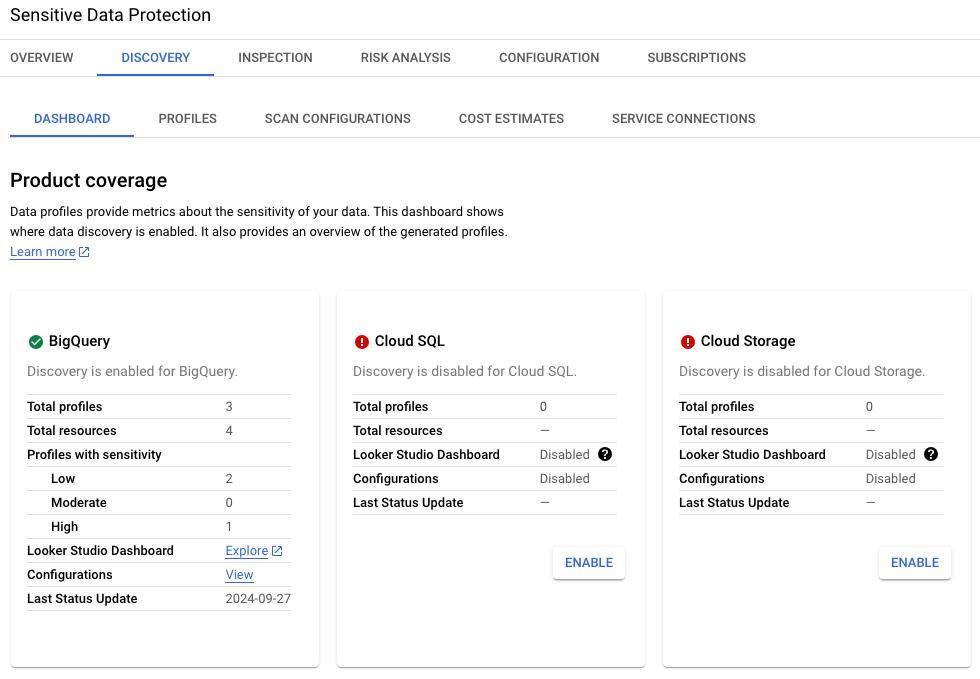
The images below display the key results of enabling discovery for BigQuery in this lab environment.

For the BigQuery data included in this lab environment, the results have flagged the potential presence of several infoTypes including US Social Security numbers, which are highly sensitive data.

Image 1. Discovery for BigQuery enabled in UI

Three profiles have been identified for BigQuery: two with low sensitivity (one dataset for the discovery results and one dataset for damaged car image metadata) and one with high sensitivity (dataset containing details on car buyers).

Discovery for BigQuery enabled in UI

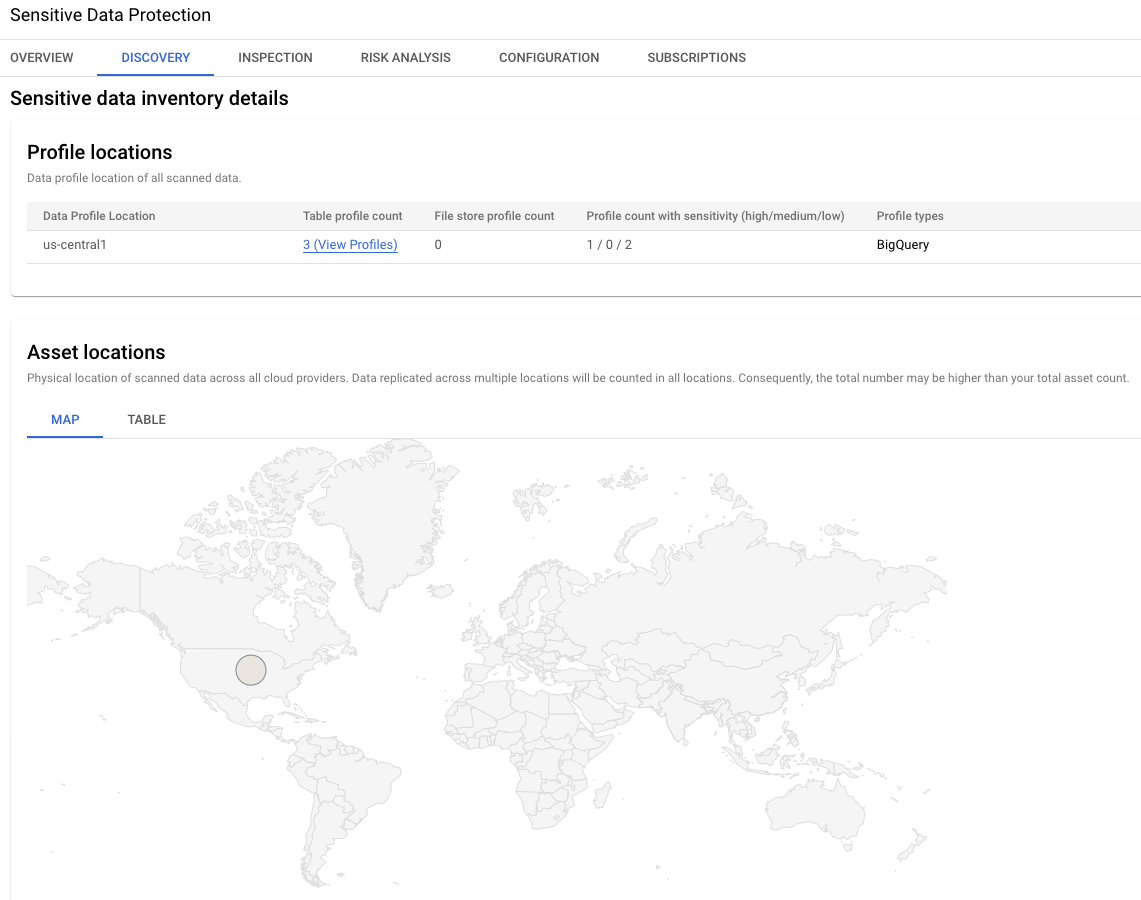
Image 2. Sensitive data inventory details

This section of the results provides the global location of the three data profiles. In this example, both are in the us-central1 region.

Sensitive data inventory details for BigQuery

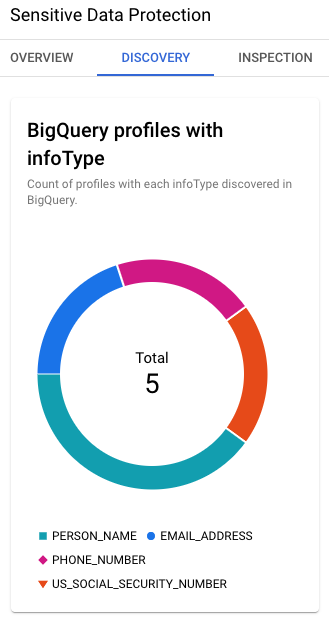
Image 3. BigQuery profiles with infoTypes

The discovery results also provide the key infoTypes identified in BigQuery: US Social Security number, email address, name, etc.

BigQueryprofiles with infoTypes

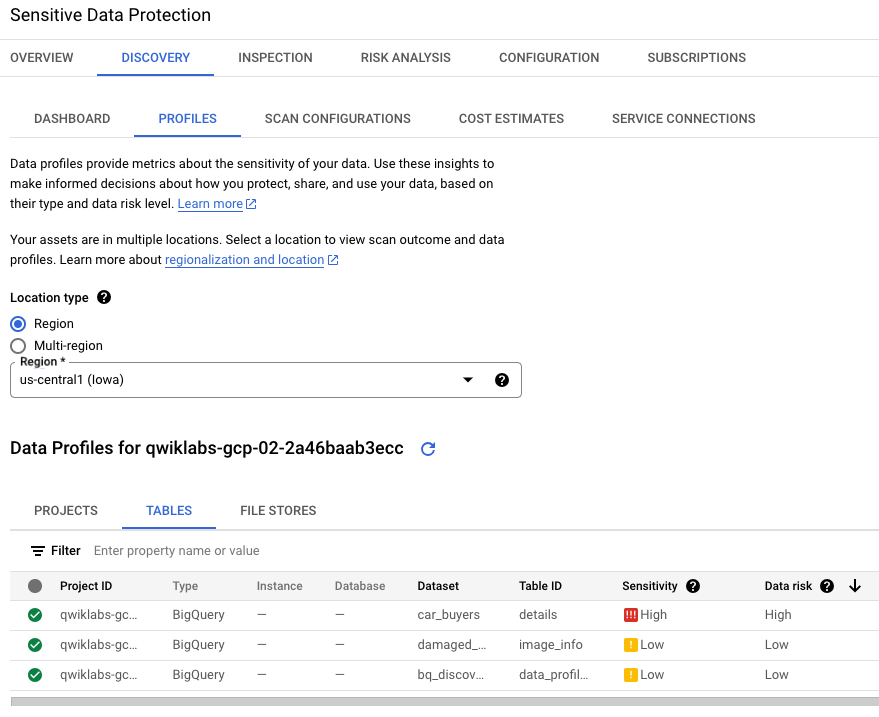
Image 4. Profiles tab of the discovery results

The Profiles tab identifies the sensitivity and risk levels for each specific BigQuery dataset name: one with low sensitivity (empty bucket to receive output from jobs) and one with high sensitivity (bucket containing raw data including US Social Security number).

In this lab environment, be sure to select the Location type as Region > to view the profiles.

Discovery profiles of the BigQuery datasets

Task 4. Explore conditional access for BigQuery using tags

Using IAM, you can grant a role to a user based on a sensitivity level tag attached to a specific resource using conditional role bindings. For example, you can grant a user access to only BigQuery data that have been tagged as low sensitivity. The user would no longer be able to access any BigQuery that did not have the tag including untagged BigQuery.

In this task, you begin by reviewing the existing BigQuery access that has been granted to Username 2 in this lab environment. Then, you update the access for Username 2 to be conditional based on the low sensitivity data tag, and manually assign that low sensitivity tag to one of the BigQuery datasets. Last, you test the updated BigQuery access for Username 2 to verify conditional access.

Test current BigQuery access as Username 2

For this section, begin by logging into the Google Cloud project as Username 2 (). Expand the hint below for help with switching to a new user.

Full solution (Expand to see all of the steps!)

As Username 2, complete the following steps to check the existing BigQuery access that has been granted to Username 2.

  1. In the Google Cloud console, click on the Navigation menu (Navigation menu icon) > BigQuery.

  2. In the Explorer panel, expand the arrow next to the project ID () to see the list of BigQuery datasets.

    Notice that there are four BigQuery datasets:

    • bq_discovery: used to store the profiles generated by discovery scan
    • bq_inspection: used to store the results generated by inspection
    • car_buyers: contains sensitive data for car buyers such as US Social Security numbers
    • damaged_car_image_info: contains non-sensitive data on damaged cars

Update IAM roles for Username 2

For this section, begin by logging into the Google Cloud project again as Username 1 (). Expand the hint below for help with switching to a new user.

Full solution (Expand to see all of the steps!)

  1. In the Google Cloud console, click on the Navigation menu (Navigation menu icon) > IAM & Admin > IAM.

  2. Locate the row for Username 2 (), and click Edit principal (pencil icon).

  3. Locate the row for the role named Viewer, and click Delete role (trash can icon).

  4. Click Add another role.

  5. For Select a role, select Basic > Browser.

  6. Locate the row for the role named BigQuery Data Viewer, and click Add IAM condition.

  7. For Title, type: Low Sensitivity Data Access Only

  8. Under Condition builder, select Tag for Condition type 1, and select has value for Operator.

  9. For Value path, provide the tag value for low sensitivity resources that you used in Task 3.

Expand the hint to see the tag value if you need a reminder!

  1. Click Save, and then click Save again.

Add low sensitivity tag to BigQuery dataset

For this section, remain logged in as Username 1 ().

Recall that the full discovery scan takes some time to complete, so there aren't any BigQuery datasets that have been tagged with the sensitivity level tags yet.

To test conditional access, you manually assign the low sensitivity tag to the BigQuery dataset named damaged_car_image_info, which does not contain sensitive data.

  1. In the Google Cloud console, click on the Navigation menu (Navigation menu icon) > BigQuery.

  2. In the Explorer panel, expand the arrow next to the project ID () to see the list of BigQuery datasets.

  3. Click on damaged_car_image_info to open the dataset info tab, and then click Edit details (pencil icon).

  4. Under Tags, click Select scope > Select current project.

  5. Select the following details.

Property Value
Key 1 sensitivity-level
Value 1 low
  1. Click Save.

Test conditional BigQuery access as Username 2

For this section, log into the Google Cloud project one last time as Username 2 (). Expand the hint below for help with switching to a new user.

Full solution (Expand to see all of the steps!)

As Username 2, complete the following steps to check the conditional BigQuery access that has been granted to Username 2.

  1. Return to BigQuery by clicking on the Navigation menu (Navigation menu icon) > BigQuery.

  2. In the data explorer panel, expand the arrow next to the project ID () to see the list of BigQuery datasets.

    After the IAM role is updated with the appropriate condition, there is only one BigQuery dataset listed because it is the only one with the low sensitivity tag:

    • damaged_car_image_info
Note: It may take 5 to 10 minutes for the IAM role updates to fully propagate. You can keep refreshing the BigQuery page until you see that there is only one BigQuery dataset remaining: damaged_car_image_info.
  1. Log out of the project as Username 2.

Click Check my progress to verify the objective. Explore conditional access for BigQuery using tags

Task 5. Review initial discovery results

Note: As mentioned previously, after the configuration scan begins, it may be some time before full results are available.

Now that some time has passed while you granted and tested conditional access to another user, some results will be available in the Looker dashboard that is generated by the discovery scan.

For this section, begin by logging into the Google Cloud project again as Username 1 ().

Expand the hint below for help with switching to a new user.

Full solution (Expand to see all of the steps!)

View summary of results in Looker dashboard

  1. Return to Sensitive Data Protection overview page.

  2. Under Discovery > Scan Configurations tab, locate the row named BigQuery Discovery. Under Looker Studio, click Looker for that row.

  3. For Requesting Authorization, click Authorize.

  4. In the dialog window for Choose an account from qwiklabs.net, select .

  5. Review Summary Overview.

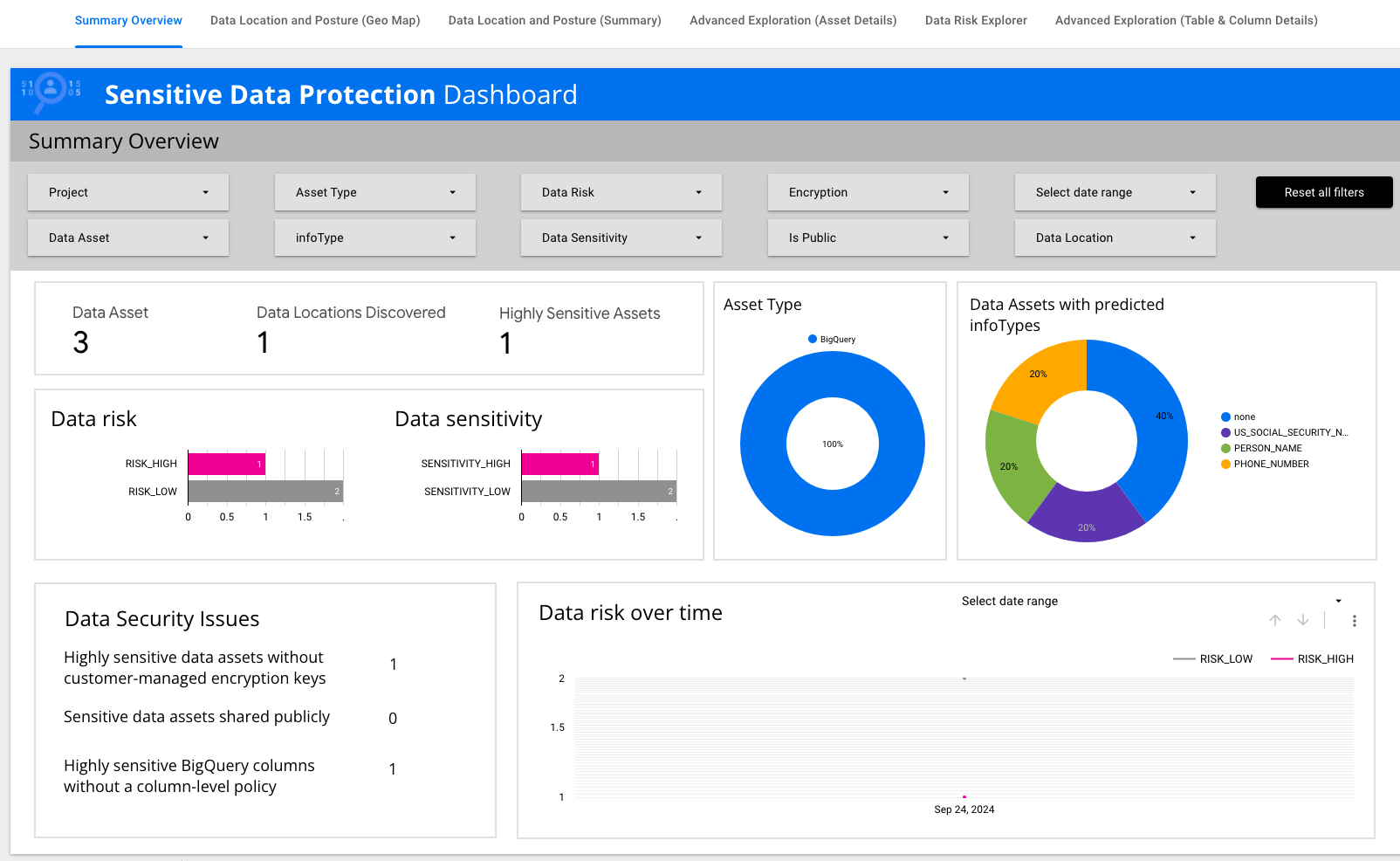
    Notice that there are data tiles summarizing key information such as data risk, data sensitivity, and asset types.

Summary Overview page of Looker Dashboard

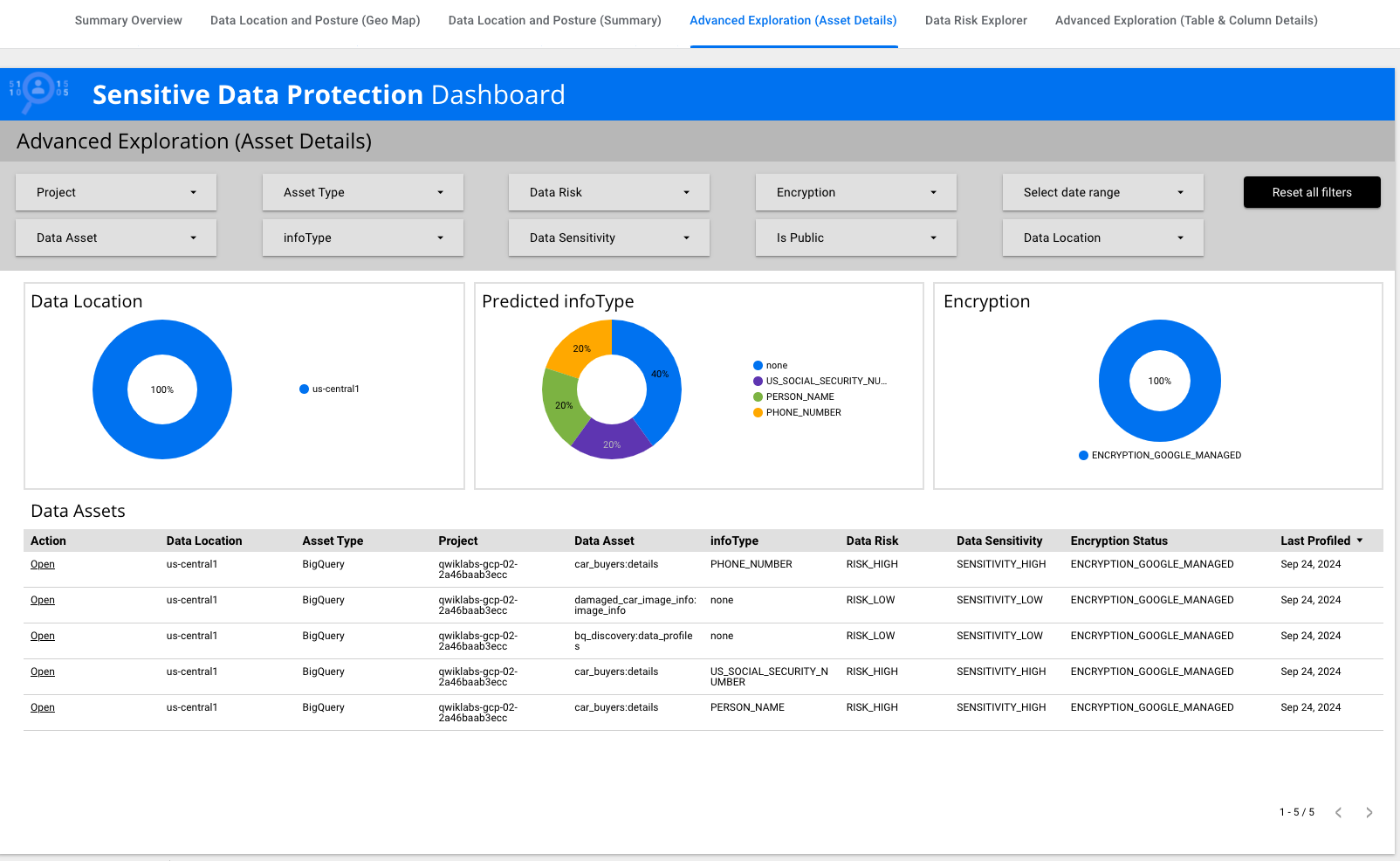
  1. Click on Advanced Exploration (Asset Details).

  2. Locate the row that has infoType of US_SOCIAL_SECURITY_NUMBER. Under Action, click Open for that row.

Advanced Exploration (Asset Details) page of Looker Dashboard

View detailed results in Sensitive Data Protection

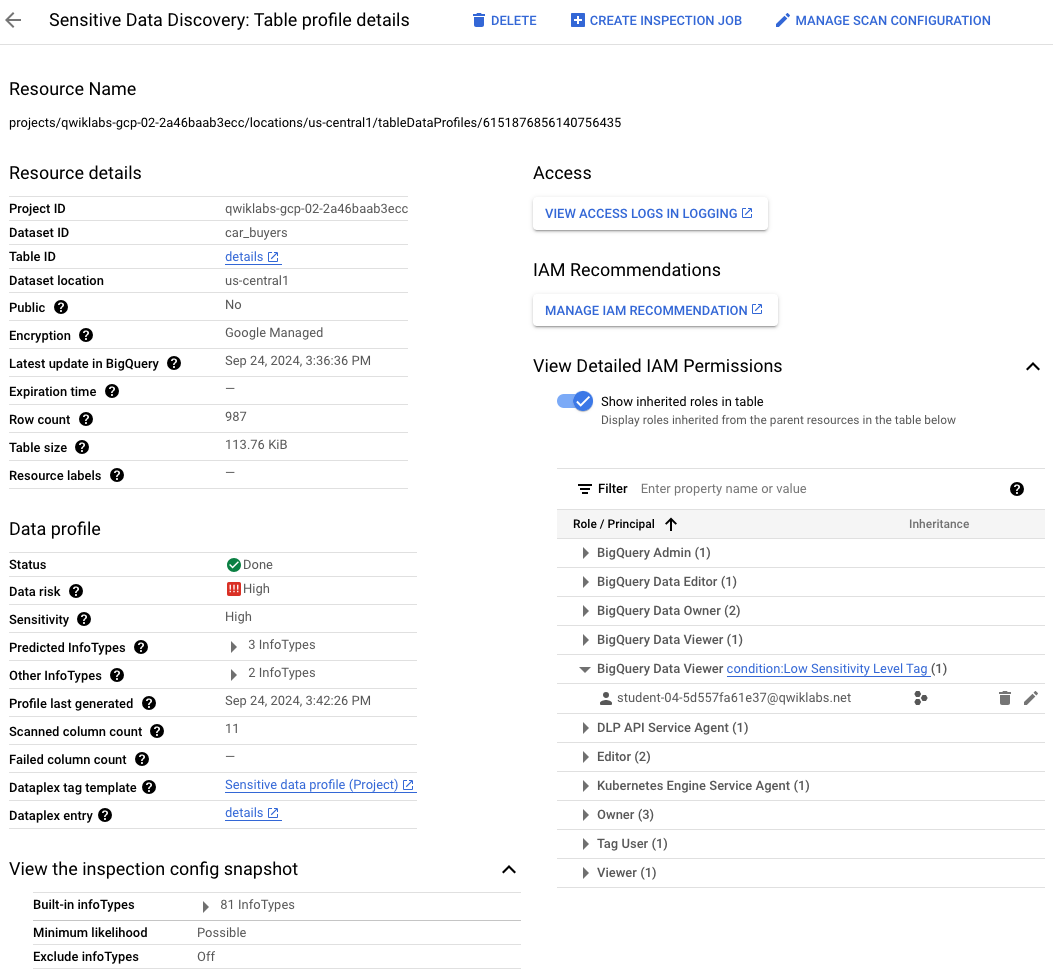
  1. Review the page that opens and is titled Sensitive Data Discovery: File store profile details.

    Notice that there are many details provided on the resources scanned, including IAM permissions.

  2. Expand the arrow next to View Detailed IAM Permissions.

  3. Expand the arrow next to BigQuery Viewer.

Notice another user () is listed as a BigQuery Viewer with the condition that you set in Task 3.

Sensitive Data Discovery: Table profile details

Congratulations!

In this lab, you created a discovery scan configuration for BigQuery in paused mode. Then, you created a tag to flag sensitive data in BigQuery and updated the discovery scan configuration to use the created tag for automated scanning. Last, you used the created tag to grant conditional access to BigQuery data for additional users.

Next steps / Learn more

Check out the following resources to learn more about Sensitive Data Protection for BigQuery:

Google Cloud training and certification

...helps you make the most of Google Cloud technologies. Our classes include technical skills and best practices to help you get up to speed quickly and continue your learning journey. We offer fundamental to advanced level training, with on-demand, live, and virtual options to suit your busy schedule. Certifications help you validate and prove your skill and expertise in Google Cloud technologies.

Manual Last Updated November 18, 2024

Lab Last Tested November 18, 2024

Copyright 2025 Google LLC. All rights reserved. Google and the Google logo are trademarks of Google LLC. All other company and product names may be trademarks of the respective companies with which they are associated.

准备工作

  1. 实验会创建一个 Google Cloud 项目和一些资源,供您使用限定的一段时间
  2. 实验有时间限制,并且没有暂停功能。如果您中途结束实验,则必须重新开始。
  3. 在屏幕左上角,点击开始实验即可开始

使用无痕浏览模式

  1. 复制系统为实验提供的用户名密码
  2. 在无痕浏览模式下,点击打开控制台

登录控制台

  1. 使用您的实验凭证登录。使用其他凭证可能会导致错误或产生费用。
  2. 接受条款,并跳过恢复资源页面
  3. 除非您已完成此实验或想要重新开始,否则请勿点击结束实验,因为点击后系统会清除您的工作并移除该项目

此内容目前不可用

一旦可用,我们会通过电子邮件告知您

太好了!

一旦可用,我们会通过电子邮件告知您

一次一个实验

确认结束所有现有实验并开始此实验

使用无痕浏览模式运行实验

请使用无痕模式或无痕式浏览器窗口运行此实验。这可以避免您的个人账号与学生账号之间发生冲突,这种冲突可能导致您的个人账号产生额外费用。