Vertex AI is now Gemini Enterprise Agent Platform! We are currently updating our content to reflect this change. Please bear with us if you encounter naming inconsistencies during this transition.
Apply your skills in Google Cloud console
Points de contrôle
Create a Vertex AI Search data store
Vérifier ma progression
/ 20
Create a Vertex AI Search app
Vérifier ma progression
/ 20
Create a Backend app
Vérifier ma progression
/ 20
Deploy the Reasoning Engine agent
Vérifier ma progression
/ 20
Develop and test the Flutter chat app
Vérifier ma progression
/ 20
Instructions et exigences de configuration de l'atelier
Protégez votre compte et votre progression. Utilisez toujours une fenêtre de navigation privée et les identifiants de l'atelier pour exécuter cet atelier.
Integrate a LangChain Agent with a Flutter App Using Agent Platform
Ce contenu n'est pas encore optimisé pour les appareils mobiles.
Pour une expérience optimale, veuillez accéder à notre site sur un ordinateur de bureau en utilisant un lien envoyé par e-mail.
Overview
In this lab, you integrate a LangChain AI agent with a Flutter app. Flutter is used as the client app framework, Agent Search on Gemini Enterprise Agent Platform is used as a vector database, and Agent Runtime on Gemini Enterprise Agent Platform is used to build and deploy the LangChain agent. The agent uses Gemini, a family of highly capable large language models (LLMs) to generate AI responses to text and image prompts.
The lab is pre-provisioned with VSCode as the IDE using code-server, along with the Flutter and Dart extensions that are required to run the Flutter app. The lab also includes fwr, a tool that you use to serve the Flutter app as a web application which you access using a browser.
This lab is intended for developers of any experience level who contribute to building apps but might not be familiar with cloud application development. It helps to have some experience in Python, and to be familiar with the Flutter framework. It is not required to know Flutter to perform the tasks in this lab, though you will review some of the Flutter app code, and test the app's functionality.
Objectives
In this lab, you perform the following tasks:
Create a search data store and search app using AI Applications in the Google Cloud console.
Deploy a LangChain agent using Gemini Enterprise Agent Platform Workbench.
Use a Python app that integrates with Agent Search and the LangChain agent.
Deploy the app to Cloud Run and use it as the backend for a Flutter app.
Create a Flutter app to use as the frontend chat application.
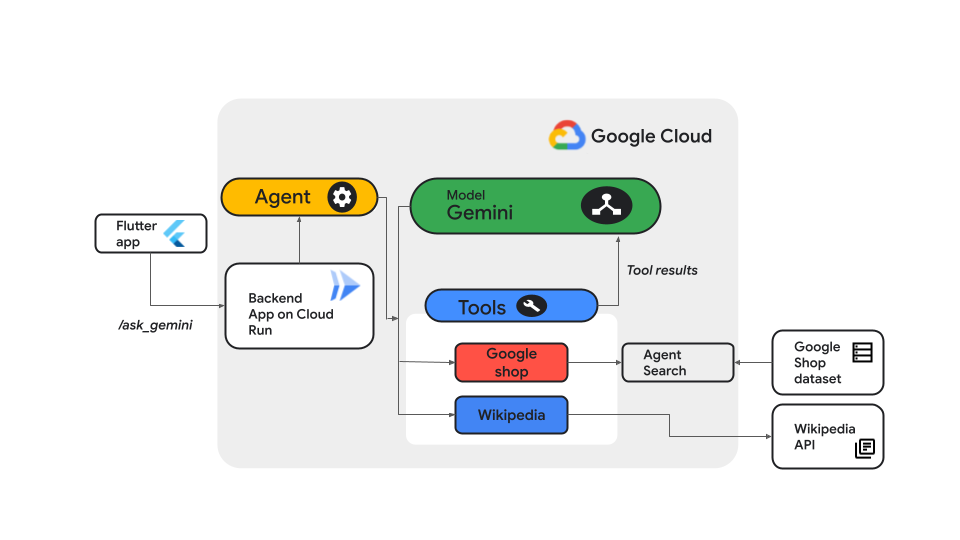
Here is an overview of the different components used in this lab:
Setup
For each lab, you get a new Google Cloud project and set of resources for a fixed time at no cost.
Sign in to Google Skills using an incognito window.
Note the lab's access time (for example, 1:15:00), and make sure you can finish within that time.
There is no pause feature. You can restart if needed, but you have to start at the beginning.
When ready, click Start lab.
Note your lab credentials (Username and Password). You will use them to sign in to the Google Cloud Console.
Click Open Google Console.
Click Use another account and copy/paste credentials for this lab into the prompts.
If you use other credentials, you'll receive errors or incur charges.
Accept the terms and skip the recovery resource page.
Task 1. Create a search data store and search app
In this task, you implement search capability for your Flutter app by creating a search data store and search app using AI applications in the Google Cloud console.
Create a search data store
In the Cloud console, click View All Products. In the All Products page, scroll to the section on Artificial Intelligence, and then click AI Applications.
Click Continue and activate the API.
In the left pane, click Data Stores, and on the Data Stores page, click Create Data Store.
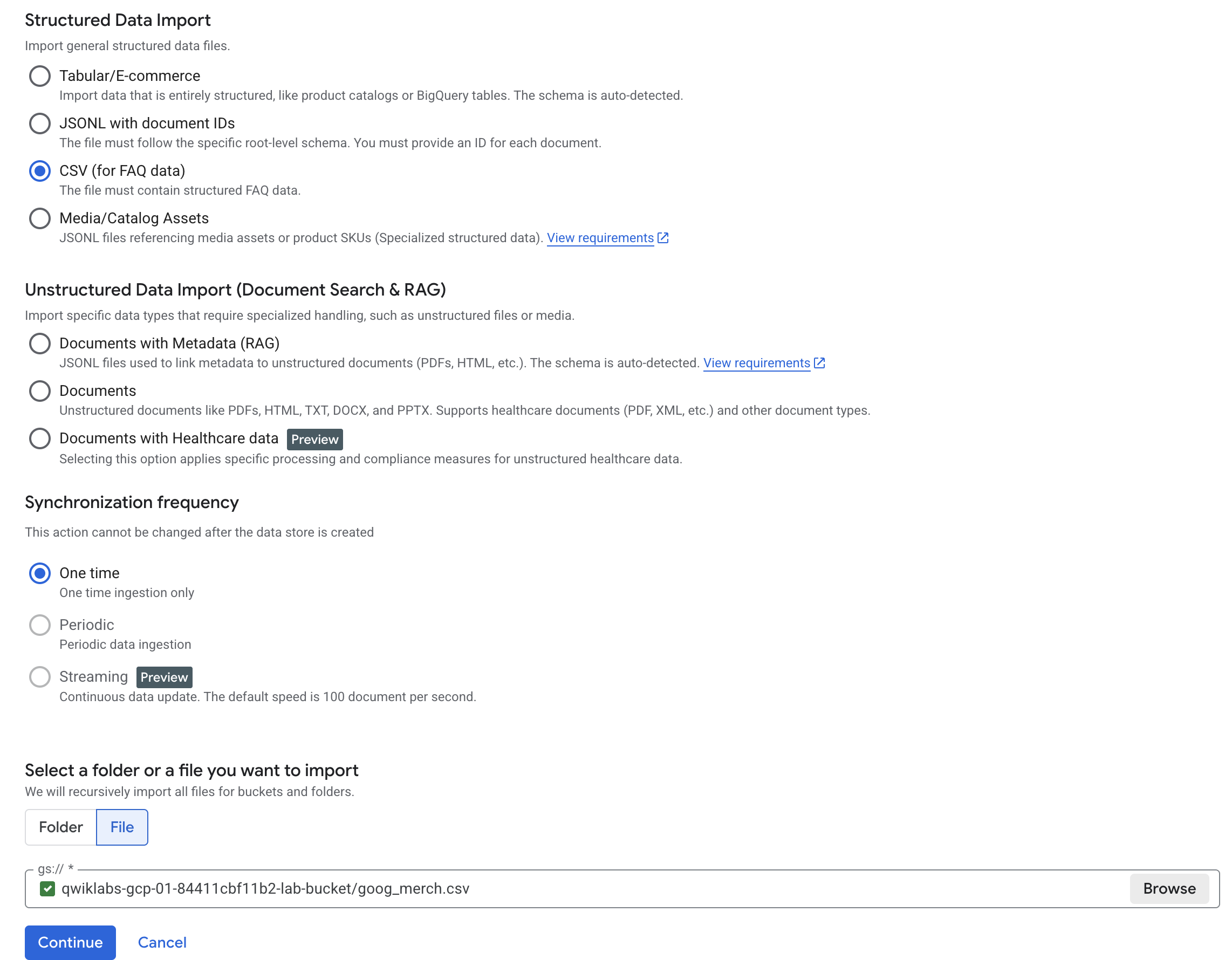
On this page, you configure your data source to be used for search results. The lab is pre-provisioned with a Cloud Storage bucket that contains a .csv file which has data about items from the Google merchandise shop.
To select Cloud Storage as the source of data, under Cloud Storage, click Select.
For the kind of data being imported, under Structured Data Import, select CSV (for FAQ data).
Scroll to the section Select a folder or file you want to import, and click File.
To provide the Cloud Storage URL to the CSV file, click Browse.
To view the contents of the Cloud Storage bucket , click .
Select the goog_merch.csv file, and then click Select.
The gs:// URI to the folder is populated.
Click Continue.
For the data store name, type goog-merch-ds and click Continue.
Leave the selected pricing model as default and click Create.
A data store is created, and data ingestion from the CSV file is initiated.
On the Data Stores page, click the name of your newly created data store.
Click Refresh.
The Documents tab displays a list of documents that were imported.
To view the data associated with a document, click View Document.
To verify the objective, click Check my progress.
Create a Agent Search data store.
Create a search app
To use the search data store, you connect it to a search app in AI Applications.
In the Cloud console, click AI applications, then click Apps.
Click Create a new app.
On the Create App page, for the type of app to build, in the Search and assistant tab, under Custom search (general), click Create.
On the Search app configuration page, configure a website search app with these settings, leaving the remaining settings as their defaults:
Property
Value (type or select)
Enterprise edition features
Disable
Your app name
gms-search-app
External name of your company or organization
gms-company
Location of your app
global (Global)
Click Continue.
A list of existing data stores is displayed. Select the goog_merch_ds data store that you created in the previous subtask and click Continue.
Leave the selected pricing plan as the default, and click Create.
The search app is created and the data store is connected to the app.
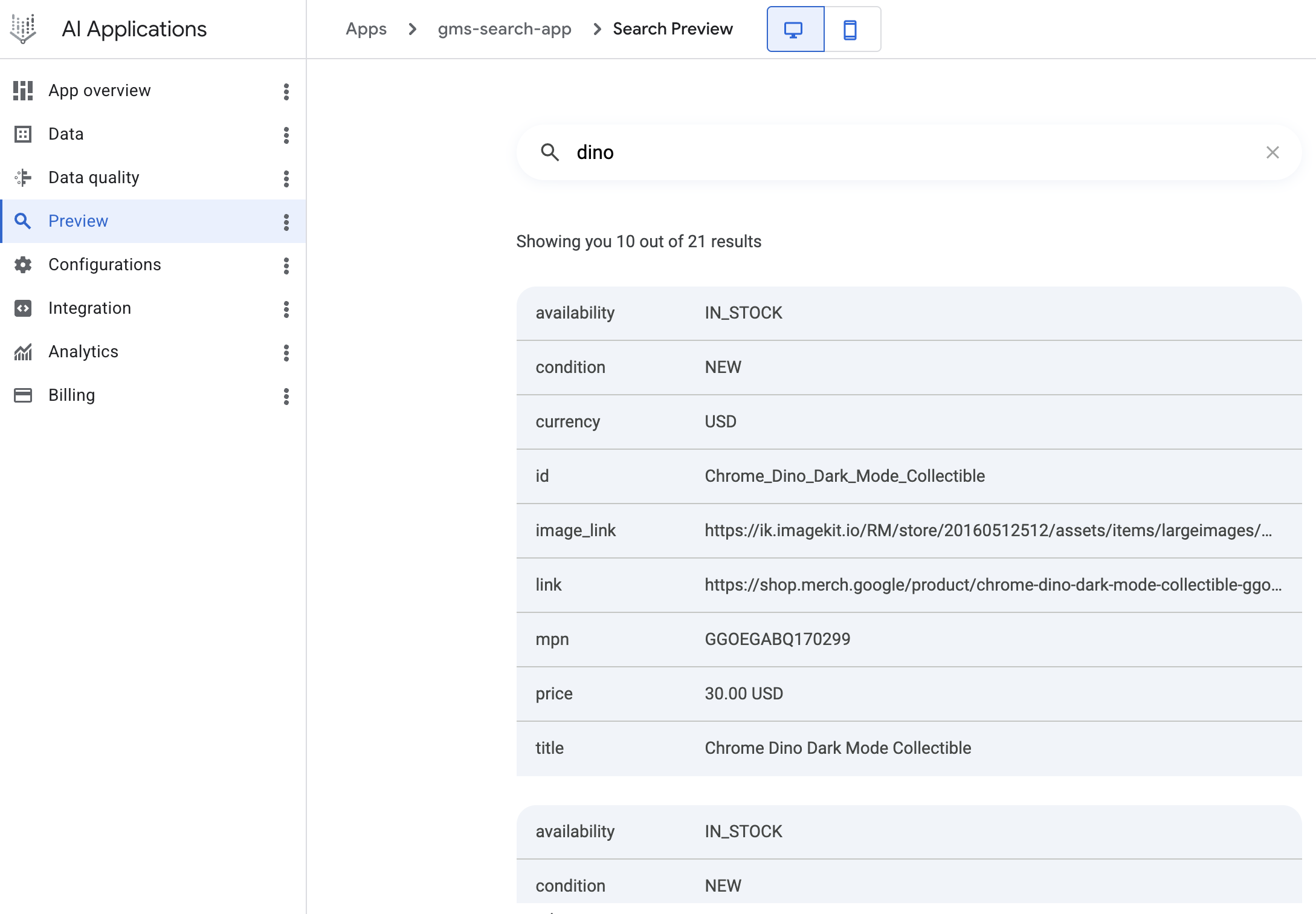
To test the search app, in the AI applications navigation menu, click Preview.
In the Search field, type dino, and press Enter.
A list of related search results are displayed from the documents that were imported into the data store.
Note: If you see an error indicating that Search preview isn't ready yet, please wait a few minutes before retrying. If you do not want to wait, you can continue with the next task in the lab.
To verify the objective, click Check my progress.
Create an Agent Search app.
Task 2. Build and deploy the backend
The backend of our Flutter app will run as a Cloud Run service on Google Cloud. The backend service integrates with the search app that you created in the previous task to generate search responses from the merchandise shop data.
In a later task, you'll also integrate the backend app with a LangChain agent to access Gemini for generative AI content in response to queries from the Flutter app.
In this task, you build and deploy the backend Python app to Cloud Run.
Configure and review the backend app
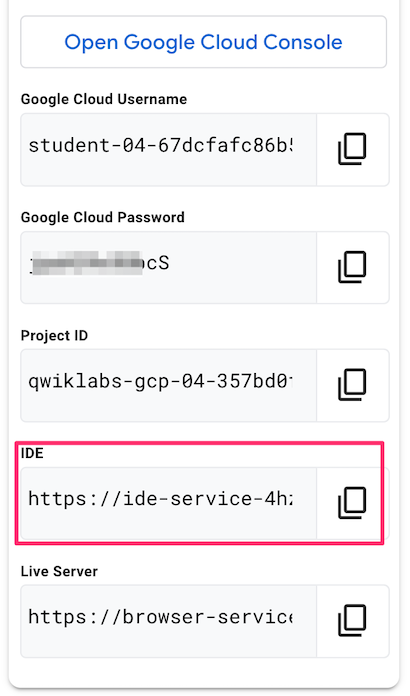
An IDE based on VSCode is pre-provisioned for this lab. To access the IDE, copy the IDE Service URL from the lab's credentials panel and paste it into a new incognito browser window or tab.
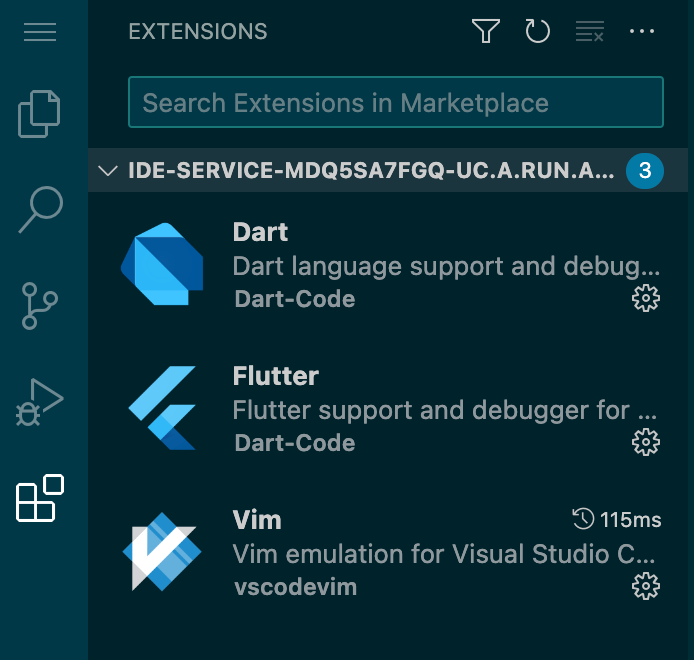
Note: The IDE service URL is the endpoint of a Cloud Run service that is pre-provisioned for this lab, and proxies requests to the code-server VM. The IDE is built using Code Server and includes the Flutter, Dart, and Vim extensions.
Open a terminal in the IDE. In the IDE navigation menu (), click Terminal > New Terminal.
Note: Run the commands in the steps below in the IDE terminal window.
The initial version of the backend app and related files are pre-provisioned for the lab. Copy the initial version of the backend app folder and its contents from an archive in Cloud Storage:
gcloud storage cp gs://cloud-training/OCBL453/photo-discovery/ag-web.zip ~ && unzip ~/ag-web -d ~ && rm ~/ag-web.zip
Note: If prompted, click Allow to paste text and images from the clipboard, and press Enter.
To list the contents of the folder, in the IDE terminal window, run:
ls ~/ag-web/app
The ag-web/app folder contains the application source code and other files needed to build and deploy the backend app to Cloud Run.
Set the PROJECT_ID and LOCATION configuration for the app.
sed -i 's/GCP_PROJECT_ID/{{{project_0.project_id|set at lab start}}}/' ~/ag-web/app/app.py
sed -i 's/GCP_REGION/{{{project_0.default_region|set at lab start}}}/' ~/ag-web/app/app.py
Configure the backend app to use the search data store that you created earlier.
sed -i 's/SEARCH_DATASTORE_ID/{YOUR_SEARCH_DATASTORE_ID}/' ~/ag-web/app/app.py
In the command, replace the string {YOUR_SEARCH_DATASTORE_ID} with the value of your search data store ID. Make sure to remove the curly braces in the sed command.
Note: To get the value of the search data store ID, in the Cloud console, navigate to AI Applications > Data Stores, and then click on the name of your search data store that you created earlier. Copy the value of the Data store ID, which is same as the search engine ID.
To view the code in the IDE, in the IDE navigation menu, click , and then click Open Folder.
Select the IDE-DEV/ag-web/ folder from the list, and then click Ok.
To trust the authors of the code, click Yes, I trust the authors.
In the Explorer pane, expand the app folder, and then click app.py to open the file in the editor.
The backend app code does the following:
Initializes a SearchServiceClient for the discoveryengine.googleapis.com API.
The search_gms() function uses the API's datastores endpoint to initiate a search request. The datastore ID that you created earlier is used in the URL.
The function uses the user supplied search query to perform the search on the contents of the datastore, and formats the results into a JSON response.
The app uses flask to route calls to the individual functions. The / endpoint is the default page that is used to verify that the app loads successfully, while the /ask_gms endpoint invokes the search_gms() function that uses Agent Search.
Build and deploy the app to Cloud Run
A deploy script is available to build and deploy the backend app to Cloud Run.
Open a terminal window in the IDE, and change to the backend app folder:
cd ~/ag-web/app
Authenticate to Google Cloud from the gcloud CLI:
gcloud auth login
To continue, type Y
To launch the sign-in flow, press Control (for Windows and Linux) or Command (for MacOS) and click the link in the terminal.
If you are asked to confirm the opening of the external website, click Open.
Click the lab student email address.
When you're prompted to continue, click Continue.
To let the Google Cloud SDK access your Google Account and agree to the terms, click Allow.
Your verification code is displayed in the browser tab.
Click Copy.
Back in the IDE terminal window, where it says Enter authorization code, paste the code and type Enter.
You're now signed in to Google Cloud.
Make the deploy.sh script executable, and then run the script to deploy the app in the specified Cloud Run region:
chmod a+x deploy.sh; ./deploy.sh {{{project_0.project_id|set at lab start}}} {{{project_0.default_region|set at lab start}}}
After the app is built and deployed to Cloud Run successfully, the app's endpoint URL is displayed at the end of the script output. The URL was generated by the gcloud run deploy command that was executed in the script.
Note: This command takes time to execute so wait until it completes before proceeding to the next task.
Test the backend app
You test the app functionality by accessing it's Cloud Run endpoint.
Copy the app's endpoint URL that was generated in the previous step, and navigate to that URL in a new browser tab.
When the app loads, the home page displays: Welcome to the ag-web backend app.
In the browser URL bar, append the path below to the end of the URL:
/ask_gms?query=dino
Verify that the app responds with results from the search data store that you created earlier.
To verify the objective, click Check my progress.
Create a Backend app.
Task 3. Create a LangChain agent
An AI Agent is an application that uses the power of large language models (LLMs) for reasoning and orchestration with external tools to achieve its goal. Gemini Enterprise Agent Platform is a suite of products and tools from Google that helps you build AI agents by connecting them to your trusted data sources.
Agent Platform lets developers use Function Calling, to map the output from LLMs (Gemini) to Python functions. You can develop and deploy agents using the framework-specific LangChain template using the Agent Platform SDK.
In this task, you use Agent Platform Workbench with a Jupyter notebook to build and deploy a LangChain agent with Python functions. The agent will be used in our generative AI backend application in the next task in this lab.
Create an Agent Platform Workbench instance
Agent Platform Workbench is a Jupyter notebook-based development environment for the entire data science and machine learning workflow. You can interact with Agent Platform and other Google Cloud services from within a workbench instance's Jupyter notebook. For example, you can access and explore your data from within a Jupyter notebook by using BigQuery and Cloud Storage integrations.
Agent Platform Workbench notebooks provide a flexible and scalable solution for developing and deploying ML models on Google Cloud.
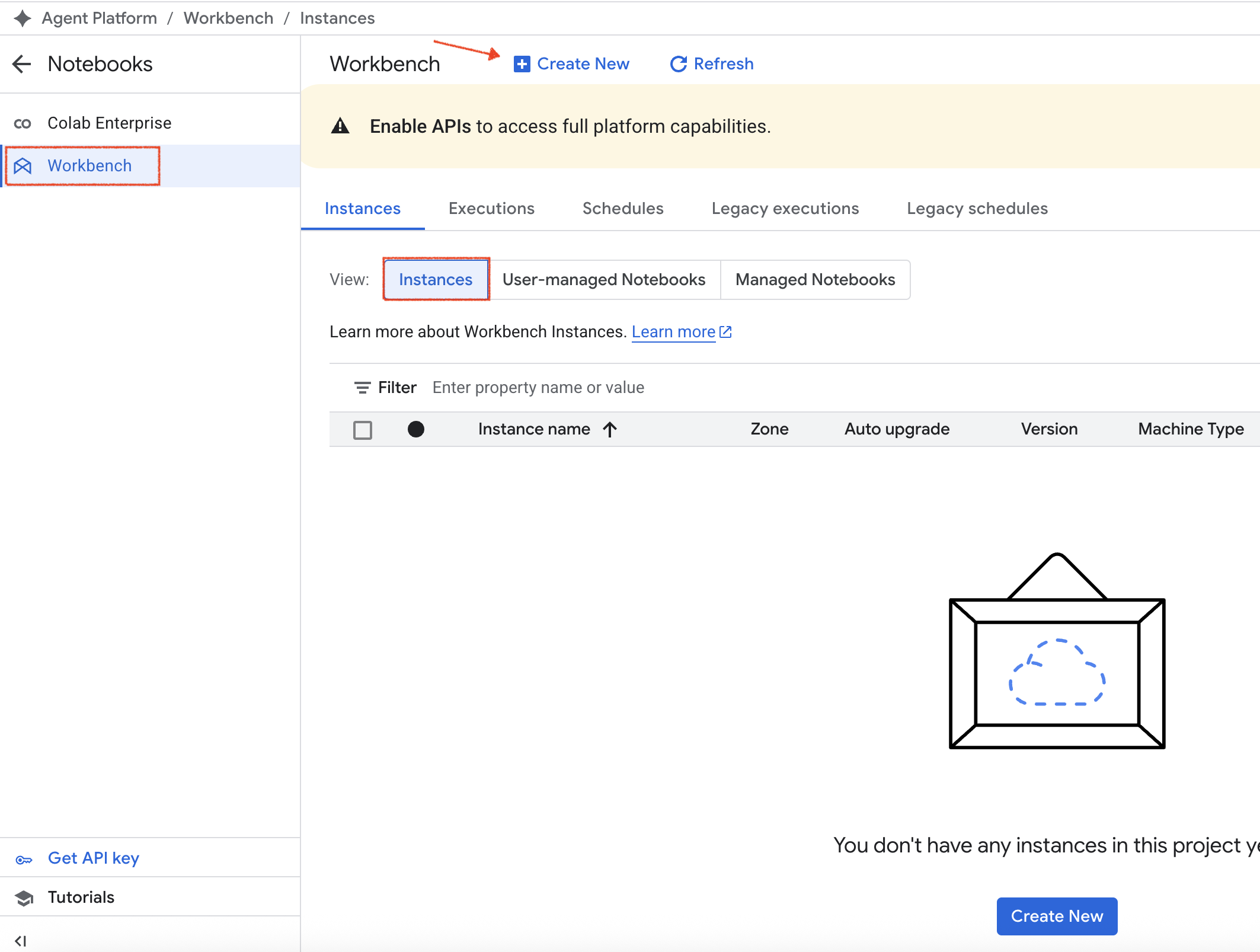
To create a Workbench instance, in the Cloud console, click the Navigation menu (), and then select Agent Platform > Notebooks.
In the Notebooks navigation menu, click Workbench.
Make sure that Instances is selected in the Instances tab, and then click Create New.
In the New instance page, for Name, type my-instance
Leave the remaining settings as their defaults, and then click Create.
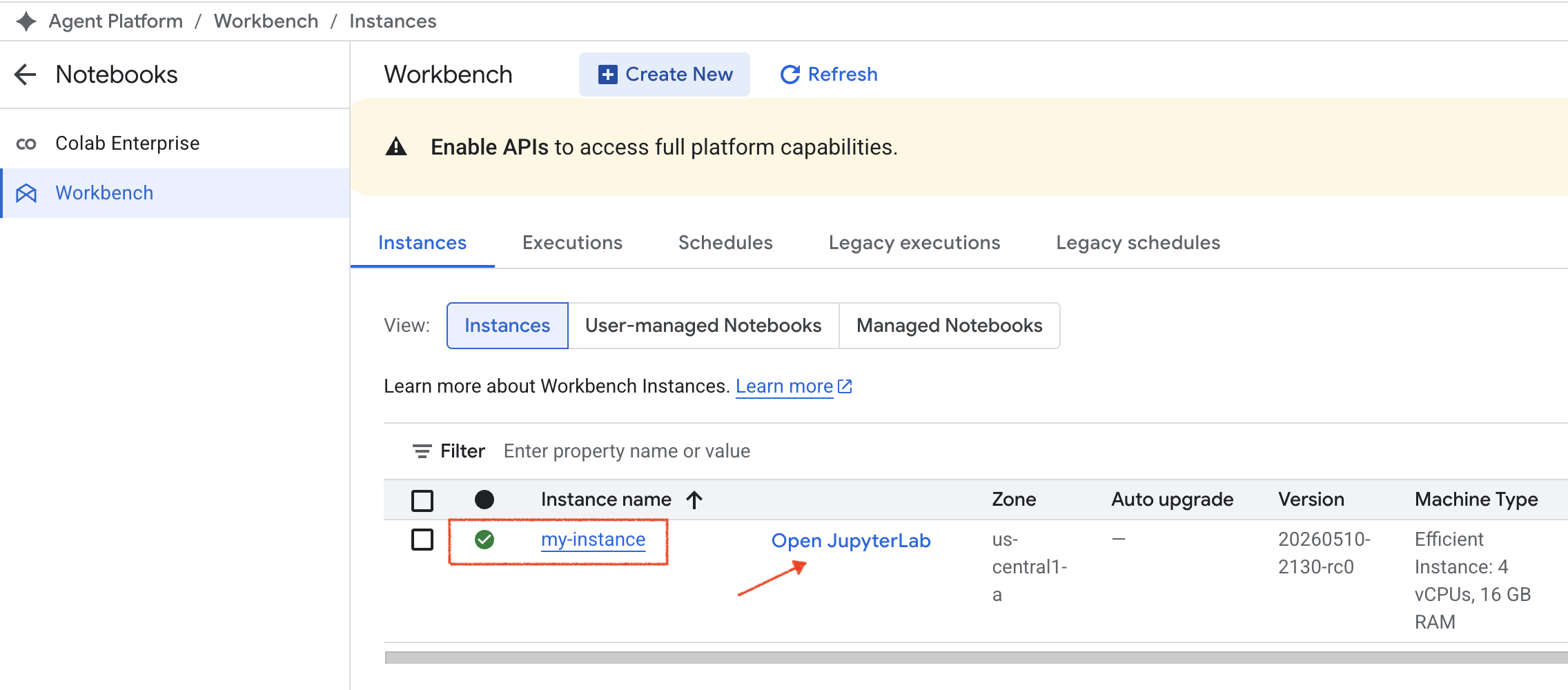
Your new instance spins up in the instances section. Wait for the instance to be created before proceeding to the next step.
Note: A green check appears next to the instance when it is ready to use.
Once the instance is ready, click Open Jupyterlab.
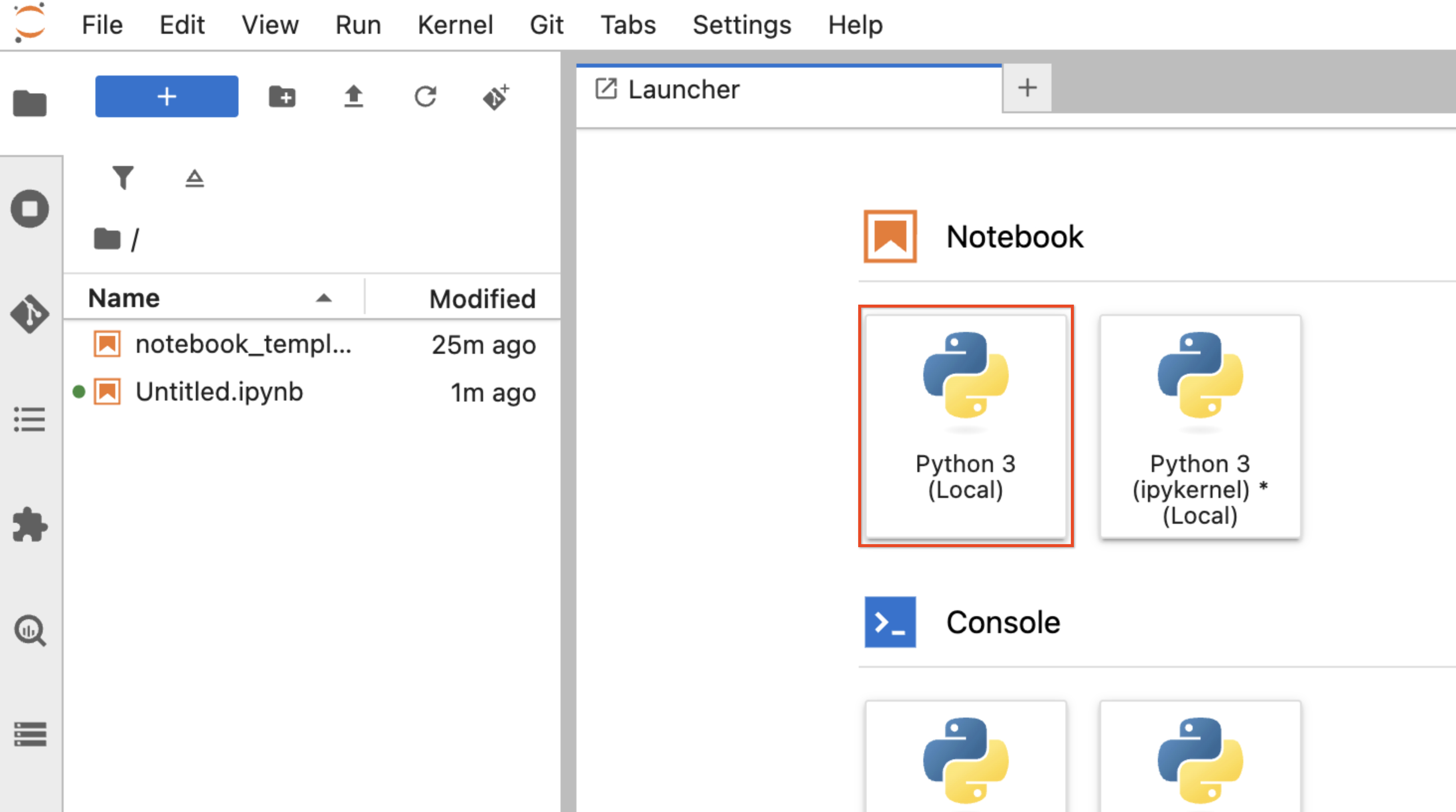
To launch a Python 3 Jupyter Notebook, click the Python 3 notebook.
Copy a notebook file
A notebook that builds and deploys a LangChain agent has been pre-provisioned for this lab.
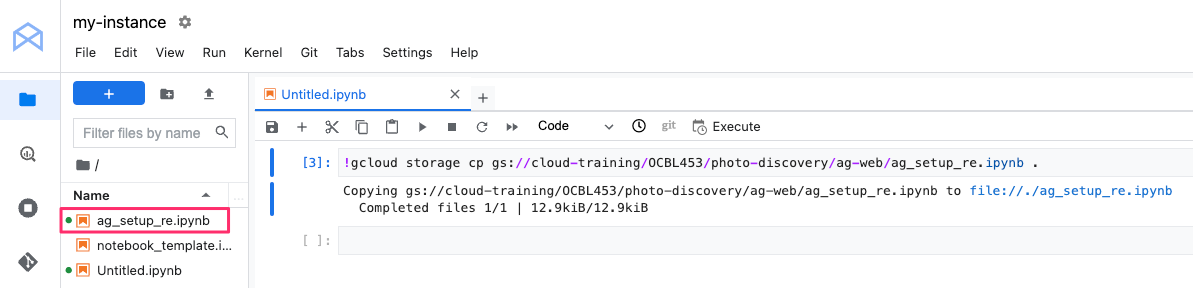
To copy the notebook to your JupyterLab instance, copy this code into the first cell in your new notebook:
Select the cell and run it by clicking Run in the cell menu:
The command copies the notebook from Cloud Storage to your JupyterLab instance. After the command completes, the notebook file is listed under the top-level root folder.
To open the notebook, double-click the notebook file in the folder listing. A separate tab is created with the content of the notebook.
Build and deploy a Reasoning Engine agent
Run all the code cells in the notebook in order from the beginning. To run a cell, select it by clicking anywhere in the cell, and then click Run in the cell menu or in the top notebook menu.
Note: When running the command in a cell, wait for the command to complete before moving on to the next cell. When a command completes execution, the asterisk (*) in the cell number field is replaced by the number of the cell.Note: Before running a cell, please check the notes below for any cell-specific instructions or steps to follow. These instructions are marked with the CELL INSTR prefix.
a. [CELL INSTR] Restart current runtime
If prompted, in the Kernel Restarting dialog, click Ok.
b. [CELL INSTR] Set Google Cloud project information and initialize Agent Platform:
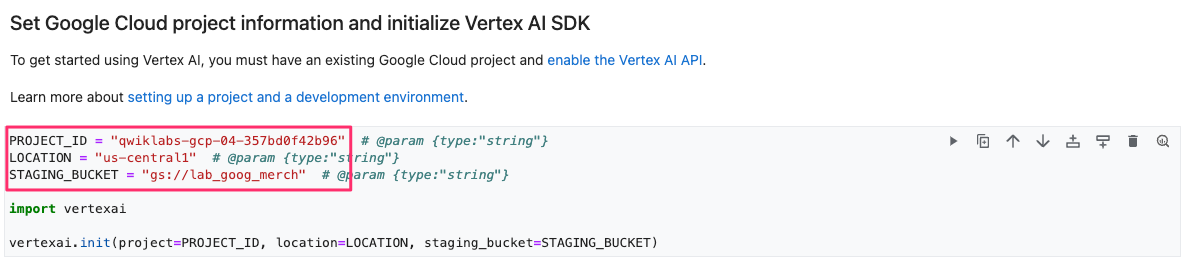
Before running this cell to initialize Agent Platform, update the configuration values for your lab project_id, location, and staging bucket:
PROJECT_ID = "{{{project_0.project_id|set at lab start}}}"
LOCATION = "{{{project_0.default_region|set at lab start}}}"
STAGING_BUCKET = "gs://{{{project_0.startup_script.lab_bucket_name}}}"
Updated cell with sample configuration settings:
c. [CELL INSTR] Define the Agent:
Before running this cell, replace the value of GEMINI_MODEL_ID with the latest model ID used by this notebook: .
Note: You can also run a cell by clicking Run in the notebook menubar.
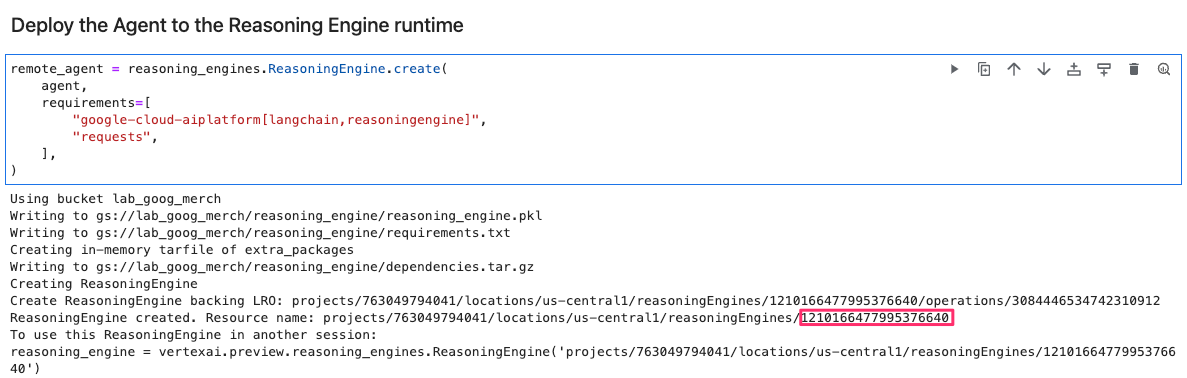
After running the cell Deploy the Agent to the Agent Runtime, wait for the command to complete and deploy the LangChain agent. Then, copy the Agent ID:
You will use this ID to configure and re-deploy the backend app in the next task.
Note: This cell can take up to 10 minutes to complete. Wait for the final output to be displayed indicating that the agent is deployed before continuing to the next step.
To test the successful operation of the LangChain agent, run the next two cells and observe the output.
The LangChain agent successfully invokes either the Wikipedia or the Agent Search datastore based on the query input.
To verify the objective, click Check my progress.
Deploy the LangChain agent.
Task 4. Enhance the backend app
Let's now enhance the backend app to invoke the LangChain agent that you deployed in the previous task.
The initial version of the backed app only fetched results directly from Agent Search. In the updated version, the app will also invoke the agent that uses output from Gemini and the agent's tools to generate a response from Agent Search or Wikipedia based on the input prompt.
In this task, you update the backend app code to add an additional entry point that invokes the LangChain agent with a request query and return the agent's response.
Update the backend app
In the IDE terminal window, append the app.py file with the new entry point code by running the command:
cat << EOF >> ~/ag-web/app/app.py
#
# Agent Engine
#
import vertexai
from vertexai import agent_engines
from google.cloud import resourcemanager_v3
def get_project_number(project_id):
client = resourcemanager_v3.ProjectsClient()
# Construct the resource name for the project
name = f"projects/{project_id}"
# Get project metadata
project = client.get_project(name=name)
# The 'name' field in the response is in the format 'projects/123456789'
project_number = project.name.split('/')[-1]
return project_number
PROJECT_NUM = get_project_number(PROJECT_ID)
LANGCHAIN_AGENT = "LANGCHAIN_AGENT_ID"
remote_agent = vertexai.agent_engines.get(f"projects/{PROJECT_NUM}/locations/{LOCATION}/reasoningEngines/{LANGCHAIN_AGENT}")
# Endpoint for the Flask app to call the Agent
@app.route("/ask_gemini", methods=["GET"])
def ask_gemini():
query = request.args.get("query")
log.info("[ask_gemini] query: " + query)
retries = 0
resp = None
while retries < MAX_RETRIES:
try:
retries += 1
resp = remote_agent.query(input=query)
if (resp == None) or (len(resp["output"].strip()) == 0):
raise ValueError("Empty response.")
break
except Exception as e:
log.error("[ask_gemini] error: " + str(e))
if (resp == None) or (len(resp["output"].strip()) == 0):
raise ValueError("Too many retries.")
return "No response received from Reasoning Engine."
else:
return resp["output"]
EOF
Configure the backend app to use the LangChain agent that you created earlier.
Replace the string {YOUR_LANGCHAIN_AGENT_ID} in the command below with the value of your agent ID that you copied from the notebook cell in the previous task, and run the command below in the IDE terminal window.
Make sure to remove the curly braces in the sed command.
sed -i 's/LANGCHAIN_AGENT_ID/{YOUR_LANGCHAIN_AGENT_ID}/' ~/ag-web/app/app.py
To view the code in the IDE, in the IDE navigation menu, click , and select the IDE-DEV/ag-web/app/app.py file.
In the enhanced version of the backend app:
A handle on the remote_agent is retrieved from the Agent Runtime using the LANGCHAIN_AGENT_ID of the agent that you created in the previous task.
A new /ask_gemini endpoint that defines the `ask_gemini() function is defined.
The function passes the user supplied query parameter from the request to the LangChain agent (remote_agent), and returns the response from the agent.
Build and re-deploy the backend app to Cloud Run
Change to the backend app folder:
cd ~/ag-web/app
Run the script to re-deploy the app in the specified Cloud Run region:
./deploy.sh {{{project_0.project_id|set at lab start}}} {{{project_0.default_region|set at lab start}}}
Test the backend app
You test the app functionality by accessing it's Cloud Run endpoint.
Copy the app's endpoint URL that was generated in the previous step, and navigate to that URL in a new browser tab.
When the app loads, the home page displays Welcome to the ag-web backend app.
In the browser URL bar, append the path below to the end of the URL:
/ask_gemini?query=where can I buy the chrome dino pin
The app responds with results from the agent that fetched results from the Agent Search data store that you created earlier.
Chrome Dino Enamel Pin is a product sold at Google Merch Shop. The price is 7.00 USD. You can buy the product at their web site: https://shop.merch.google/product/chrome-dino-enamel-pin-ggoegcbb203299/.
In the browser URL bar, replace the path with:
/ask_gemini?query=what is fallingwater. Write the answer in plaintext.
The app responds with results from the agent that fetched a response from the Wikipedia API that you configured in the notebook.
Fallingwater was designed by architect Frank Lloyd Wright in 1935. It is located in southwest Pennsylvania, about 70 miles southeast of Pittsburgh. The house is famous because it was built partly over a waterfall.
Note: The actual responses you receive might vary from the responses shown above.
Task 5. Create the Flutter front end app
Flutter is an open-source multi-platform app development framework. It lets you write one codebase that runs on Android, iOS, Web, macOS, Windows, and Linux. Flutter apps are developed in the Dart programming language.
For the purposes of this lab, you will use web as the target platform, so that the Flutter app can be deployed as a web application and accessed using a browser.
In this task, you create a simple chat application using Flutter, update the code, and build and run the app as a web application.
Create the Flutter app
In the IDE terminal, navigate to your home directory and run:
cd ~; flutter create chat_app
The flutter create command creates all the required files, folders, and configuration for a new runnable Flutter project.
To view the default chat app code in the IDE, navigate to the IDE-DEV/chat_app folder.
You might need to click Refresh to refresh the contents of the folder navigation pane in the IDE.
If prompted to trust the authors of the files in the folder, click Yes, I trust the authors.
Review the Flutter app code
Here is a high-level overview of the chat_app folder contents:
Folder/File
Description
chat_app
Project root folder that contains the sub-folders and files that make up the Flutter app.
android/ios/linux/macos/web/windows
Contains platform-specific files that are needed to run the Flutter app on each supported platform.
lib
Contains the core application Dart files that includes the functionality and user interface.
test
Contains Dart tests that are used to test the app's widgets.
pubspec.yaml
Contains the app dependencies, Flutter version, and other configuration settings.
analysis_options.yaml
Contains configuration settings for static analysis of the app.
Let's review the entry point file main.dart of the Flutter app.
In the Explorer menu, click the IDE-DEV/chat_app/lib/main.dart file to open it.
This is the application entry point for the Flutter app. After performing initialization tasks, the code in this file builds the app's UI using material components, sets the app's title, theme, and other configuration.
Note: A Material app starts with the MaterialApp widget, which builds a number of useful widgets at the root of your app, including a Navigator that manages routing to various screens in your app.
Flutter uses the concept of Widgets, which are declarative classes that are used to build the app. In Flutter, you create a layout by composing widgets to build more complex widgets to form a widget tree. To learn more about building UI's in Flutter, view the documentation.
This file contains the classes that build the app's widgets. It includes:
The MyApp class which is the root widget of the chat application.
The MyHomePage class that creates the app's main page using the _MyHomePageState class.
The _MyHomePageState class that builds app's UI and is responsible for updating the UI state.
We'll replace the default generated code in these classes in the next subtasks as you build the chat app.
Update the Flutter app code
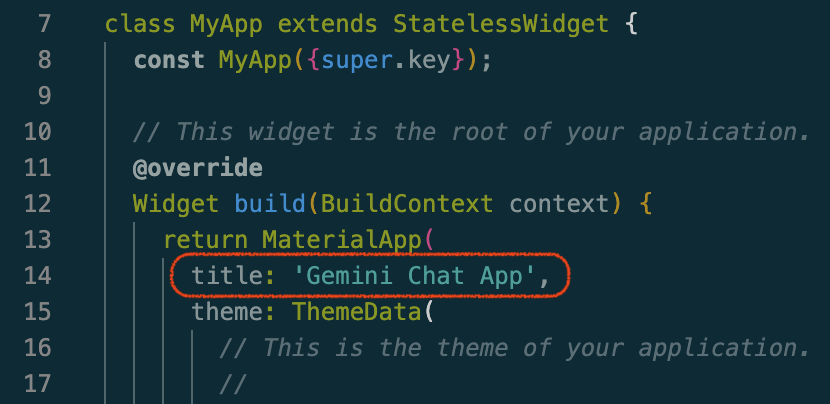
First, update the app title. In the MyApp class on line 14, change the value of the title property:
title: 'Gemini Chat App',
In the _MyHomePageState class, on line 58, delete the line int _counter = 0; and the _incrementCounter() function, and add the following properties:
final TextEditingController _controller = TextEditingController();
final List<Map<String, String>> _messages = [];
String _cloudRunHost = '';
These properties are used to accept user input for the text prompt, store the user input and backend app responses for display, and store the hostname of the backend app Cloud Run service.
This method performs initialization functions when the State object is created. In the chat app, we load the contents of a file by invoking the _loadConfig() method which we implement next.
Add the _loadConfig() method to the class:
Future<void> _loadConfig() async {
final configString = await rootBundle.loadString('assets/config.json');
final config = json.decode(configString);
setState(() {
_cloudRunHost = config['cloudRunHost'];
});
}
This method retrieves the contents of the chat app's configuration file that stores the value of your Cloud Run backend app hostname in a JSON object. We'll create this file later in the lab. The method stores the value in the internal _cloudRunHost property created earlier, and builds the widget UI.
This method retrieves the prompt text entered by the user and adds it to the list of messages displayed in the chat panel.
It sends a HTTP GET request to the Cloud Run backend service endpoint URL with the input prompt and displays the response from the service.
The code constructs a URL to the Cloud Run backend host endpoint that includes the prompt text in a query parameter. The HTTP GET request is then sent to the endpoint. Once the response is received with a status code of 200, it is decoded and added to the messages list for display in the chat screen. If the response is not successful or an exception occurs, the status code or exception message is added to the messages list and displayed.
To build the chat app UI, replace the existing build method with the code below in the _MyHomePageState class:
The build method describes the UI of the chat app. It creates a widget tree with the configuration and current state, which the Flutter framework then renders to the screen. In this chat app UI, the code displays the chat messages in a column along with a text field and send button for the user prompt. User entered messages (prompts) are rendered in a blue box, while response or error messages from the app (bot) are rendered in a grey box.
When the user clicks Send in the chat app or presses Enter in the text field after entering a prompt, the _sendMessage() callback method is invoked.
Add imports
The code that was added depends on certain libraries or packages from the Dart and Flutter SDKs.
To import those packages, add the following import statements at the beginning of the main.dart file below the existing import statement:
import 'package:http/http.dart' as http;
import 'dart:convert';
import 'package:flutter/services.dart' show rootBundle;
The http.dart package contains a set of high-level functions and classes that make it easy to consume HTTP resources.
The dart:convert library has functions that handle common data conversions such as JSON serialization and UTF-8 encoding/decoding.
The rootBundle property is a global static object that provides access to the main asset bundle packaged with your Flutter app.
To save the changes to the app, in the IDE navigation menu, click File > Save.
Update dependencies
The pubspec.yaml file specifies the project metadata, package dependencies, and assets for your Flutter app.
Edit the pubspec.yaml file by selecting it in the Explorer pane in the IDE. The file is in the chat_app folder.
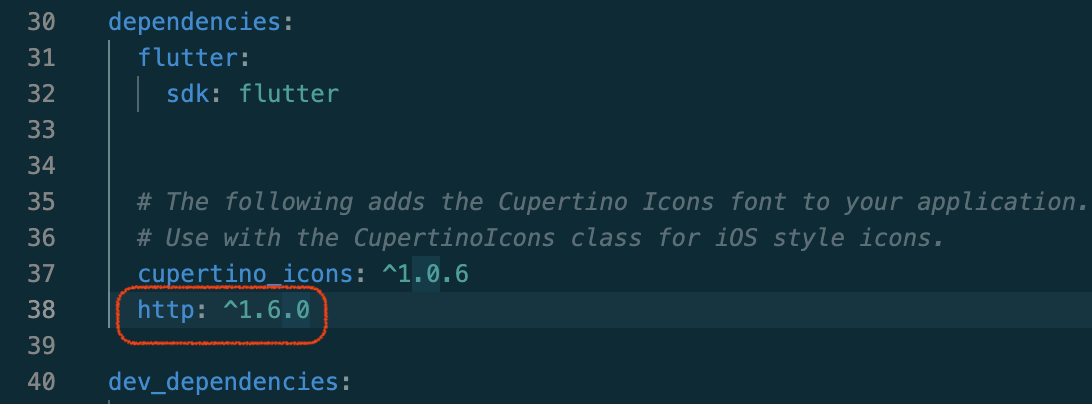
In the dependencies section, add the http package dependency below the cupertino_icons font library:
http: ^1.6.0
Ensure the correct space indentation is preserved.
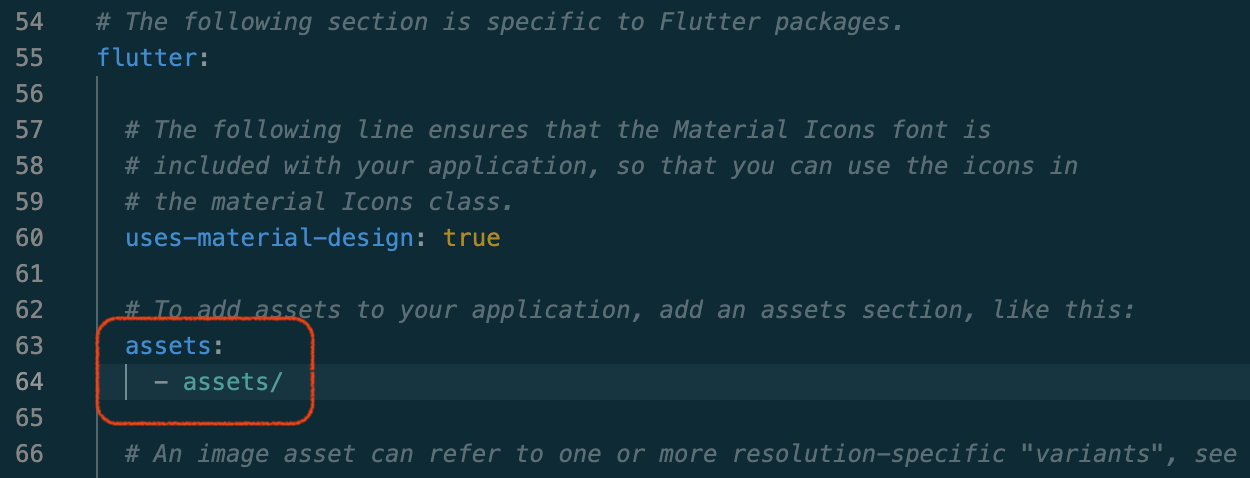
Scroll to the flutter section in the pubspec.yaml file and uncomment line 63. Add the assets folder under assets preserving the space indentation:
assets:
- assets/
This configures the assets folder where we store the config.json file for the app.
To save the changes to the pubspec.yaml file, in the IDE navigation menu, click File > Save.
Integrate the Flutter app with the Cloud Run backend
The Flutter app integrates with the Reasoning Engine agent that you deployed earlier in this lab. Integration is achieved by connecting the Flutter app to the endpoint of the backend app that you also built and deployed to Cloud Run.
In the _sendMessage() method, you might have noticed code that checks if the _cloudRunHost property is empty or not configured in a file called assets/config.json. We'll add this file to our Flutter app in this subtask.
First, fetch your Cloud Run endpoint hostname of the backend app, and store the value in an environment variable.
In the IDE terminal window, run:
BACKEND_APP_HOST=$(gcloud run services describe ag-web --region {{{project_0.default_region|set at lab start}}} --format 'value(status.url)' | cut -d'/' -f3);
echo $BACKEND_APP_HOST
Create the /assets directory in your Flutter chat app home directory:
mkdir ~/chat_app/assets
Create the config.json file in the /assets directory:
To verify the change, refresh the contents in the IDE Explorer menu, and click the IDE-DEV/chat_app/assets/config.json file to open it. Verify that the cloudRunHost config entry value is updated with the value of your Cloud Run backend app hostname.
Note: The value should match the value of the `BACKEND_APP_HOST` environment variable that you set in a previous step.
Deploy the Flutter app
Now that the Flutter app configuration is complete, you can build and deploy the app. For the purpose of this lab, to run the app as a web application, we use Fwr which is a development server for Flutter web.
Make sure you are in the Flutter app folder. In the IDE terminal window, run:
cd ~/chat_app
To fetch the app project dependencies, run:
flutter pub get
To build the project and start the web server, run:
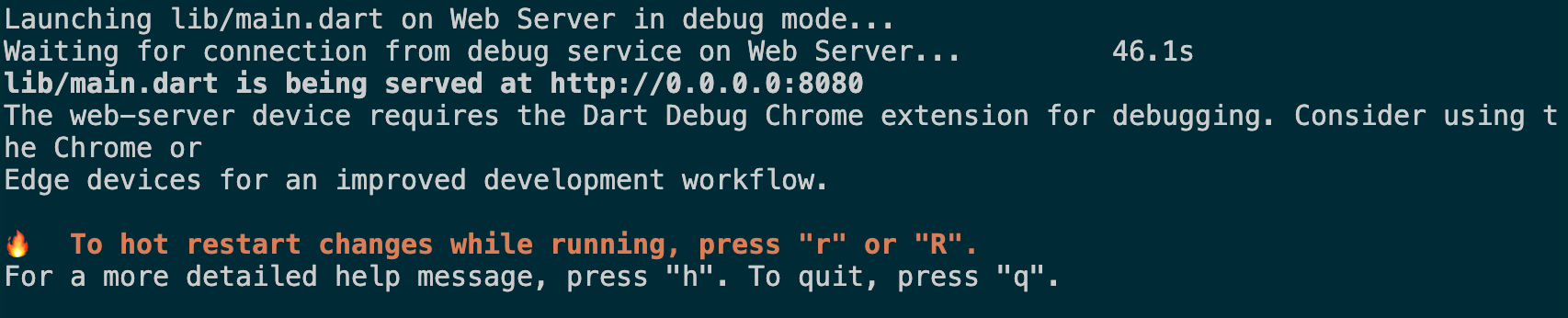
fwr
Wait for the server to start and serve the Flutter app. Once started, the output from the command should be similar to:
Task 6. Test the Flutter app
Let's test the Flutter app's functionality.
Test the app
To access the Flutter app, copy the Live Server URL from the lab credentials panel, and open it in a new tab of your incognito browser window.
Wait a few seconds for the chat app to load.
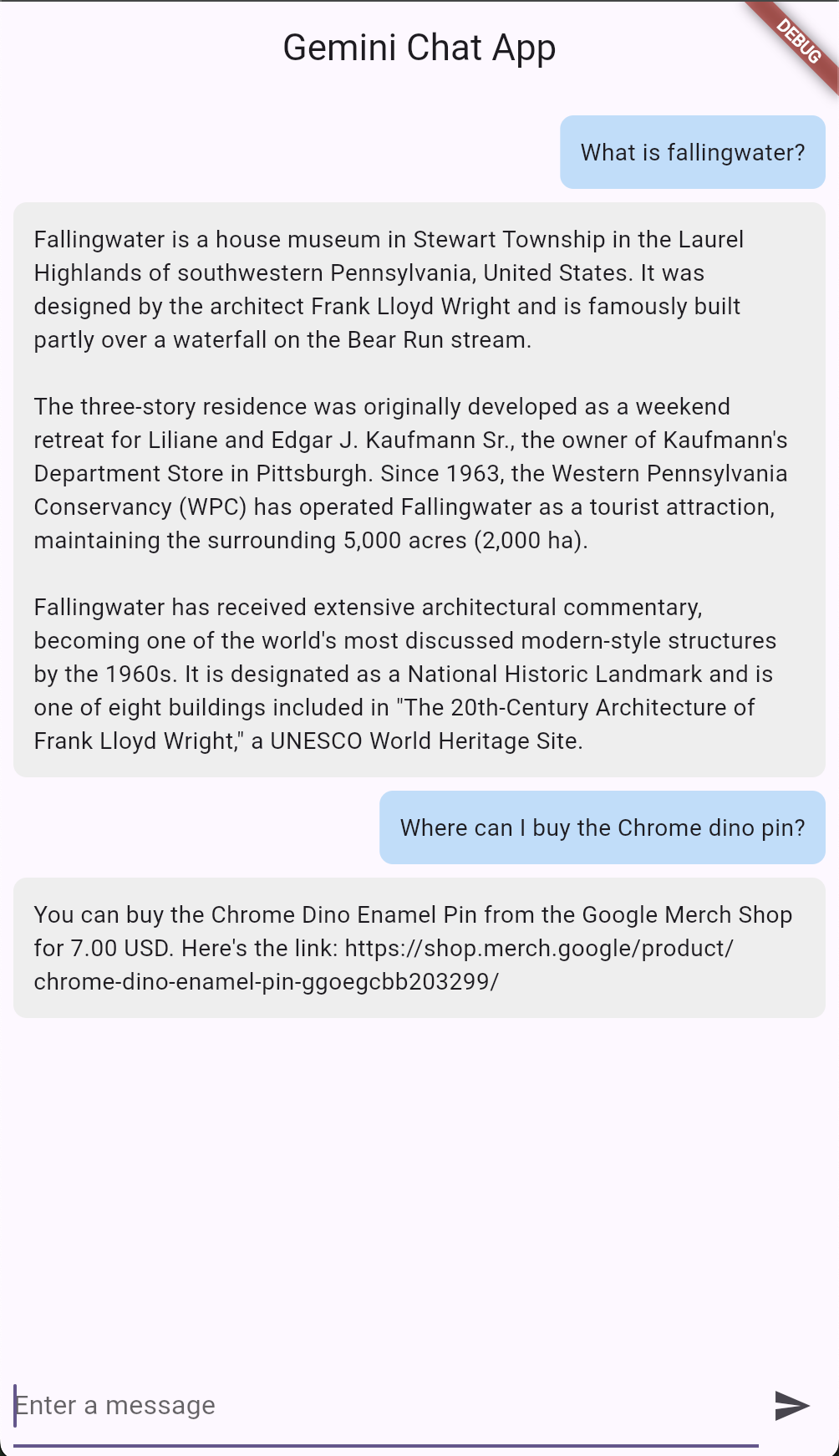
For the message at the bottom, type:
What is fallingwater? Write the answer in plaintext.
After a few seconds, the response from the backend agent is displayed in the app.
To test the app and agent, for message type:
Where can I buy the Chrome dino pin?
After a few seconds, the response from the backend agent is displayed in the app.
The chat app calls the /ask_gemini Cloud Run endpoint of the backend app, which then invokes the LangChain agent that uses Gemini to return a response from the Agent Search datastore.
To see the Flutter app snap to a mobile layout, resize your browser window to roughly the size of a mobile device:
This indicates that the Flutter app is responsive to changes based on the screen or window size. Flutter has widgets and packages that help make your app responsive and adaptive to changes based on device configuration.
To verify the objective, click Check my progress.
Develop and test the Flutter chat app.
End your lab
When you have completed your lab, click End Lab. Google Skills removes the resources you’ve used and cleans the account for you.
You will be given an opportunity to rate the lab experience. Select the applicable number of stars, type a comment, and then click Submit.
The number of stars indicates the following:
1 star = Very dissatisfied
2 stars = Dissatisfied
3 stars = Neutral
4 stars = Satisfied
5 stars = Very satisfied
You can close the dialog box if you don't want to provide feedback.
For feedback, suggestions, or corrections, please use the Support tab.
Congratulations!
In this lab, you:
Created a search data store and search app using AI Applications in the Google Cloud console.
Deployed a LangChain agent using Agent Platform Workbench.
Build a Python app that integrates with Agent Search and the LangChain agent.
Deployed the app to Cloud Run and use it as the backend for a Flutter app.
Developed a Flutter chat app and integrated it with the backend service to interact with Gemini.
Copyright 2026 Google LLC All rights reserved. Google and the Google logo are trademarks of Google LLC. All other company and product names may be trademarks of the respective companies with which they are associated.
Les ateliers créent un projet Google Cloud et des ressources pour une durée déterminée.
Les ateliers doivent être effectués dans le délai imparti et ne peuvent pas être mis en pause. Si vous quittez l'atelier, vous devrez le recommencer depuis le début.
En haut à gauche de l'écran, cliquez sur Démarrer l'atelier pour commencer.
Utilisez la navigation privée
Copiez le nom d'utilisateur et le mot de passe fournis pour l'atelier
Cliquez sur Ouvrir la console en navigation privée
Connectez-vous à la console
Connectez-vous à l'aide des identifiants qui vous ont été attribués pour l'atelier. L'utilisation d'autres identifiants peut entraîner des erreurs ou des frais.
Acceptez les conditions d'utilisation et ignorez la page concernant les ressources de récupération des données.
Ne cliquez pas sur Terminer l'atelier, à moins que vous n'ayez terminé l'atelier ou que vous ne vouliez le recommencer, car cela effacera votre travail et supprimera le projet.
Ce contenu n'est pas disponible pour le moment
Nous vous préviendrons par e-mail lorsqu'il sera disponible
Parfait !
Nous vous contacterons par e-mail s'il devient disponible
Un atelier à la fois
Confirmez pour mettre fin à tous les ateliers existants et démarrer celui-ci
Utilisez la navigation privée pour effectuer l'atelier
Le meilleur moyen d'exécuter cet atelier consiste à utiliser une fenêtre de navigation privée. Vous éviterez ainsi les conflits entre votre compte personnel et le compte temporaire de participant, qui pourraient entraîner des frais supplémentaires facturés sur votre compte personnel.
In this lab, you'll develop a LangChain agent using Gemini Enterprise Agent Platform and integrate it with a Flutter app.
Durée :
3 min de configuration
·
Accessible pendant 120 min
·
Terminé après 120 min


 .
.
 ), click Terminal > New Terminal.
 , and then click Open Folder.
 ), and then select Agent Platform > Notebooks.